
This guide is based on a browser-recorded walkthrough in the rebuilt DrillerDB console. When a step can send, submit, export, or change account access, the guide calls out the review boundary.
Scheduling turns approved project and service work into a daily crew plan. Use the Scheduling workspace to choose the view that fits the question: Calendar for timing, Board for dispatch review, Teams for crew capacity, Gantt for longer timeline shifts, Dispatch for work that has not been sent to a crew yet, and the Map button for a route map with mileage and drive time. The page opens on Board. This guide books one job on a crew's calendar; it does not dispatch a crew or notify field staff.
Quick Start
- Open Scheduling & Dispatch.
- Use Calendar to review timing and move between Month, Week, Day, and Agenda views.
- Use Board to scan scheduled work by crew for dispatch review.
- Use Teams to review crew capacity, members, vehicles, and scheduled work.
- Click Schedule, pick the project, date, crew, and duration, then save to book the job.
- Use Notify crew (under More actions) only after the dispatcher has reviewed the schedule change and crew recipients.
Step-by-Step: Scheduling & Crews
Open Scheduling
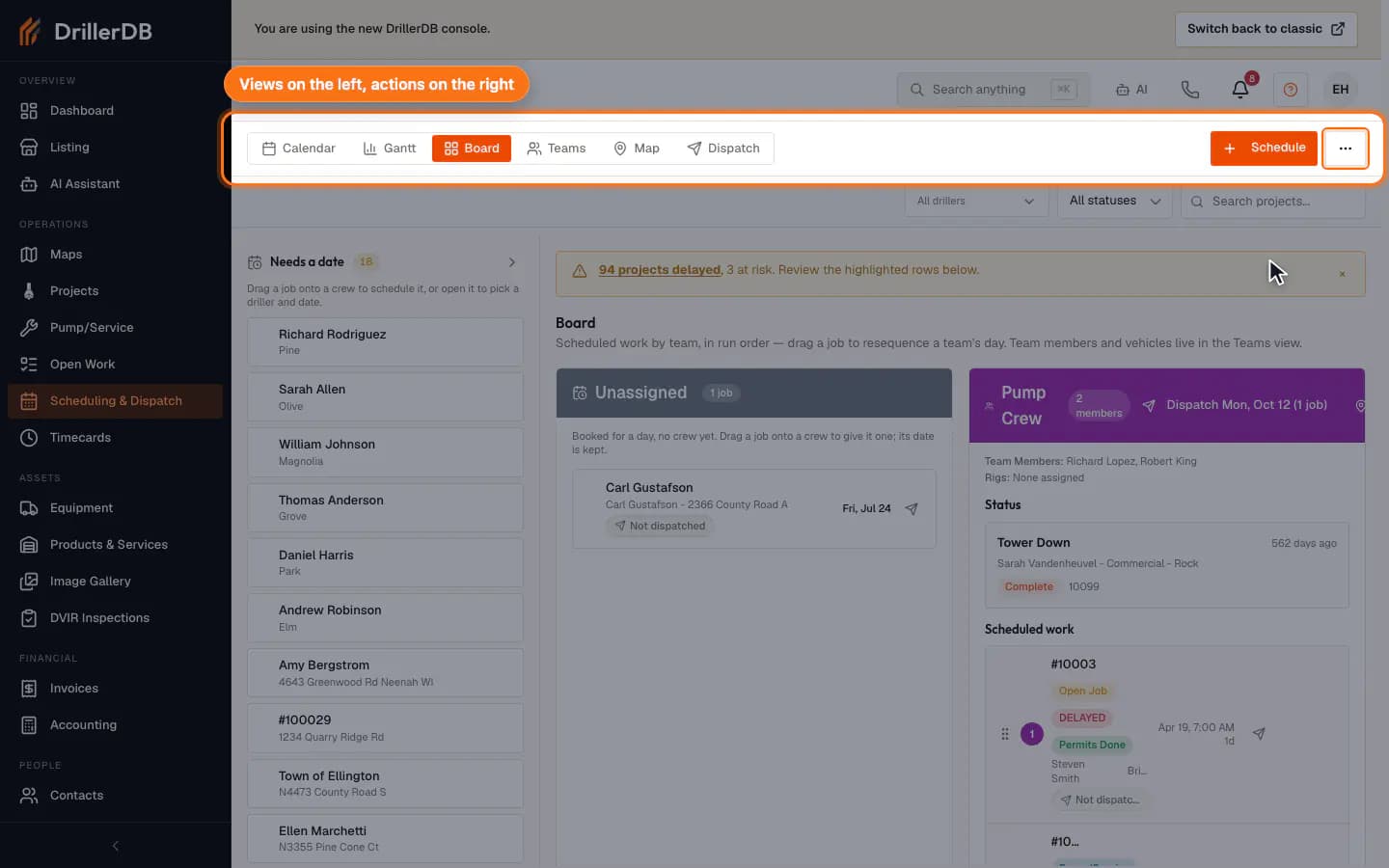
Open Scheduling & Dispatch to review the toolbar: the view switcher, the driller and status filters, project search, the Schedule button, and the More actions (...) menu with Notify crew, Export CSV, and Print.
Use Calendar for timing
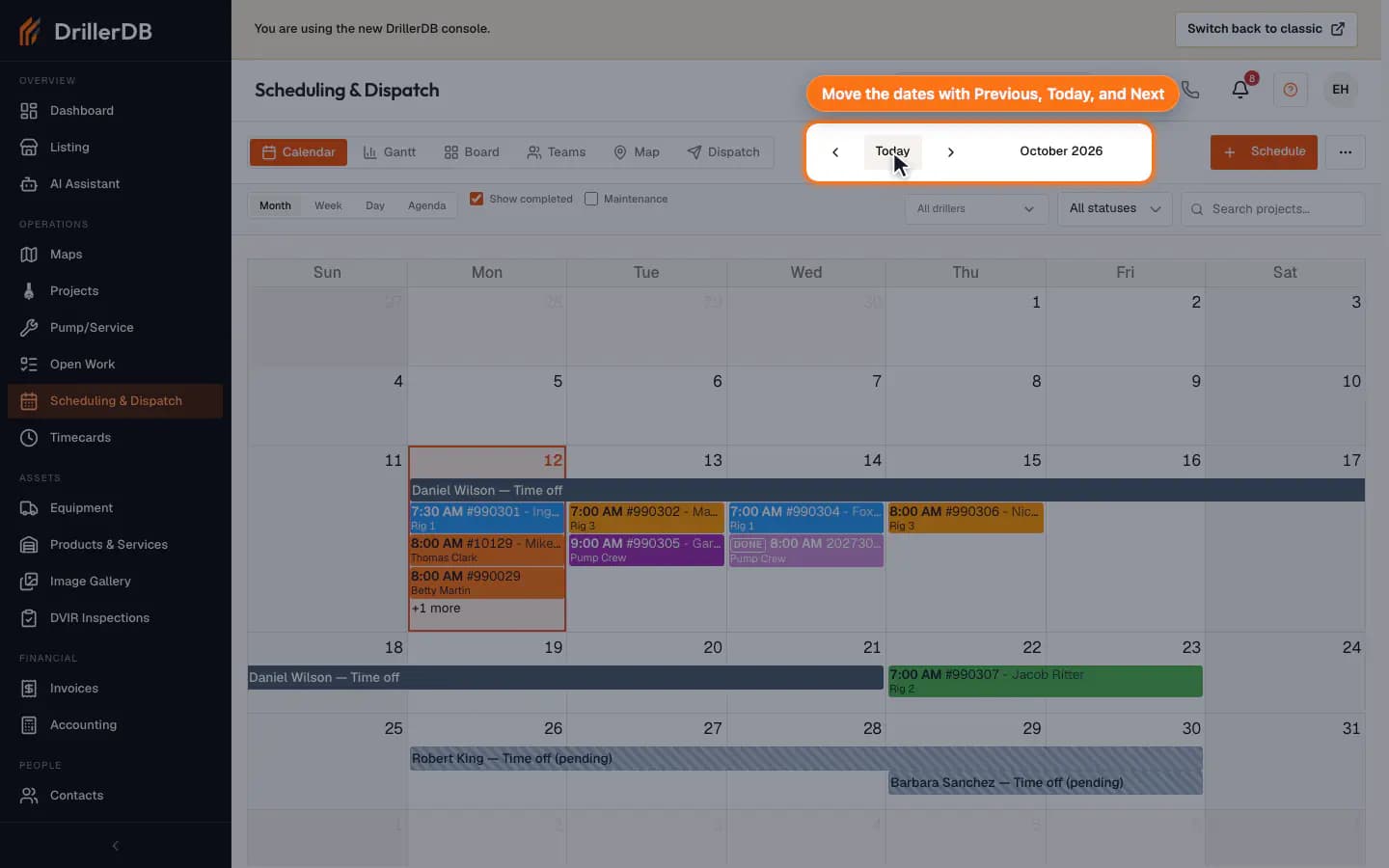
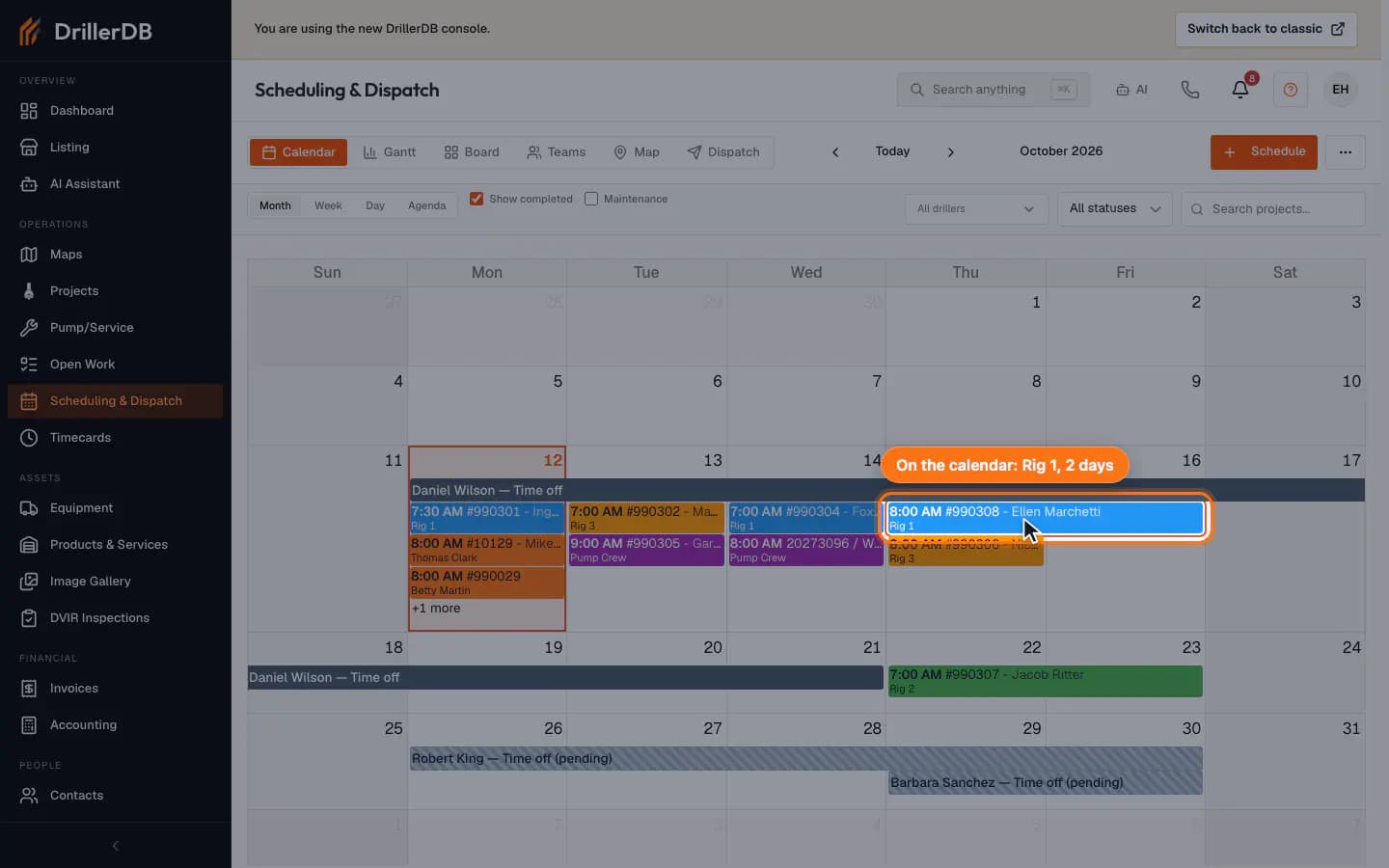
Use the Calendar controls to switch between Month, Week, Day, and Agenda views, then move the visible date range with the back and forward arrows and Today.
Dragging a calendar event can reschedule work. This guide only changes the visible mode and date range.
Use Board for dispatch review
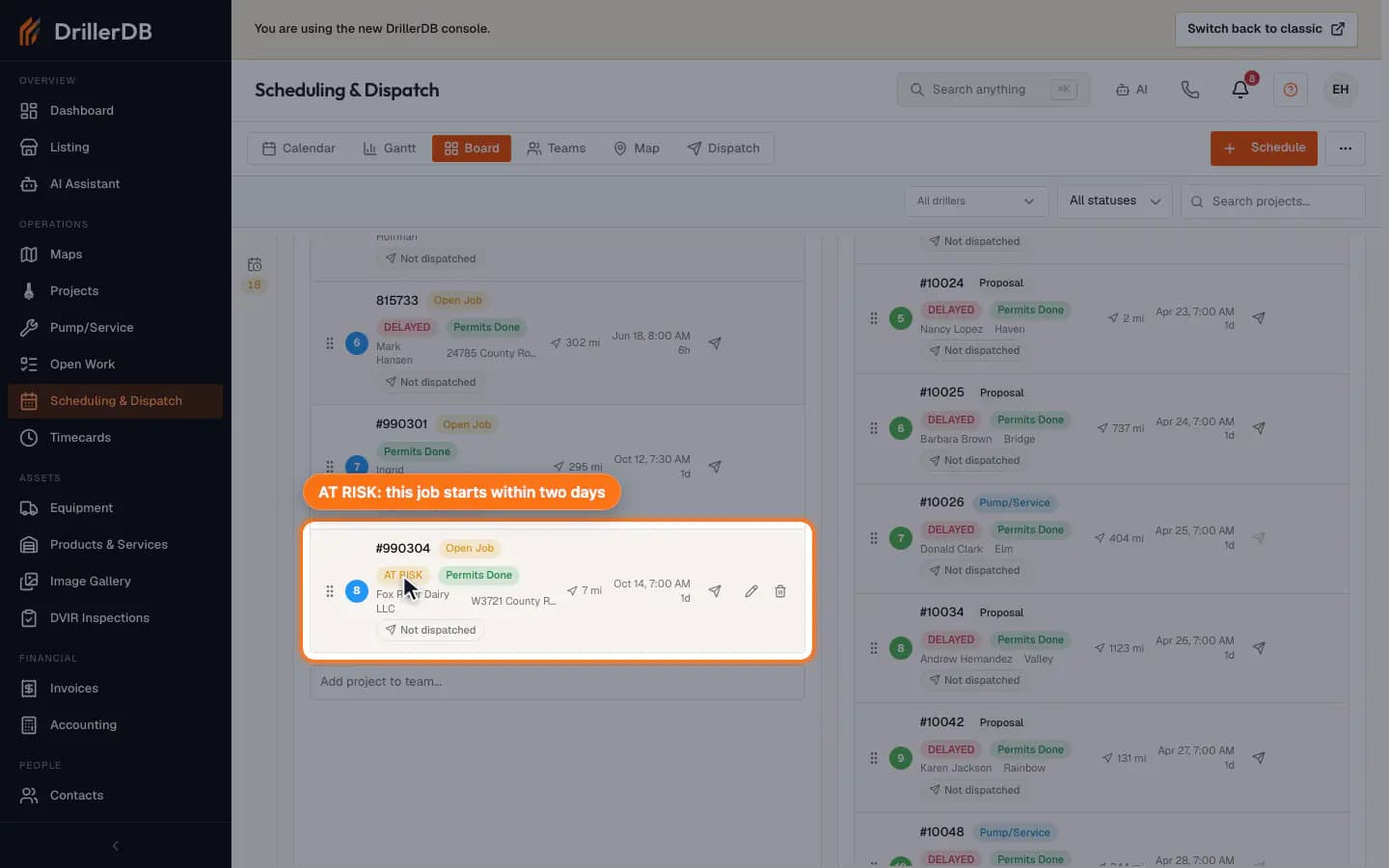
Switch to Board when the office needs to scan scheduled work by crew or driller, review project cards, and compare status, location, customer, and schedule timing. Jobs without a date wait in the Needs a date tray. Jobs that start within two days show AT RISK, and late ones show DELAYED.
Use Teams for crew capacity
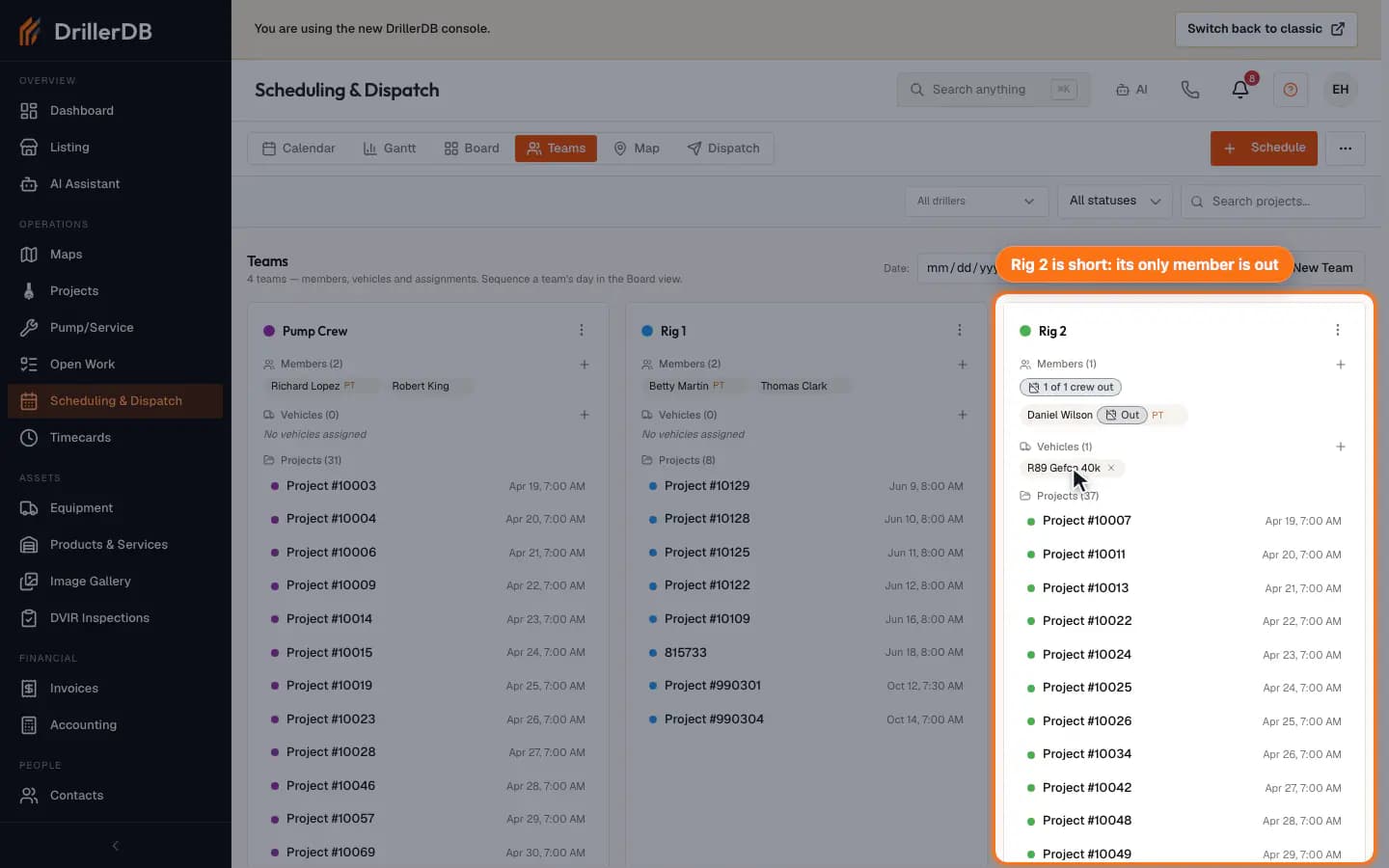
Switch to Teams to review crew groups, members, vehicles, workload, and scheduled projects before you decide whether work should be assigned or moved.
Schedule a project
Click Schedule, search for the project, set the Scheduled date and Time, pick the crew in Assign to, and set the Estimated duration. Click Schedule to save; View on calendar in the confirmation opens the booked day.
Notify crew is visible to crews. Preview and send schedule notifications only after the dispatcher has reviewed the schedule change.
Dispatch boundary
This guide books one job on a crew's calendar; it does not dispatch a crew or notify field staff.
Use Schedule only after the project or work order, crew/driller, date, optional time, and duration have been reviewed. Use Notify crew only after the dispatcher confirms the recipient preview and wants crew members contacted.