
This guide is based on a browser-recorded walkthrough in the rebuilt DrillerDB console. When a step can send, submit, export, or change account access, the guide calls out the review boundary.
Start from the customer's Contacts page whenever the job may be quoted or billed. That path attaches the customer directly to the Pump/Service job. You can also start from the Pump/Service list and search for the customer on the form. DrillerDB generates the project number for you; link an existing project only when the service work belongs to a drilling job you already have.
Quick Start
- Open Contacts, choose the customer, and click New Pump/Service.
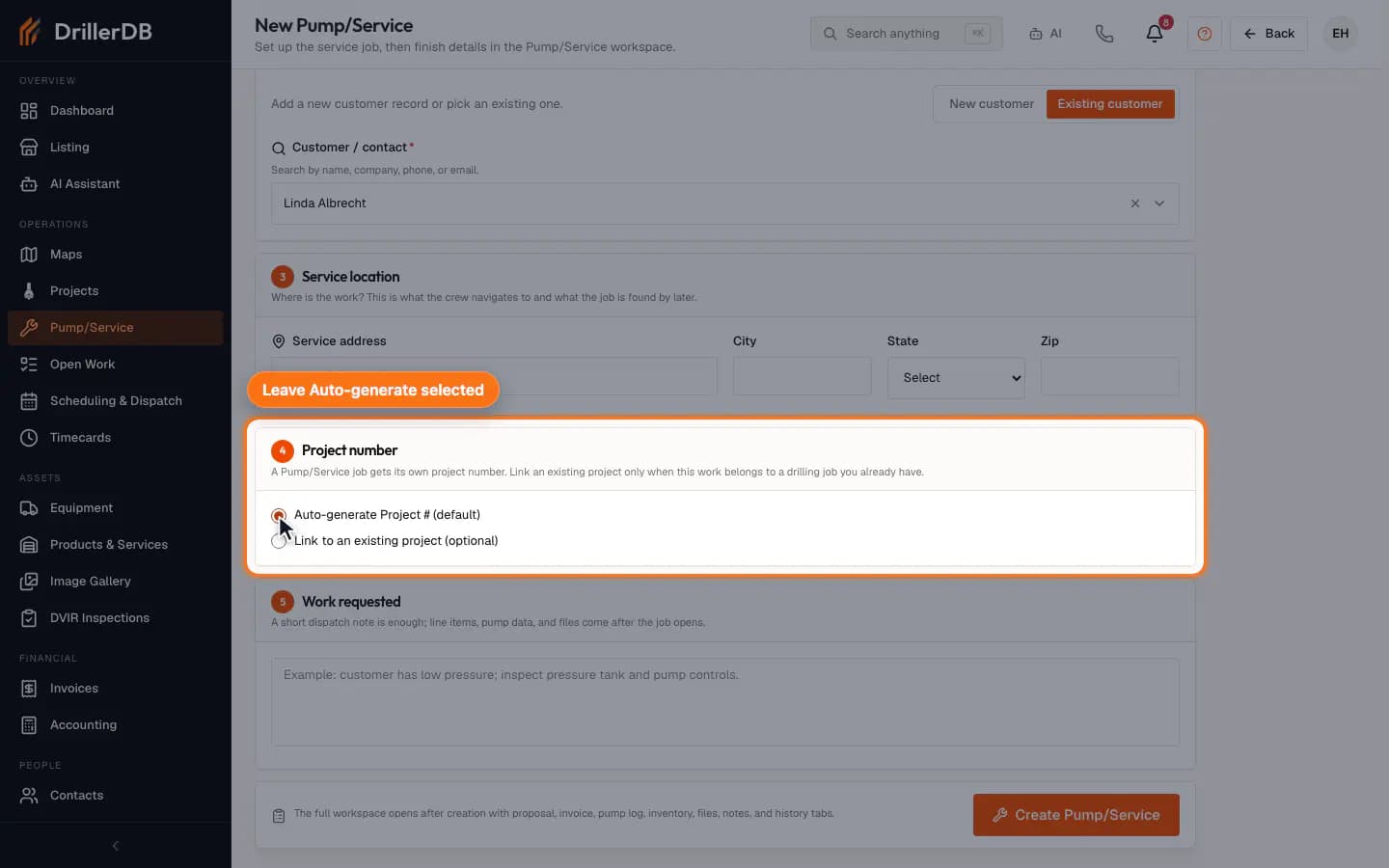
- Leave Project number set to Auto-generate Project # (default); DrillerDB assigns the number.
- Choose Link to an existing project (optional) only when the service work belongs to a drilling job you already have.
- Choose the category, optionally assign a field tech, and add the work requested note.
- Confirm the customer, then click Create Pump/Service. If the customer is unassigned, add one in the workspace Contacts tab before invoicing.
Step-by-Step: Create a Pump/Service Job
Open the customer and click New Pump/Service
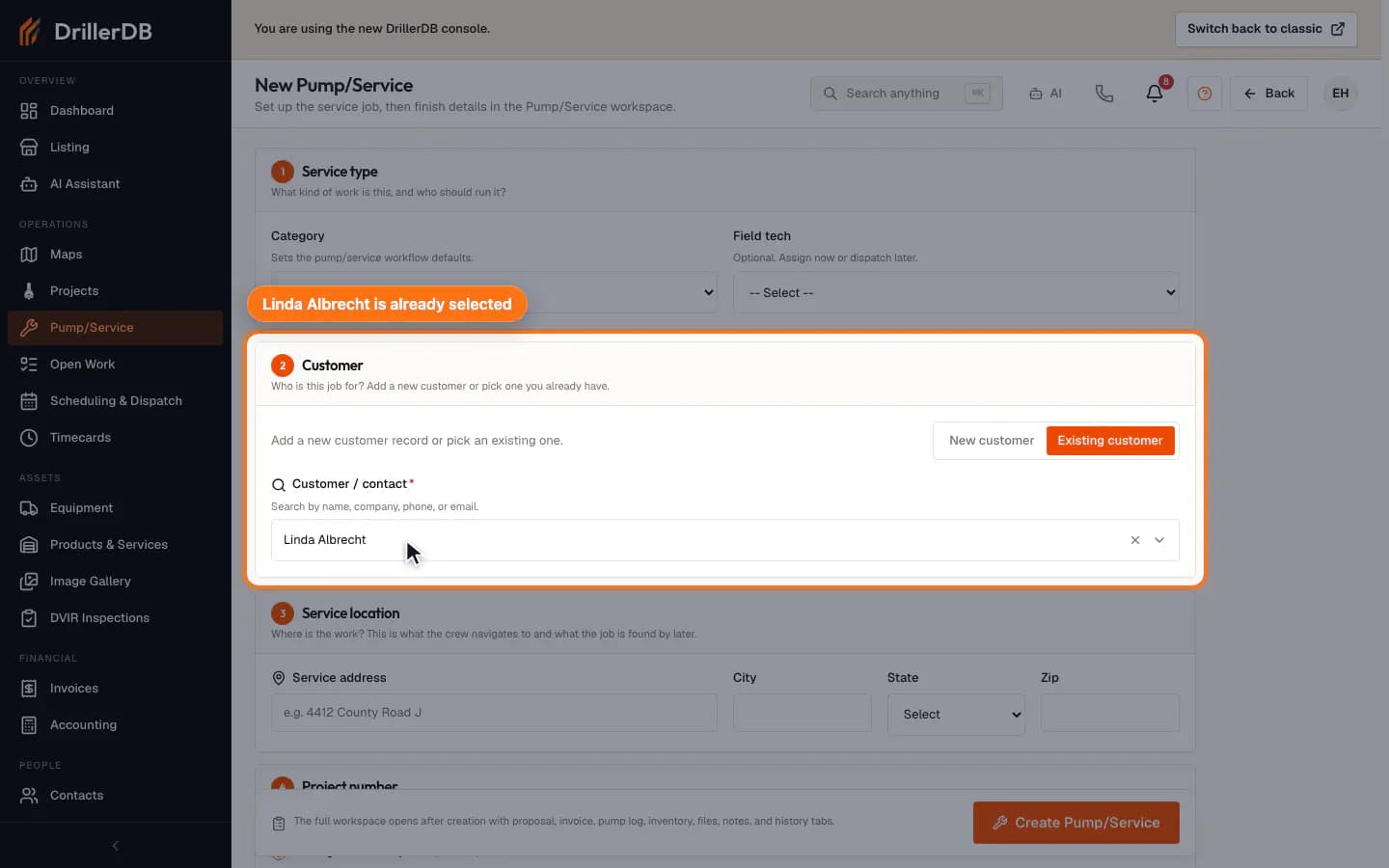
Click Contacts in the left sidebar and open the customer. Click New Pump/Service at the top of the page. If you do not see it, click More first. The setup form opens with that customer already selected.
You can also start from Pump/Service > New Pump/Service. The form opens on New customer; click Existing customer and search in the Customer / contact field. A name typed under New customer creates a new contact.
Leave the project number on Auto-generate
Auto-generate Project # is selected by default, and it is the right choice for most pump and service calls: a Pump/Service job is its own project, so DrillerDB creates the project record with it. Choose Link to an existing project (optional) only when this work belongs to a drilling job you already have, then search for that project by address, customer name, or project number and pick it from the list.
You do not need to create a project first. New Project > Pump/Service brings you to this same form, carrying the customer you already picked.
Choose the category and describe the work
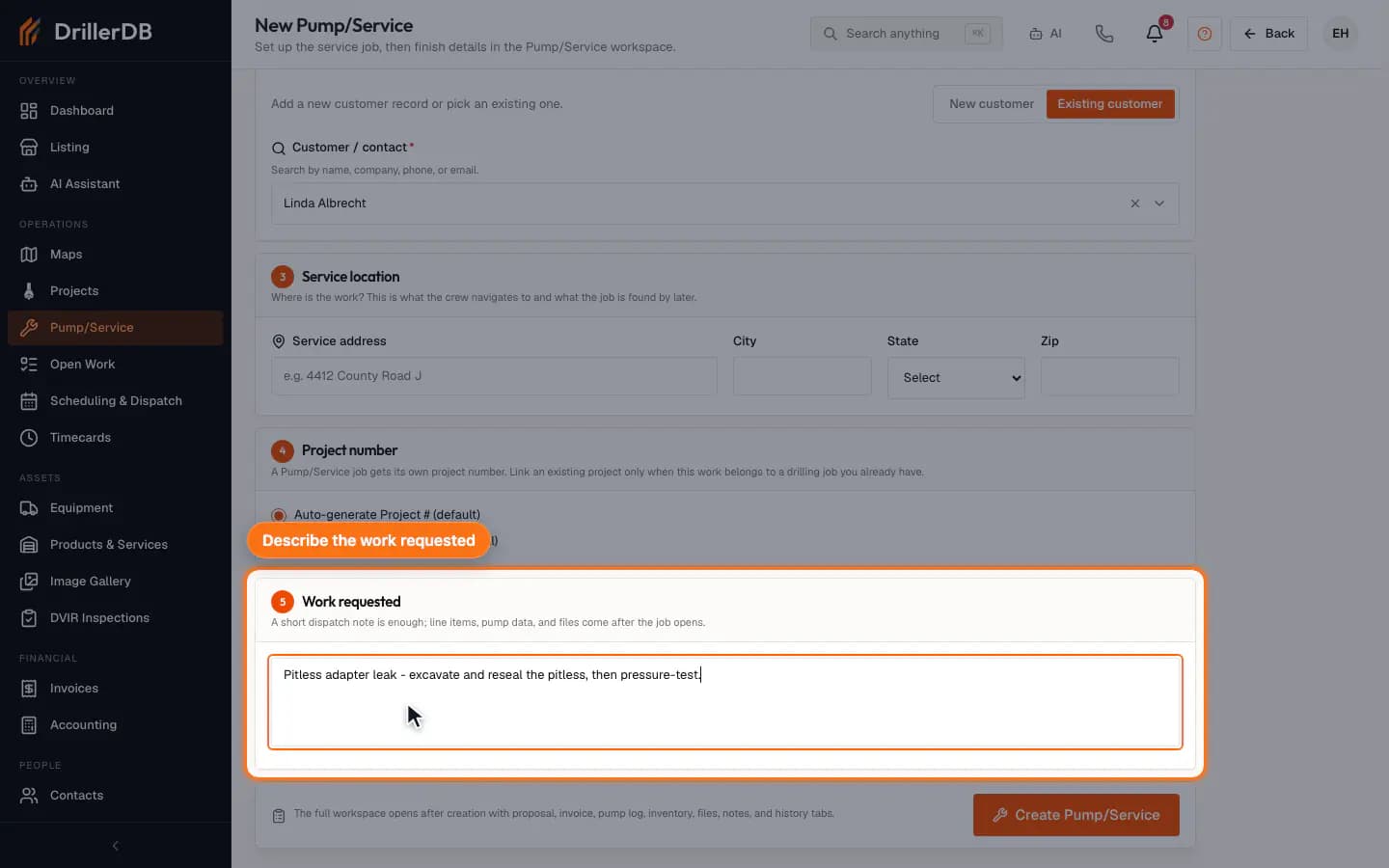
Choose the closest service category. You can assign a field tech now or leave it blank and dispatch the job later. In Work requested, write the short note the office or field tech needs, such as 'Pitless adapter leak - excavate and reseal the pitless, then pressure-test.'
A short request is enough at creation time. Add labor, parts, pump data, files, and billing details after the workspace opens.
Confirm the customer, then create the job
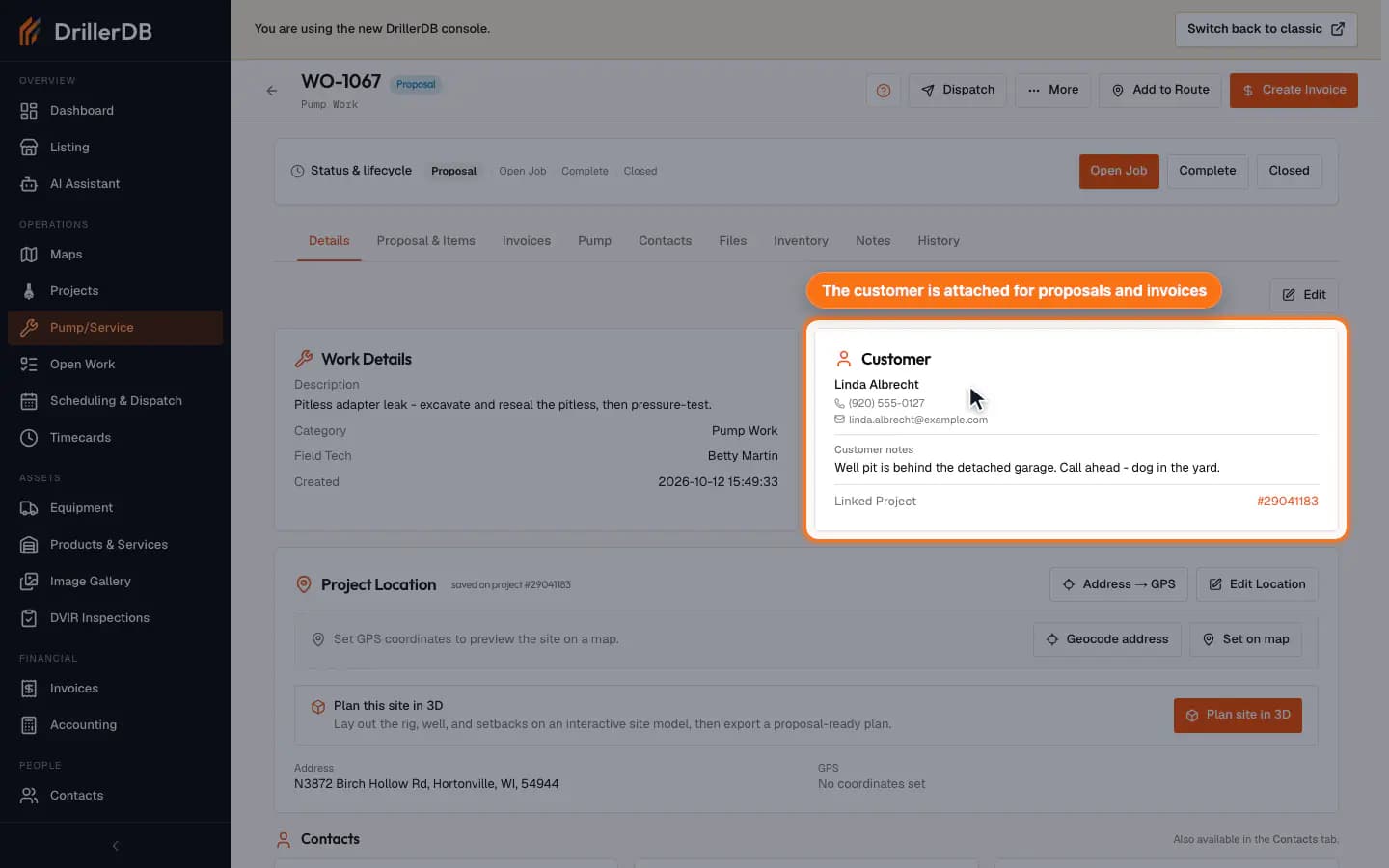
Confirm Customer shows the person or company that should receive the proposal or invoice; search for them in that field if it is empty. In Service location, enter the address the crew drives to: street, City, State, and Zip (starting from a contact page does not fill it). If your company sends an opened-job email, an Open the job now box appears; clear it to keep the job in Proposal. Then click Create Pump/Service. DrillerDB creates the service job in Proposal status and opens the workspace.
Service workflow context
The preferred path is Contacts > customer > New Pump/Service because it directly attaches the customer needed for proposals and invoices. Starting from the Pump/Service list leaves the customer unassigned; add the customer in the workspace Contacts tab before creating an invoice.
A Pump/Service job gets its own project number. Step 4 of the form defaults to Auto-generate Project # (default), so no parent project is needed and nothing has to be created first. Choose Link to an existing project (optional) only when the service work belongs to a drilling job you already have, then search for it by address, customer name, or project number.
Continue the service path with Run a Pump/Service Work Order for status, service items, and completion, then use Quote Service Work when customer pricing needs to be saved before delivery.