
Pump & Service Work Order Details
The Pump/Service workspace is where the office and field team keep a service job moving from the first customer call through completion and billing. This guide covers the header, the status lifecycle, and each tab.
Quick Start: Open a Work Order
- Open Pump/Service from the sidebar.
- Click any job to open its workspace.
- Use the tabs to move between sections.
- Edit a tab, then click Save.
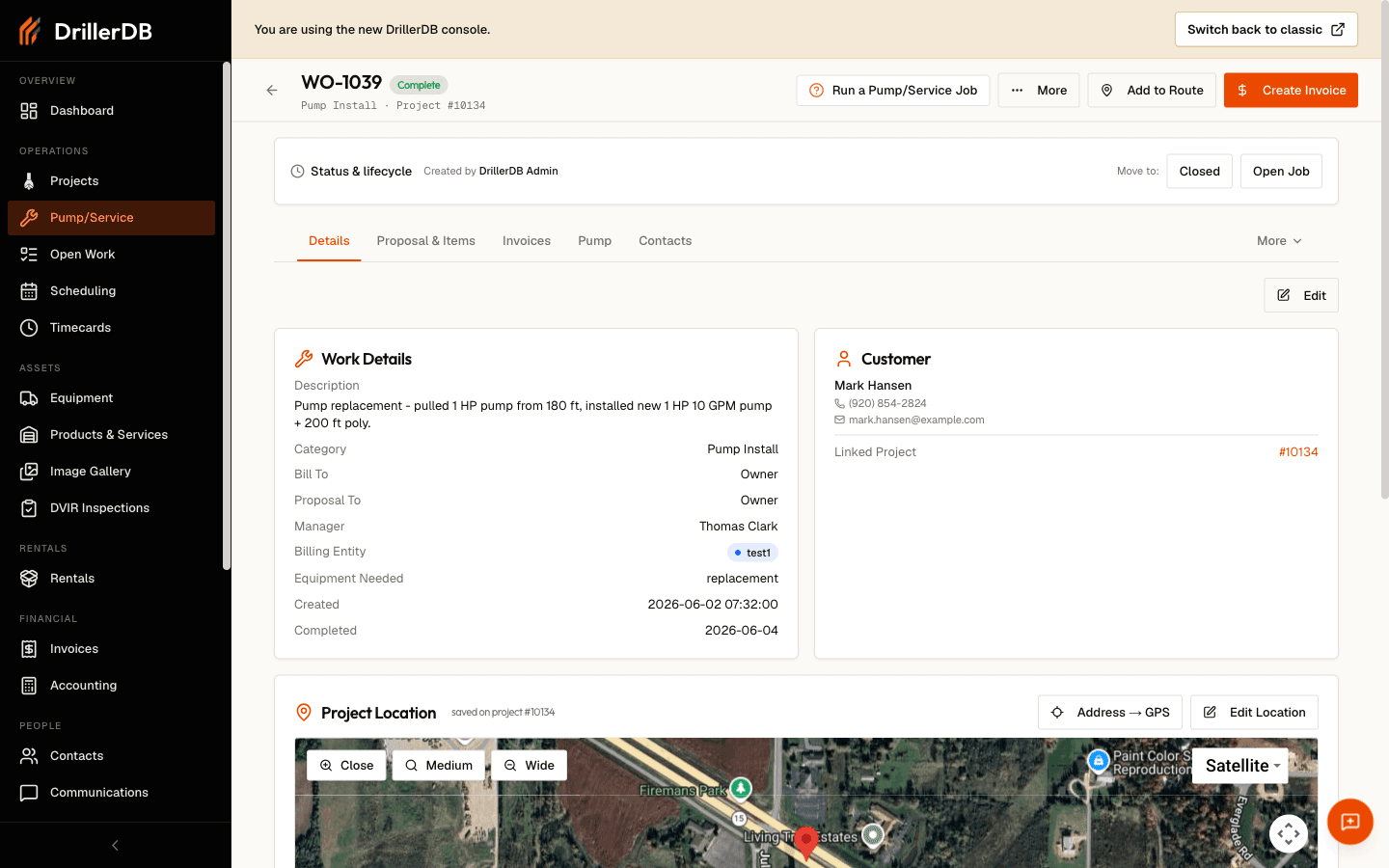
The Header
Every Pump/Service job opens with a sticky header:
| Element | Description |
|---|---|
| Title | The job number, shown as WO-1042, with the category and linked project number below it |
| Status badge | The current lifecycle stage (Proposal, Open Job, Complete, or Closed) |
| Dispatch | Notify the assigned field tech (shown while the job is in Proposal or Open Job) |
| Create Invoice | Start an invoice for the job (office, admin, and accountant roles) |
| Add to Route | Add or remove the job from today's route |
| More | Field Form, Print Proposal, Map Header, Share link, Open in Google Maps, and Delete |
Some actions depend on your role. The Invoices tab and Create Invoice are limited to office, admin, and accountant users; Delete and Dispatch are limited to office and admin (Dispatch also allows field supervisors).
Status Lifecycle
Pump/Service jobs move through four stages. The Status & lifecycle card below the header shows who created the job, any schedule placement, and a Move to control with the valid next stages.
| Status | Meaning |
|---|---|
| Proposal | The job is being quoted or prepared |
| Open Job | The work is active for dispatch and field work |
| Complete | Field work is finished and the job is ready for billing |
| Closed | The job is done and archived |
Typical progression is Proposal → Open Job → Complete → Closed. You can move backward when needed (for example, reopening a Complete job to Open Job); backward moves ask for confirmation and are logged.
Tab-by-Tab Guide
The workspace has these tabs. The five most-used render inline; the rest fold into a More menu on the tab bar.
Details
The main service record. In edit mode you can set the Description, Category, Field Tech, Manager / Supervisor, Date Completed, Equipment Needed, and Admin Notes. When the category is pump work, Pump Type and Work Type appear. Users with billing access also see Bill To, Proposal To, $ Billed, and (for multi-entity companies) the Billing Entity.
The Details tab also shows the Customer card, an editable Project Location card (which saves to the linked project), and inline Contacts for the Owner/Customer, Builder/Contractor, and Pump Installer.
Use Equipment Needed for field-ready logistics and Admin Notes for internal office instructions.
Proposal & Items
The quoting surface. On a pump/service job the quote lines are the service items, so this one tab holds both. It uses the same proposal builder as projects: sections, line items, templates, terms, tax totals, print, and the customer send flow. See Quote Service Work.
Invoices
Lists the invoices raised against the job and starts new ones. See Work Order Billing.
Pump
Captures pump installation data and shows the history of submitted pump-log reports. See Pump Logs.
Inventory
Parts and stock pulled for the job, with quantities and costs.
Contacts
The people attached to the job: Owner / Customer, Builder / Contractor, and Pump Installer. The same contacts appear inline on the Details tab; this tab is for focused editing.
Files
Photos and documents attached to the job.
Notes
Timestamped notes for the job, tagged with the author.
History
The activity trail for the job: status changes, edits, dispatches, and other logged events.
Editing and Saving
- Open the relevant tab.
- Click Edit.
- Make your changes.
- Click Save (the Details tab has a sticky save bar with Save and Save & Close).
Related Topics
- Create a Pump/Service Job - Start a new job
- Run a Pump/Service Job - Move a job through its lifecycle
- Assigning & Scheduling Service Work - Field tech and schedule
- Pump Logs - Pump installation data
- Work Order Billing - Invoice completed work