
Assigning & Scheduling Service Work
Getting a Pump/Service job to the right person happens in a few connected places: you assign a field tech on the job, notify them with a dispatch, place the job on the schedule, and add it to today's route. This guide covers each step.
Quick Start: Assign and Notify
- Open the Pump/Service job.
- On the Details tab, set the Field Tech, then Save.
- Move the status to Open Job when the work is active.
- Click Dispatch in the header to notify the tech.
Assign a Field Tech
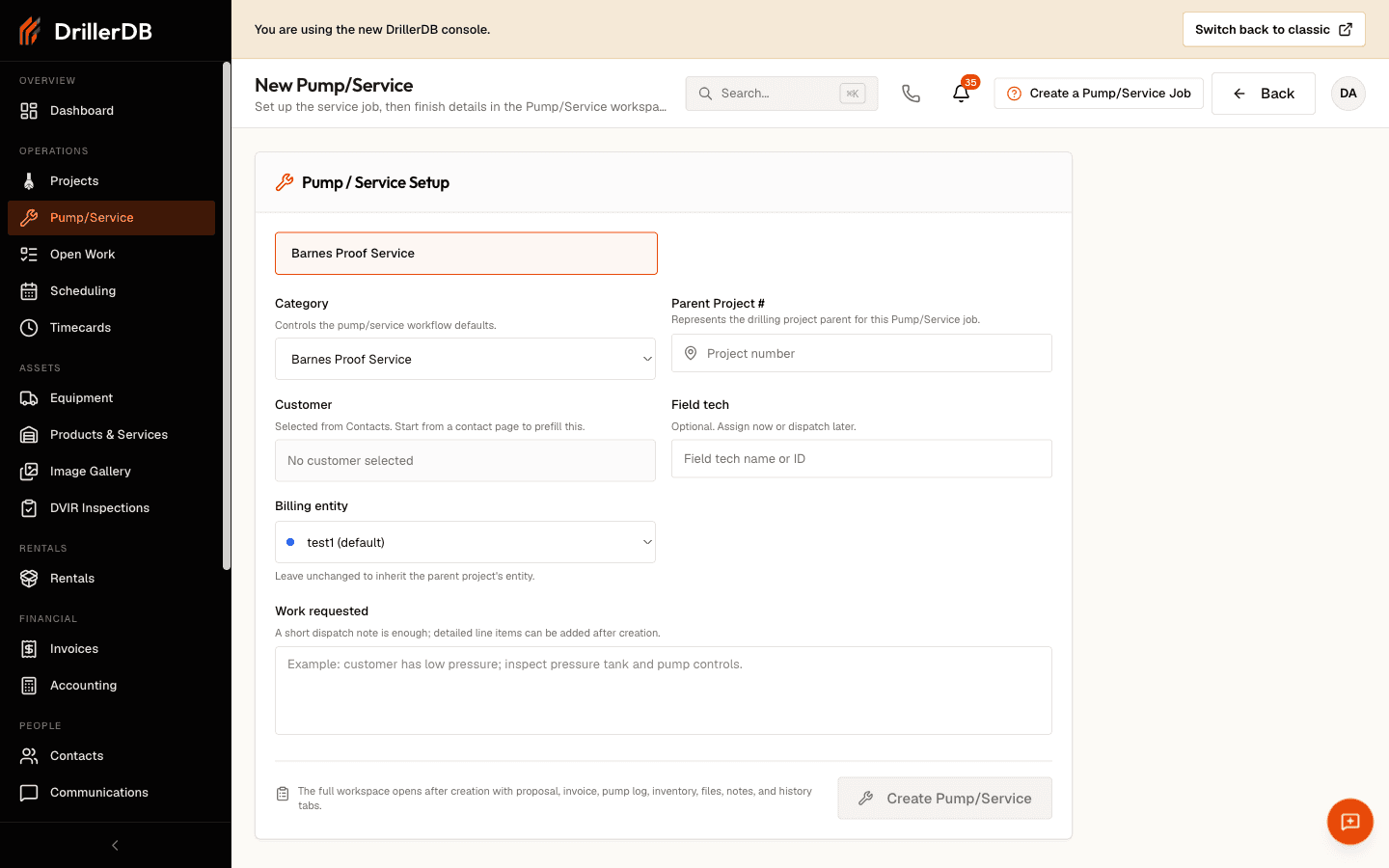
The field tech is a field on the job itself, not a separate dispatch board. You can set it right on the New Pump/Service form when creating the job, or any time afterward on the Details tab.
- Open the job and go to the Details tab.
- Click Edit.
- Choose a Field Tech from the list of your field users.
- Optionally set a Manager / Supervisor.
- Click Save.
Office-only users are not shown in the Field Tech list, since they are not dispatchable techs. If the person you want is missing, check their role in Settings.
Notify the Tech (Dispatch)
The Dispatch button sends the assigned tech a notification. It appears in the header while the job is in Proposal or Open Job (for office, admin, and field-supervisor roles).
- Click Dispatch in the job header.
- Confirm or change the Field Tech. The dialog shows the tech's email and phone on file.
- Add an optional Message with instructions for the tech.
- Choose the channels: Send Email, Send Text, or both.
- Click Dispatch.
If the selected tech has no email or no phone on file, uncheck that channel (or add the contact info) before dispatching. Sending is blocked for a channel the tech cannot receive.
If a dispatch fails after it may have been sent, reload the job and check the History tab before retrying, so you do not send a duplicate email or text.
Schedule the Job
Pump/Service jobs can be placed on the crew schedule alongside drilling projects. Once a job is scheduled, the Status & lifecycle card shows a "Scheduled #N for [crew]" badge with the crew's color, so the office can see the queue position at a glance.
Schedule and reorder jobs from the scheduling surface. See Scheduling.
Add to Today's Route
Use the Add to Route button in the job header to place the job on today's route for a crew. The button toggles to On Route once the job is added; click again to remove it. This is the fast way to build a day's stops without opening the full scheduler.
Reassigning
To hand a job to a different tech, open it, edit the Field Tech on the Details tab, save, and dispatch again to notify the new tech. The change is recorded on the History tab.
Troubleshooting
No Dispatch button?
- The job must be in Proposal or Open Job status.
- Your role must be office, admin, or field supervisor.
Tech not in the list?
- Confirm the user has a field role (office-only users are excluded).
- Check the user is active in Settings.
Dispatch won't send?
- A requested channel (email or text) has no address or number on file for that tech.
- Uncheck the unavailable channel or add the missing contact info.
Related Topics
- Work Order Details - The job workspace
- Run a Pump/Service Job - Move a job through status
- Scheduling - Crew schedule and route planning