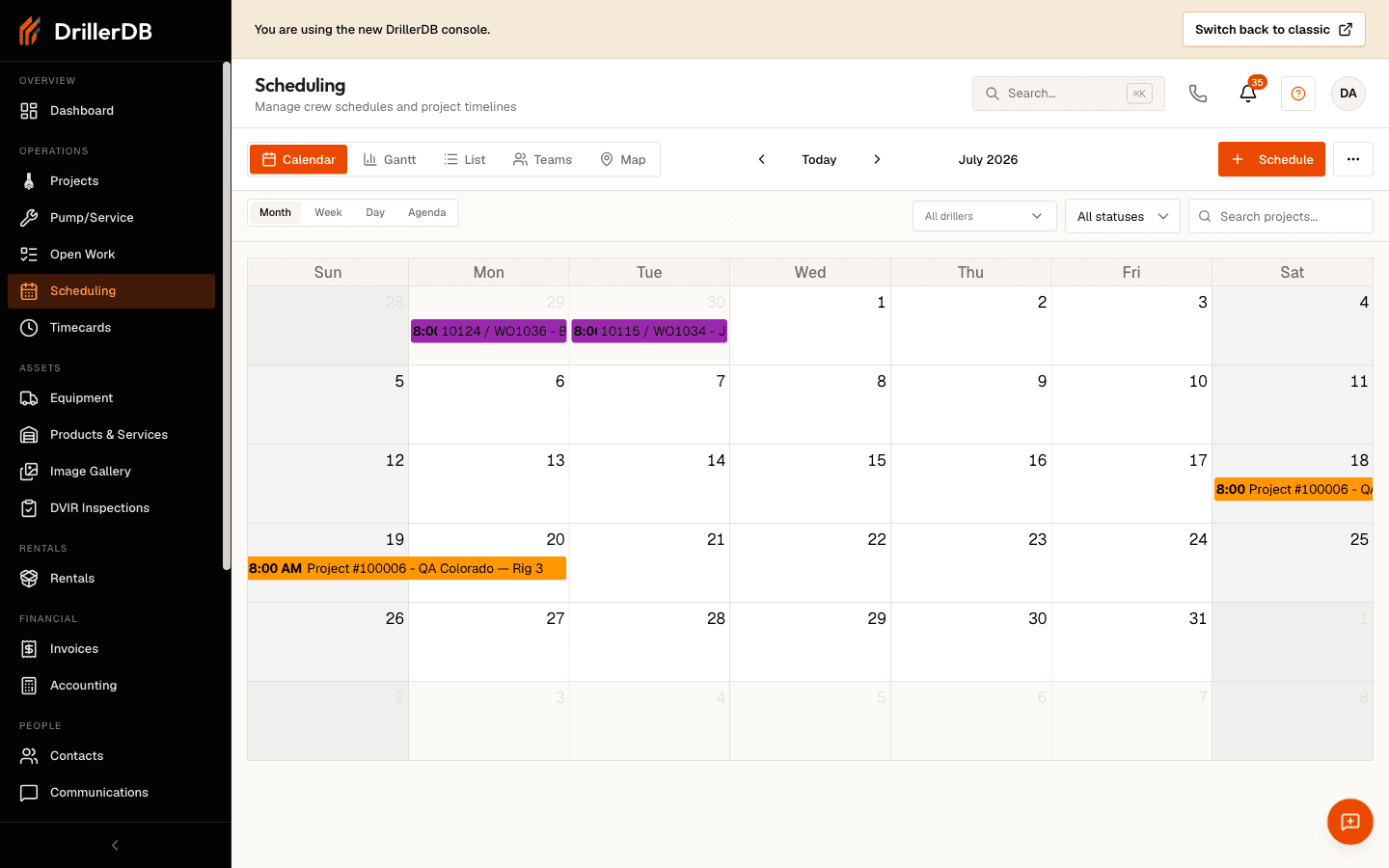
Calendar View
Calendar is one of the views in the Scheduling workspace. It provides a familiar calendar interface - month, week, day, or agenda - for visualizing and managing your scheduled work. This view makes it easy to see project timelines at a glance and quickly reschedule jobs by dragging events to new dates.
Open Scheduling from the sidebar
Click Calendar in the toolbar view switcher
Select a display mode (Month, Week, Day, or Agenda)
Drag events to reschedule
Click an event to view project details
Step-by-Step: Access the Calendar View
Open Scheduling from the sidebar
Click Calendar in the toolbar view switcher
The view loads with your schedule
The system remembers this preference
Mode Best For Shows Month Long-term planning, identifying busy periods Full month with colored event blocks Week Detailed daily scheduling Seven days with hourly time slots Day Focusing on a single day One day with hourly time slots Agenda Reviewing work in sequence Chronological sorted list
Step-by-Step: Change Display Mode
Locate the mode buttons in the toolbar
Click the desired mode button:
Month for overviewWeek or Day for hourly detailAgenda for a sequential list
Calendar updates immediately
Navigation Controls
Control Action ← Previous Move back in time → Next Move forward in time Today Return to current date
Display Element What It Shows Event color Team assignment Event text Customer, well type Event position Scheduled date/time Tooltip (hover) Additional details
Step-by-Step: Navigate to Date
Use ← / → arrows to move through months/weeks
Click Today to return to current date
Or click a specific date cell in Month View
Events are color-coded by team. Learn your team colors to quickly identify assignments at a glance.
From Month View to Week View
Find date in Month View
Click the date cell
Week View opens for that day
See hourly schedule details
Viewing Project Details
Click any event block
Project details modal opens:
Customer information
Project location
Estimated hours
Current status
Click Edit to modify project
Click View Full to open project record
In Month View
Action How Move to new date Drag event to different day cell Copy event Not supported (use List View)
In Week View
Action How Change date Drag event to different day Change time Drag event to different hour slot Adjust duration Drag event edge to resize
Step-by-Step: Reschedule a Project
Click and hold the event block
Drag to new date/time
Release mouse button
System validates the change:
If valid: saves automatically
If conflict: reverts with warning
Cascade scheduling updates following projects
When you move a project, all subsequent projects for that team automatically shift to maintain proper sequencing.
What Happens Result Move project earlier Following projects shift earlier Move project later Following projects shift later Resize to longer Following projects shift later Resize to shorter Following projects shift earlier
Event Type Appearance When Used All-Day Spans full day(s) No specific start time set Timed Shows at specific hour Start time is configured
Working Hours
Setting Default Effect Start time 8:00 AM Cannot schedule before End time 5:00 PM Cannot schedule after Work days Mon-Fri Weekends skipped
Settings That Save Automatically
Setting What's Saved Display mode Month/Week/Day/Agenda preference Last viewed date Returns to same timeframe View zoom level Week view time scale
Work Week Configuration
Option Effect 5-day week Weekends hidden 6-day week Saturdays shown 7-day week All days shown
Configure work week in Settings > General Settings .
Events not appearing?
Check date range is correct
Verify team filter isn't excluding projects
Refresh the page
Can't drag events?
Ensure you're clicking on the event block
Check for browser compatibility
Try disabling browser extensions
Changes not saving?
Check internet connection
Look for error messages
Wait for processing indicator to complete
Wrong times displayed?
Check timezone settings
Verify working hours configuration
Ensure project has correct estimated hours
Events overlapping incorrectly?
Review conflict detection warnings
Check if cascade scheduling is disabled
Manually adjust overlapping events