
Job Labels: Number First or Customer First
Every scheduled job has a short label. You read it on the calendar, the list, the Gantt chart, the crew cards and the map. Dispatch texts and emails use it to name the job.
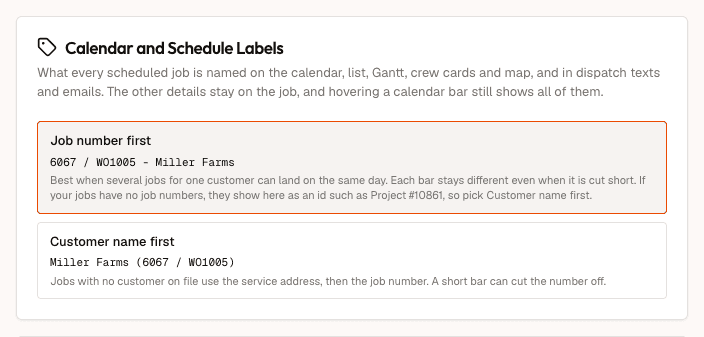
One company setting decides what the label starts with: the job number or the customer. The setting is on the Calendar and Schedule Labels card in Settings > Scheduling. Admin and office users can change it.
Quick Start: Put the Customer Name First
- Go to Settings > Scheduling.
- Find the Calendar and Schedule Labels card.
- Click Customer name first.
The change saves when you click it. There is no Save button.
The Two Choices
| Choice | On the schedule | In a dispatch |
|---|---|---|
| Job number first (the default) | 6067 / WO1005 - Miller Farms | Project #16687 |
| Customer name first | Miller Farms (6067 / WO1005) | Miller Farms (Project #16687) |
Job number first is best when several jobs for one customer can land on the same day. Each calendar bar stays different, even when the bar is too short to show the whole label.
Customer name first puts the customer at the front. If a job has no customer on file, the schedule uses the service address, and then the job number. A short calendar bar can cut the number off.
Hover over a calendar bar to see all of the job's details. The setting changes only the label. The job, its number and its customer stay the same.
Which number is shown
- On the schedule: the job number your company gives the job, such as 6067 / WO1005. A job with no job number shows its DrillerDB number, such as Project #10861. If your jobs have no job numbers, choose Customer name first.
- In a dispatch: always the DrillerDB number: Project # for a drilling project, or Pump/Service # for a service job.
Step-by-Step: Change the Label Setting
- Go to Settings > Scheduling. The Scheduling Settings page opens.
- Find the Calendar and Schedule Labels card. Each choice shows an example label.
- Click Job number first or Customer name first.
- Wait for the check mark next to your choice. The setting now applies to your whole company.
- If a Scheduling page is already open in another tab, reload it to see the new labels.
If you see "That change was not saved. It needs an admin or office account.", ask an admin or office user to make the change.
What Changes in Dispatch Texts and Emails
When you dispatch a crew, the setting also decides how the text and the email name the job. See Assigning & Scheduling Service Work for how to send a dispatch.
- The text starts: "Hello (name), you have been dispatched to (label)."
- The email subject is: "Dispatch for (label) from (your company name)".
- The Dispatch Crew window shows the same label in its preview before you send.
With Job number first, the label is the number alone, such as Project #16687. With Customer name first, it is the customer and then the number, such as Miller Farms (Project #16687). If the job has no customer name, the dispatch uses the number alone.
The address and customer lines in the text do not change.
Troubleshooting
The calendar still shows the old labels. The Scheduling page reads the setting when it loads. Reload the page.
Several jobs for one customer look the same on the calendar. With Customer name first, a short bar can cut off the number that tells the jobs apart. Hover over each bar to see its number, or switch back to Job number first.
The Calendar and Schedule Labels card does not save my choice. Only admin and office users can change this setting.