
Scheduling
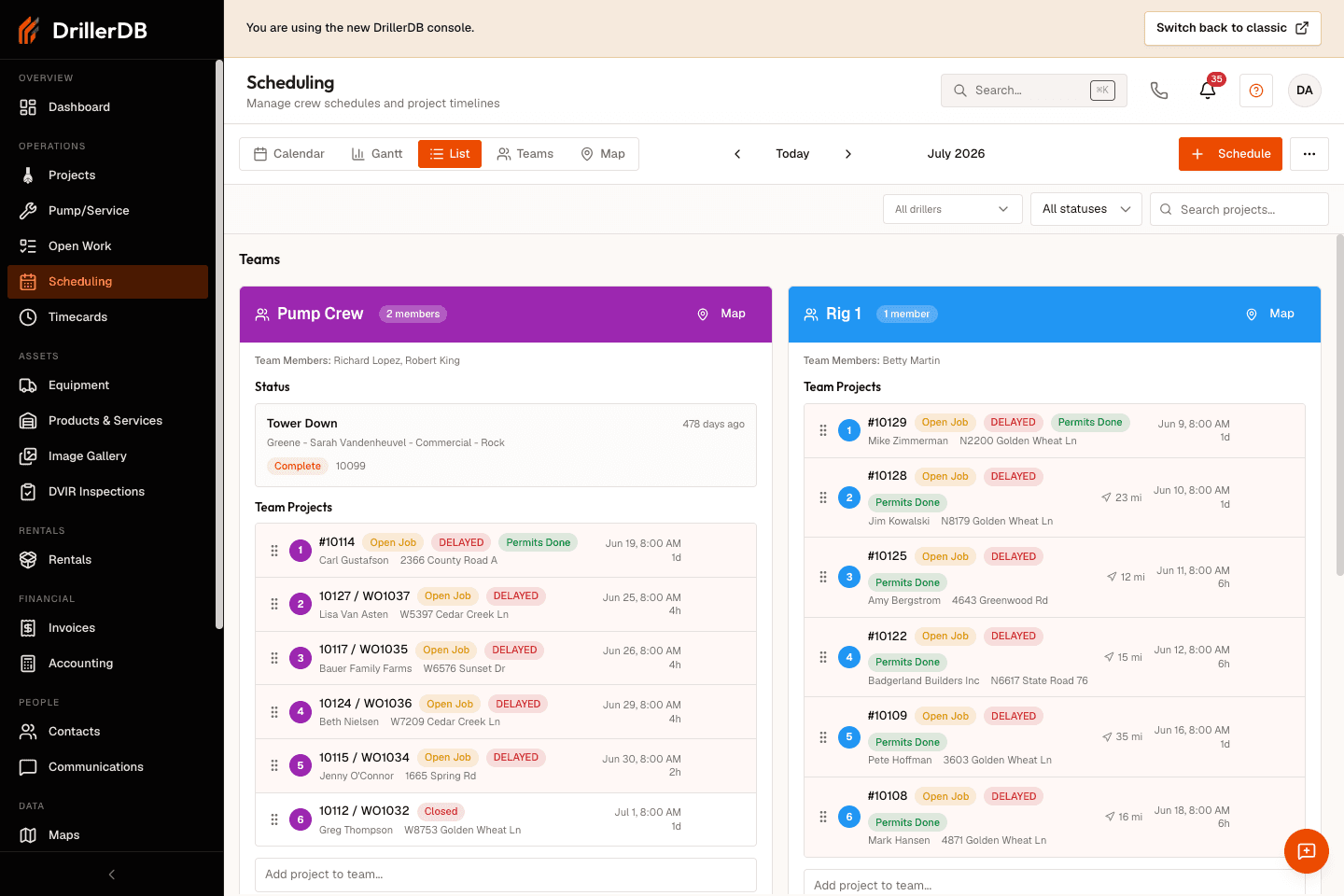
DrillerDB's scheduling system helps you plan and coordinate your drilling operations. Scheduling is a single workspace: you open it once from the sidebar, then switch the view that fits the question using the view switcher in the toolbar. Every view shows the same underlying schedule data, so you never leave the page or lose your filters when you change views.
Quick Start: Build Tomorrow's Schedule
- Open Scheduling from the sidebar
- Use the toolbar view switcher to pick List or Calendar
- Add unscheduled projects to the right teams
- Drag to reorder by priority and travel efficiency
- Save changes and notify crews
Scheduling Views
The toolbar view switcher offers four views of the schedule. It defaults to List, and remembers your last choice:
Calendar presents your schedule as a familiar month, week, day, or agenda calendar with drag-and-drop rescheduling. This view is ideal for visualizing project timelines and quickly understanding when work is scheduled.
Gantt displays projects as horizontal bars on a timeline, making it easy to see project sequences, gaps, and resource allocation over extended periods. Use this view for long-term planning and capacity analysis.
List organizes scheduled work into team cards, showing detailed project information and allowing drag-and-drop reordering within a team or between teams. This is the default view and is best for day-to-day dispatch review.
Teams focuses on team-based scheduling: review crew members, vehicles, and workload before you assign or move work. This view reflects the collaborative nature of drilling operations where work requires coordinated crews.
Alongside the four views, the toolbar has a Map button. It is an action, not a fifth view - see the Route Map section below.
Route Map
The toolbar's Map button opens a routing pop-up for the schedule you are currently looking at, rather than switching to a separate view. The pop-up plots the scheduled stops in order as a driving route and reports:
- Numbered stop markers in scheduled order, connected by a driving route line.
- Total trip mileage and drive time, summed across every leg.
- A per-leg breakdown - each stop, its address, and the drive to the next - grouped by scheduled day, so an overnight gap is never counted as drive time.
- Any stops without GPS coordinates listed separately as unroutable.
Use it to sanity-check travel before you commit a day's dispatch. Each team card in List view also has its own Map button that opens the full map filtered to that team.
Key Features
The scheduling system includes features to streamline your planning workflow:
Drag-and-drop scheduling allows you to reorder, reschedule, and reassign projects intuitively by clicking and dragging items to new positions.
Automatic conflict detection prevents double-booking and scheduling errors by validating changes before saving them.
Cascade scheduling automatically adjusts following projects when you reschedule work, maintaining proper sequencing and preventing gaps or overlaps.
When enabled for your company, live refresh behavior helps connected users see schedule changes sooner. Manual refresh remains the fallback.
GPS integration calculates distances between sequential projects and displays route maps, helping optimize crew travel and fuel costs.
Working hours configuration respects your company's work schedule, automatically skipping weekends and preventing scheduling outside business hours.
Topics in This Section
Learn more about specific scheduling features:
- Calendar View - Month and week calendar with drag-and-drop scheduling
- Gantt View - Timeline visualization for project planning and dependencies
- Board View - Team cards showing each crew's scheduled work in run order
- Teams View - Team-based scheduling and resource allocation
- Drag and Drop - clear drag-and-drop interface for rescheduling projects
- Assigning Crews - Assign employees, drillers, and equipment to projects
- Conflict Detection - Automatic detection and resolution of scheduling conflicts
Getting Started with Scheduling
To begin scheduling projects, open the Scheduling section from the sidebar. The system defaults to List view but remembers your preferred view selection.
Start with Scheduling & Crews for the rebuilt-console orientation to Calendar, List, Teams, and assignment controls.
Add projects to the schedule by selecting them from the project dropdown at the bottom of each team card. The system automatically assigns dates based on estimated hours and the team's current workload.
Reorder projects by dragging them to new positions. The system recalculates dates automatically to maintain proper sequencing and prevent conflicts.
Switch between views using the view buttons in the toolbar. Each view displays the same underlying schedule data in different formats optimized for specific tasks.
Step-by-Step: Weekly Scheduling Workflow
- Review unscheduled proposals and work orders
- Prioritize jobs by commitment date and business urgency
- Assign high-priority jobs to appropriate teams
- Reorder within teams to reduce travel and idle time
- Resolve detected scheduling conflicts
- Save and communicate finalized assignments
- Revisit the schedule daily for changes and delays
Mobile Access
Field technicians can view their scheduled work on mobile devices through the DrillerDB mobile web interface. Crews see their upcoming projects in sequence with relevant details like customer information, GPS directions, and estimated hours.
The mobile web interface automatically syncs with office schedule changes, ensuring field crews always have current information. When schedules are updated, mobile users receive notifications about changes affecting their assigned work.
Related Topics
- Projects - Source records for scheduled work
- Pump & Service Work Orders - Service jobs included in schedule planning
- Timecards - Validate planned vs recorded hours