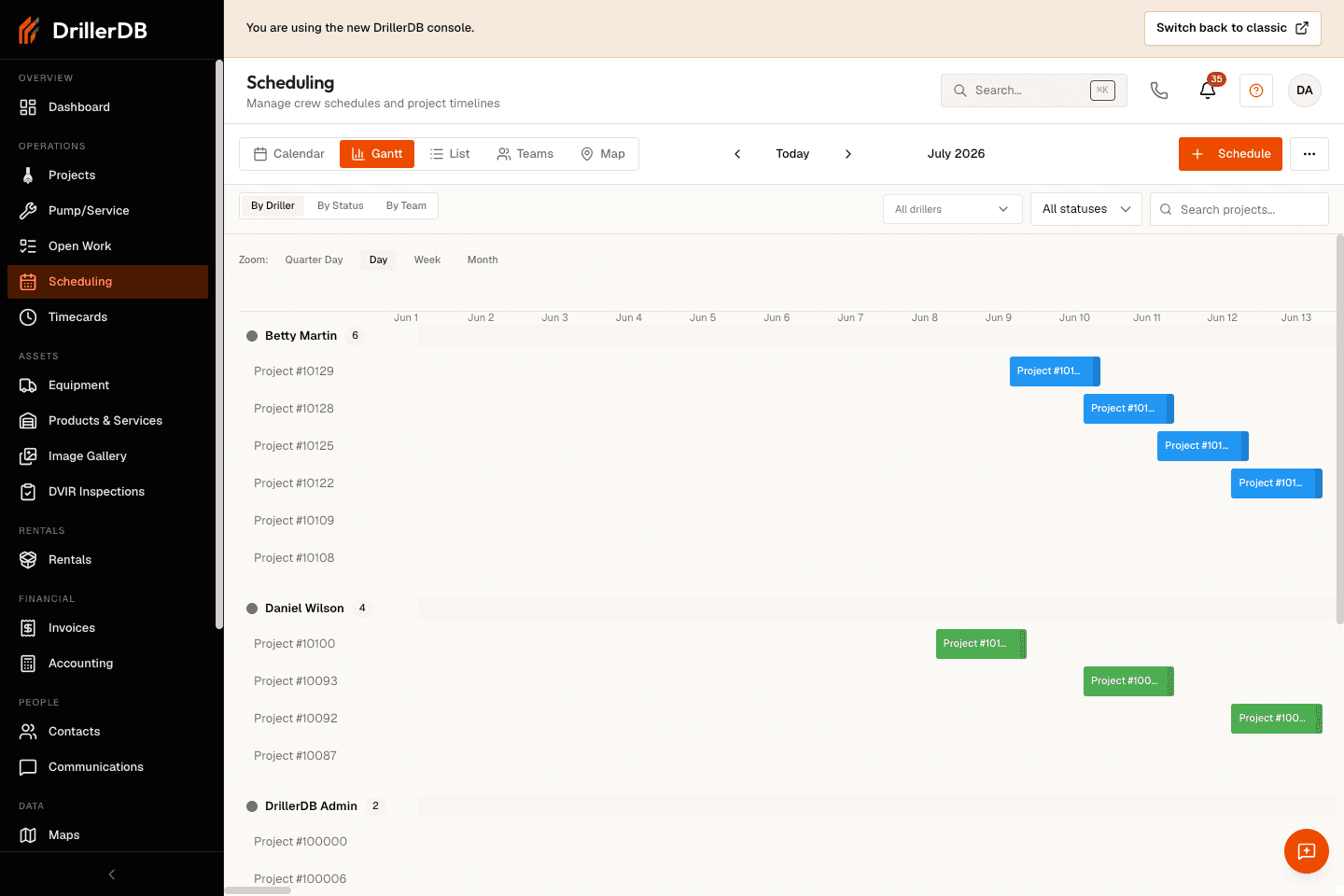
Gantt View
Gantt is one of the views in the Scheduling workspace. It provides a timeline-based visualization of your scheduled projects, displaying them as horizontal bars on a timeline. This view is ideal for understanding project sequences, identifying timeline gaps, and planning resource allocation over extended periods.
Open Scheduling from the sidebar
Click Gantt in the toolbar view switcher
View the timeline with project bars
Drag bars to reschedule
Resize bars to adjust duration
Step-by-Step: Switch to Gantt
Open Scheduling from the sidebar
Click Gantt in the toolbar view switcher
The timeline loads with all scheduled projects
The system remembers this preference
The Gantt toolbar lets you group the timeline rows three ways: By Driller , By Status , or By Team . Each group becomes a labeled lane, and bars keep their team or driller color regardless of the grouping you pick. Dragging a bar cascades the following jobs in the same lane when grouping by driller or team; status grouping does not cascade.
Timeline Elements
Element Description Horizontal axis Date/time scale Vertical axis Teams/employees Bars Project duration Today line Current date marker
Timeline Scale
Time Range Scale Shows Days Hourly divisions Weeks Daily divisions Months Weekly divisions
The timeline automatically adjusts scale based on your scheduled projects, showing appropriate detail for your schedule's time range.
Chart Structure
Component Shows Row One team or employee Bar One project Bar position Start date Bar length Duration (hours/days) Bar color Team assignment
Hover Element Information Customer name Primary customer Well type Project category Scheduled date Start date Estimated hours Expected duration
Today Line
Position Meaning Bars before line Past/completed work Bars at line Current work Bars after line Future/upcoming work
Drag to Reschedule
Action How Move start date Drag bar left/right Move earlier Drag bar to the left Move later Drag bar to the right
Step-by-Step: Move a Project
Click and hold on project bar
Drag left (earlier) or right (later)
Bar snaps to valid working days
Release to confirm new position
System validates and saves
Resize to Adjust Duration
Action How Increase hours Drag right edge further right Decrease hours Drag right edge to the left Change start Drag left edge (if supported)
Step-by-Step: Resize a Project
Position cursor on bar edge
Cursor changes to resize indicator
Click and drag to new length
Release to confirm
Estimated hours update automatically
Resizing changes the project's estimated hours. Following projects cascade to accommodate the new duration.
How Cascade Works
When You Following Projects Move project earlier Shift earlier (if room) Move project later Shift later Make project longer Shift later Make project shorter Shift earlier
Automatic Adjustments
Adjustment Purpose Date recalculation Maintain sequencing Gap prevention No empty time slots Overlap prevention No double-booking Weekend skipping Respect work week
Sequential Dependencies
Concept How It Works Project order Determines execution sequence Moving earlier Affects all following projects Moving later Creates space, following shift
Conflict Prevention
Invalid Action System Response Overlap attempt Reverts change Non-working day Snaps to working day Rule violation Shows warning message
Team-Based View
Element Shows One row per team Team's complete schedule Team colors Color-coded bars Workload comparison Visual capacity review
Step-by-Step: Compare Team Workloads
View all team rows
Compare bar density
Identify teams with gaps (capacity)
Identify teams with dense bars (busy)
Consider rebalancing work
Moving Through Time
Control Action Scroll horizontally Move along timeline Zoom in See more detail Zoom out See longer period Today button Return to current date
Keyboard Navigation
Shortcut Action ← / →Scroll timeline + / -Zoom in/out TGo to today
During Drag Operations
Indicator Meaning Ghost bar Preview of new position Highlight Valid drop zones Red highlight Invalid position
After Changes
Indicator Meaning Saving spinner Update in progress Green check Save successful Red warning Error occurred
For Large Schedules
Challenge Solution Many projects Scroll to navigate Long time range Zoom out for overview Slow updates Wait for save indicator
Best Practices
Practice Benefit Batch your changes Better performance Wait for save Prevent conflicts Use zoom appropriately Better visibility
Avoid making rapid successive changes. Wait for the save indicator to complete before making the next change.
Bars not appearing?
Check date range includes scheduled projects
Verify team filter isn't excluding projects
Zoom out to see more of timeline
Can't drag bars?
Ensure clicking on the bar itself
Check for browser compatibility
Try disabling browser extensions
Changes not saving?
Wait for save indicator to complete
Check internet connection
Look for error notifications
Bars overlapping incorrectly?
System should prevent this
Refresh page to sync view
Report if overlap persists
Timeline scale wrong?
Zoom in/out to adjust
Scroll to find projects
Use Today button to reset view