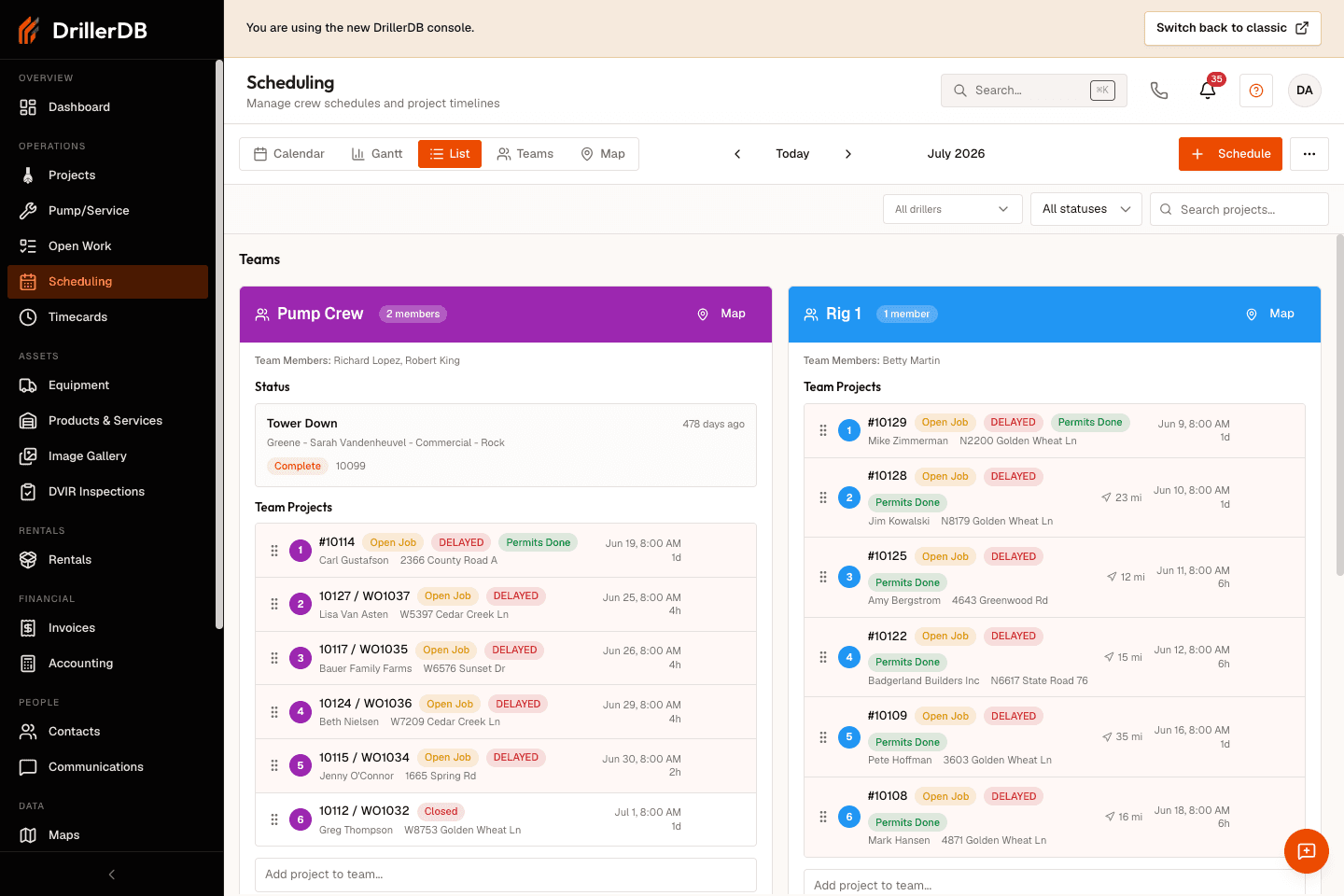
List View
The List View displays scheduled projects as organized cards grouped by team or employee. This view provides the most detailed information at a glance and offers drag-and-drop capabilities for reordering work.
Go to Scheduling
Click List View button
View team cards with projects
Drag projects to reorder
Use dropdown to add new projects
Card Structure
Section Shows Header Team/employee name Last Activity Most recent completed project Project List Upcoming scheduled work Add Project Dropdown to add unscheduled work
Card Organization
Card Type Position Shows Active schedules Top Teams with assigned projects Inactive resources Bottom (collapsible) Teams without projects
What Each Project Shows
Element Description Position badge Order in schedule (#1, #2, etc.) Customer name Primary customer Well type Residential, Commercial, etc. Scheduled date When work is planned Estimated hours Expected duration Distance badge Miles from previous project
Date Status
Status Meaning Specific date Scheduled for that day "Not Set" Awaiting date assignment Past date May need attention
Projects without dates ("Not Set") automatically receive dates when you reorder the schedule.
Step-by-Step: Reorder Projects
Find the project to move
Click and hold on the project row
Drag up or down within the list
Release to drop in new position
System recalculates all dates
Filtering Options
The filter bar sits just above the team cards. It has three controls that narrow what you see without moving any work.
Action How Filter by driller Pick a name from the All drillers dropdown Filter by status Pick a status from the All statuses dropdown Find a specific project Type in the Search projects box
When you only want to see part of the schedule, use the filter bar above the team cards. It has an All drillers dropdown, an All statuses dropdown, and a Search projects box.
Go to Scheduling and click List .
Use the All drillers dropdown to show only one driller's work, or leave it on All drillers to see everyone.
Use the All statuses dropdown to focus on a single status - for example, open jobs - or keep it on All statuses .
Type in the Search projects box to jump to a job by project number, customer, or address.
These filters only change what you see. They never move jobs, change dates, or affect drag-and-drop ordering.
Color Coding
Color Distance Meaning Green < 10 miles Efficient routing Yellow 10-30 miles Moderate travel Red > 30 miles Significant travel
Step-by-Step: Optimize Routing
Look for red distance badges
Identify nearby projects that could be reordered
Drag projects to group by geography
Check map view to verify routing
Green badges = optimized schedule
Red distance indicators suggest the schedule might benefit from reordering to reduce travel time between jobs.
Field Purpose Customer name Last completed job Location Where crew finished Completion date When work ended
Why It Matters
Shows crew's starting location
Helps plan first project of day
Provides routing context
Step-by-Step: View Route Map
Find the team card
Click Map button
Interactive map opens showing:
Markers for each project
Lines connecting in sequence
Route overview
Identify routing inefficiencies
Close map and adjust schedule
Map Features
Feature Shows Markers Project locations Route lines Travel path between jobs Sequence numbers Project order
Step-by-Step: Add a Project
Find the team card
Locate dropdown at bottom
Click and start typing to search
Select project from list
Project adds to bottom of schedule
System assigns date automatically
What You Can Add
Type Status Required Proposals Approved (not yet scheduled) Work Orders Open (not yet scheduled)
Step-by-Step: Reassign Project
Find the project to move
Click and hold
Drag to different team's card
Drop in desired position
Both schedules recalculate
What Happens
Team Effect Original team Project removed, dates recalculated New team Project added, dates recalculated
Automatic Sync
Event What Happens Another user makes changes Your view updates automatically Schedule saved Sync indicator appears briefly Conflict detected Warning notification shows
Visual Indicators
Indicator Meaning Spinning icon Saving in progress Green check Save successful Red warning Error occurred
Touch Interactions
Gesture Action Press and hold Start drag operation Drag Move project Release Drop in new position Tap View project details
Mobile Layout
Change Why Cards stack vertically Fits narrow screens Full-width items Easier touch targets Larger drop zones Easier to position
Projects not reordering?
Ensure drag started successfully
Check for browser issues
Try refreshing the page
Distance not showing?
Project may lack GPS coordinates
Check project address is complete
Previous project may not have coordinates
Can't add project from dropdown?
Search for different term
Verify project isn't already scheduled
Check project status is "Approved"
Real-time updates not working?
Check internet connection
WebSocket may be disconnected
Refresh page to reconnect
Cards in wrong order?
Active cards appear first
Expand "Users Without Projects" section
Use team filter to find specific team
Not seeing the driller or status filter?
The filter bar sits just above the team cards, at the top of the List view
Reset All drillers and All statuses to clear an active filter
Clear the Search projects box if the list looks shorter than expected