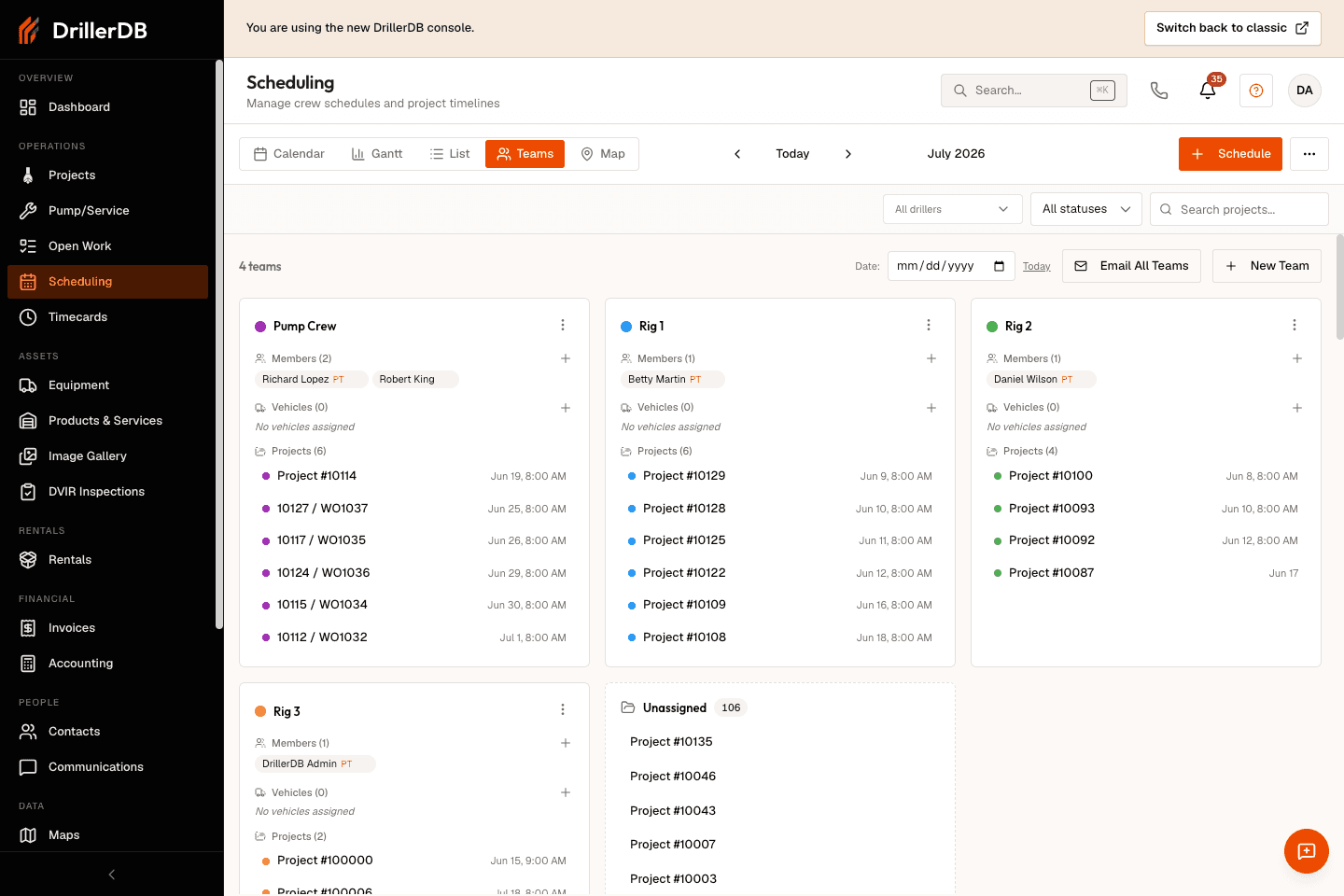
Teams View
Teams is one of the views in the Scheduling workspace. It focuses on team-based scheduling, letting you review and assign work to entire crews rather than individual employees. This view is ideal for operations where multiple field technicians work together as coordinated units.
Open Scheduling from the sidebar and click Teams in the view switcher
View team cards with members listed
Assign projects using dropdown
Drag projects between teams to reassign
Review team workload and capacity
What is a Team?
Component Description Team Name Identifier for the crew Lead Driller Primary field technician Helper(s) Supporting crew members Equipment Operator If separate from driller
Team Types
Type Description Permanent teams Fixed membership, same crew daily Ad-hoc teams Assembled for specific projects Specialty teams For specific job types
What Team Cards Show
Element Information Team name Header of card Members list All crew members with roles Scheduled projects Upcoming work queue Capacity indicator Current workload
Step-by-Step: View Team Members
Find the team card in List View
Team name appears at top
Member names and roles listed below
See each person's assignment
Managing Team Membership
Action Where View members Team card in scheduling Edit team Settings > Teams Add member Team settings Remove member Team settings
Changes to team membership in Settings immediately sync to the scheduling system and field mobile devices.
Step-by-Step: Assign via Dropdown
Find the team's card in List View
Locate project selector at bottom
Click dropdown and search
Select unscheduled project
Project adds to team's queue
Date assigned automatically
Step-by-Step: Reassign Between Teams
Find the project in current team's card
Click and hold the project
Drag to different team's card
Drop in desired position
Both teams' schedules update
What Can Be Assigned
Item Requirements Proposals Must be Approved status Work Orders Must be Open status
Reading Capacity
Indicator Meaning Few projects Team has capacity Many projects Team is busy Projects far out Team at capacity Gaps in schedule Available time slots
Step-by-Step: Check Team Capacity
View team card
Count scheduled projects
Look at latest scheduled date
Compare to other teams
Balance work across teams
When adding work to a team with many projects queued, the new project will schedule further in the future. Consider reassigning to a team with more immediate capacity.
Automatic Capacity Calculation
Factor Effect on Scheduling Estimated hours Determines project duration Current workload Pushes new projects later Working hours Limits daily capacity Work week Skips weekends
Color Usage Across Views
View How Color Appears Calendar View Event block color Gantt View Bar color List View Card accent color
Benefits of Team Colors
Quick visual identification
Easy to spot team's projects
Helps when comparing schedules
Consistent across all views
Customizing Colors
Go to Settings > Teams
Select team to edit
Choose color from picker
Save changes
All views update
Automatic Notifications
Event Who's Notified Project assigned All team members Schedule changed All team members Project completed Team lead Conflict detected Office staff
What Field Teams See
Device Information Shown Mobile app Upcoming projects in sequence Notifications Schedule changes Project details Customer, location, specs
Metrics Tracked
Metric What It Shows On-time completion Projects finished as scheduled Early completion Projects finished ahead Delays Projects that ran over Productivity Hours estimated vs actual
Purpose How Capacity planning Adjust project estimates Team training Identify needs Resource allocation Optimize assignments Scheduling accuracy Improve estimates
Comparing Team Workloads
Review Look For Project counts Balance across teams Schedule dates Who has capacity Geographic spread Optimize routing Skill requirements Match team expertise
Step-by-Step: Balance Workload
Review all team cards
Identify overloaded teams
Identify teams with capacity
Drag projects from overloaded to available
Verify dates work for customer
Save changes
For Team Stability
Practice Benefit Consistent membership Better coordination Defined roles Clear responsibilities Regular crews Improved efficiency
For Routing Efficiency
Practice Benefit Geographic clusters Minimize travel Sequential scheduling Logical routing Map review Identify inefficiencies
For Communication
Practice Benefit Regular schedule reviews Stay current Proactive updates Inform crews early Clear project details Reduce questions
Team not showing in list?
Check if team is active in settings
Verify team has members assigned
Refresh the page
Can't assign project to team?
Verify project status (Approved/Open)
Check project isn't already scheduled
Search for correct project name
Team members not receiving notifications?
Check member notification settings
Verify mobile app is installed
Check internet connectivity
Wrong team color showing?
Update color in Settings > Teams
Clear browser cache
Refresh scheduling view
Capacity seems incorrect?
Review project estimated hours
Check working hours settings
Verify all projects have estimates