
Board View
The Board view shows one card per crew, with that crew's scheduled work in run order. It is the view Scheduling opens on. A Needs a date column beside the cards lists open jobs that have no date yet, so you can work that queue down without leaving the page.
Quick Start: Use the Board View
- Go to Scheduling
- Click Board in the view switcher
- View team cards with projects
- Drag projects to reorder
- Use Add project to team... on a card to add new projects
Understanding the Layout
Card Structure
| Section | Shows |
|---|---|
| Header | Team name and member count, with Map and dispatch buttons. Anyone out in the next two weeks is marked on the members line |
| Project List | The crew's scheduled work in run order |
| Unscheduled | Jobs assigned to this crew with the date left open |
| Add Project | An Add project to team... button at the bottom of the card |
Card Organization
| Card Type | Position | Shows |
|---|---|---|
| Unassigned | Top | Jobs booked without a crew |
| Teams with projects | Next | Crews with scheduled work |
| Teams without projects | Bottom, behind Show/Hide Teams Without Projects | Crews with nothing scheduled |
The Needs a Date Column
The Needs a date column lists open jobs and Pump/Service work that have no date. The highest-priority jobs come first. Click Needs a date to hide or show the column. When it is empty, it reads "Every open job has a date." To schedule a job from it, drag the job onto a crew, or open the job to pick a driller and a date.
Project Information
What Each Project Shows
| Element | Description |
|---|---|
| Position number | Order in the crew's run (1, 2, 3...) |
| Project and customer | Project number, customer, and address |
| Status badge | Open Job, Proposal, Complete, and so on |
| Well type and contact | Residential, Commercial, and the contact name |
| Scheduled date and time | When work is planned |
| Estimated duration | Expected length of the job |
| Distance | Distance from the previous job on the card, in feet or miles |
| AT RISK or DELAYED | AT RISK: due within two days. DELAYED: the scheduled time has passed and the job is not complete |
| Dispatch | Opens the dispatch form to tell the crew about that job. Only Proposal and Open Job statuses can be dispatched |
| Pencil and trash icons | Edit schedule and Remove from schedule |
Date Status
| Status | Meaning |
|---|---|
| Specific date | Scheduled for that day |
| "Not scheduled" | The job is on a crew but has no date |
| Past date | May need attention. A late job shows DELAYED |
A job in a crew's Unscheduled tray gets a date when you drag it into the crew's run. It is booked at the end of that run.
Sorting and Filtering
Step-by-Step: Reorder Projects
- Find the project to move
- Click and hold on the project row
- Drag up or down within the card
- Release to drop it in the new position
- DrillerDB recalculates the dates for the crew
Filtering Options
The filter bar sits just above the team cards. It has three controls that narrow what you see without moving any work.
| Action | How |
|---|---|
| Filter by driller | Pick a name from the All drillers dropdown |
| Filter by status | Pick a status from the All statuses dropdown |
| Find a specific project | Type in the Search projects box |
Filtering the Schedule
When you only want to see part of the schedule, use the filter bar above the team cards. It has an All drillers dropdown, an All statuses dropdown, and a Search projects box.
- Go to Scheduling and click Board.
- Use the All drillers dropdown to show only one driller's work, or leave it on All drillers to see everyone.
- Use the All statuses dropdown to focus on a single status - for example, open jobs - or keep it on All statuses.
- Type in the Search projects box to jump to a job by project number, customer, or address.
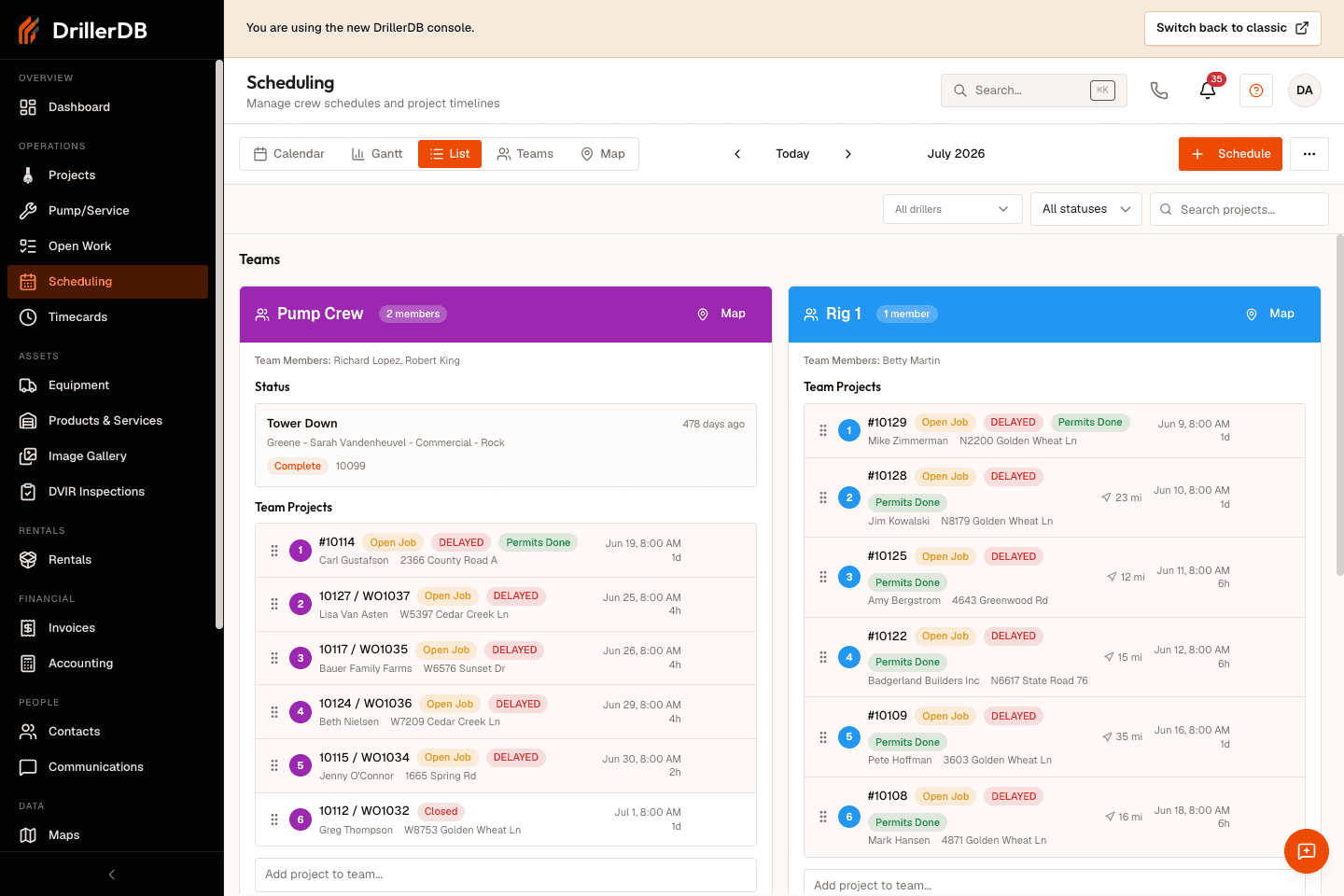
These filters only change what you see. They never move jobs, change dates, or affect drag-and-drop ordering.
Distance Indicators
Each job after the first on a card shows how far it is from the job before it, in feet for short hops and miles for longer ones. The distance appears only when both jobs have GPS coordinates.
Step-by-Step: Optimize Routing
- Look for jobs with long distances from the job before them
- Identify nearby jobs that could be reordered
- Drag jobs to group them by area
- Click the card's Map button to check the route
- Compare the distances again after the move
The distance is a straight-line figure between two jobs, not a driving distance. The Map button shows driving mileage and drive time.
Map Integration
Step-by-Step: View Route Map
- Find the team card
- Click the card's Map button
- The route map opens with the crew's jobs in run order, starting from the crew's current location
- Look for routing inefficiencies
- Close the map and adjust the schedule
Map Features
| Feature | Shows |
|---|---|
| Markers | Project locations |
| Route lines | Travel path between jobs |
| Sequence numbers | Project order |
| Totals | Mileage and drive time for the route |
Adding Projects to the Schedule
Step-by-Step: Add a Project
- Find the team card
- Click Add project to team... at the bottom
- Type in Search projects to add...
- Pick the project from the list
- The project is added to the end of the crew's run, and DrillerDB gives it a date
- To put a job on a crew without a date, check Add without a date (hold on this crew's board) first. It lands in the crew's Unscheduled area
You can also click Schedule in the toolbar and pick the crew, date, and duration in the dialog.
What You Can Add
| Type | Status Required |
|---|---|
| Open Jobs | Not yet on a crew's board |
| Pump/Service work orders | Open and not yet on a crew's board |
Moving Projects Between Teams
Step-by-Step: Reassign Project
- Find the project to move
- Click and hold
- Drag to different team's card
- Drop in desired position
- Both schedules recalculate
What Happens
| Team | Effect |
|---|---|
| Original team | Project removed, dates recalculated |
| New team | Project added, dates recalculated |
Saving and Refreshing
Changes you make save as you go. The Board does not refresh by itself, so a change another person makes shows up after you reload the page. See Real-Time Schedule Updates.
Mobile Responsiveness
Touch Interactions
| Gesture | Action |
|---|---|
| Press and hold | Start drag operation |
| Drag | Move project |
| Release | Drop in new position |
| Tap | View project details |
Mobile Layout
| Change | Why |
|---|---|
| Cards stack vertically | Fits narrow screens |
| Full-width items | Easier touch targets |
| Larger drop zones | Easier to position |
Troubleshooting
Projects not reordering?
- Ensure drag started successfully
- Check for browser issues
- Try refreshing the page
Distance not showing?
- Project may lack GPS coordinates
- Check project address is complete
- Previous project may not have coordinates
Can't add project from dropdown?
- Search for different term
- Verify project isn't already scheduled
- Check that the project is an Open Job or an open Pump/Service work order
Another person's change is not showing?
- The Board does not refresh by itself. Reload the page
Cards in wrong order?
- Unassigned comes first, then crews with scheduled work
- Click Show/Hide Teams Without Projects to see crews with nothing scheduled
- Use the All drillers filter to find a specific crew
Not seeing the driller or status filter?
- The filter bar sits just above the team cards, at the top of the Board view
- Reset All drillers and All statuses to clear an active filter
- Clear the Search projects box if the list looks shorter than expected
Related Topics
- Calendar View - Month/week calendar
- Gantt View - Timeline visualization
- Drag and Drop - Detailed drag-drop guide
- Teams View - Team management
- Conflict Detection - Handling conflicts