
This guide is based on a browser-recorded walkthrough in the rebuilt DrillerDB console. When a step can send, submit, export, or change account access, the guide calls out the review boundary.
After a Pump/Service job exists, the Pump/Service workspace is where the office and field team keep the job moving. Use the Details tab for dispatch notes and equipment, the status buttons for Proposal to Open Job to Complete, Add to Schedule to put an Open Job on a crew's schedule, Dispatch to send it to a crew or several people at once, and the Proposal & Items tab for labor, parts, and billable work. The rest of the workspace keeps proposal, invoice, pump data, inventory, contacts, billing, files, notes, and history connected to the same service job.
Quick Start
- Open the work order workspace.
- Use the Details tab to edit dispatch notes, equipment, field tech, and service context.
- Move the status from Proposal to Open Job when the work is active.
- Click Add to Schedule to put the job on a crew's schedule, or Reschedule to change its day or crew.
- Click Dispatch to send the job to a whole crew or to several people at once.
- Use Proposal & Items to add labor, parts, and billable service rows.
- Confirm the saved item total.
- Move the work order to Complete when the field work is finished.
Step-by-Step: Run a Pump/Service Job
Open the Pump/Service workspace
Open the job from Pump/Service, a customer record, or the linked project. The header shows the service job number, status, and top-level actions, with the workspace tabs below. The linked project number is in the Customer card (Linked Project).
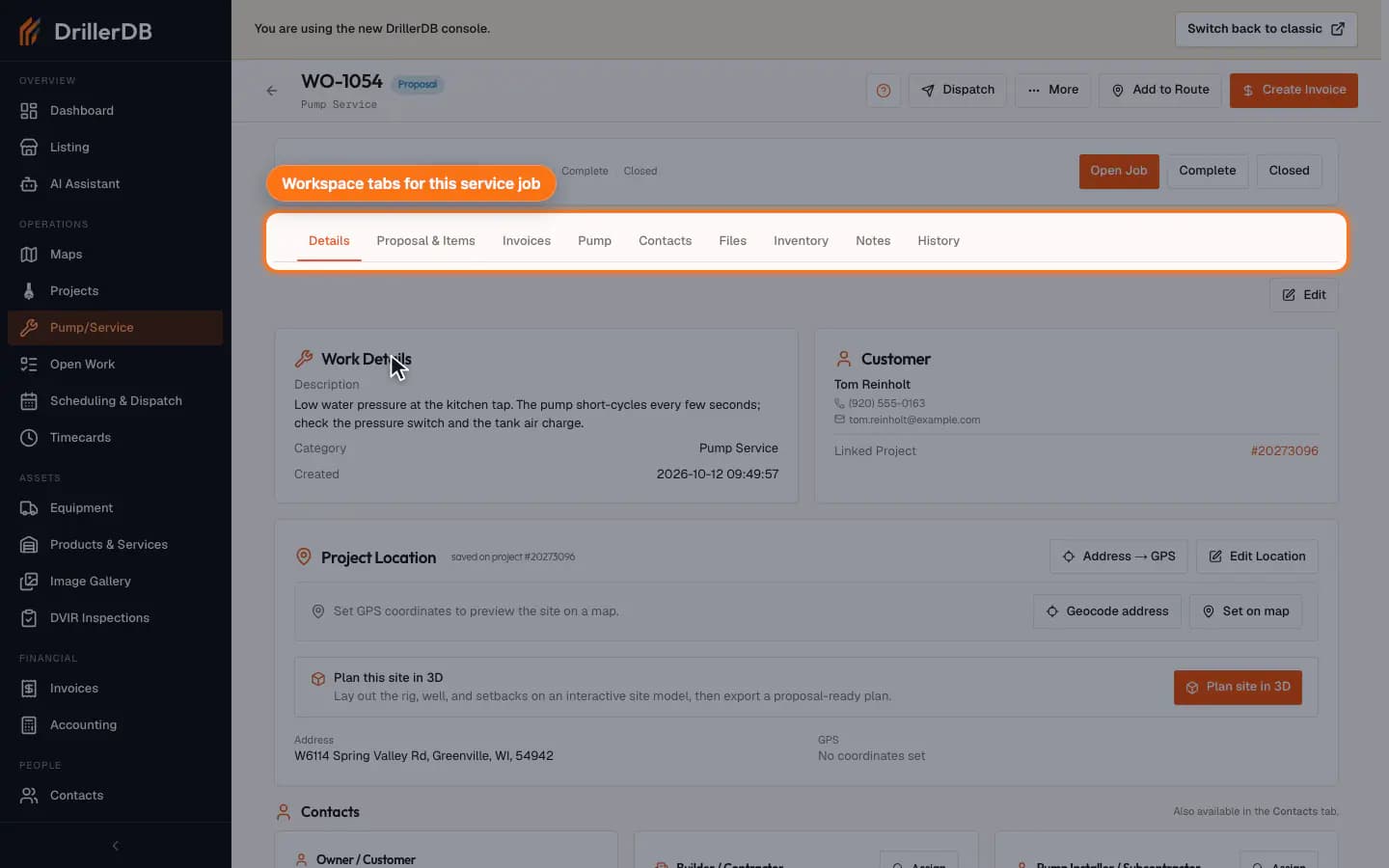
Edit dispatch and service details
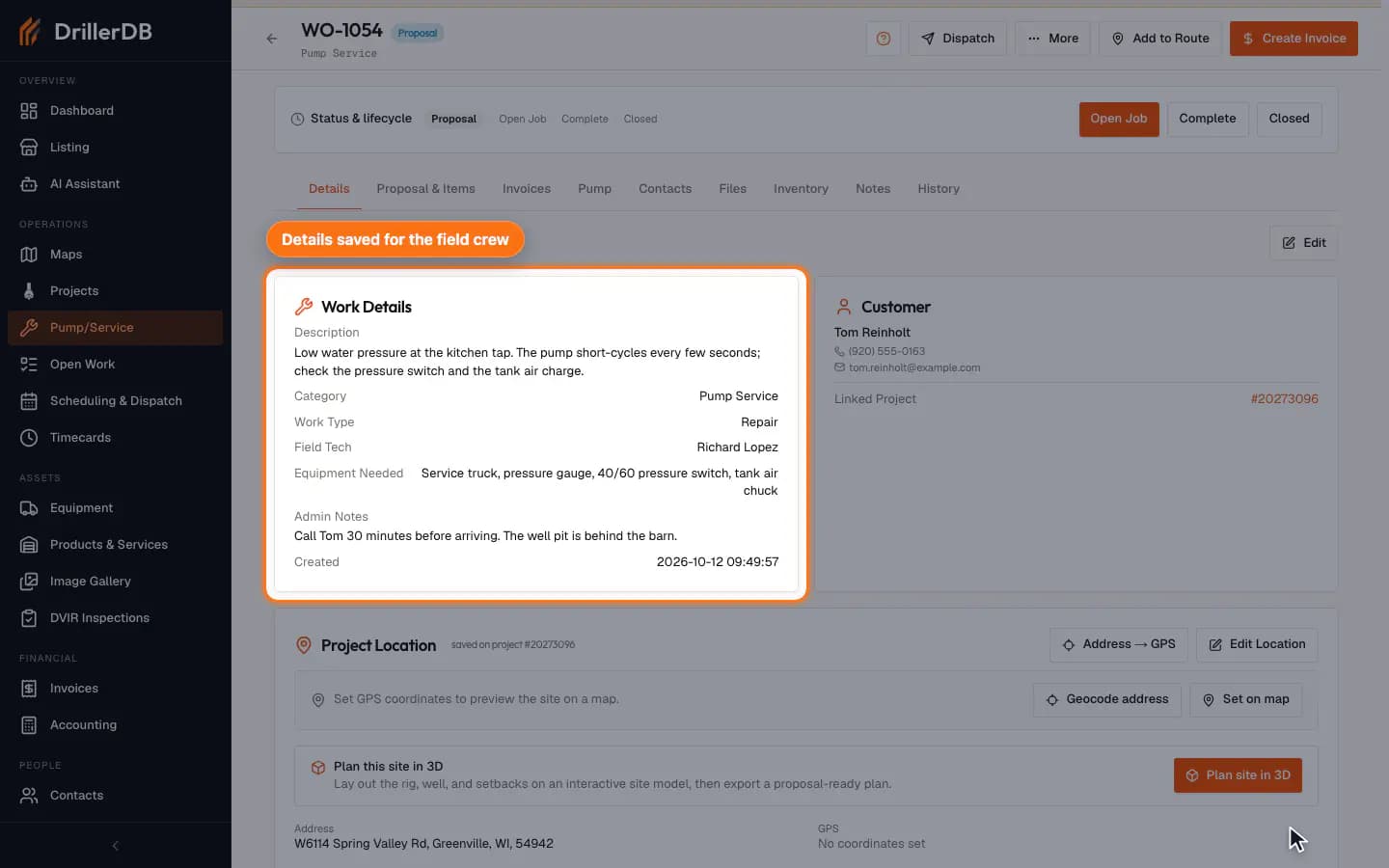
Click Edit on the Details tab. Update the description, category, field tech, pump/work type, equipment needed, admin notes, Bill To, Proposal To, Manager / Supervisor, Date Completed, or $ Billed as the service call becomes clearer. Then click Save in the bar at the bottom of the page (or Save & Close to go back to the list).
Use Equipment Needed for field-ready logistics and Admin Notes for internal office instructions.
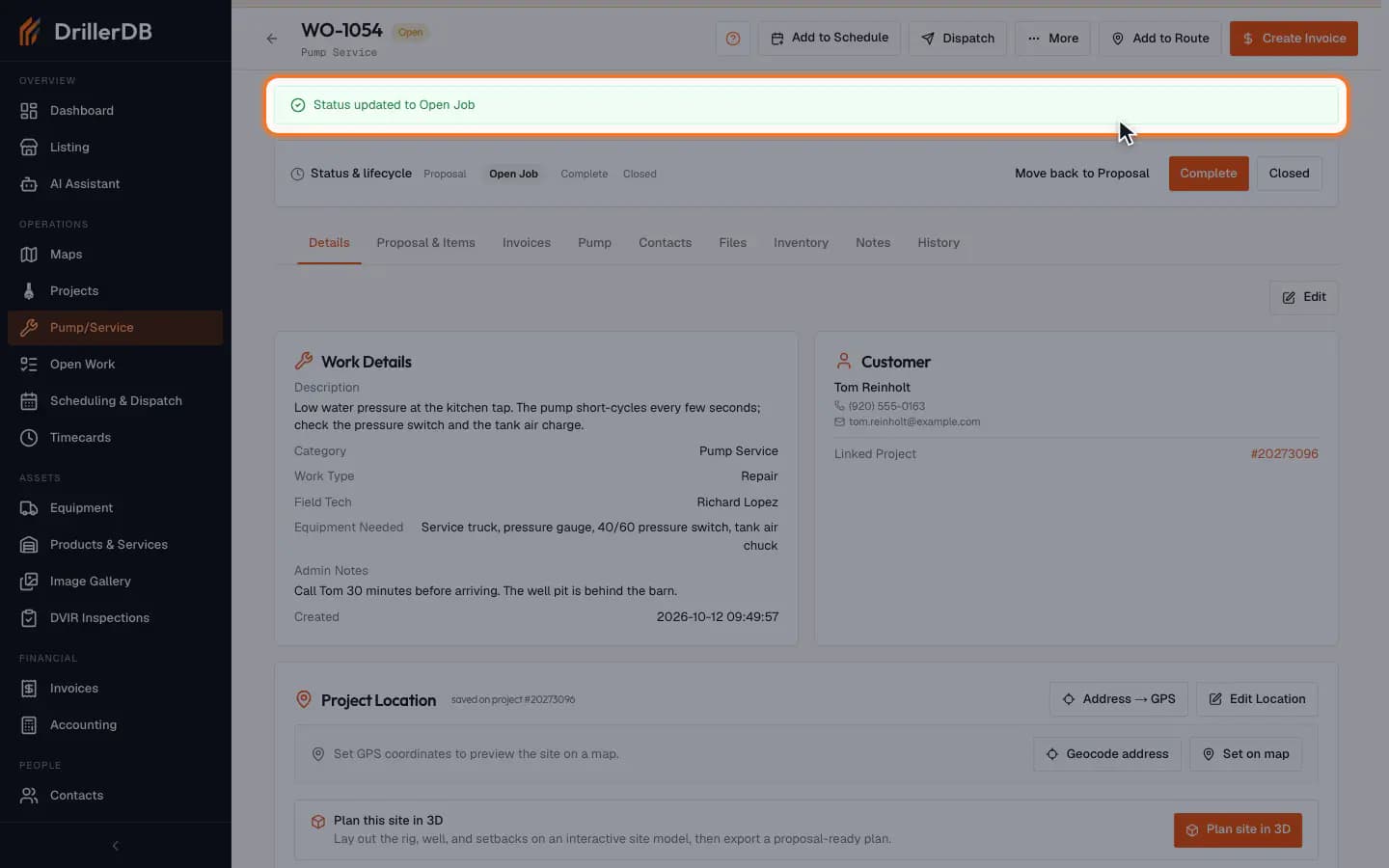
Move the Pump/Service job to Open Job
In the Status & lifecycle card, click Open Job to move the job forward. Proposal means the service work is still being quoted or prepared; Open Job means it is active for dispatch and field work.
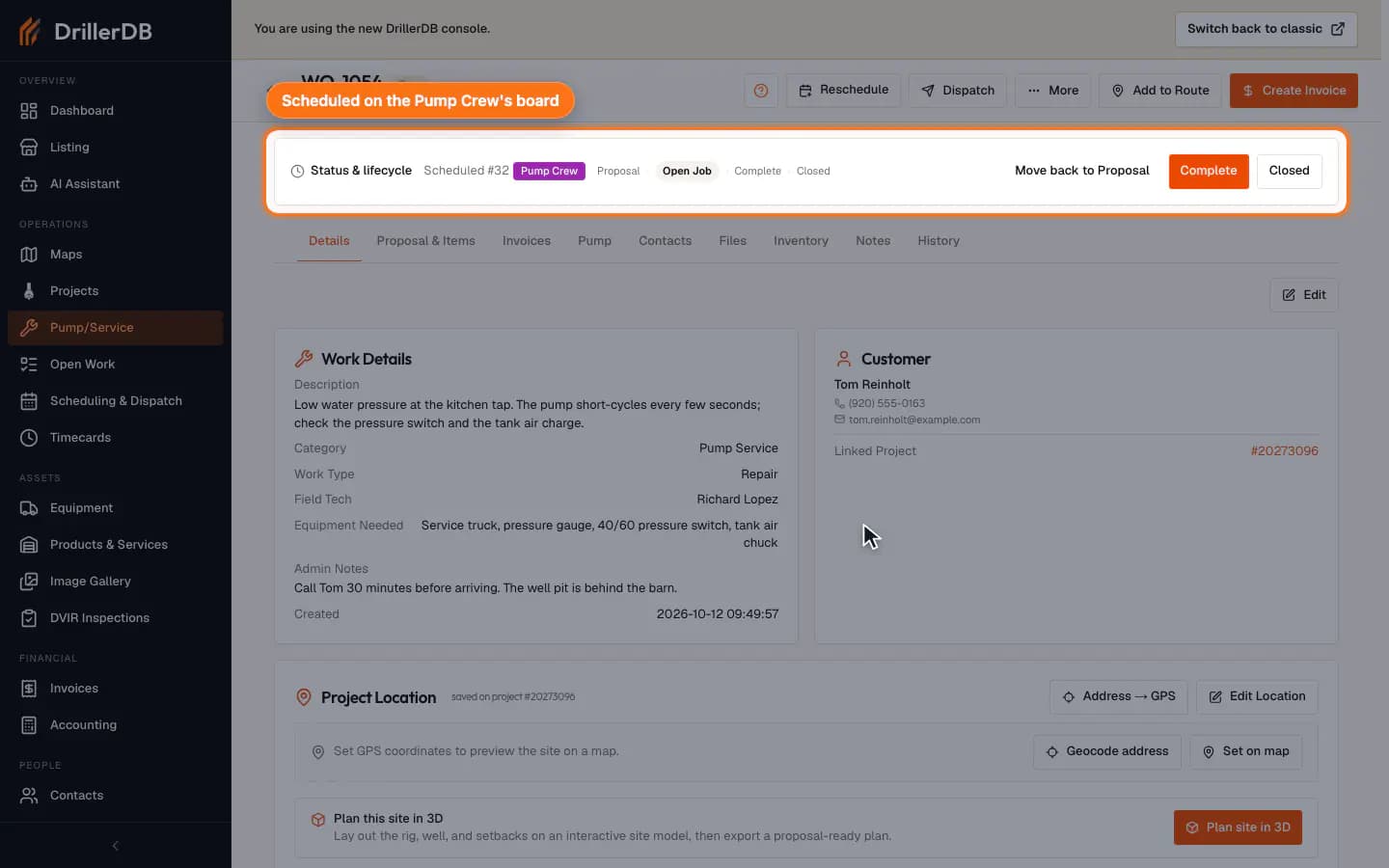
Put the job on a crew's schedule
When the job is an Open Job, click Add to Schedule at the top of the workspace. Pick the crew. Leave the date blank to add the job after the crew's last booked day, or pick a date to book that day (with a date you can also choose No crew yet and assign a crew later). Click Add to schedule. The status card then shows Scheduled #N with the crew. If the job is already scheduled, the button reads Reschedule: change the day or the crew and click Save changes to move that booking, or click Book another visit instead for a second visit.
Add to Schedule shows for Admin, Office, and Field Supervisor users on Open Jobs. You can also right-click the job in the Pump/Service list and choose Add to Schedule. Scheduling does not notify anyone; use Dispatch for that.
Dispatch the crew
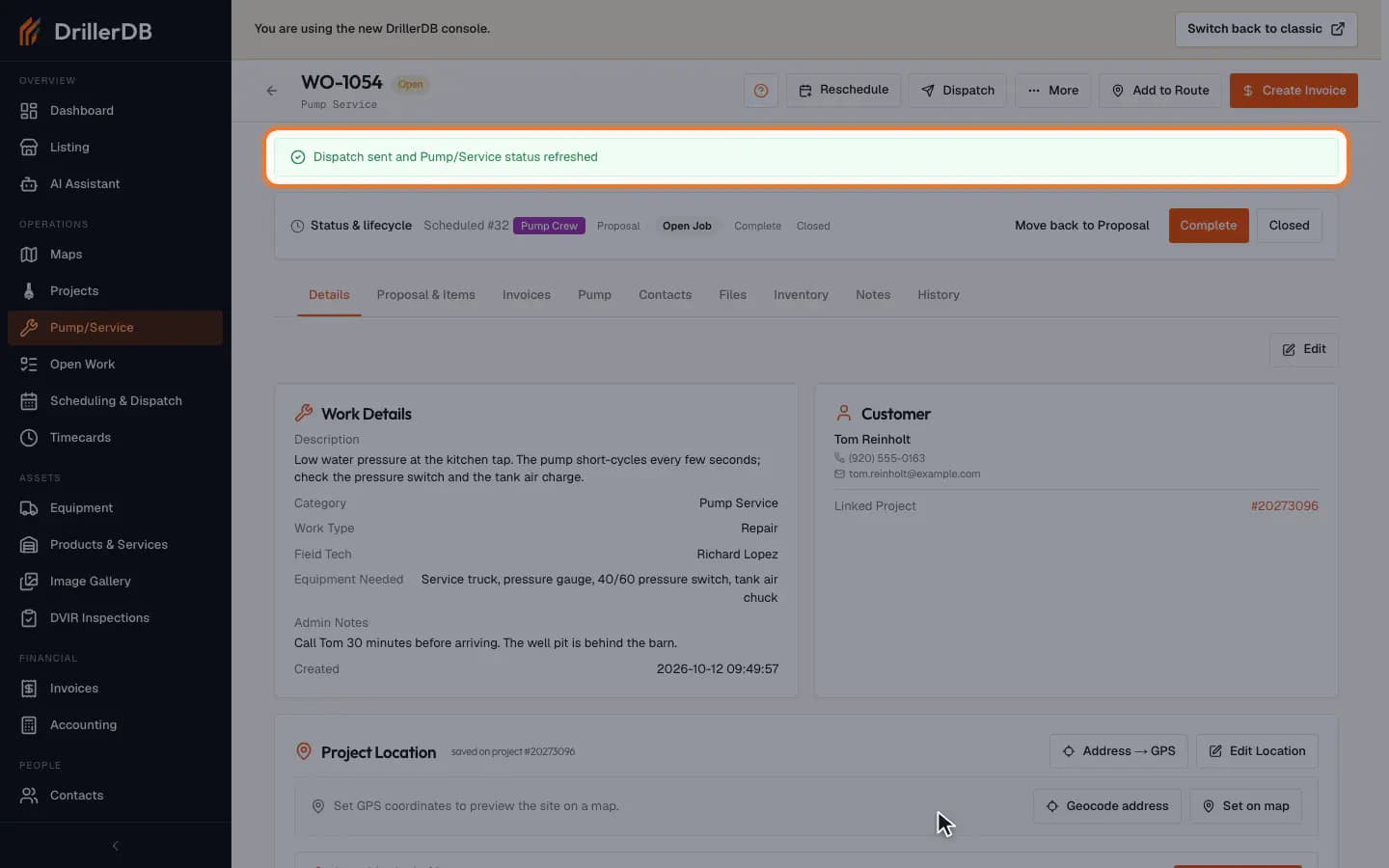
Click Dispatch. The crew the job is scheduled to, and the job's field tech, are already ticked. To send to a whole crew, click the crew's name under Send to a whole crew; click it again to untick the crew. You can also tick or untick people one at a time. Choose Send SMS notification and/or Send email notification, add any notes, and click Dispatch. Each person gets their own message, greeted by their own name.
A greyed-out crew has no active members who can receive a dispatch. Add people to it in Scheduling & Dispatch > Teams. Dispatching a job that is still a Proposal moves it to Open Job. The History tab lists every earlier dispatch for this job.
Add the labor, parts, or service item
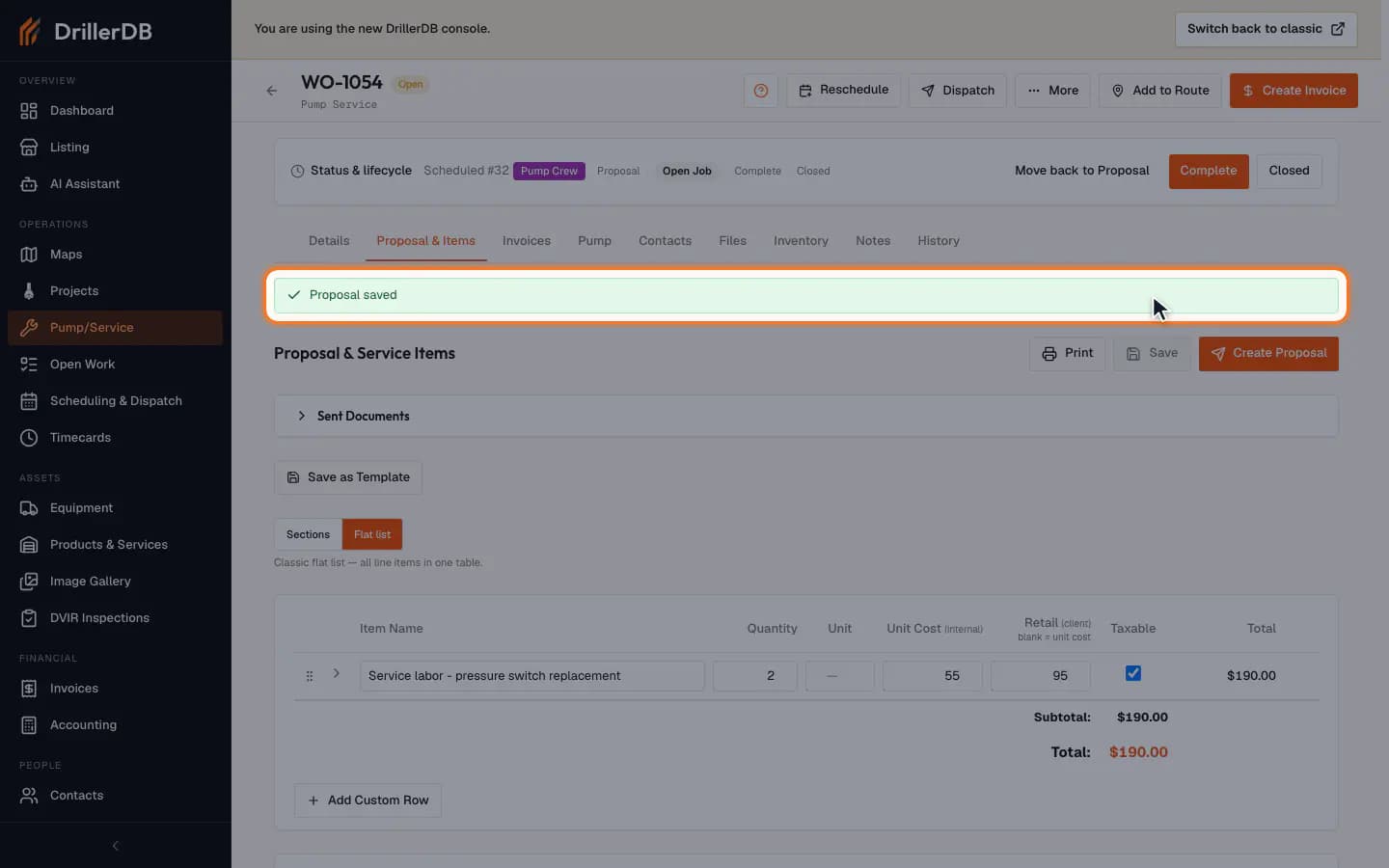
Open the Proposal & Items tab. Click Flat list, then Add Custom Row (in the Sections view, use Add Line Item inside a section). Enter the item name and quantity, then the price: Unit Cost is internal only; Retail is what the customer pays, and a blank Retail uses the Unit Cost. Click Save. These line items are the practical bridge between the field work and the quote or invoice.
Review the saved service item total
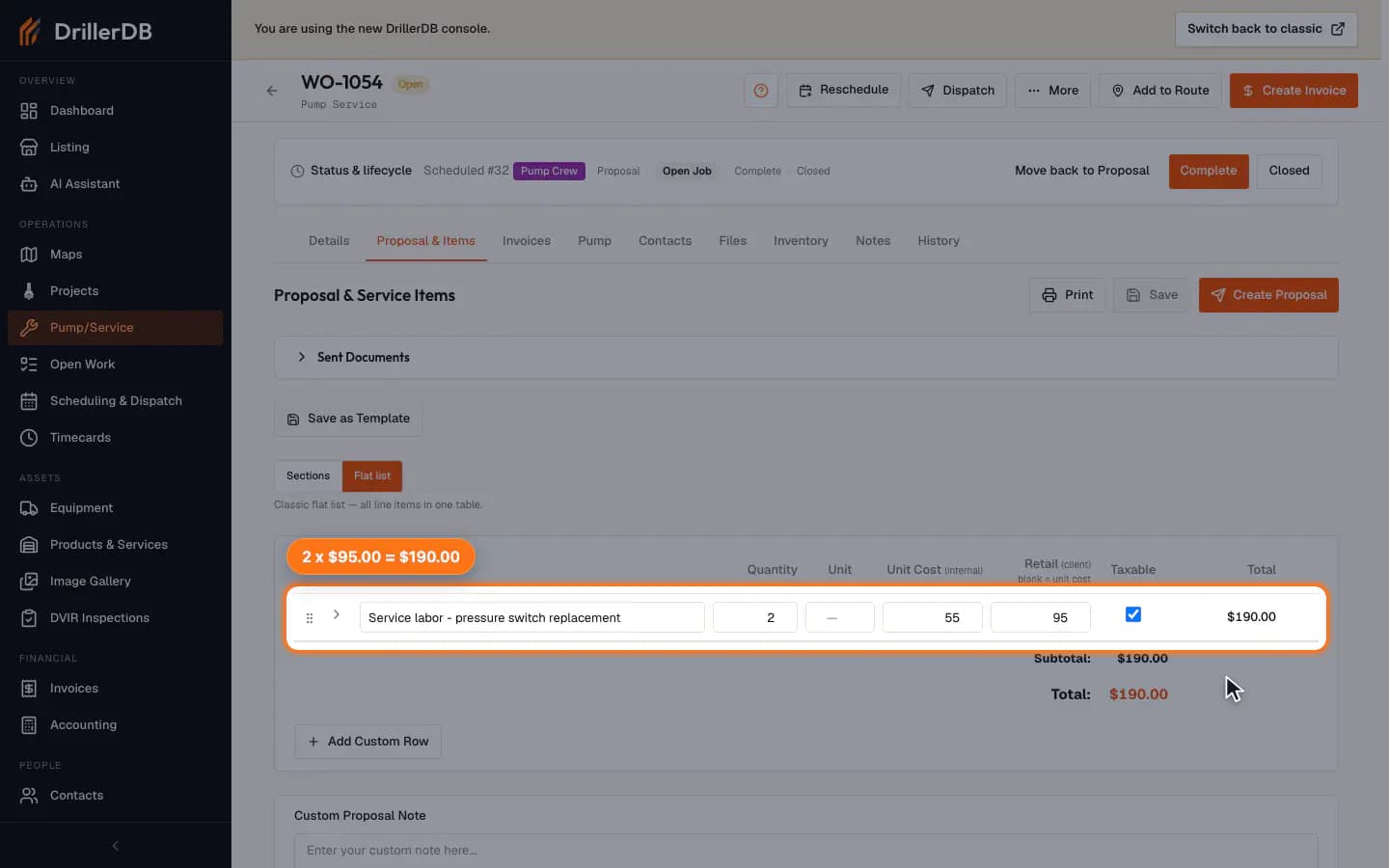
After you click Save, confirm the item appears in the Proposal & Items table with the right quantity, unit price, and total. You can edit or delete the row from the table if the scope changes.
The Pump/Service Proposal & Items tab uses the same line-item storage, so clean service items help the quote stay aligned with the actual job.
Mark the Pump/Service job Complete
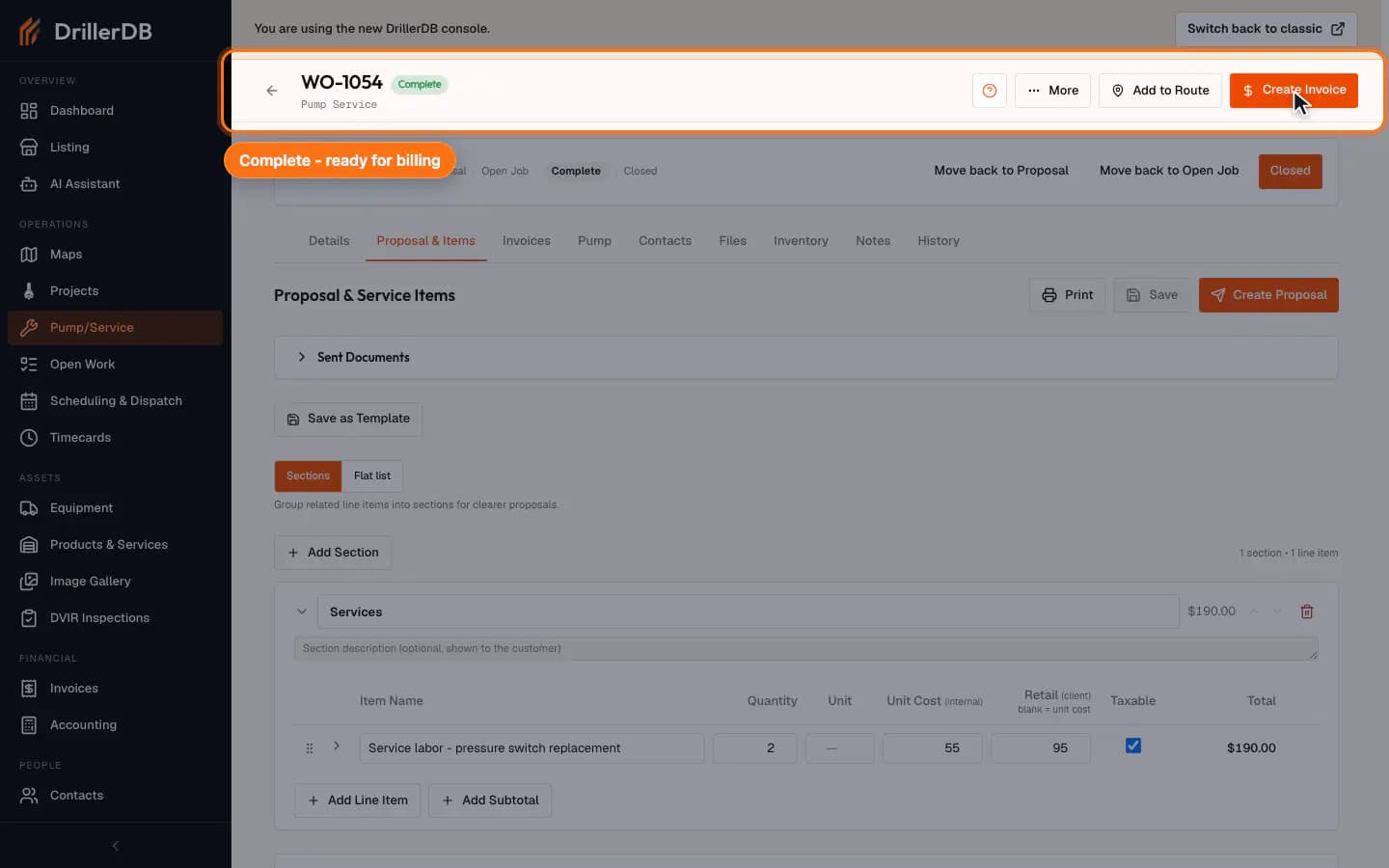
When the service call is finished, use the status controls to move the job to Complete. An Open Job first asks whether it needs a return trip: Mark Complete finishes it, and Needs return trip keeps it an Open Job with a follow-up note, shown as a Return trip flag (and tab) on Pump/Service and Open Work until the job is completed. From there, the next office step is usually billing: review billing status, create the invoice, and send it to the customer when ready.
After completion
Completing the work order means the service job is ready for office follow-through. Review service items, proposal context, billing status, and invoice readiness before sending anything to the customer.