
This guide is based on a browser-recorded walkthrough in the rebuilt DrillerDB console. When a step can send, submit, export, or change account access, the guide calls out the review boundary.
The Timecards page is where office and admin users review this week's hours and add a manual time entry when a shift needs to be corrected or added. This guide reviews the week and adds one manual entry. Weekly approval and payroll export are separate steps in Weekly Review. Crews clock in and out from the mobile app.
Quick Start
- Open Timecards.
- Review the weekly totals, overtime, and recent entries.
- Use Weekly Review only after the daily entries look right.
- Click Add Entry when the office needs to prepare a manual time record.
- Choose the employee, date, times, shift type, and notes.
- Click Add Entry only after the manual entry has been reviewed.
Step-by-Step: Track Time
Open Timecards
Open Timecards from the sidebar to see this week's hour totals, overtime totals, employee summaries, and recent entries.
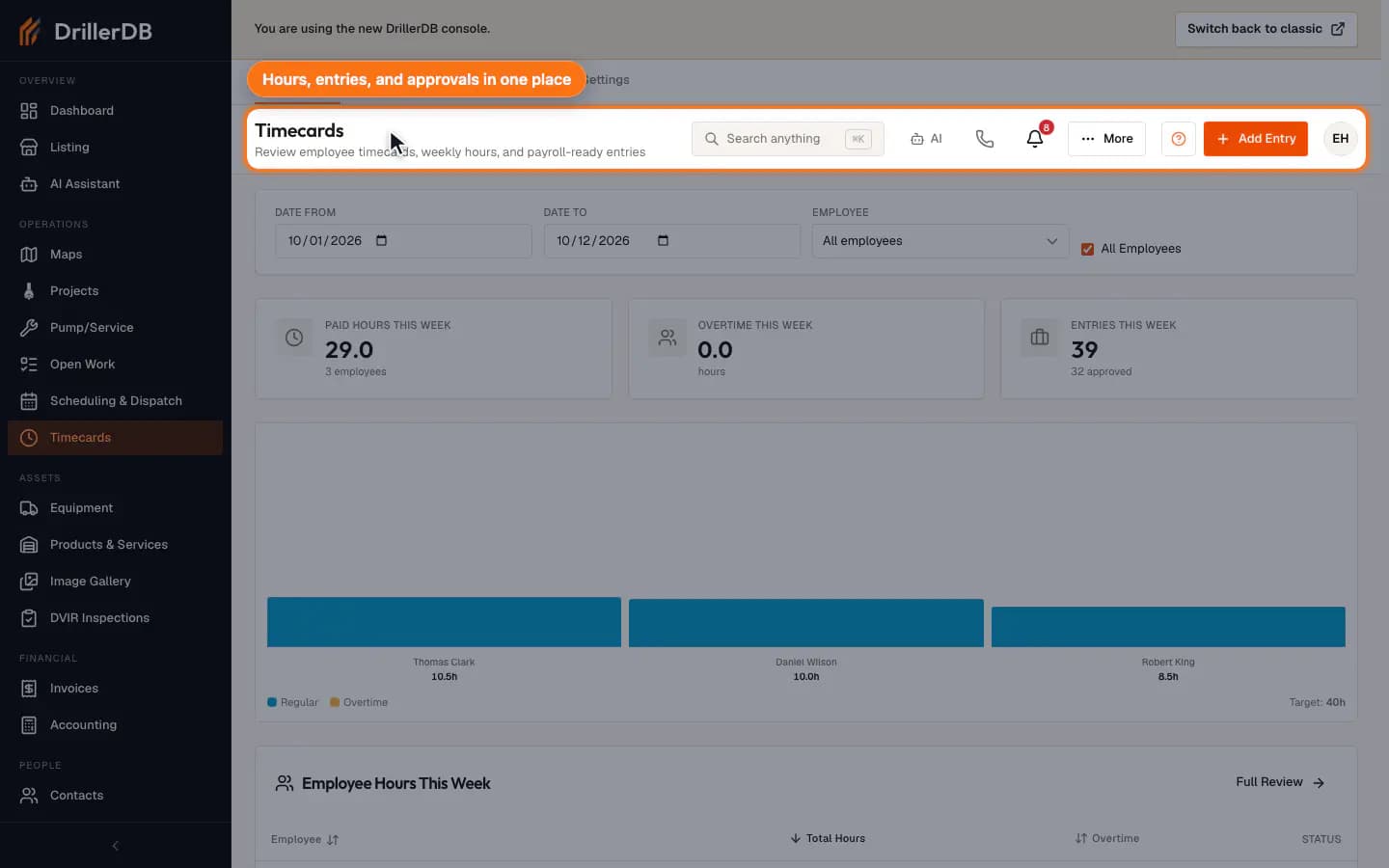
Review weekly hours
Use the summary cards and Employee Hours This Week section to spot total hours, overtime, and employees who need a closer review.
Use Weekly Review for approvals and payroll review after the daily entries look right.
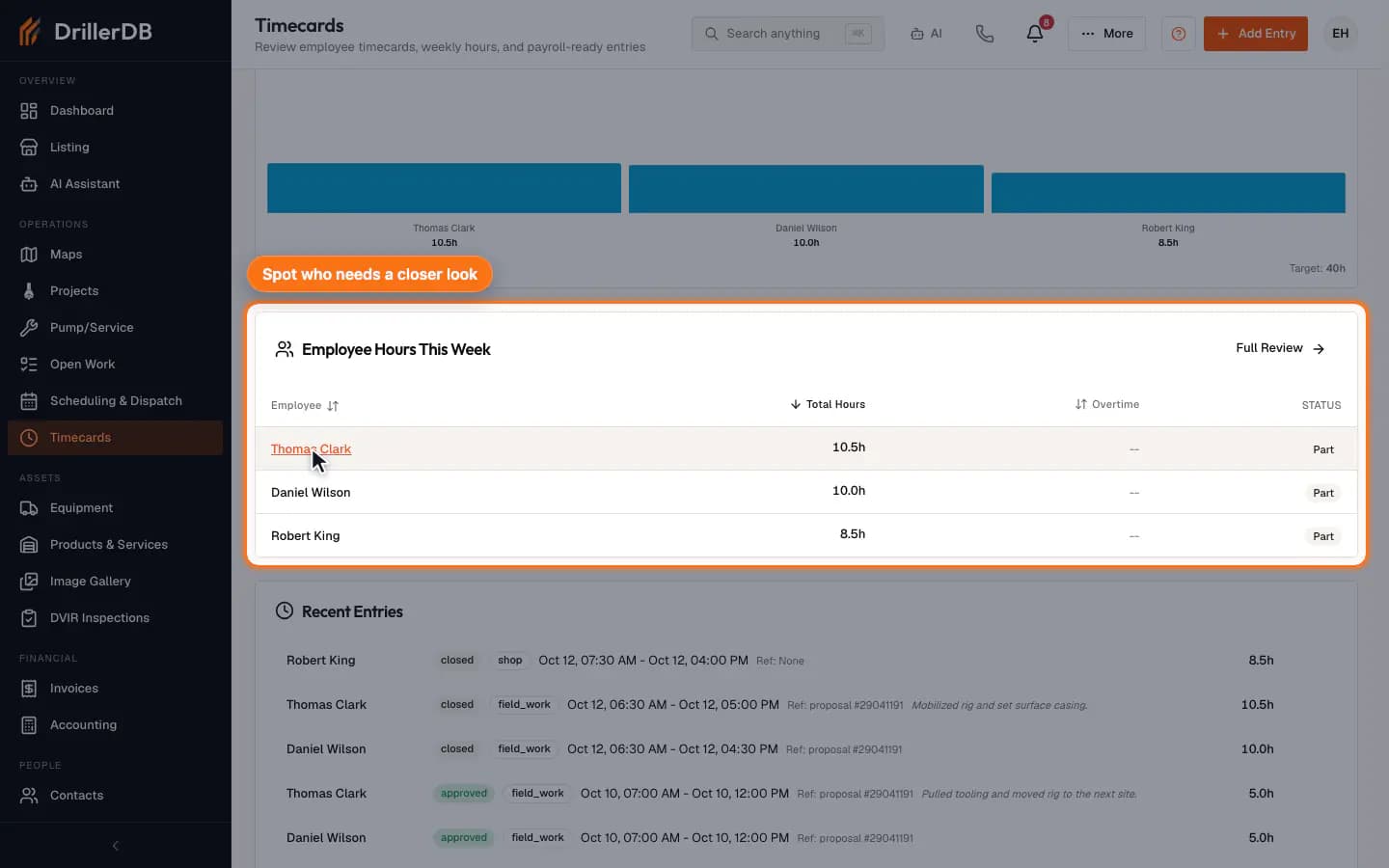
Open Add Entry
Click Add Entry when the office needs to prepare a manual shift entry for an employee from the web console.
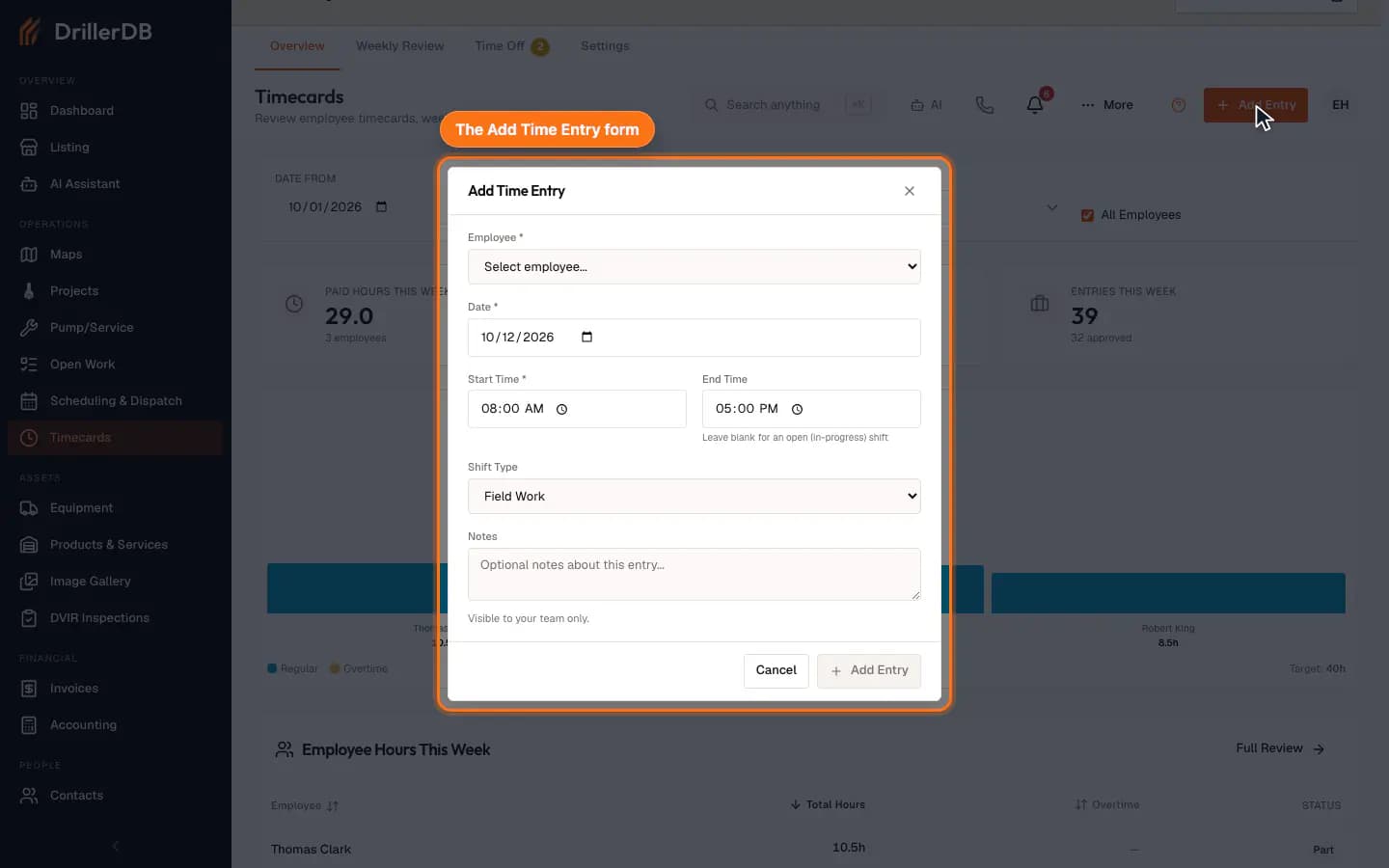
Fill the shift details
Choose the employee, date, start time, end time, shift type, and notes that explain why the entry is being added manually.
Leave End Time blank only for an in-progress shift. Closed manual entries should include both start and end times before payroll review.
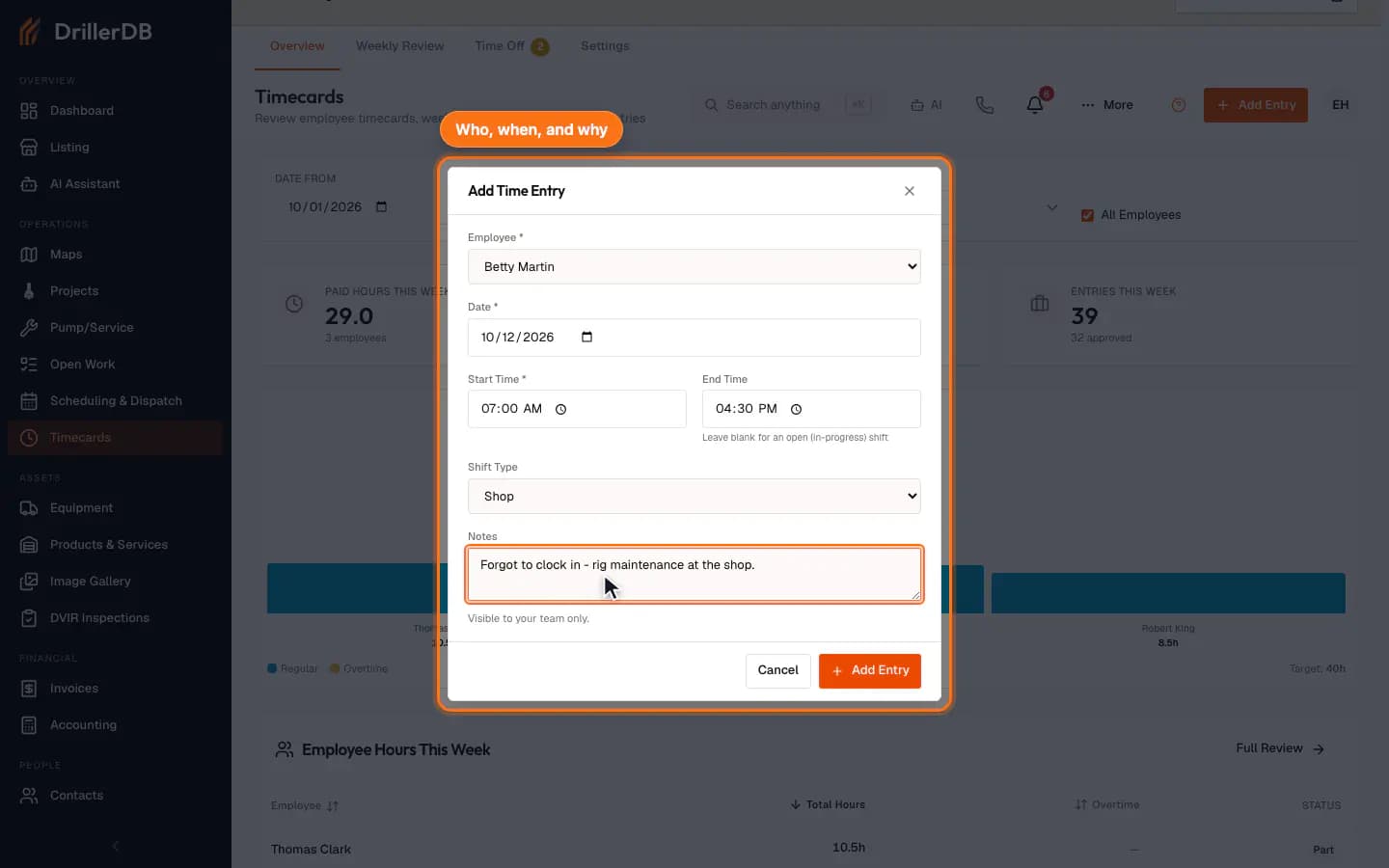
Submit only after review
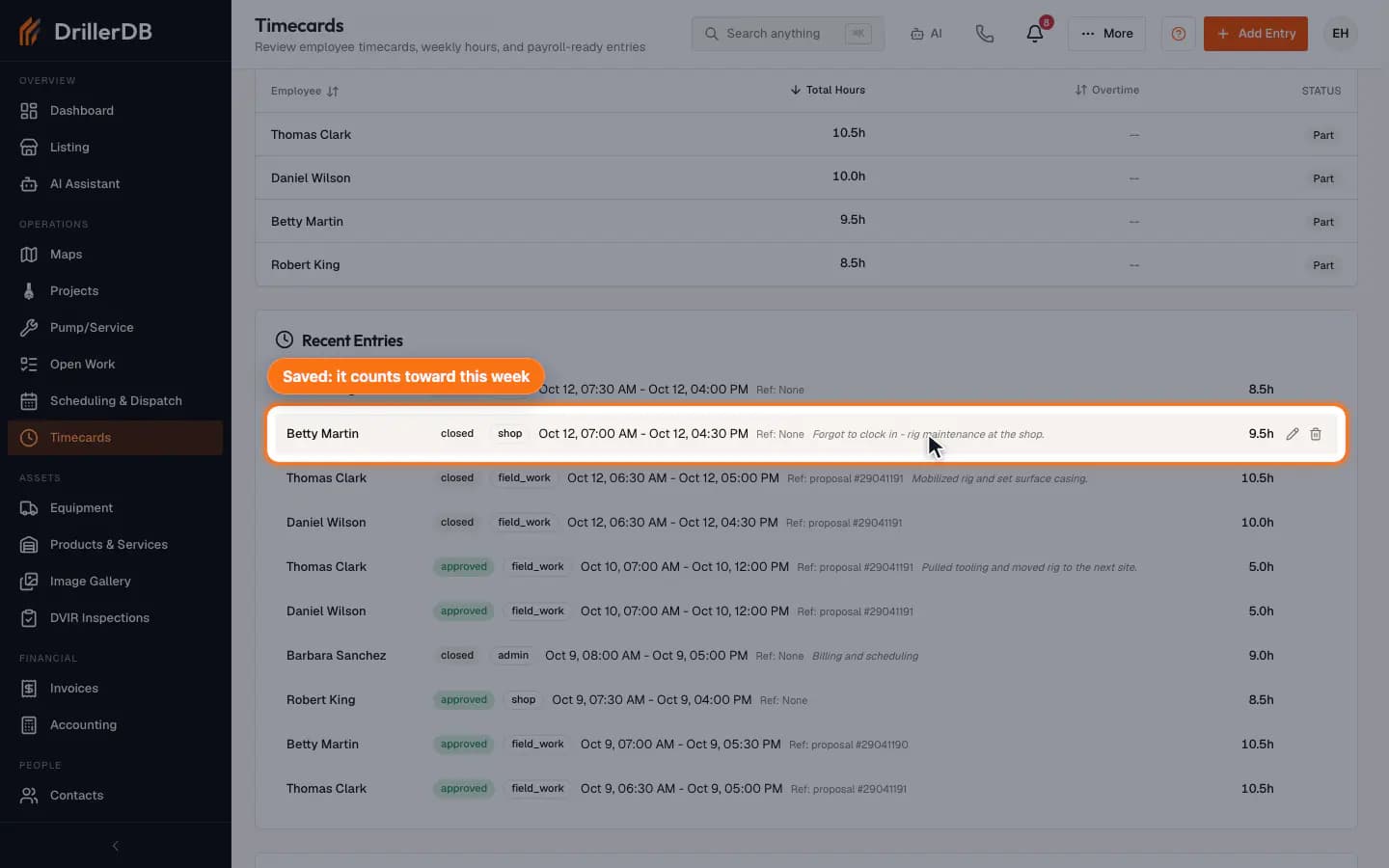
Check the employee, times, shift type, and notes, then click Add Entry. The entry appears in Recent Entries and counts toward this week's hours. Approve it later in Weekly Review.
Payroll exports and approval actions are separate externally important review steps. Confirm the time entry first, then move to Weekly Review.
Review boundary
This guide records the daily time-tracking and manual-entry preparation flow. It does not clock a user in, approve time, or export payroll data.
Use Add Entry, Weekly Review, approvals, and payroll export only after the employee, dates, hours, notes, and payroll period have been reviewed by the office.