
This guide is based on a browser-recorded walkthrough in the rebuilt DrillerDB console. When a step can send, submit, export, or change account access, the guide calls out the review boundary.
Use Settings > Users to review who has access, filter the team by role, edit existing users, and prepare new team members with the right contact details and role. Adding a user grants account access, so confirm the role and the email address before you click Add User.
Quick Start
- Open Settings > Users.
- Review active users, role badges, MFA status, and account status.
- Search or filter by role before editing access.
- Open Add User and enter the teammate's contact details.
- Choose the least-privileged role that matches the teammate's work.
- Click Add User only after the email, phone, role, and password choice are approved.
Step-by-Step: Set Up Your Team
Open Settings > Users
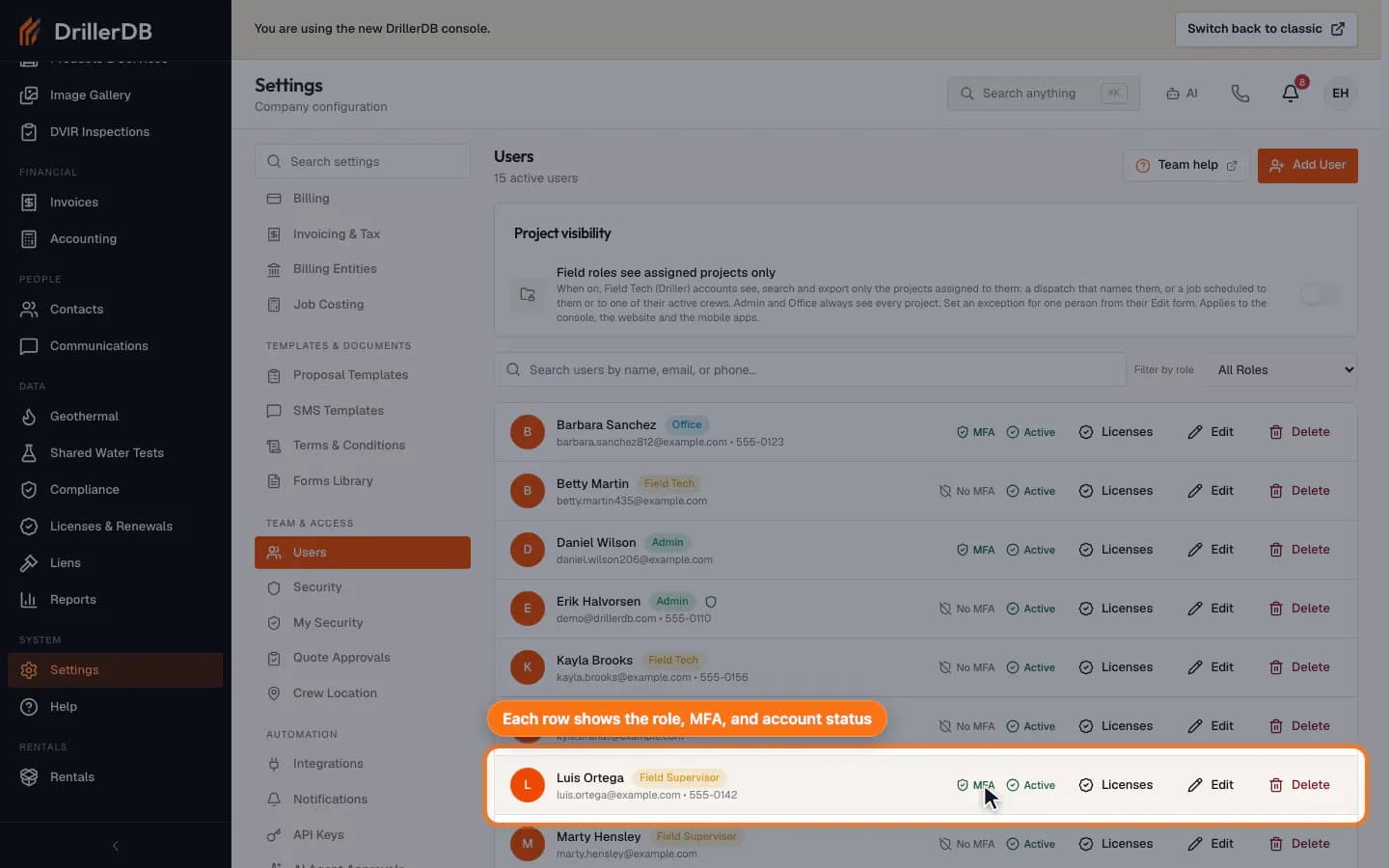
Open the Users settings page to review active users, role badges, MFA indicators, and account status. This is the admin workspace for team access.
Search or filter by role
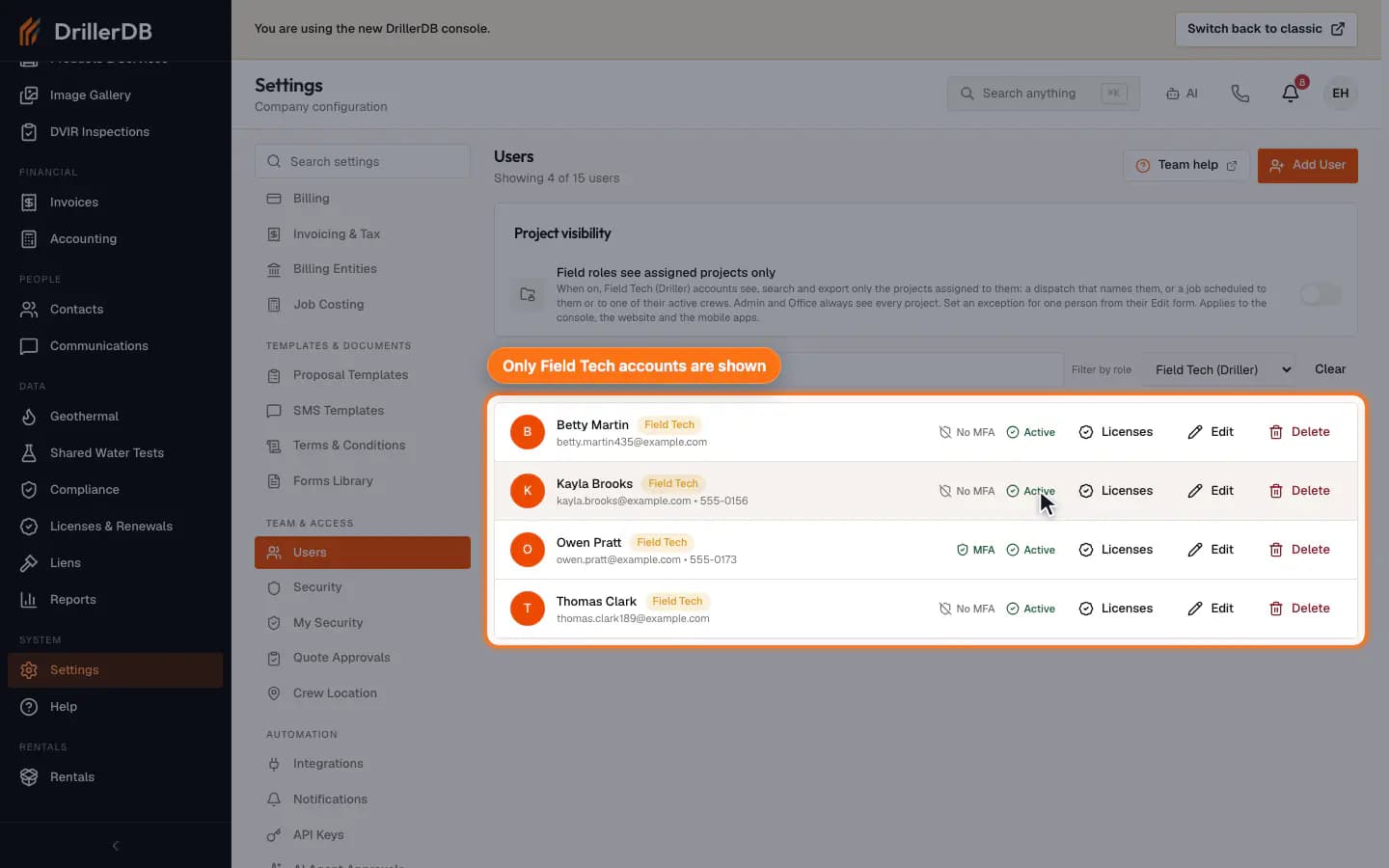
Use Search to find a teammate by name, email, phone, or role. Use Filter by role to narrow the list to admins, office staff, supervisors, or field techs before making changes. Older accounts read as Office (legacy User), and accounts with no stored role read as Office (no role set); both have the same access as Office except the Billing page.
Open Add User
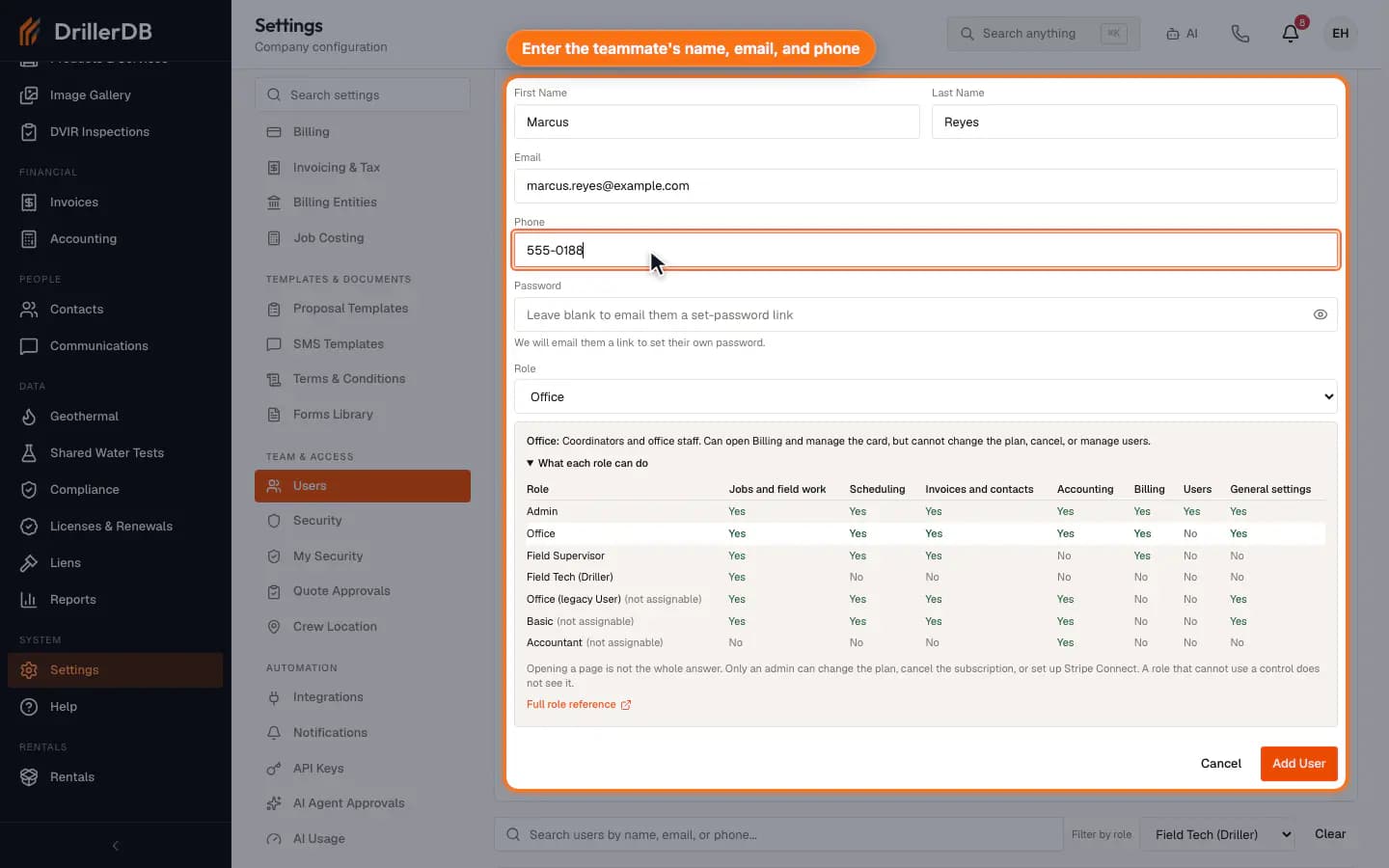
Click Add User to open the Add New User form. Enter the name, email, and phone. You can leave Password blank and DrillerDB emails a link to set one, or type a first password.
Choose the right role
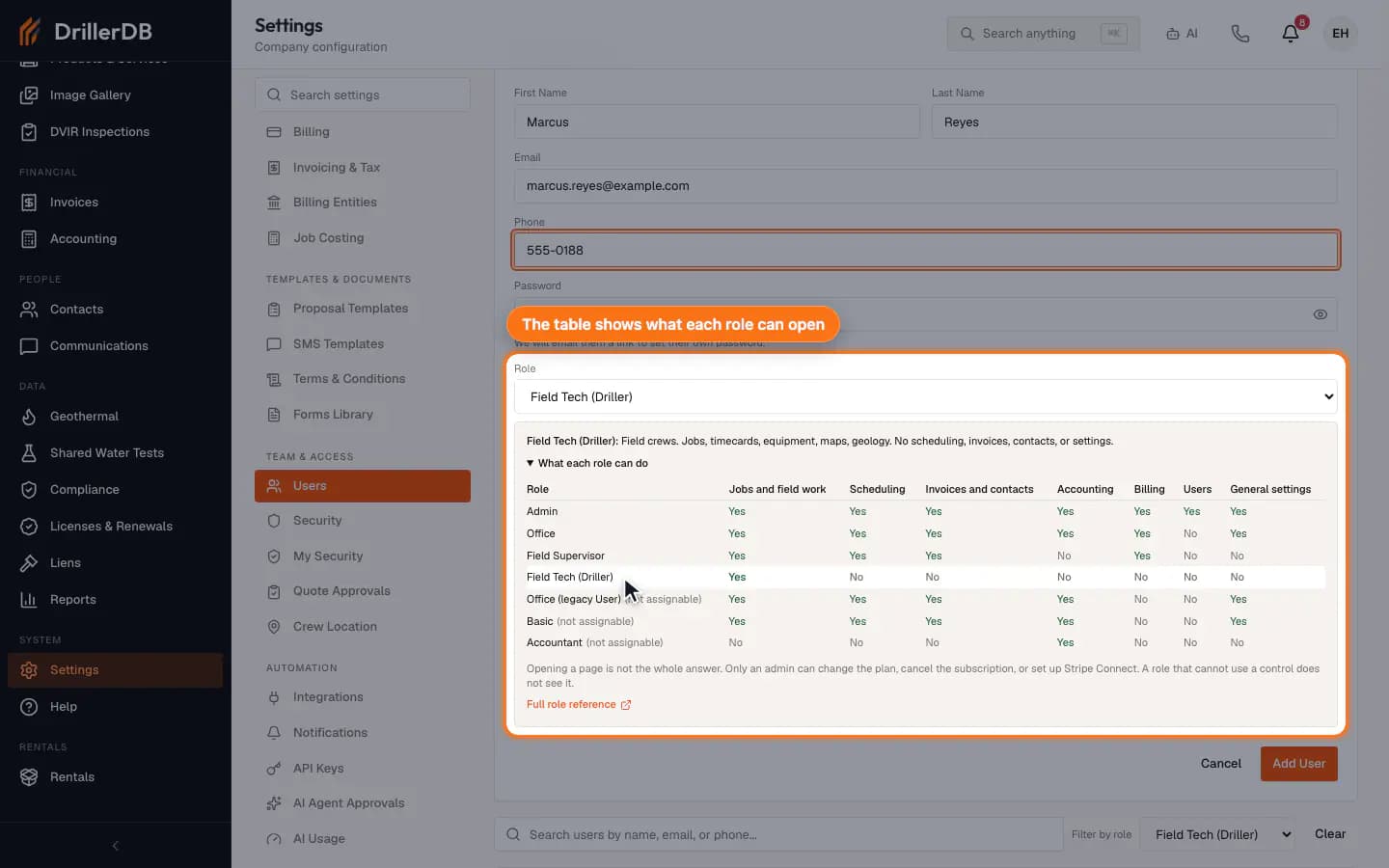
Pick the least-privileged role that matches the person's work: Admin, Office, Field Supervisor, or Field Tech (Driller). The panel under Role shows what each role can open. Office can open Billing but cannot change the plan or manage users.
Only use Admin for people who should manage users, settings, billing configuration, and other company-wide controls.
Submit only when access is approved
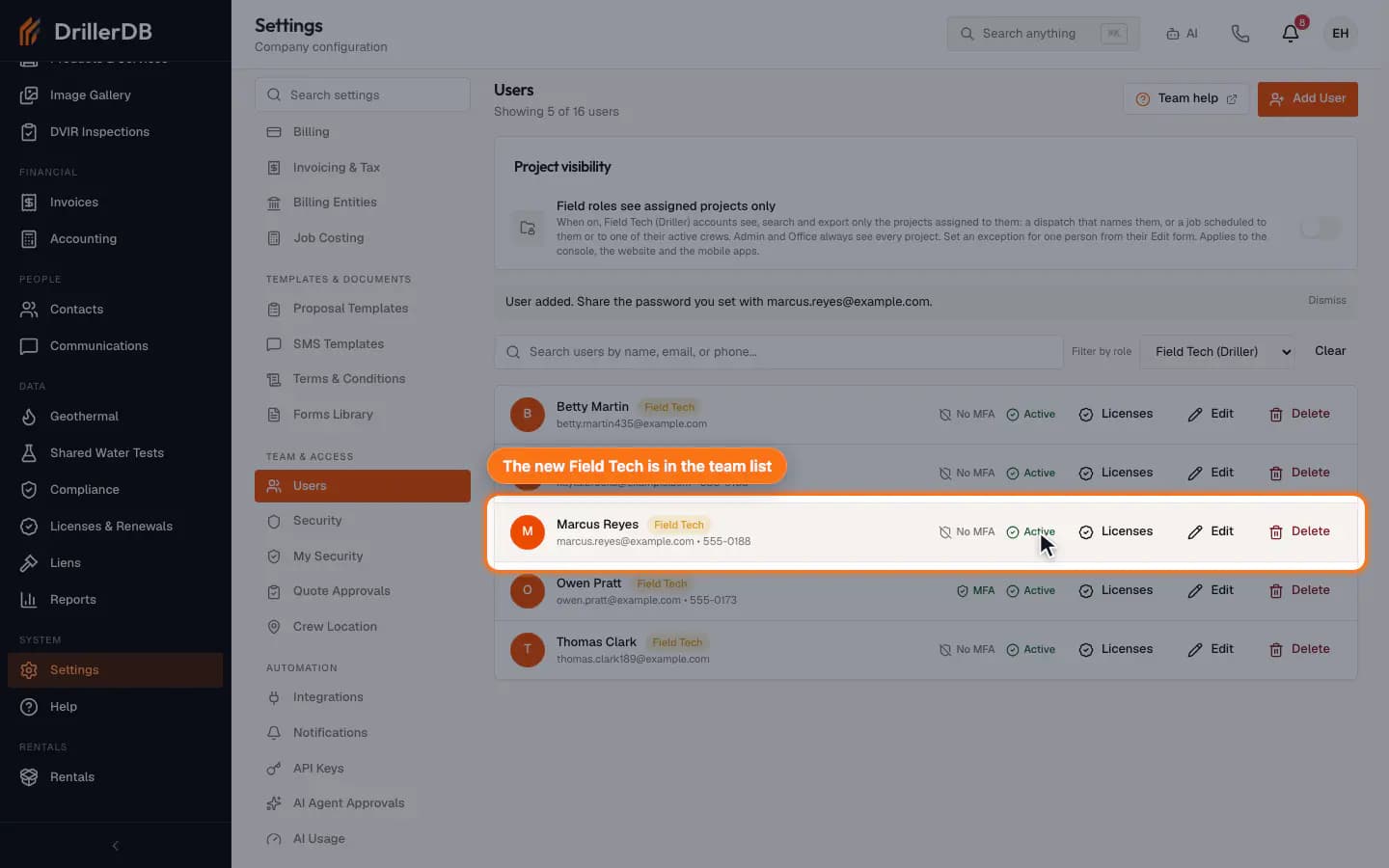
Review the name, email, phone, role, and password. Then click Add User. If you typed a password, Send set-password email decides whether DrillerDB emails a link. Clear it to give the person the password yourself. The new user appears in the list.
Adding a user grants account access. Confirm the role and recipient before submitting.
Access boundary
Adding a user grants access to the company account.
Use the final submit step only after the teammate, email address, initial password path, and role have been reviewed by an admin or owner.