
This guide is based on a browser-recorded walkthrough in the rebuilt DrillerDB console. When a step can send, submit, export, or change account access, the guide calls out the review boundary.
A project is the heart of every drilling job in DrillerDB. It holds the customer, the well site, the proposal, the crew assignments, the well log, and eventually the invoice. This guide creates one from scratch with a typical domestic well as the example. The whole thing takes about a minute once you know where to click.
Quick Start
- Open the New Project page.
- Keep Drilling Project selected.
- Add the customer contact and mailing address.
- Fill the drilling setup and well-site location.
- Click Create Project.
- Continue to the Proposal tab to build and send the customer proposal.
Step-by-Step: Create Your First Project
Open the Dashboard and click New Project
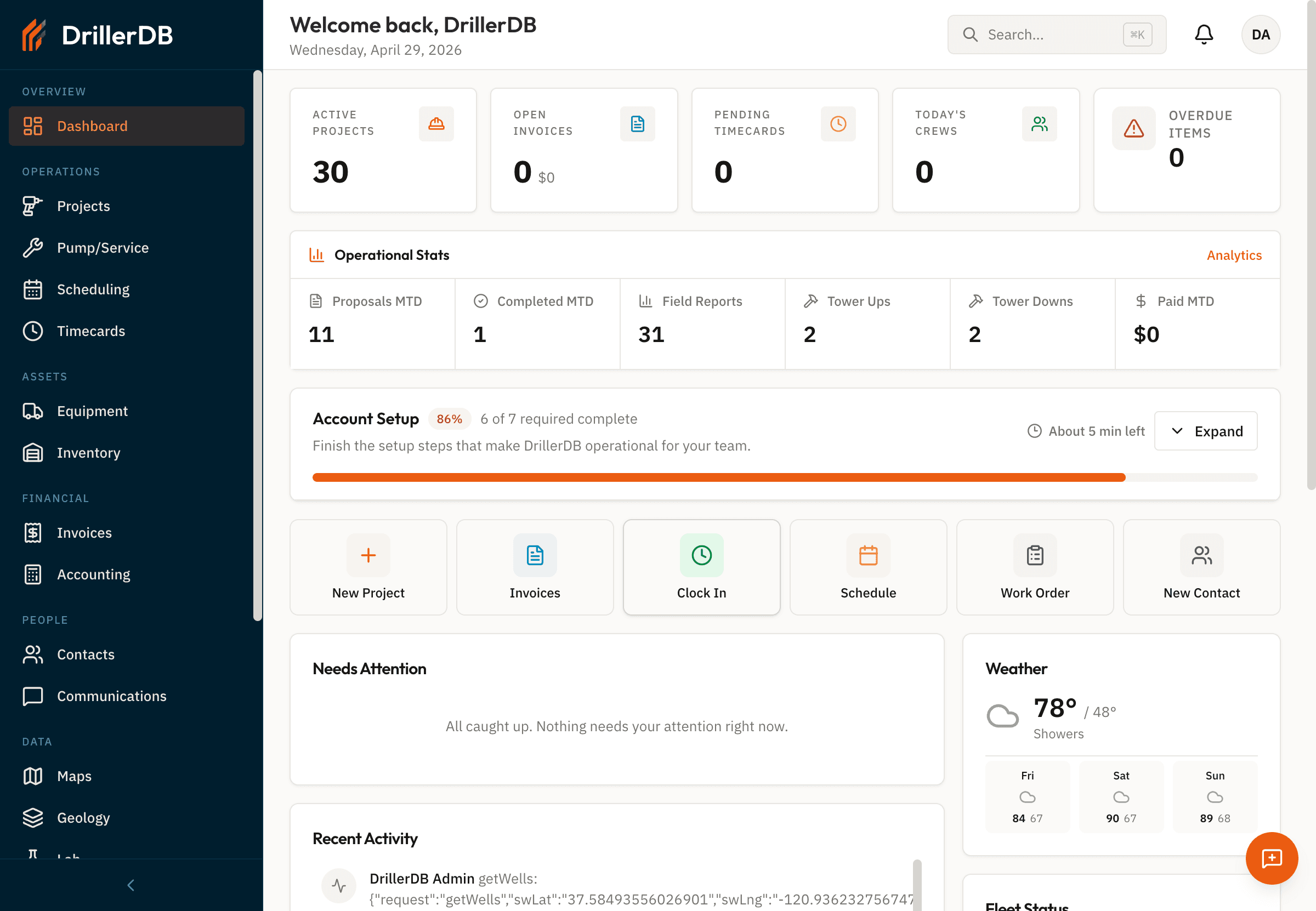
On the Dashboard, find the row of quick-action tiles below the Account Setup card. New Project is the first tile, marked with an orange plus icon. Click it to start.
Prefer the keyboard? Press Cmd+K (or Ctrl+K on Windows) anywhere in the app and type 'new project'.
Pick Drilling Project
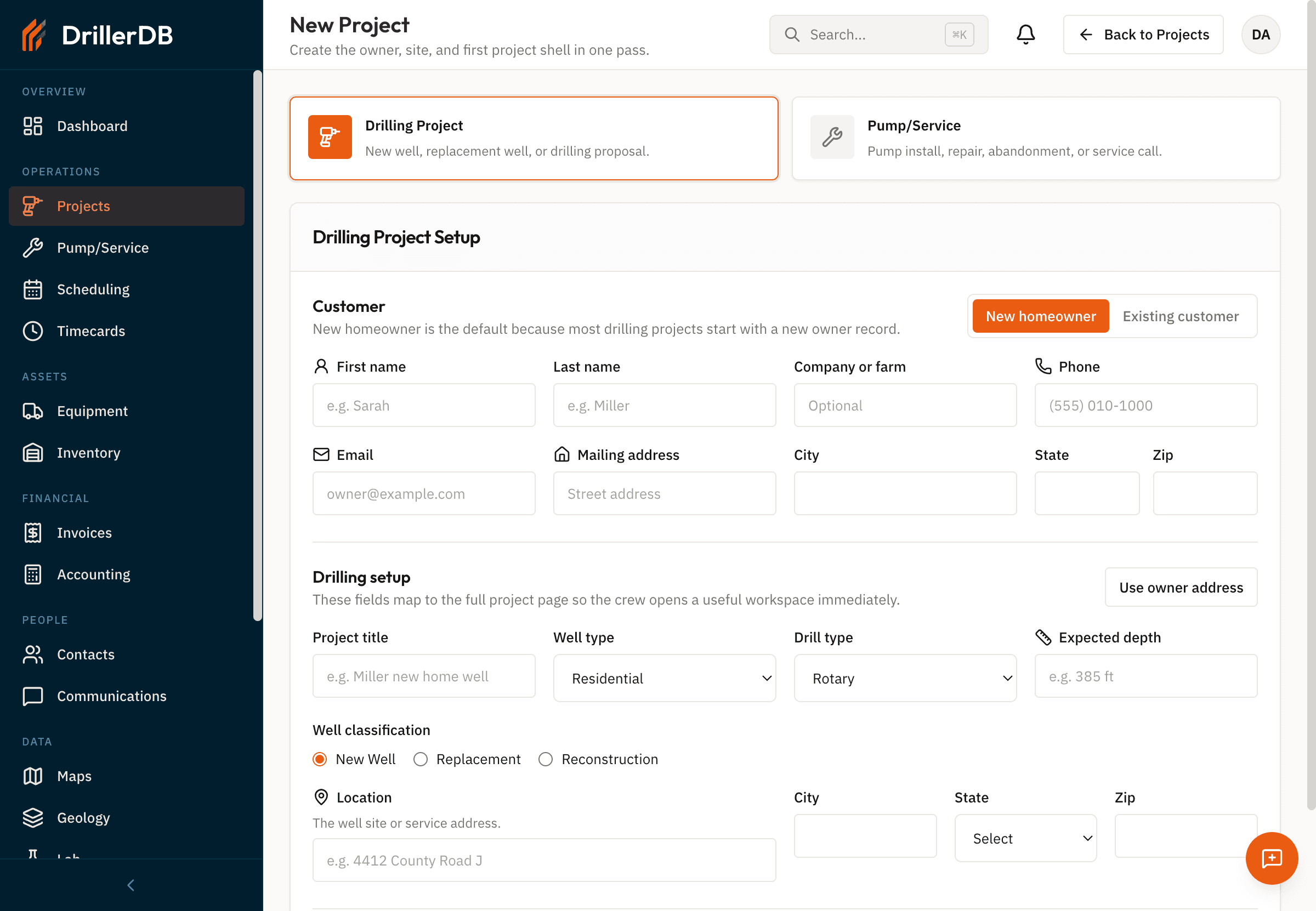
DrillerDB asks what kind of project this is. Choose Drilling Project for any new well, replacement well, or drilling proposal. Choose Pump/Service for pump installs, repairs, abandonments, or service calls. Drilling Project is selected by default, so confirm it has the orange border.
Add the customer
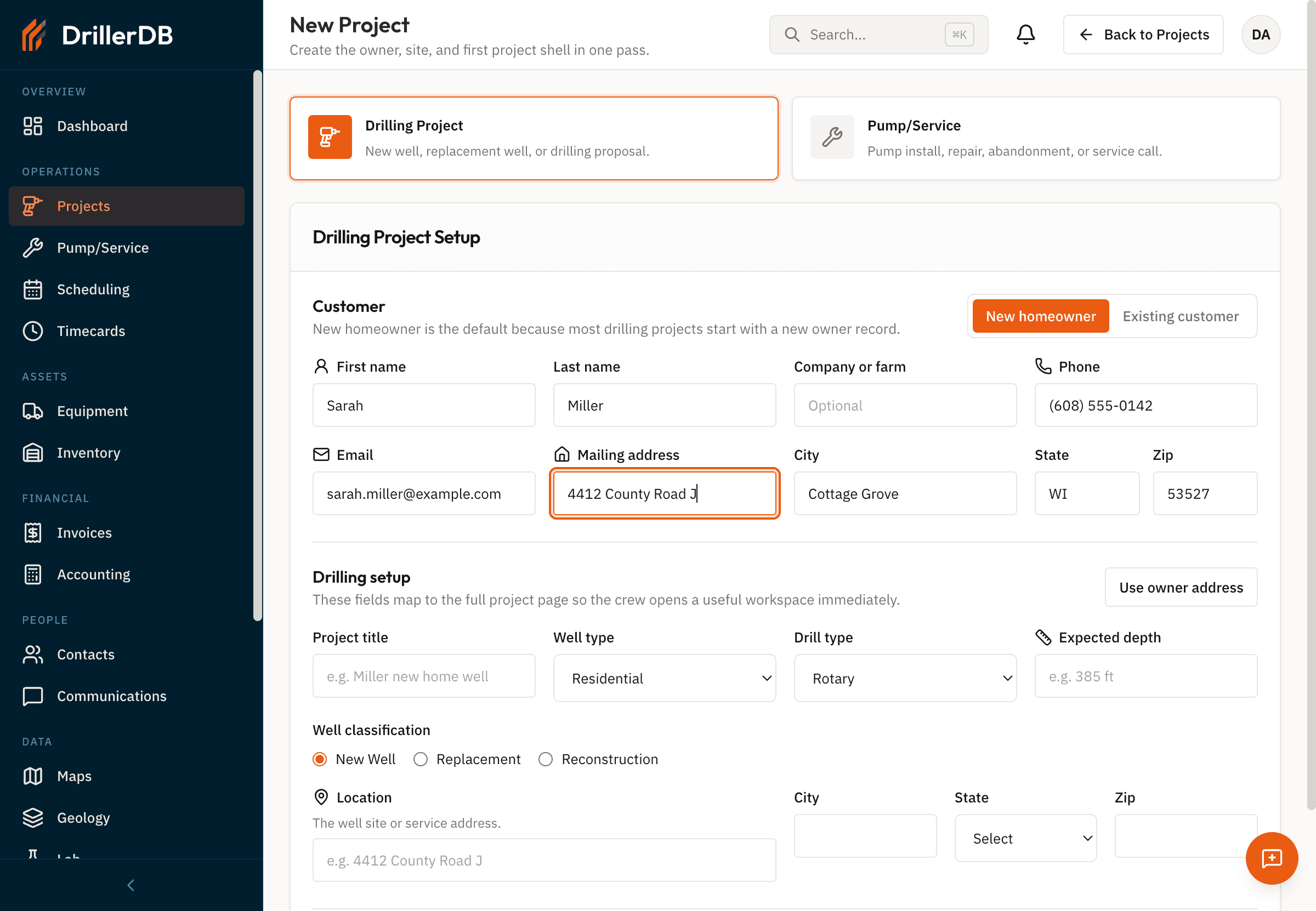
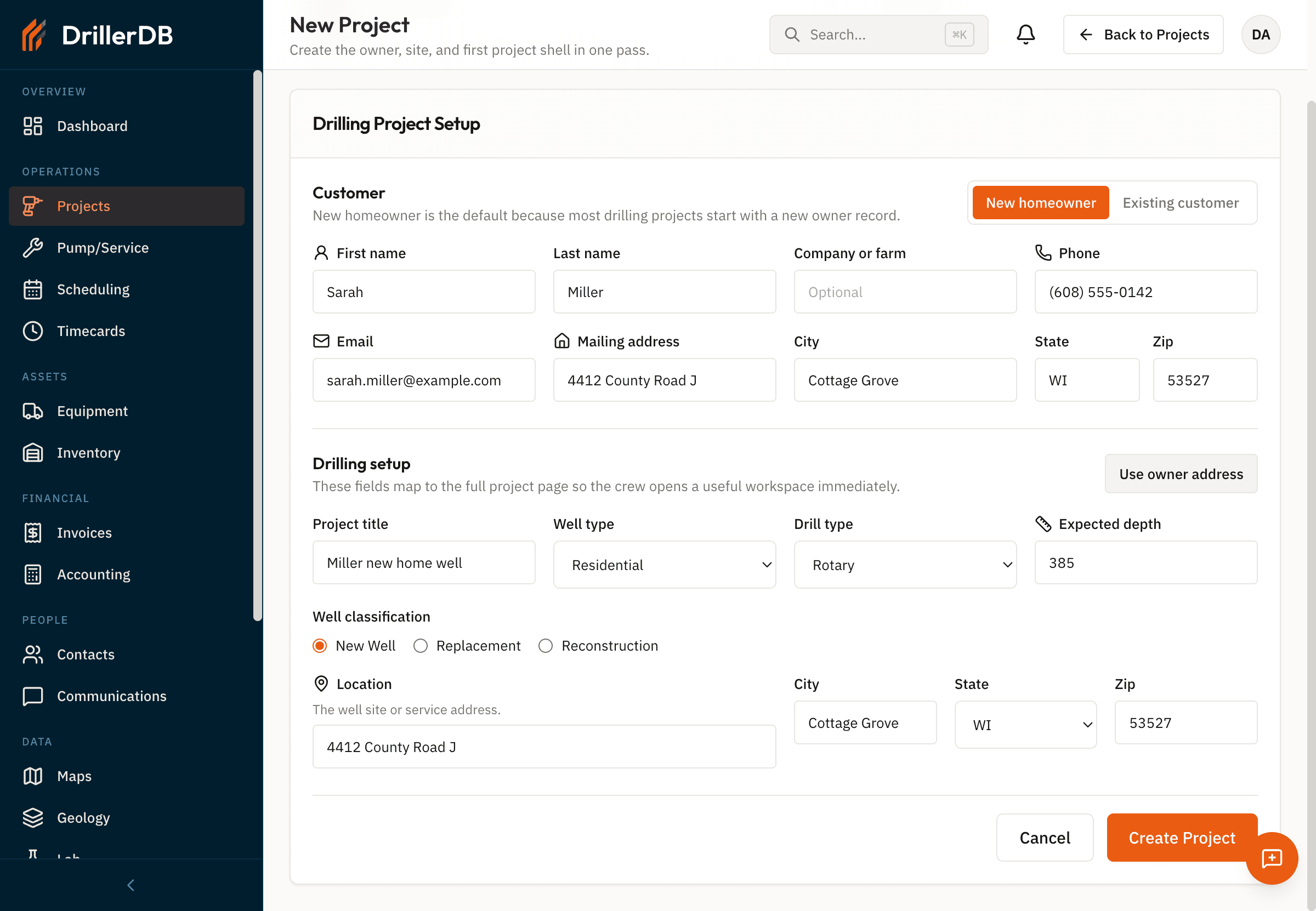
New homeowner is selected by default, because most drilling jobs start with a fresh owner record. Enter the homeowner's name, phone, email, and mailing address. Mailing address is the same as the job site is ticked for a homeowner, so if you'd rather start with the well location, leave the address fields alone and they'll fill themselves from the Location you enter further down. Typing your own mailing address unticks the box and keeps what you typed. The Company or farm field is optional; use it for commercial or agricultural customers. If the customer already exists in your contacts, click Existing customer to search instead.
Entering phone, email, and a complete mailing address now saves you from tracking the customer down later, when it's time to send a proposal or invoice.
Fill in the well details
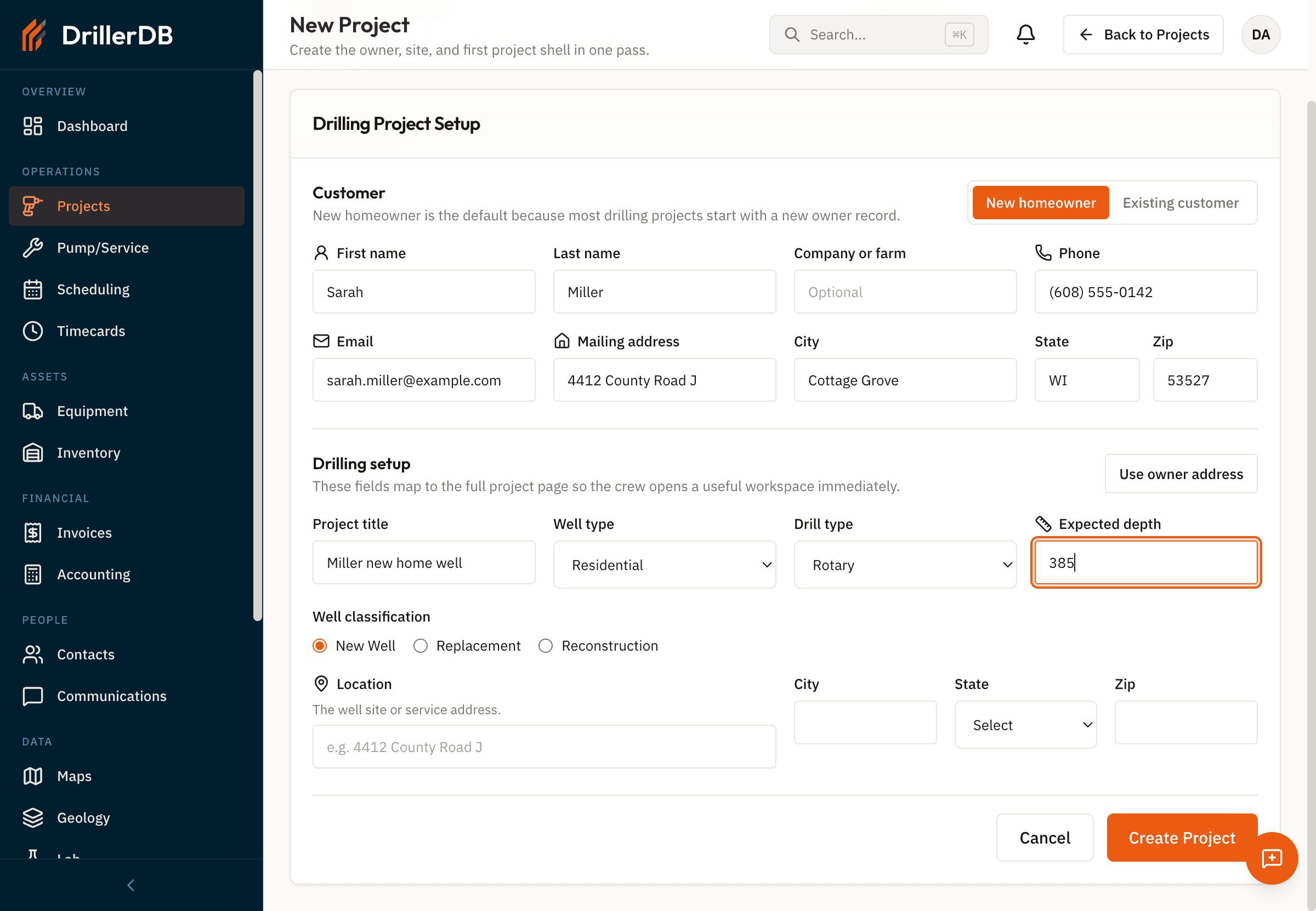
Give the project a clear title that the crew can recognize at a glance, like Miller new home well. Pick the Well type (Residential, Commercial, Industrial, and so on), the Drill type (Rotary, Cable Tool, Air Rotary, and so on), and the Expected depth in feet. Well classification defaults to New Well; switch to Replacement or Reconstruction if appropriate.
Click Use owner address to fill the well location
Most of the time the well site is at the customer's mailing address. In the Drilling setup section, click Use owner address to copy the address, city, state, and zip into the Location section in one move. The button appears once the customer has an address of their own. If the well is on a different parcel, type over any field; the customer record stays untouched.
Override only what's actually different. Leaving the city, state, and zip the same as the owner is fine, and is what most domestic wells need.
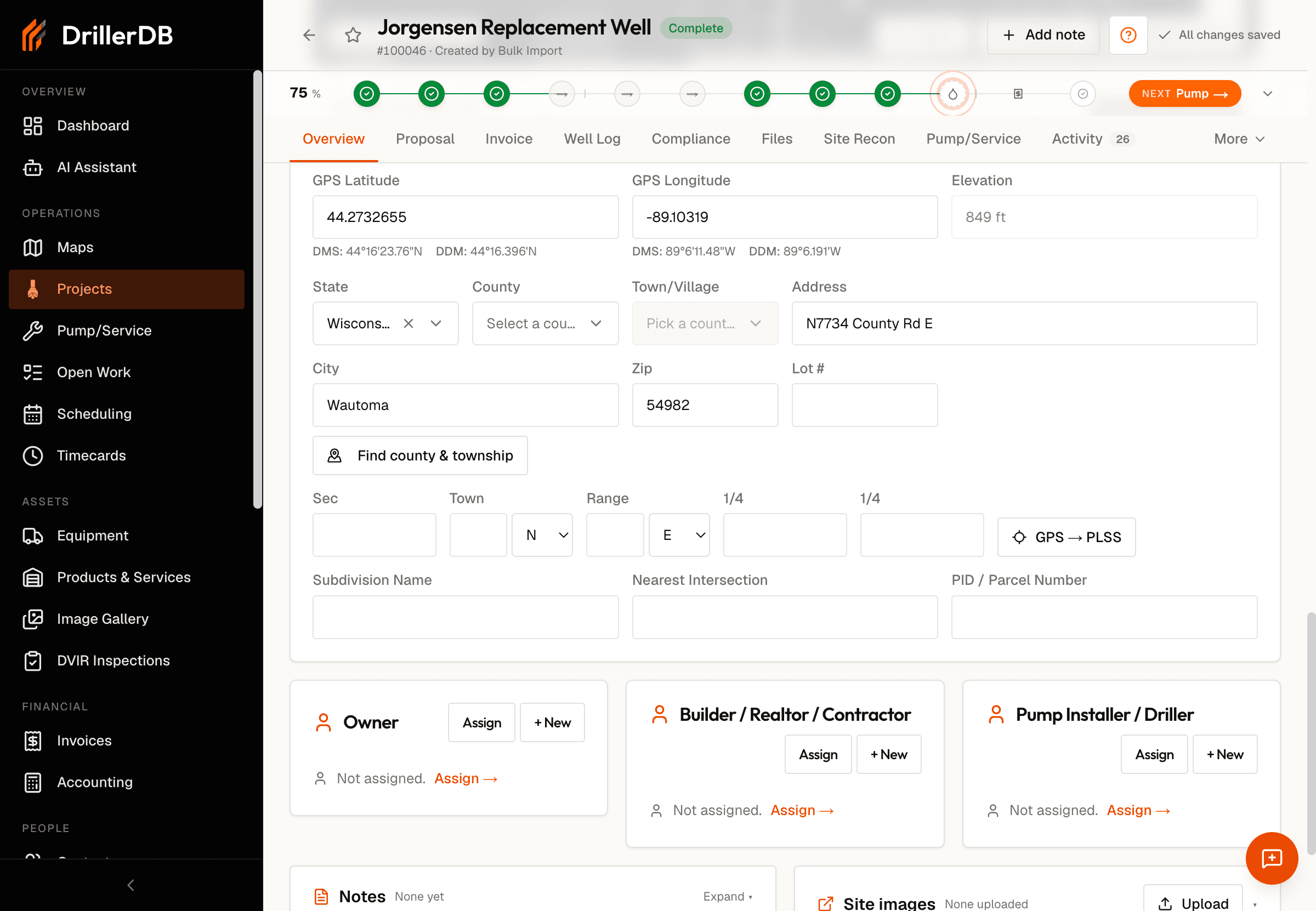
Fill in the county and township
In the Location section, click Find county & township. DrillerDB looks them up from the site address, so it works whether you picked the address off the dropdown or typed it in yourself. In states that use the rectangular survey system, the same press also fills Section, Town, and Range. A panel shows what it found and what each value would replace, and nothing is saved until you click Apply. If a township does not match one of our own records, the panel shows it for information only and will not apply it - DrillerDB would rather leave the township blank than write one it cannot match. The button stays greyed out until the site has an address or GPS coordinates.
Picking the site address off the dropdown fills the county for you, and in states that use the rectangular survey system it fills Section, Town, and Range as well - the same values the button applies. A short note names what it filled, for example "Filled 44N 8W Sec 15 from the site address. Edit any field to override." DrillerDB never writes over survey values you entered yourself: if Section, Town, or Range already has something in it, it leaves all three alone.
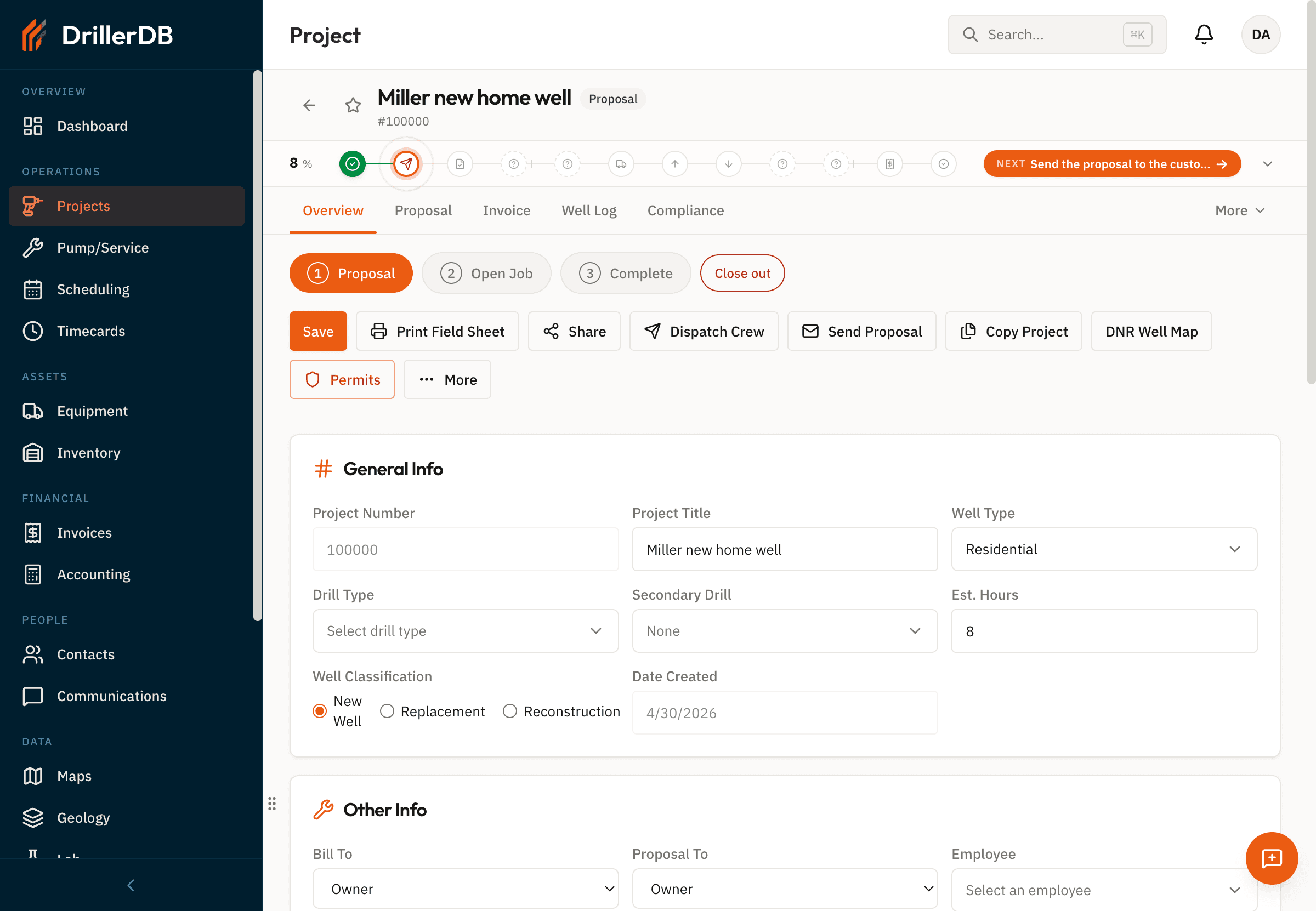
Click Create Project
Click Create Project at the bottom of the form. DrillerDB saves the project as a Proposal, gives it a project number, and opens the project page. From there you can send the proposal to the customer, dispatch a crew, print a field sheet, or open the job when it's time to drill.
Continue to the proposal
After the project exists, open the Proposal tab on the project page. Use that tab to build pricing, preview the customer proposal, and send it when ready.
For guide recordings and training assets, the DrillerDB team uses Create without sending so the workflow can be demonstrated without emailing a customer.