
This guide is based on a browser-recorded walkthrough in the rebuilt DrillerDB console. When a step can send, submit, export, or change account access, the guide calls out the review boundary.
The Proposal tab turns a project shell into a customer-facing quote. Use it to review line items, add pricing, set terms, choose recipients, configure down payments, and either send the proposal or create the customer proposal record without sending while you are still drafting.
Quick Start
- Open the project Proposal tab.
- Add or review proposal line items.
- Click Create Proposal.
- Confirm recipients, message, attachments, approval link, and down-payment settings.
- Click Send for real customer delivery or Create Without Sending for a draft/customer portal snapshot.
Step-by-Step: Send a Project Proposal
Open the project Proposal tab
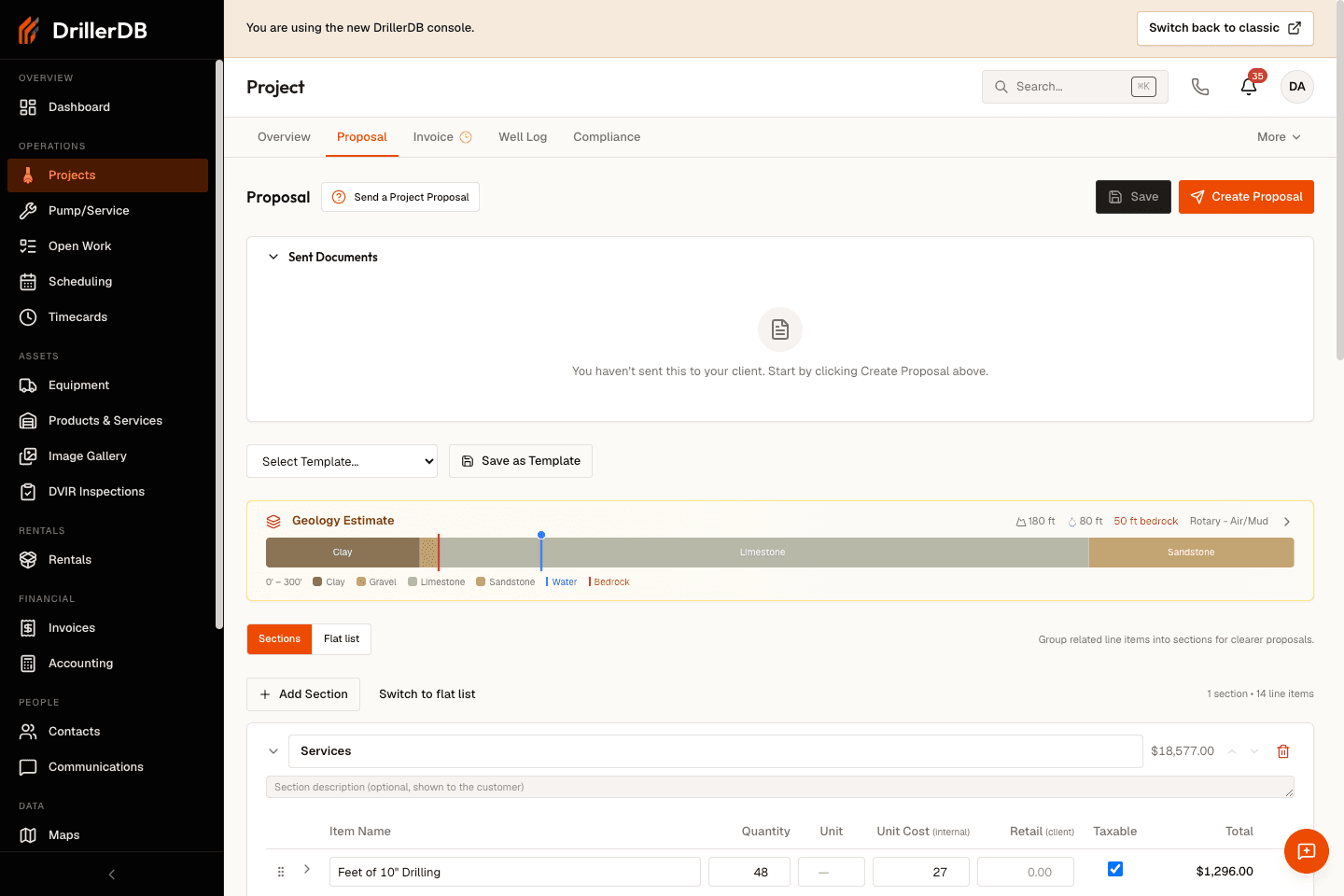
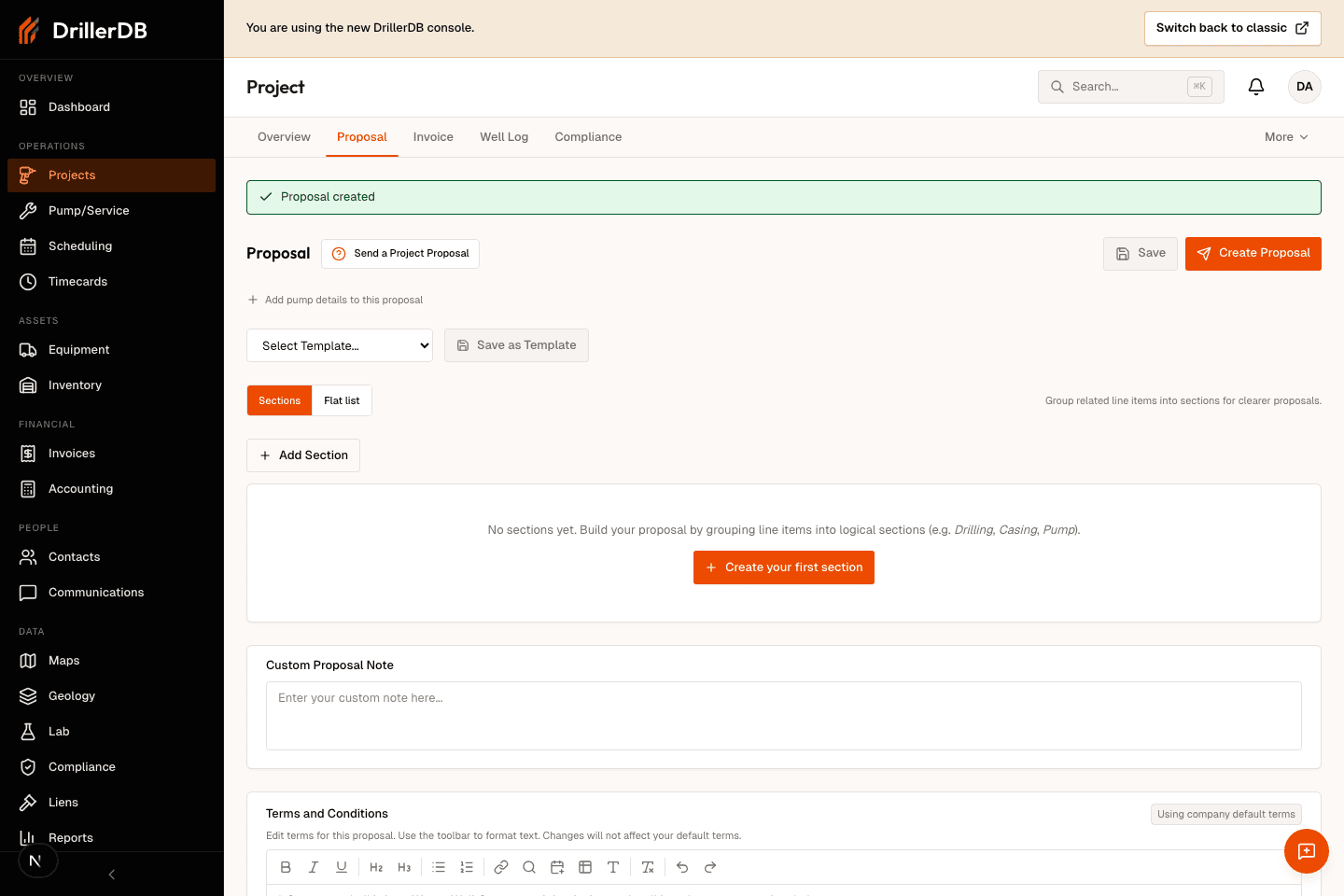
From a project page, open the Proposal tab. This is where project pricing, proposal terms, customer-facing proposal records, approvals, change orders, and resend controls live.
Right after you create a project, the Proposal tab is the next step before converting the work to an open job.
Add or review proposal line items
Use the line-item editor to describe the work, quantity, unit cost, and tax setting. The section builder helps with grouped proposals; the flat list is fastest for a simple well quote.
Save the proposal after major pricing changes. Create Proposal also saves pending edits before it opens the send dialog.
Click Create Proposal
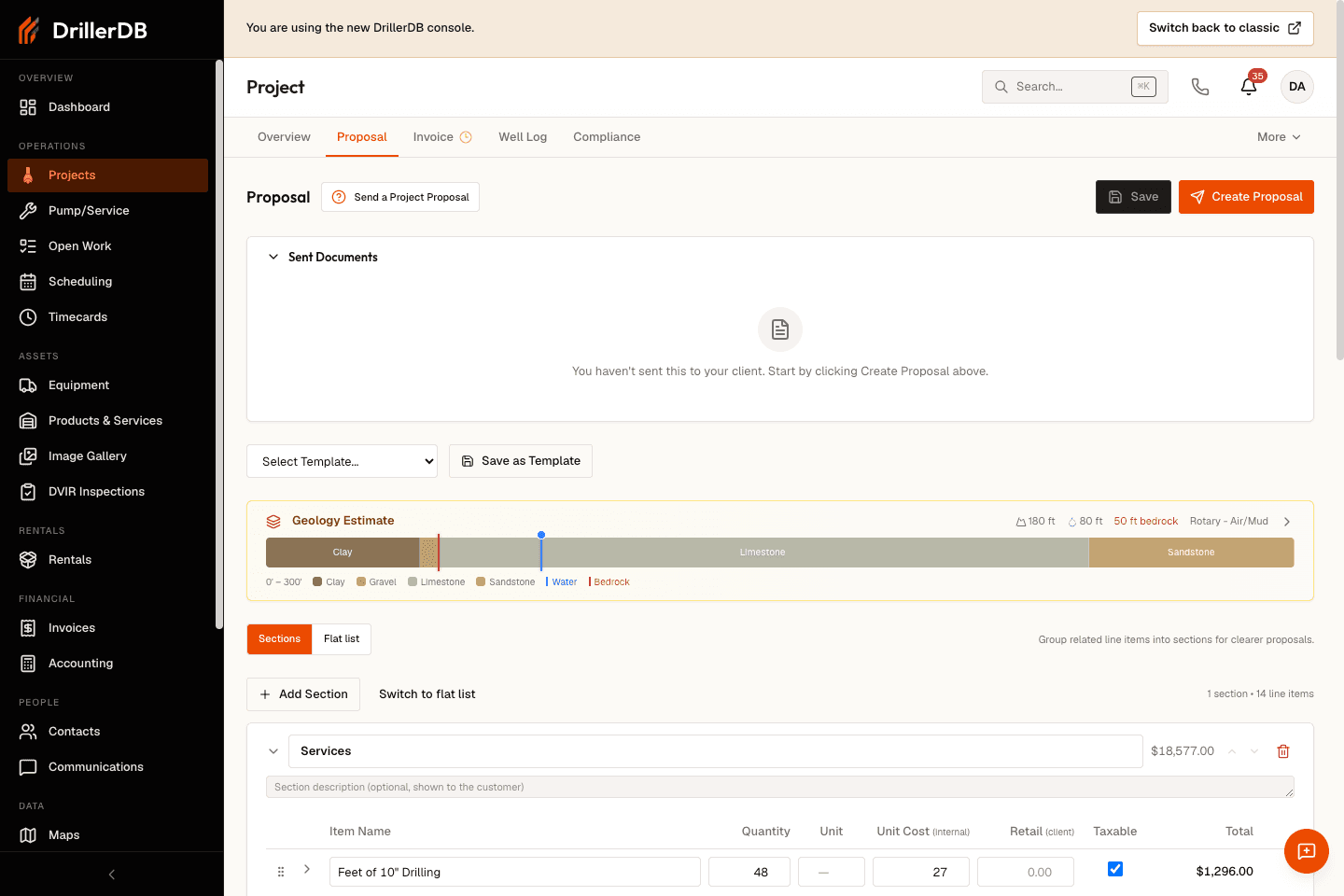
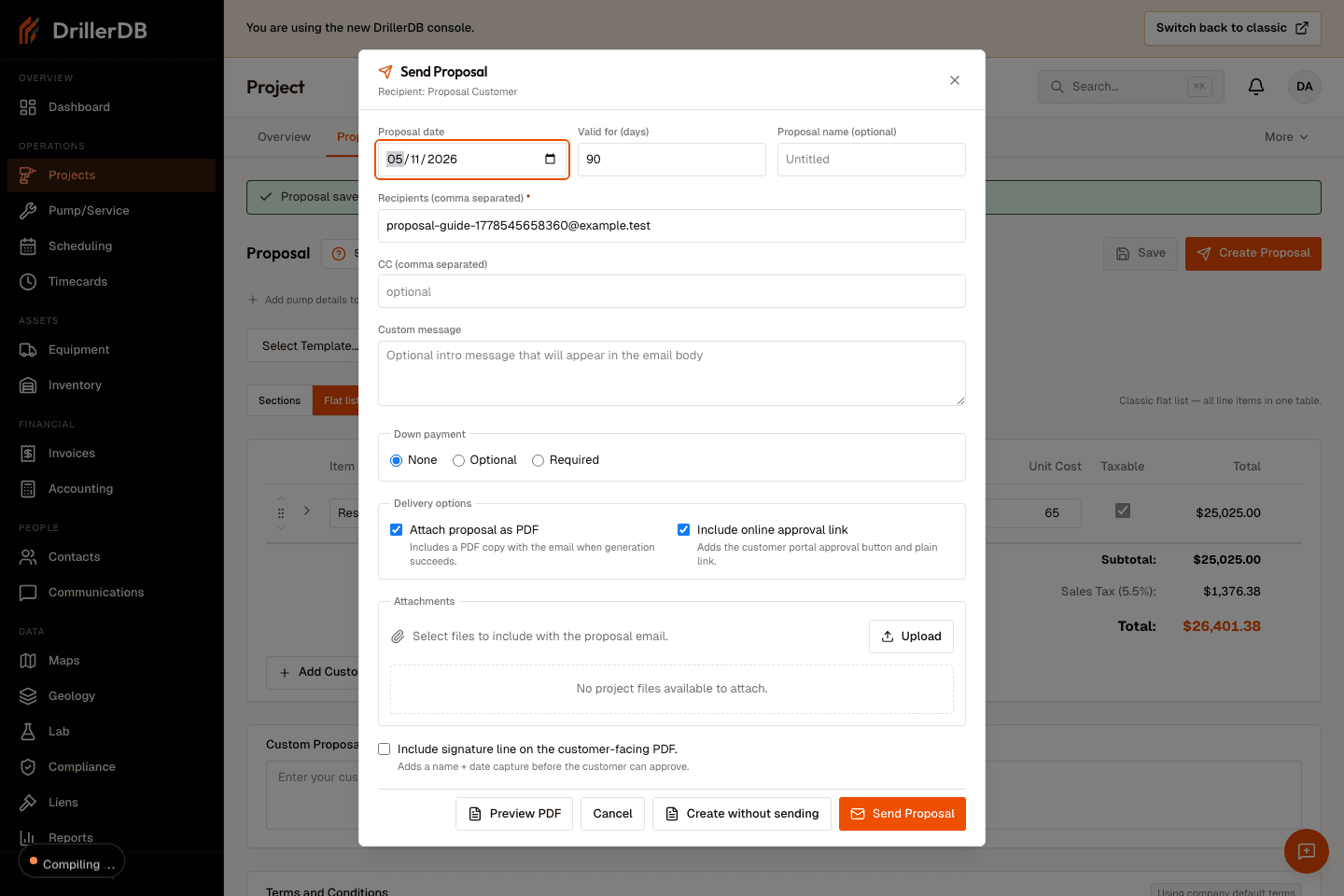
Click Create Proposal in the header. DrillerDB saves the latest pricing snapshot and opens the Send Proposal dialog for proposal date, validity, name, recipients, message, attachments, approval link, and down-payment settings.
Confirm recipients and customer-facing options
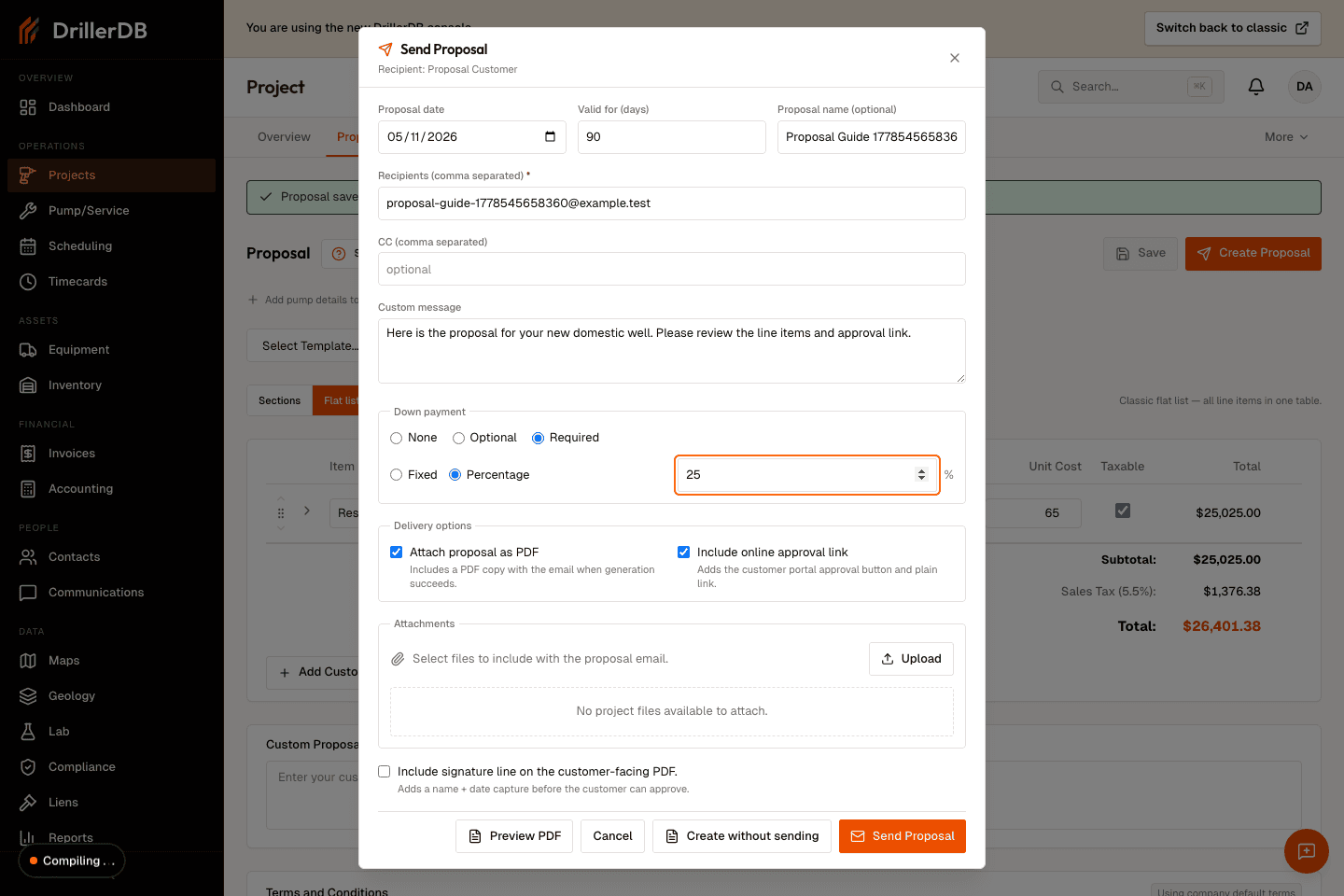
Review the primary recipient and CC list, customize the email message, decide whether to attach the PDF, include the approval link, require a signature line, and set any required or optional down payment.
For a dry run, use Create Without Sending. For real customer delivery, verify the recipient address and then click Send.
Create or send the proposal
Click Send to email the proposal to the customer. If you are still drafting, click Create Without Sending to create the proposal record and customer portal snapshot without sending email. The Sent Documents section then shows the proposal status, recipient, total, and customer-link controls.
Customer delivery and training mode
Use Send only when the recipient email, message, terms, attachments, approval link, and down-payment settings are ready for the customer. Use Create Without Sending when you want to create the proposal record, snapshot, and customer portal version without delivering email yet.
For guide recordings and QA assets, the DrillerDB team uses Create Without Sending so the workflow can be demonstrated without emailing a customer.