
This guide is based on a browser-recorded walkthrough in the rebuilt DrillerDB console. When a step can send, submit, export, or change account access, the guide calls out the review boundary.
Projects are the central job record in DrillerDB, but the user workflow is the lifecycle: create the drilling project, add customer and location details, build and send the proposal, complete field/well-log and compliance work, then invoice from the completed record. This guide is a read-only orientation to where those pieces live so users can jump into the right workflow guide.
Quick Start
- Open Projects to find the job record by status, customer, location, well type, or priority.
- Use the project detail page as the hub for customer, location, proposal, invoice, well log, compliance, files, and history.
- Open Proposal when the office is ready to build and send customer pricing.
- Open Well Log and Compliance when field work is complete and permit paperwork needs review.
- Open Invoice only after completed field, well-log, and compliance data are ready for billing.
Step-by-Step: Projects & Wells
Open Projects
Open Projects to review the pipeline cards, status filters, search, advanced filters, import/export controls, and project rows.
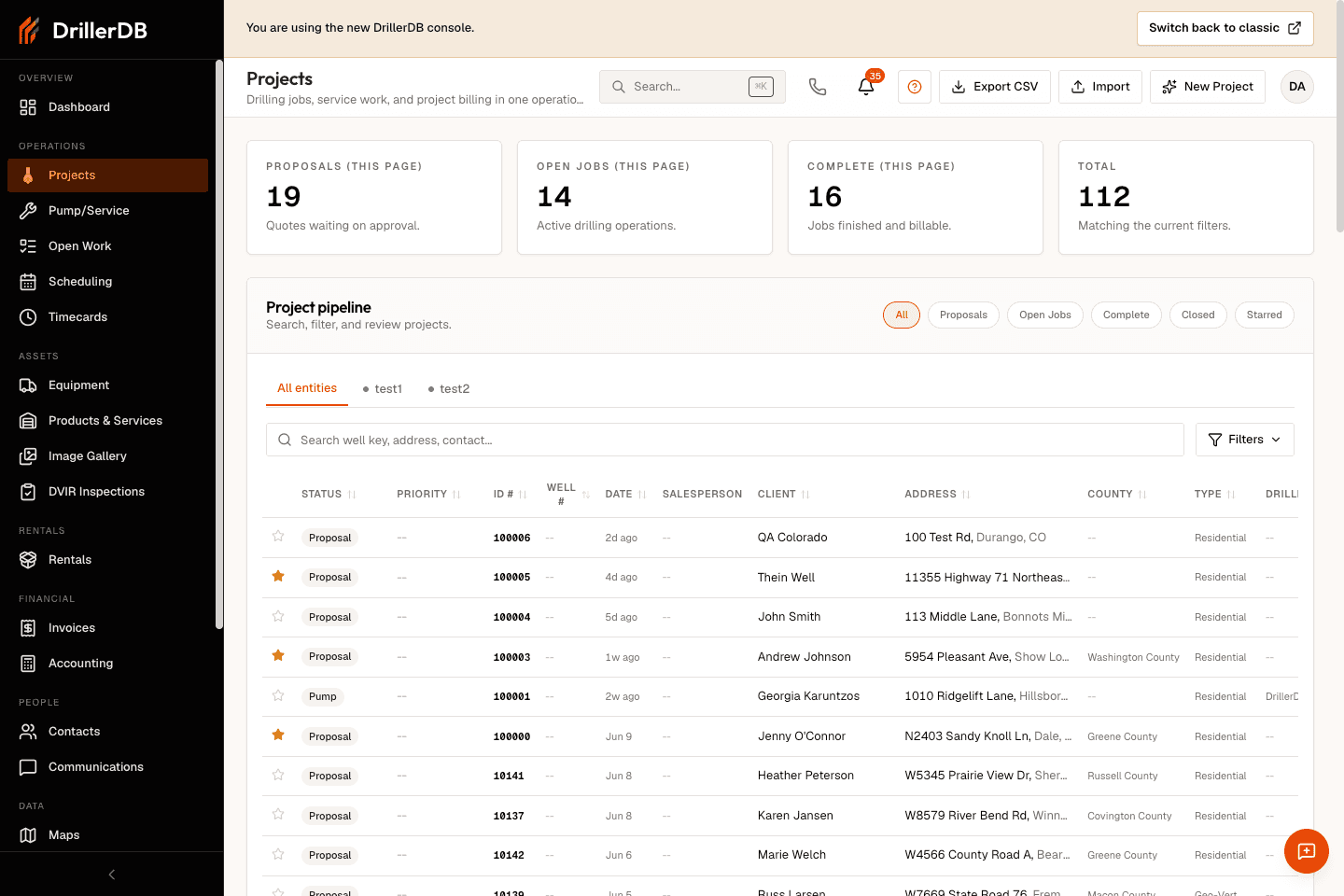
Filter by stage or field context
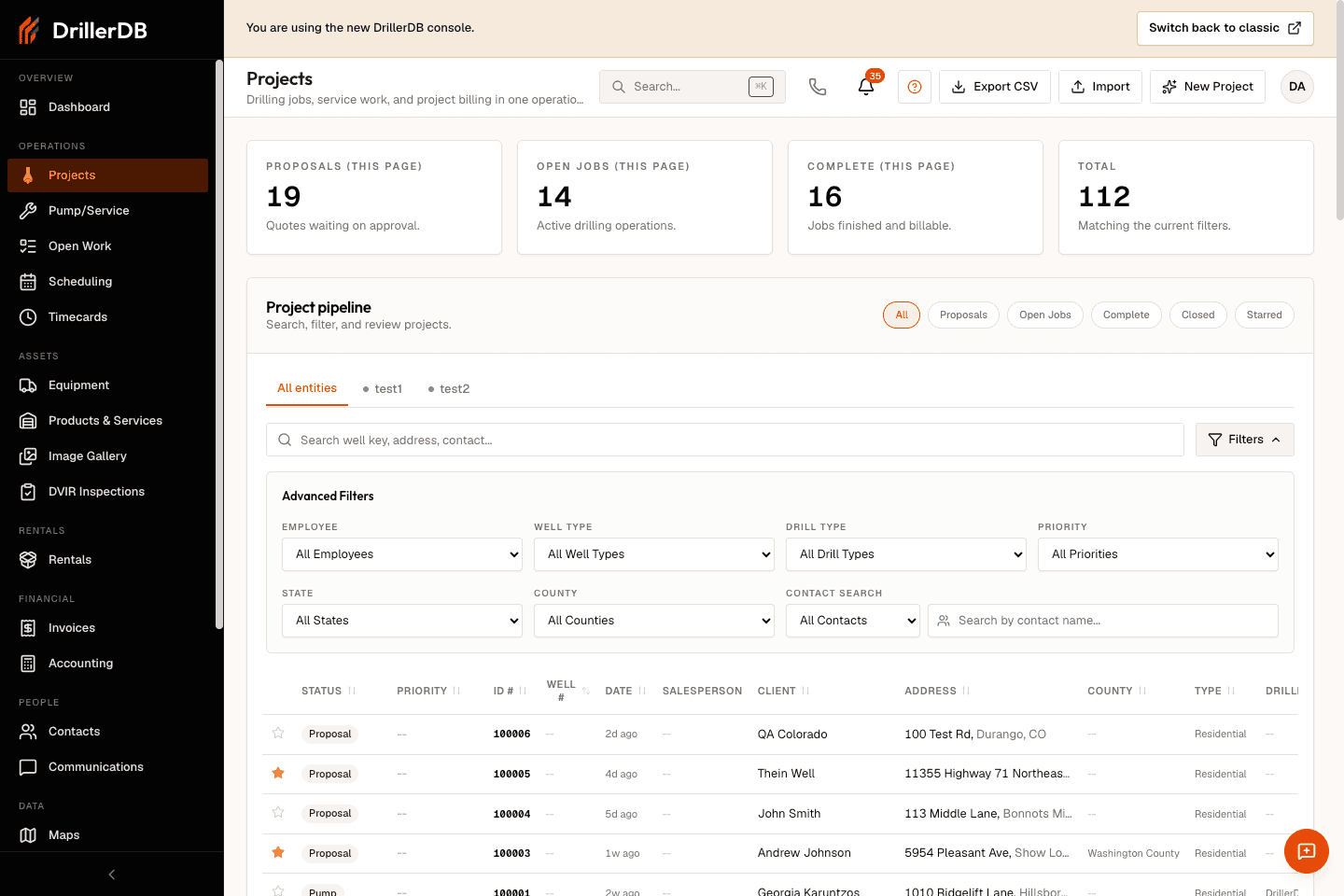
Use the status pills for Proposal, Open Job, Complete, and Closed work. Use advanced filters for employee, well type, drill type, priority, state, county, and contact search when the list is busy.
Filtering the list is read-only. Status changes, dispatch, delete, and export actions are separate controls.
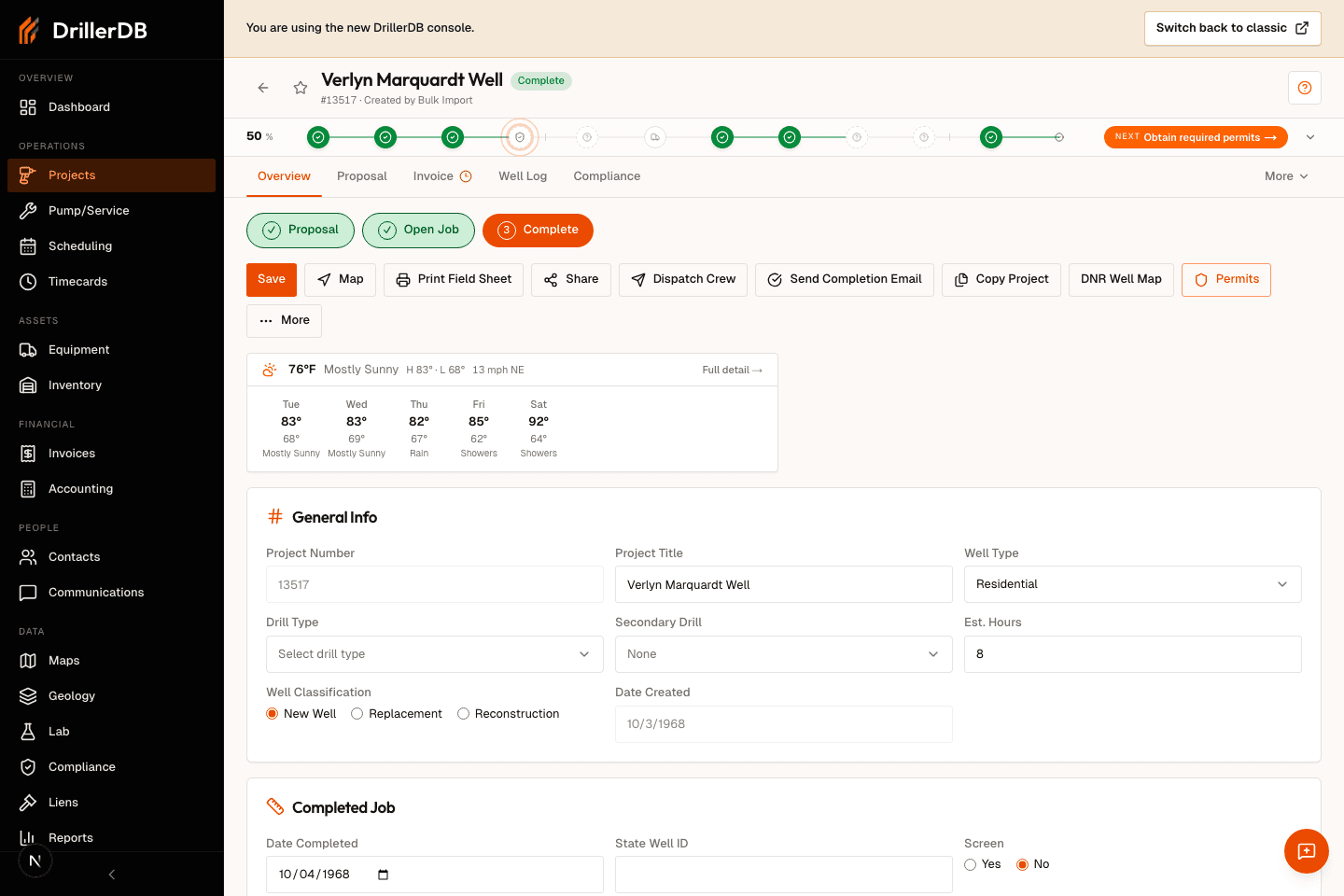
Open the project overview
Click a project row to open the detail page. The sticky header shows the project title, project number, status, well number, save state, and lifecycle strip while you work through the record.
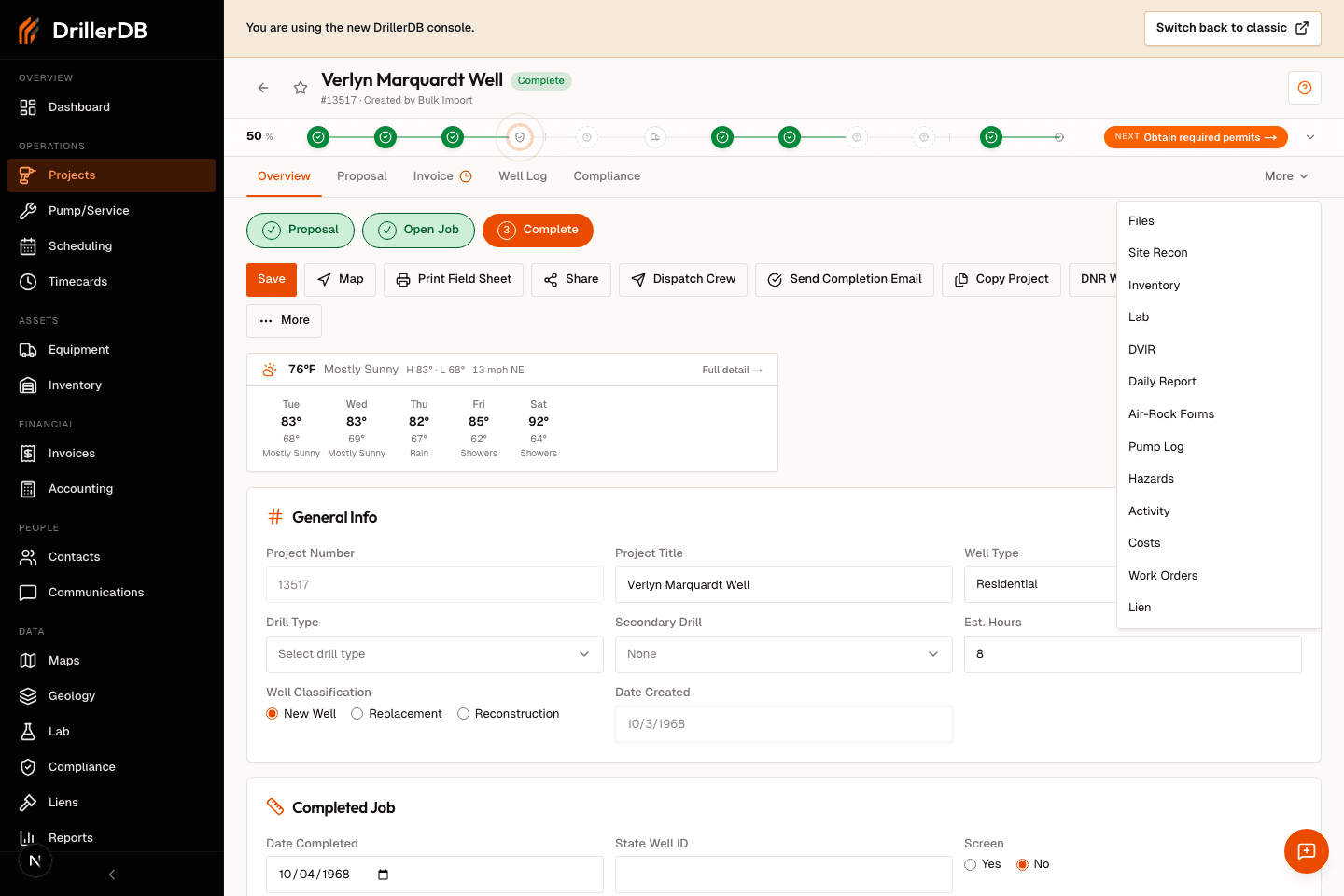
Use tabs to move through the job record
The primary tabs keep the highest-frequency work visible: Overview, Proposal, Invoice, Well Log, and Compliance. Use More for supporting tabs such as Files, Site Recon, Inventory, Lab, Daily Report, Activity, Costs, Pump/Service, and Liens.
This guide shows where the tabs are. The proposal, compliance, well-log, and invoice workflows each have their own detailed guide.
Open Well Log or closeout tabs when field work is complete
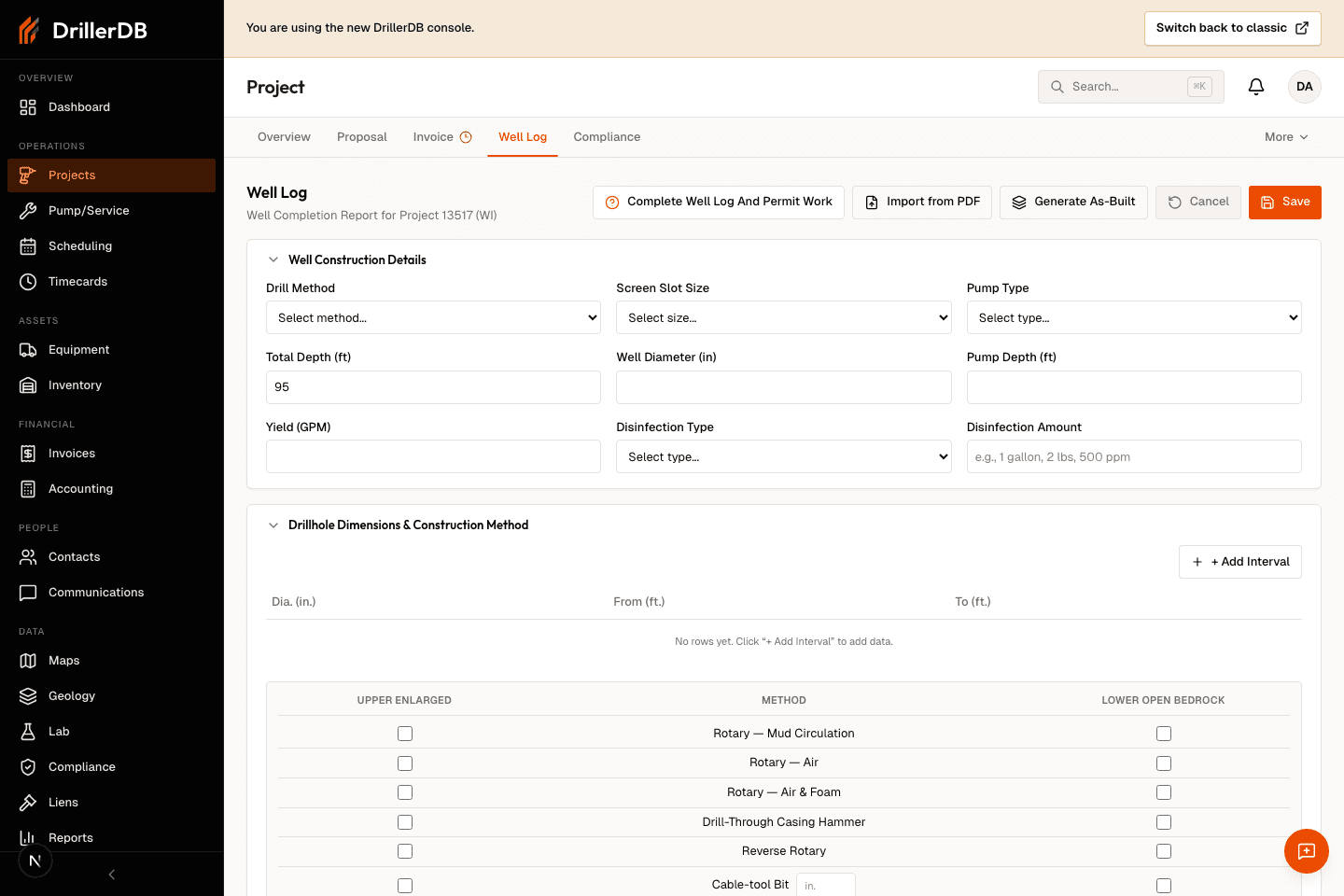
Use Well Log for drilling and construction details, Compliance for required forms, Invoice for billing, and Activity/Files for supporting history. The recording opens tabs only and does not save or change project data.
Workflow orientation
The first workflow investigation produced a useful route and feature-surface inventory, but it did not fully capture how DrillerDB users think about the work. Treat Projects & Wells as the job-record hub for the real workflows: drilling project creation, customer/location setup, proposal delivery, field completion, compliance paperwork, and billing from completed work.
For pump and service work, use the Work Orders guides. Service jobs follow the same customer-to-proposal pattern, but they start from a pump/service work order instead of a drilling project.