
Search & Filters
DrillerDB gives you two fast ways to find projects: global search from anywhere in the app, and the Projects page itself, where status pills, a search box, and an advanced filter panel narrow your list.
Quick Start
- Press Cmd+K (Mac) / Ctrl+K (Windows) for the fastest lookup anywhere in the app
- Open Projects when you want to narrow the project list
- Click a status pill such as Proposals, Open Jobs, Complete, or Closed
- Use the search box to find a project by well key, address, or contact name
- Click Filters to narrow by employee, well type, drill type, state, county, priority, or contact
Global Search
The fastest way to find anything in DrillerDB. The global search bar sits in the top bar of every page.
- Click the search bar, or press Cmd+K (Mac) / Ctrl+K (Windows)
- Start typing a name, project ID (well key), address, or keyword
- Results appear instantly, grouped by category (Projects, Contacts, Employees, Invoices, Notes, Lab Samples)
- Click any result to jump directly to it
- Press Escape to close
Global search works no matter which filters are active on the Projects page, so it's the quickest way to reach a specific project. Use the p: prefix (for example p:12345) to search projects only. See Global Search for the full list of prefixes.
The Projects Page
Open Projects from the left menu to work with your list.
- New Project, Import, and Export CSV buttons sit at the top right.
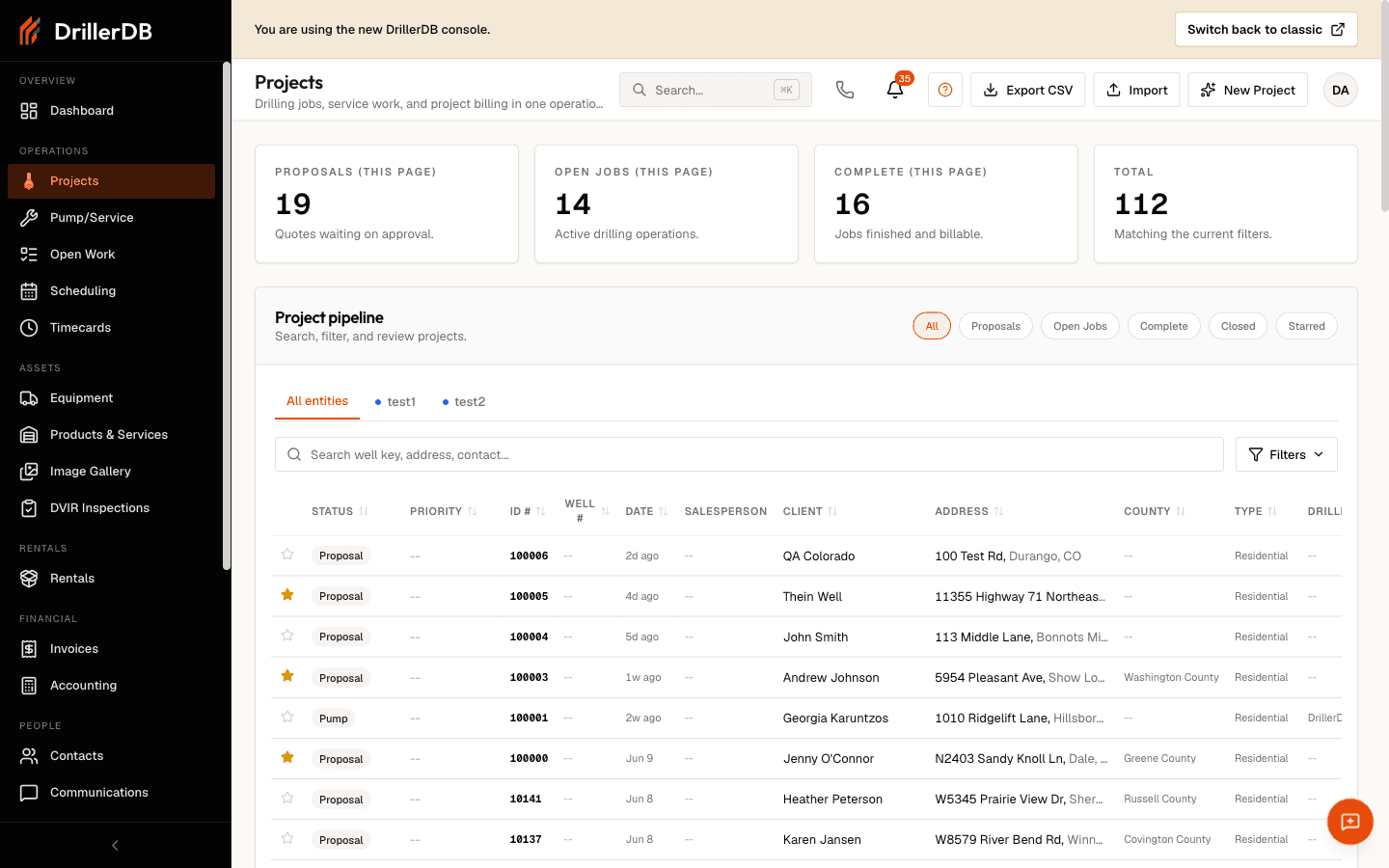
- Summary cards show counts for Proposals, Open Jobs, and Complete on the current page, plus the total matching your filters.
- Status pills, a search box, and a Filters panel let you narrow the list.
Status Pills
Six pills at the top of the list filter projects by stage, plus an optional Needs a Date pill. Click one to filter instantly.
| Pill | Shows |
|---|---|
| All | Every project regardless of status |
| Proposals | Projects still in the proposal/quote stage |
| Open Jobs | Active jobs being worked |
| Needs a Date (optional) | Open Jobs with nothing on the schedule yet - accepted work that still needs a date. Shown when your company turns on Settings > Display & Features > Show the Needs a Date chip on Projects (off by default) |
| Complete | Work finished, ready for invoicing |
| Closed | Archived projects |
| Starred | Only the projects you've starred |
Needs a Date shows the same work as the Needs a date list on the Scheduling page, so filtering here and reading the scheduling rail give you the same jobs rather than two nearly-equal answers. The two totals can still differ, and that is correct: the Scheduling rail also counts unscheduled work orders, and the Projects list does not include work orders at all.
The pill is off until an admin turns it on under Settings > Display & Features > Show the Needs a Date chip on Projects. Turning it off only hides the pill. If you open a link that already has the Needs a Date filter applied, the pill appears anyway so you can see what is filtering the list and clear it.
A job counts as needing a date when it is an Open Job with no scheduled date. Having no driller assigned is a separate question - a job can be on the calendar with no crew named yet.
Search Box
The search box above the list filters your projects as you type. It matches on:
- Well key (the project ID number)
- Address (well location)
- Contact name (client or company)
The search box narrows the current list. To search across projects, contacts, invoices, and more from anywhere in the app, use global search (Cmd+K).
Advanced Filters
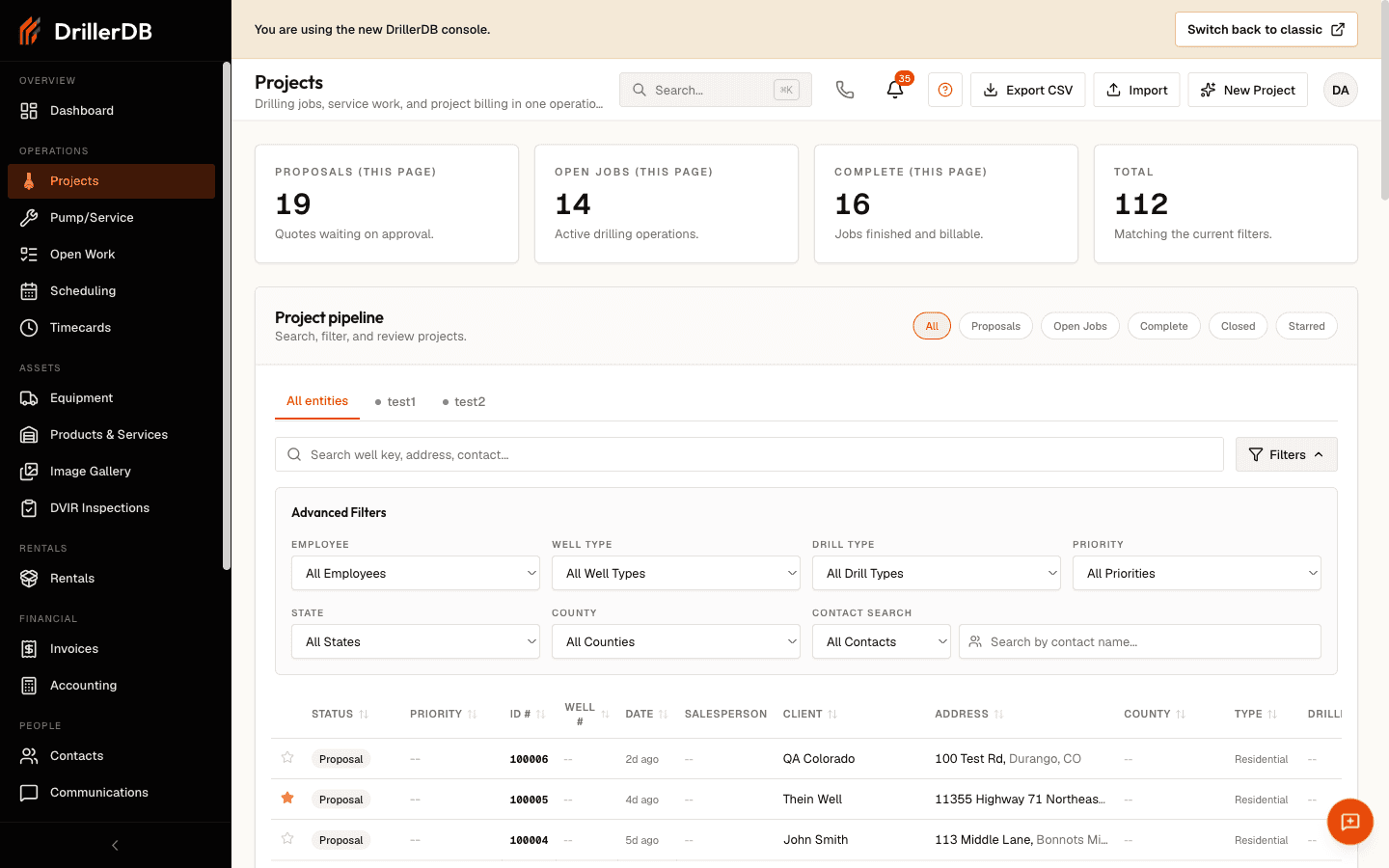
Click the Filters button to open the advanced filter panel. A badge on the button shows how many filters are active.
| Filter | What it does |
|---|---|
| Employee | Show only projects assigned to a specific person |
| Well Type | Filter by well type |
| Drill Type | Filter by drilling method |
| Priority | Filter by priority (1 - Not Ready, 2 - Almost, 3 - Ready, 4 - Emergency, 5 - On Hold) |
| State | Filter by the state where the well is located |
| County | Filter by county (the list narrows to your selected state) |
| Contact Search | Search by a contact's name, optionally limited to Owner, Builder, or Pump Installer |
Filters combine with each other and with the status pills and search box. When the panel is closed, active filters appear as removable pills above the list so you can see - and clear - exactly what's applied. Click Clear all in the panel to reset every advanced filter at once.
Selecting Employee = "Craig" and the Open Jobs pill together shows only Craig's active jobs.
Starring Projects
Star the projects you're actively working so you can pull them up fast.
- Star a project from its row in the list.
- Click the Starred pill to show only your starred projects.
Star the 5-10 projects you're on this week, then click Starred to see just those.
Sorting the List
Click any column header in the project table to sort by that column - status, next step, priority, ID, date, client, address, county, or type. Click the same header again to reverse the direction. By default the list shows the most recently updated projects first.
Combining Search Methods
For the best results, layer your tools:
- Start broad: click a status pill (for example Open Jobs) to narrow the list.
- Add a filter: open Filters and pick an Employee, State, or County.
- Then search: type in the search box to find a specific project within the filtered results.
To reset, click the All pill and use Clear all in the Filters panel.
Troubleshooting: "Search Is Not Working"
If a project isn't showing up, check these first:
Check your status pill. On the Proposals pill you won't see open or completed projects. Click All to search across every status.
Check your active filters. An Employee, State, or County filter hides projects that don't match. Look at the active-filter pills above the list and remove any you don't need, or click Clear all.
Try global search instead. Global search (Cmd+K) looks across all projects, contacts, invoices, and notes regardless of the filters on the Projects page.
Search is case-insensitive. Typing "smith" finds "Smith" and "SMITH".
The most common reason a project seems to "disappear" is an active status pill or filter. Always check your active filters first.
Common Questions
What's the difference between the search box and global search? The search box on the Projects page filters the current project list. Global search (top bar, Cmd+K) searches across projects, contacts, employees, invoices, notes, and lab samples from anywhere in the app.
Can I search by well key (project ID)?
Yes. Type the number into the Projects search box, or use p:12345 in global search for an exact jump.
Can I search by contact type? Yes. Open Filters and use Contact Search, then choose Owner, Builder, or Pump Installer.
Do filters carry over between sessions? Status pills and filter selections reset when you leave the page. Starred projects persist across sessions.
Related Topics
- Projects Overview - Project management basics
- Project Statuses - Understanding the project lifecycle
- Creating Projects - Adding new projects
- Global Search - Search from anywhere in the app