
Reports & Statistics
Access business insights with DrillerDB's reporting and analytics. The Reports & Analytics hub is the main guide - it walks through the month-to-date KPI tiles, analytics tabs, monthly reports, daily logs, field reports, and the export boundaries.
Quick Start: View Reports
- Open Reports in the console (Data group in the navigation).
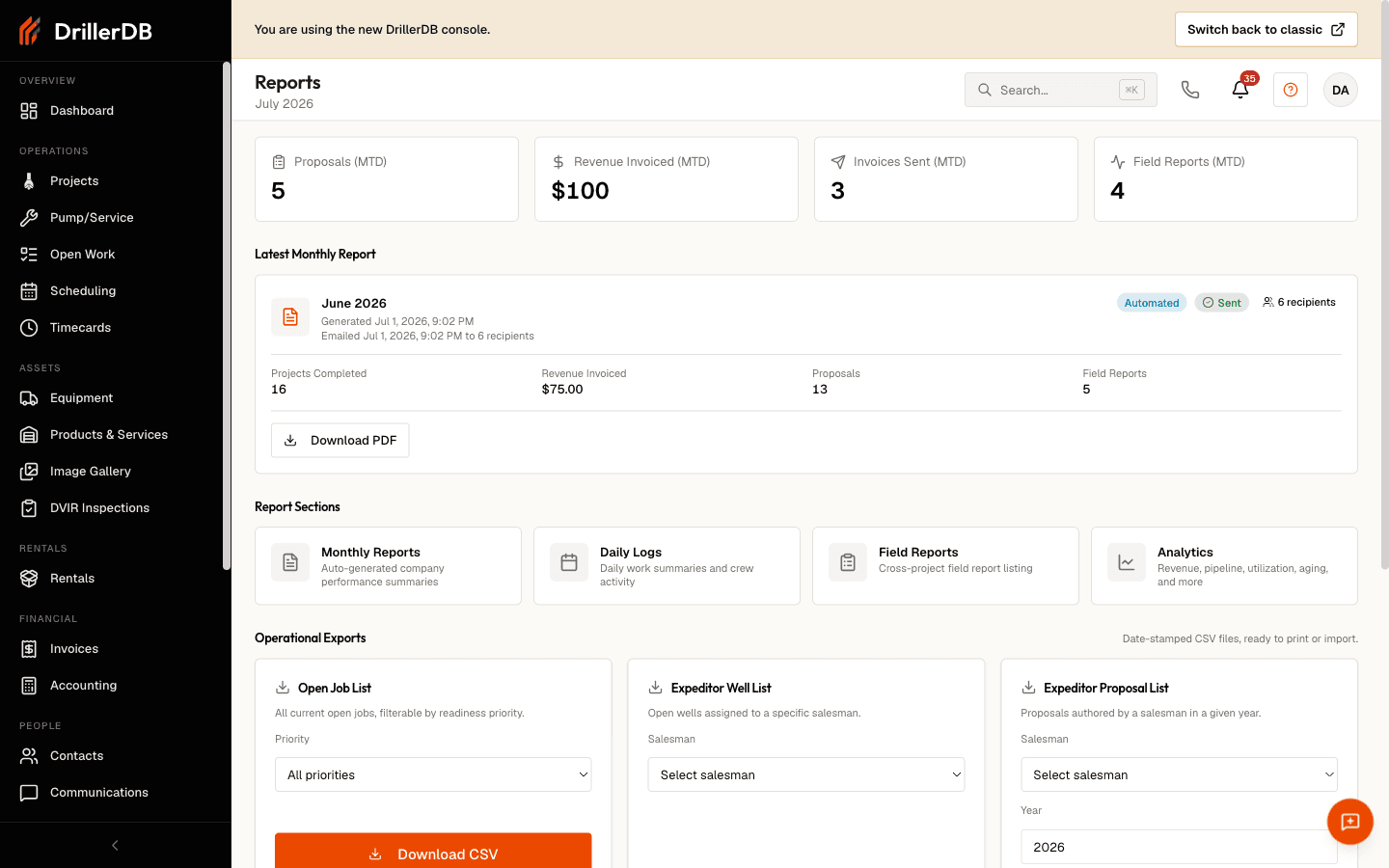
- Review the month-to-date KPI tiles and Report Sections cards.
- Open Analytics for revenue, pipeline, drillers, invoice aging, and month-over-month tabs.
- Use the date-range selector to focus a reporting period.
- Export or send only after filters, recipients, and downstream use are approved.
Reports and exports are limited to admin and office roles. If you don't see the Reports surface, ask an admin to grant access.
What's on the Reports hub
| Area | Shows |
|---|---|
| KPI tiles (MTD) | Proposals, revenue invoiced, invoices sent, field reports |
| Year-to-date | Projects completed, revenue collected, active users |
| Report Sections | Monthly Reports, Daily Logs, Field Reports, Analytics |
| Operational Exports | One-click CSV / IIF downloads (admin/office) |
Analytics tabs
The Analytics page compares performance with a shared date-range filter across Revenue, Project Pipeline, Drillers, Invoice Aging, and Month-over-Month tabs.
Export formats
| Format | Use case |
|---|---|
| CSV | Operational lists, project data, spreadsheets, imports |
| QuickBooks IIF | Completed projects as invoices for QuickBooks Desktop |
| Monthly reports and per-driller field routing |
Topics in This Section
- Reports & Analytics - The console report hub, analytics tabs, logs, monthly report, and export boundaries
- Monthly Reports - Automated and on-demand monthly reports
- Export Options - CSV, IIF, and PDF exports
- QuickBooks Export - Accounting export and live sync
Related Topics
- QuickBooks Online Integration - Accounting setup
- Activity Log - Event history
- Projects - Project management