
Quick Start: Navigation
- Use the sidebar on the left for main sections
- Click hamburger menu (☰) to show/hide sidebar
- Press ⌘K or Ctrl+K for quick search
- Click Dashboard in the sidebar to return to your overview
- Use notifications bell for alerts
Step-by-Step Workflow
- Use the sidebar on the left for main sections
- Click hamburger menu (☰) to show/hide sidebar
- Press ⌘K or Ctrl+K for quick search
- Click Dashboard in the sidebar to return to your overview
- Use notifications bell for alerts
Overview
DrillerDB features a dual-navigation interface designed for desktop and mobile workflows. The application uses a collapsible sidebar navigation system alongside a top navbar, providing quick access to all major sections of the platform.
On desktop, you can keep the sidebar visible for quick navigation, or collapse it for more screen space. Your preference is saved automatically.
Sidebar Navigation
The primary navigation method in DrillerDB is the left sidebar, which provides access to all major sections, organized into groups (Overview, Operations, Assets, Financial, People, Data, System). Use the collapse control at the bottom of the sidebar to shrink it to icons; on mobile the navigation is available from the menu button.
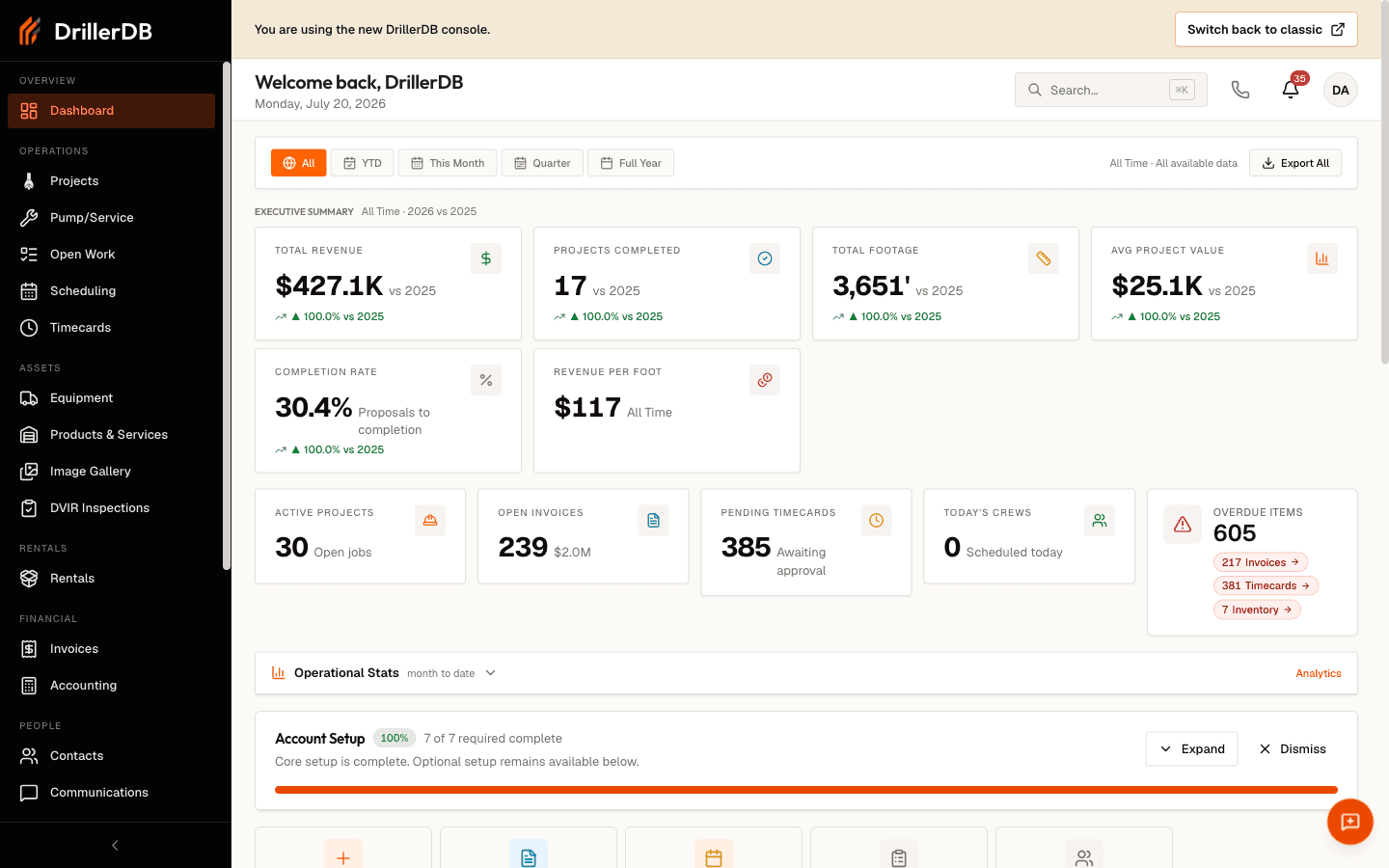
Main Navigation Sections
| Section | Icon | Description |
|---|---|---|
| Dashboard | Layout | At-a-glance overview and key business numbers |
| Projects | Drill Bit | Main project and proposal management |
| Pump/Service | Wrench | Work orders for pump installations and service calls |
| Open Work | List | Everything across your jobs that still needs action |
| Scheduling | Calendar | Calendar, Gantt, and list views for job scheduling |
| Timecards | Clock | Crew hours and time tracking |
| Equipment | Truck | Equipment, service logs, and maintenance tracking |
| Products & Services | Warehouse | Your materials and service catalog |
| Maps | Map | Job locations and well maps |
| Contacts | People | Customer, vendor, and contact management |
| Compliance | Shield | State forms and permit paperwork |
| Reports | Bar Chart | Generate and view business reports |
| Settings | Gear | Company setup, users, and preferences |
| Help | Question Circle | Documentation, support, and help resources |
Your sidebar may show more or fewer sections - such as Invoices, Accounting, Communications, Geology, Lab, Liens, or Rentals - depending on your plan and which features your company has enabled.
Sidebar Behavior
The sidebar navigation adapts to your screen size and preferences:
- Desktop: Toggle the sidebar using the button in the top-left or the switch in the settings dropdown. The sidebar can remain persistent or collapse for more screen space.
- Mobile: Access the sidebar by tapping the hamburger menu. It slides in as an overlay and closes automatically after selecting a section.
- Tooltips: Hover over icons in the collapsed sidebar to see section names.
- Active State: The currently selected section is highlighted with a background color.
Top Navbar
The top navbar provides constant access to global features regardless of which section you're viewing:
Left Side
- Sidebar Toggle: Hamburger menu to show/hide the sidebar
- Page Title: Shows the section you are currently viewing
To return to your overview from anywhere, click Dashboard in the sidebar.
Right Side
- Notifications: Bell icon with badge showing unread notification count
- User Profile: Dropdown menu with:
- Settings access
- User profile information
- Sidebar toggle switch
- Logout option
Section Switching
Navigating between sections in DrillerDB is instantaneous:
- Click any sidebar item to switch to that section
- Click Dashboard in the sidebar to return to your overview
- Use browser back/forward buttons - each section has its own page URL
- Direct links from notifications or search results
When you switch sections, the page loads quickly without a full refresh. Your place in a list is preserved where possible, so returning to a section shows the view you were working with.
Mobile vs Desktop Differences
Mobile Interface
- Sidebar appears as a slide-out panel (offcanvas)
- Navbar collapses into a hamburger menu
- Touch-optimized spacing for all navigation elements
- Automatic sidebar close after selection to maximize content area
- Swipe gestures not required - tap-based navigation
Desktop Interface
- Sidebar can remain visible alongside content
- More compact navigation spacing
- Hover tooltips on collapsed sidebar
- Persistent toggle button for sidebar control
- Multi-monitor support for extended workflows
Quick Tips
- Keyboard Navigation: Use Tab to navigate through sidebar items, Enter to select
- Breadcrumbs: The section header shows your current location and context
- Search Integration: Many sections include search bars that filter content in real-time
- Settings Badge: Hidden sections can be enabled in Settings
- Beta Environment: Beta testing sections may have a different background color or badge
Navigation Customization
Access Settings from the user dropdown menu to customize navigation preferences:
- Sidebar Toggle: Enable or disable persistent sidebar
- Section Visibility: Show or hide specific sections based on your role
- Default Landing Page: Set which section loads by default (typically your Dashboard)
- Notification Preferences: Control which events trigger navigation badges
Accessibility Features
DrillerDB's navigation system includes:
| Feature | Description |
|---|---|
| ARIA Labels | Descriptive labels for screen readers |
| Keyboard Navigation | Full Tab, Enter, Escape support |
| Focus Indicators | Clear visual indicators |
| Role Attributes | Proper semantic HTML |
| Skip Links | Quick navigation to content |
All navigation is fully accessible via keyboard. Use Tab to move between elements and Enter to select.
The navigation system is designed to be clear whether you're managing a single project or coordinating dozens of field operations across multiple locations.
Troubleshooting
Sidebar not appearing?
- Click the hamburger menu (☰) in the top left
- Check Settings to ensure sidebar is enabled
- Try refreshing the page
Can't access certain sections?
- Your user role may limit available sections
- Contact your admin for access permissions
Related Topics
- Dashboard Overview - Interface overview
- Global Search - Quick search features
- User Roles - Access permissions