
This guide is based on a browser-recorded walkthrough in the rebuilt DrillerDB console. When a step can send, submit, export, or change account access, the guide calls out the review boundary.
Required compliance forms connect the field record to the office permit packet. Use the project Compliance tab to find the required form, review the timing, PDF, and online filing references, start the in-app form, fill required fields, save the draft, and finalize the local PDF only after review. External agency portals and customer email remain approval-gated.
Quick Start
- Open the project Compliance tab.
- Expand the required timing group, such as After Completion.
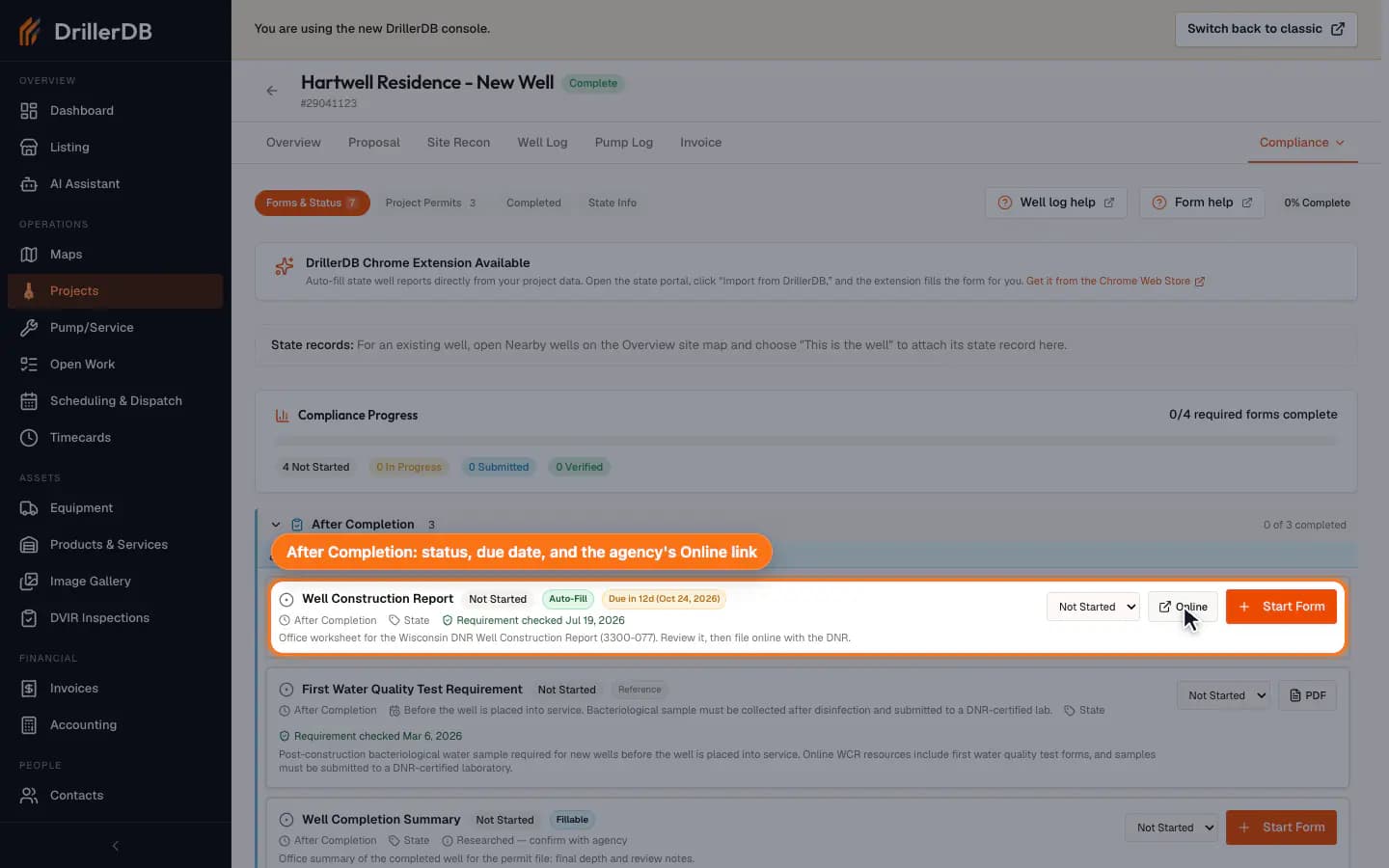
- Review the required form's status, PDF reference, online filing link, fee, and timing.
- Click Start Form and fill the required fields.
- Click Save, then use Finalize only after office review.
- Download or review the local PDF before opening an outside agency portal or sending paperwork.
Step-by-Step: Fill Out a Required Compliance Form
Open the required compliance forms
Open the project, choose More > Compliance in the tab bar, and stay on Forms & Status. Once the well is completed, After Completion is listed first and already expanded; expand another timing group only if you need it. Review each form's status, due date (for example "Due in 12d"), fee, and the agency's PDF or Online links before you start it. Fee and PDF show only when the agency publishes them.
Start the form from the project
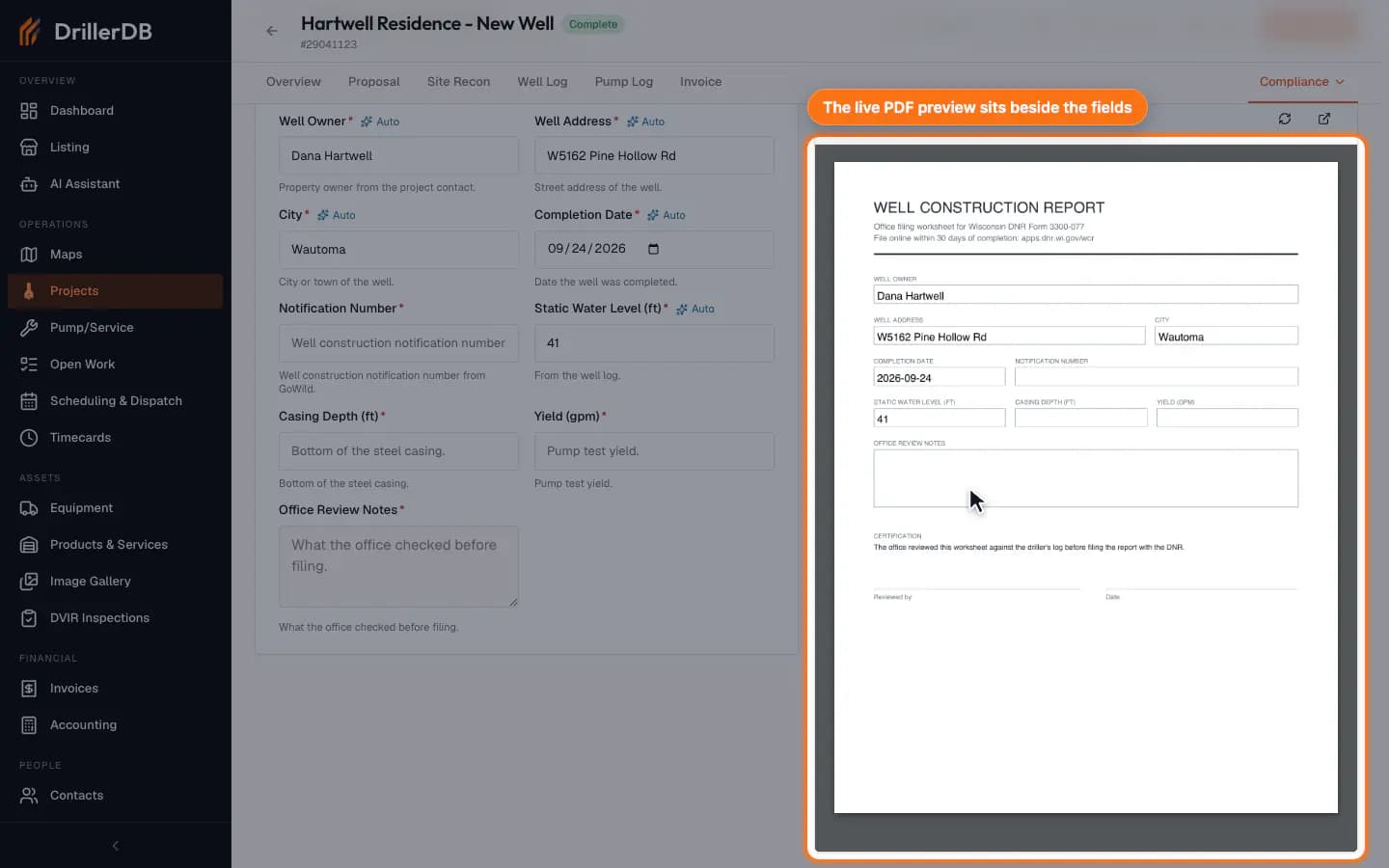
Click Start Form on the required form. DrillerDB opens the form editor for this project, fills the fields marked Auto from project data, and shows a live PDF preview beside the fields. Check the auto-filled values before you finalize.
Fill and save required fields
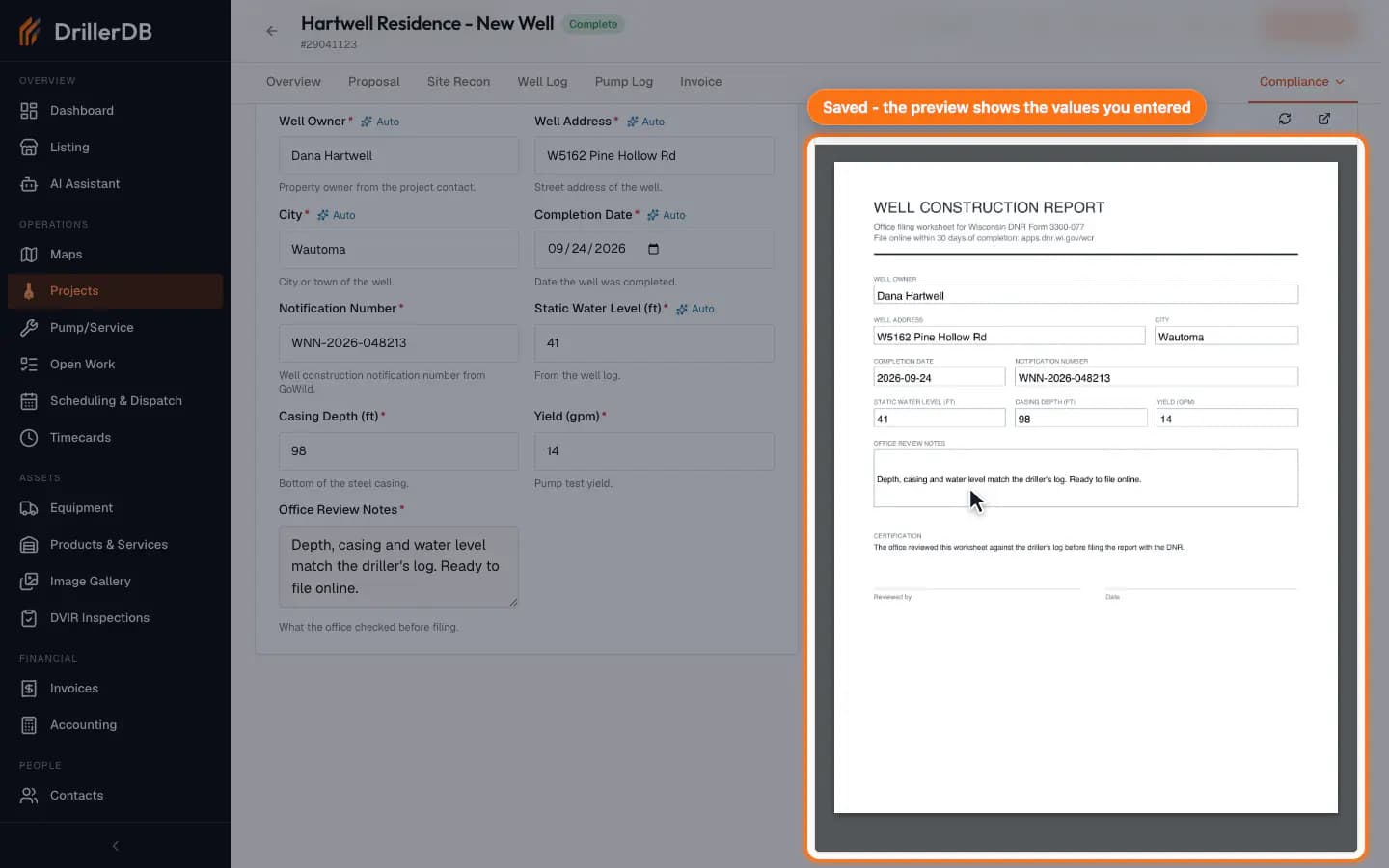
Enter the required values from the completed project and click Save. The form stays a draft you can edit until you finalize it, and the preview updates with the saved values.
If auto-filled values need correction, edit them here before finalizing. Manual edits override the suggested project data for this form instance.
Review the finalization warning
Click Finalize only after the office has reviewed the form. The Finalize this form? dialog explains that a finalized form is read-only and becomes the PDF; click Confirm Finalize.
Stop at the submission boundary
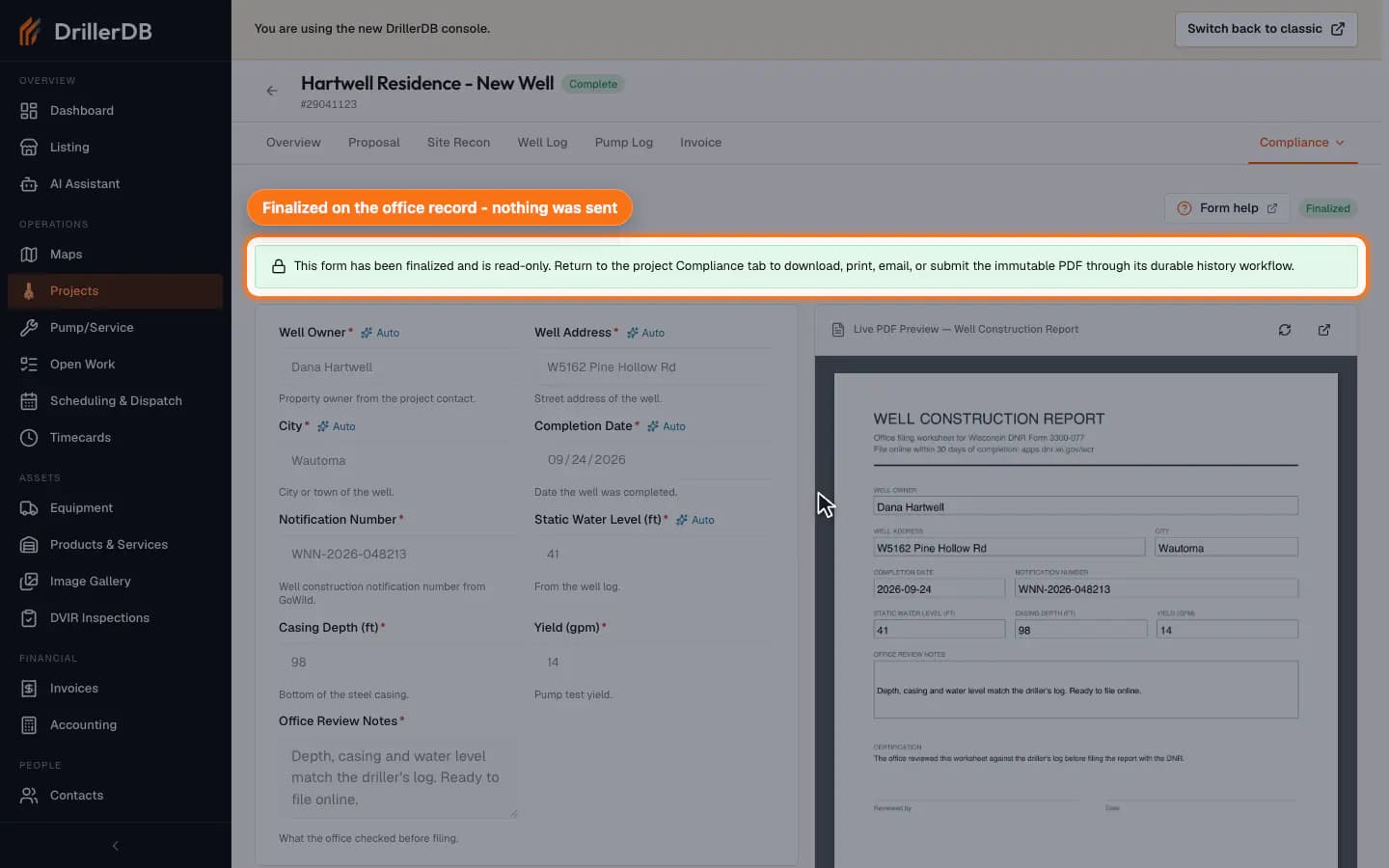
After you finalize, click the back arrow to return to the Compliance tab, where the form shows In Progress until it is filed, and open Completed to download or print the PDF. The finalized editor has no Download PDF button. Open an outside agency portal or send the form only when the recipient, portal, and filing requirements have been approved.
The guide recording finalizes a disposable local form and proves no form submission row or external send was created.
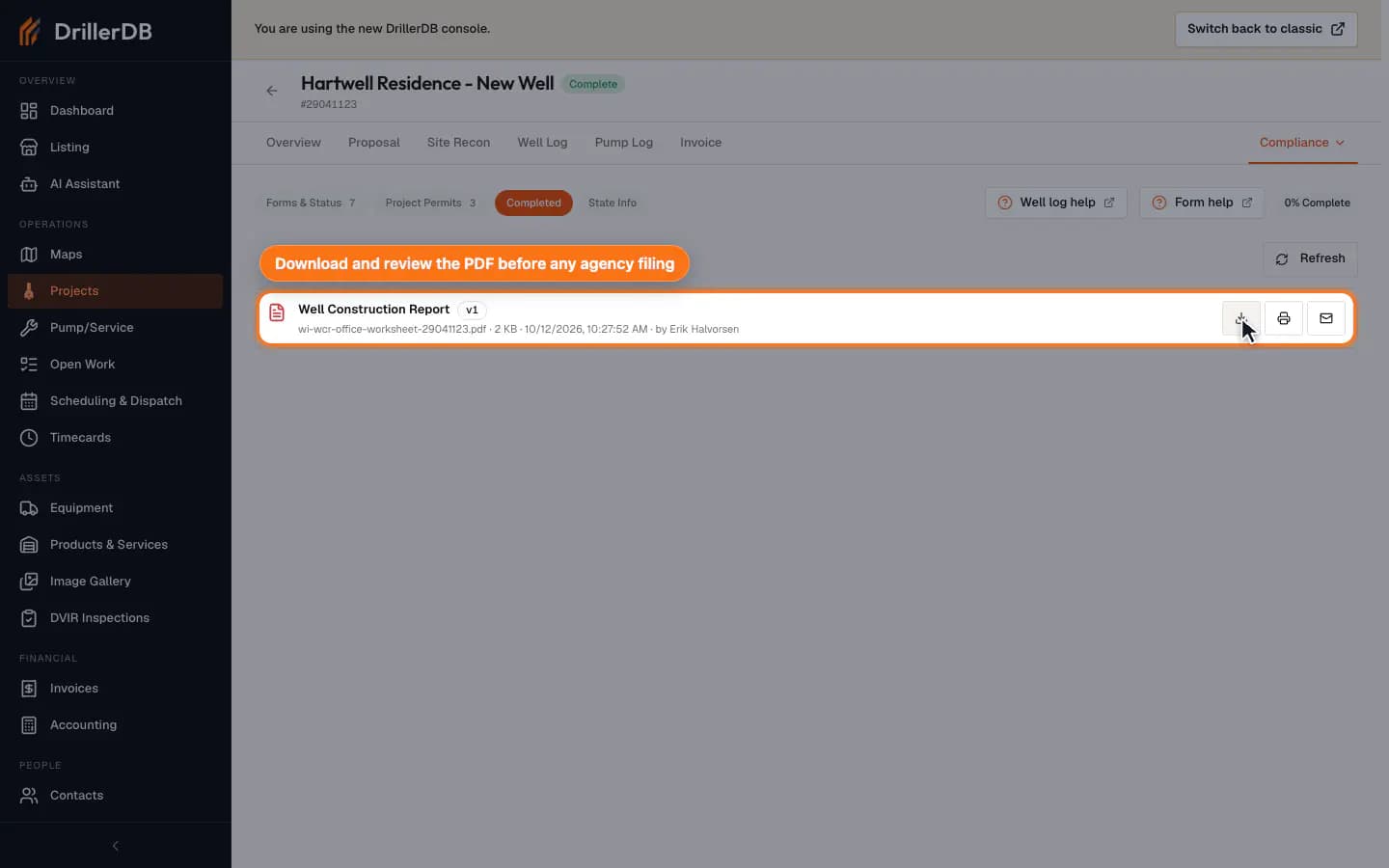
External filing boundary
This guide records the in-console form workflow and local finalization boundary. It does not open an outside agency portal, send email, or submit a state filing.
Use the Online link, downloaded PDF, or any agency submission path only after the office has reviewed the form, recipient, portal, state requirements, and any filing fees.