
Field Operations
Track your field activities with daily logs, tower up/down tracking, and field reports.
Quick Start: Field Operations
- Open the DrillerDB field app on your phone
- Tap Tower Up when drilling starts (the site location is saved if the phone has a fix)
- File field reports from More > Field reports
- Tap Tower Down when drilling ends, and review the forms, photos, and comment
- The office reads the results in the console, under Reports
Features Overview
| Feature | Purpose | Who Uses |
|---|---|---|
| Daily Logs | Read the day's footage, crew, and summary under Reports | Office |
| Tower Up/Down | Track drilling start/end | Drillers |
| Field Reports | Submit standardized reports | All field staff |
| GPS and Crew Location | Where crew location comes from, who sees it, and how to delete it | Office and admins |
| Real-Time Updates | Live refresh for enabled accounts | Company-dependent |
Field Report Types
| Report | Purpose | When to Use |
|---|---|---|
| Site recon | Scout a site before mobilizing | Before the job starts |
| Pump log | Water test, readings, and pump and tank information | During pump tests |
| DVIR | Vehicle inspection and signatures (companies with DVIR turned on) | Before/after each trip |
| Hazards | Flag site hazards before work starts | Before drilling |
| Well log | The drilling log for the job | During and after drilling |
| Company forms | State permit and company forms | As the job requires |
The setback distances you measure from the well to contamination sources go on the project's Hazards tab in the console. See Hazards.
Step-by-Step: Daily Field Crew Closeout
- Tower Down on each job you towered up on
- On the Tower Down screen, review Inventory, the Well log (or Pump log), and Company forms, then add photos and a comment
- File any field reports still owed from More > Field reports
- Review the project's Hazards tab for completeness
- Check that the Tower Down went through. A Tower Down saved with no signal sends when the phone is back online
Topics in This Section
Explore detailed guides for field operations features:
-
Daily Logs - Read the daily logs under Reports: footage, crew, and summary for each day
Note: Daily Logs are available in DrillerDB. SWD Database users may see a different interface or limited functionality for this feature.
-
Tower Up/Down Tracking - Record drilling start and end times, with an email and notification to the office
-
Field Reports - File reports from the field app and find them in the console
-
Complete Well Log and Permit Work - Use completed daily-report and well-log data to prepare after-completion compliance paperwork from the rebuilt console
-
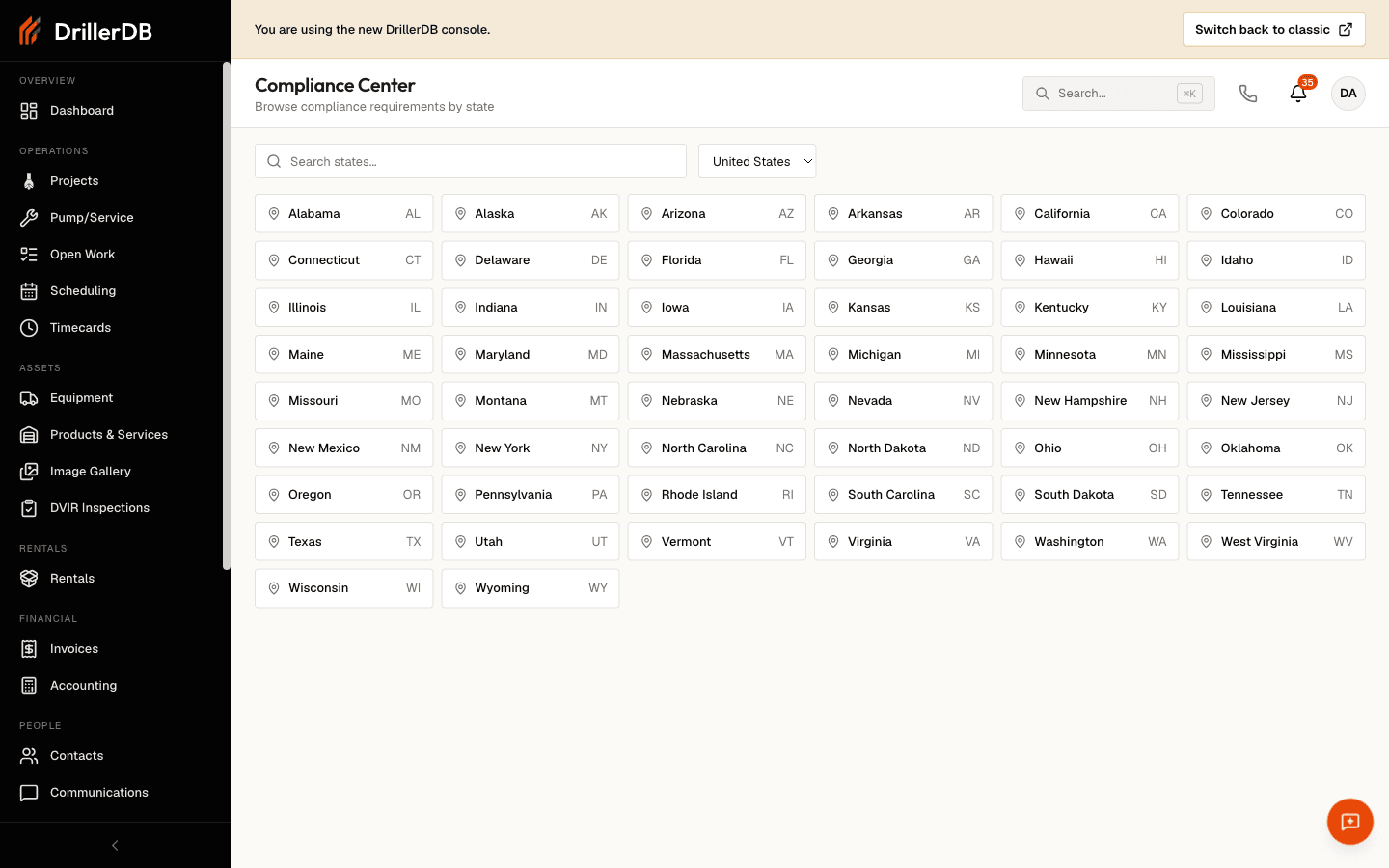
Submit a Required Compliance Form - Fill, save, locally finalize, and review required compliance forms from the rebuilt console without crossing the external filing boundary
-
Hazards - Document setback distances from the well to contamination sources
-
GPS and Crew Location - Where a crew's location comes from, who can see it, and how to delete it
-
Real-Time Updates - Live refresh behavior for notifications and scheduling when company-level real-time access is enabled
Related Topics
- Projects - Project context and lifecycle
- Pump & Service Work Orders - Service job field execution
- Scheduling - Crew assignment and sequencing