
Accounts Receivable
The Receivables tab is where you manage everything customers owe you. Open invoices from your billing workflow land here automatically, and this is where you age that balance, send statements, issue credits, work overdue accounts, and assess finance charges.
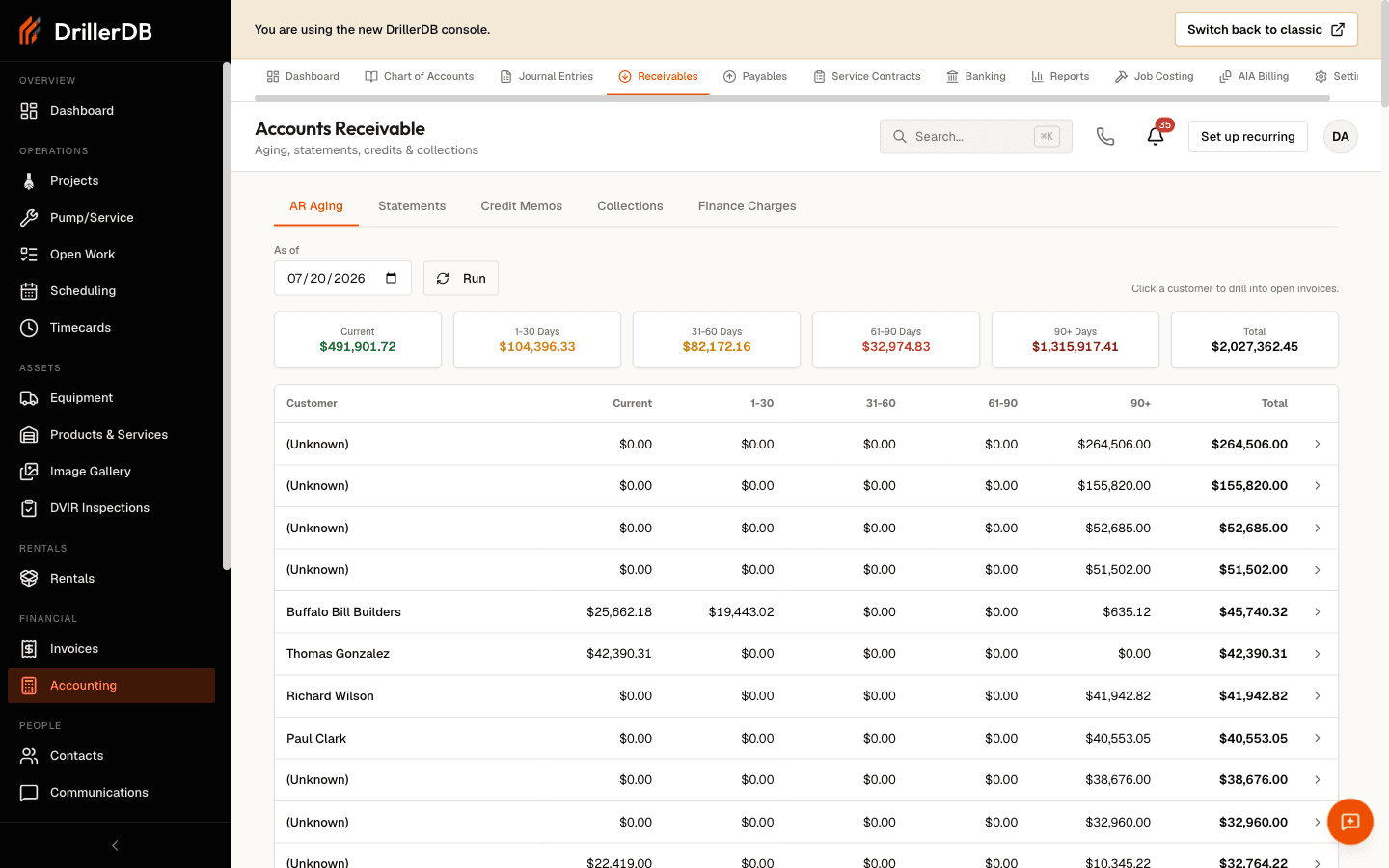
Open Accounting > Receivables. The page header reads "Accounts Receivable - Aging, statements, credits & collections," and a Set up recurring link in the top-right jumps to recurring invoice schedules.
Individual invoice payments are recorded on the invoice itself (see Payment Tracking). Receivables is the account-level view - it rolls those open balances up into aging, statements, and collections.
The page has five tabs: AR Aging, Statements, Credit Memos, Collections, and Finance Charges.
AR Aging
The default tab. It buckets every customer's open balance by how overdue it is.
- Set the As of date.
- Click Run.
- Read the six summary cards: Current, 1-30 Days, 31-60 Days, 61-90 Days, 90+ Days, and Total.
- Below the cards, the aging table lists each customer with columns Customer, Current, 1-30, 31-60, 61-90, 90+, and Total, with a Totals row at the bottom.
- Click any customer row to drill in. The Open Invoices panel shows that customer's open invoices with Invoice #, Date, Due Date, Amount, Balance, and Days Past Due.
| Bucket | Meaning |
|---|---|
| Current | Not yet past due |
| 1-30 | 1 to 30 days past due |
| 31-60 | 31 to 60 days past due |
| 61-90 | 61 to 90 days past due |
| 90+ | 90 or more days past due |
Statements
Generate a customer account statement covering a date range.
- Go to Statements.
- Pick a Customer. (With a long customer list, the picker switches to type-ahead search - type two or more characters.)
- Optionally set a From and To date.
- Click Preview to render the statement inline, PDF to download it, or Email to queue it to the customer.
Statements are built from the customer's open invoices and payments.
Credit Memos
A credit memo reduces what a customer owes - for a return, an adjustment, or an overpayment - and can be applied against their open invoices.
Create a credit memo:
- Go to Credit Memos, click New Credit Memo.
- Fill in Credit Memo Customer, Credit Memo Date, Credit Memo Amount, and a Credit Memo Memo (the reason for the credit).
- Click Save Credit Memo.
Apply it to open invoices:
- In the credit list, click a credit number to open its detail. The list shows Credit #, Customer, Date, Amount, Applied, Remaining, and Status.
- In the Apply to Open Invoices table, enter an Apply Amount against one or more invoices.
- Click Apply Credit. The system checks the amount against the remaining credit and each invoice's balance.
A credit's status shows as applied (green), partial (yellow), or open, and the Amount / Applied / Remaining columns track how much of it is used.
Collections
The collections queue surfaces accounts that are at least 30 days past due so you can chase them.
- Go to Collections, set the As of date, and click Run.
- The queue lists each overdue customer with Customer, Overdue, Oldest Due, Days, Last Contact, and Actions. ("Last Contact" reads "Never" if you have not reached out.)
- For any row, click Remind to queue a reminder email for each of that customer's overdue invoices. An invoice that is paid, or has no balance due, is skipped.
- Or click Write Off to write the balance off as uncollectable.
Writing off an invoice:
- Click Write Off on the customer's row.
- Choose the Invoice, set the Write-Off Date and Amount (it pre-fills to the invoice balance).
- Pick a Write-Off Account (an expense account) and the A/R Account, and enter a Reason.
- Click Post Write Off. This posts a journal entry that clears the receivable.
Posting a write-off is a permanent accounting entry - it debits your write-off expense account and credits A/R. Confirm the amount and accounts before posting.
Finance Charges
Assess interest on overdue balances and post the charges as journal entries.
- Go to Finance Charges and set:
- As of date
- Annual Rate (%) - defaults to 18.00
- Grace Days - defaults to 30
- Min Balance - defaults to 1.00
- the A/R Account and the Finance Charge Income account
- Click Preview to calculate charges. Eligible overdue invoices are listed and pre-selected, with columns for Due, Invoice, Customer, Days, Overdue, and Charge.
- Uncheck any you want to skip (or use the header checkbox to select/deselect all).
- Click Post Charges. Each charge posts as a journal entry - debit A/R, credit Finance Charge Income.
What a posted charge does to the invoice
- The charge is added to the invoice as a line named Finance charge. The line is not taxed. The invoice total and its balance go up by the charge; payments already received do not change.
- Running Post Charges again for the same period skips an invoice already charged for that period.
- Invoices that came from QuickBooks never get finance charges, because QuickBooks owns their amounts. Preview leaves them out.
- If some invoices cannot be charged, the others still post, and the page reports both counts, for example "3 finance charges posted; 2 invoices could not be charged". When every invoice posts, it says "Finance charges posted".
- Voiding an invoice also voids its finance charges. An invoice whose finance charge was voided cannot be charged again: "Finance charges cannot be assessed again on this invoice because an earlier finance charge was voided."
Related topics
- Payment Tracking - record and monitor payments on individual invoices
- Creating Invoices - where the open invoices in aging come from
- Invoice Reminders - payment reminders for unpaid invoices
- Payables - the accounts-payable side