
This guide is based on a browser-recorded walkthrough in the rebuilt DrillerDB console. When a step can send, submit, export, or change account access, the guide calls out the review boundary.
Use the Invoices workspace to review invoice status, search customer billing records, and prepare new invoice records. Creating an invoice changes billing data, while reminders, exports, and sends can be customer- or accounting-visible. This guide creates one invoice and does not send it to the customer.
Quick Start
- Open Invoices.
- Review totals, status filters, search, date filters, and invoice rows.
- Use reminders, voids, exports, and customer links only after billing review.
- Open Create Invoice when the office needs to prepare a new invoice record.
- Fill invoice number, dates, line items, quantity, unit price, and notes.
- Click Create Invoice after the billing record has been reviewed. Sending it to the customer is a separate step.
Step-by-Step: Create Invoices
Open Invoices
Open the Invoices workspace to review totals, unpaid invoices, paid invoices, outstanding balance, filters, and the invoice table.
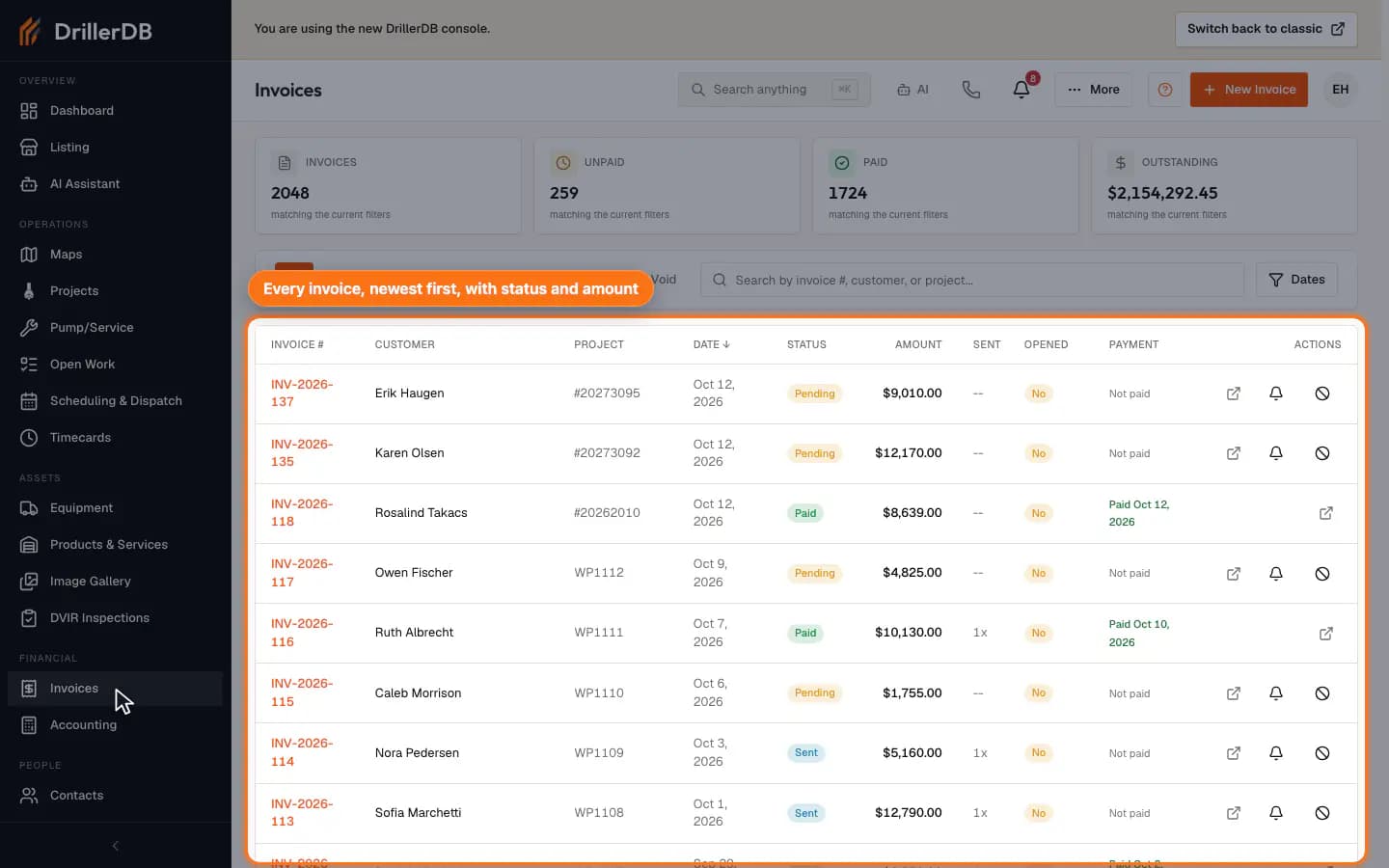
Filter or search invoices
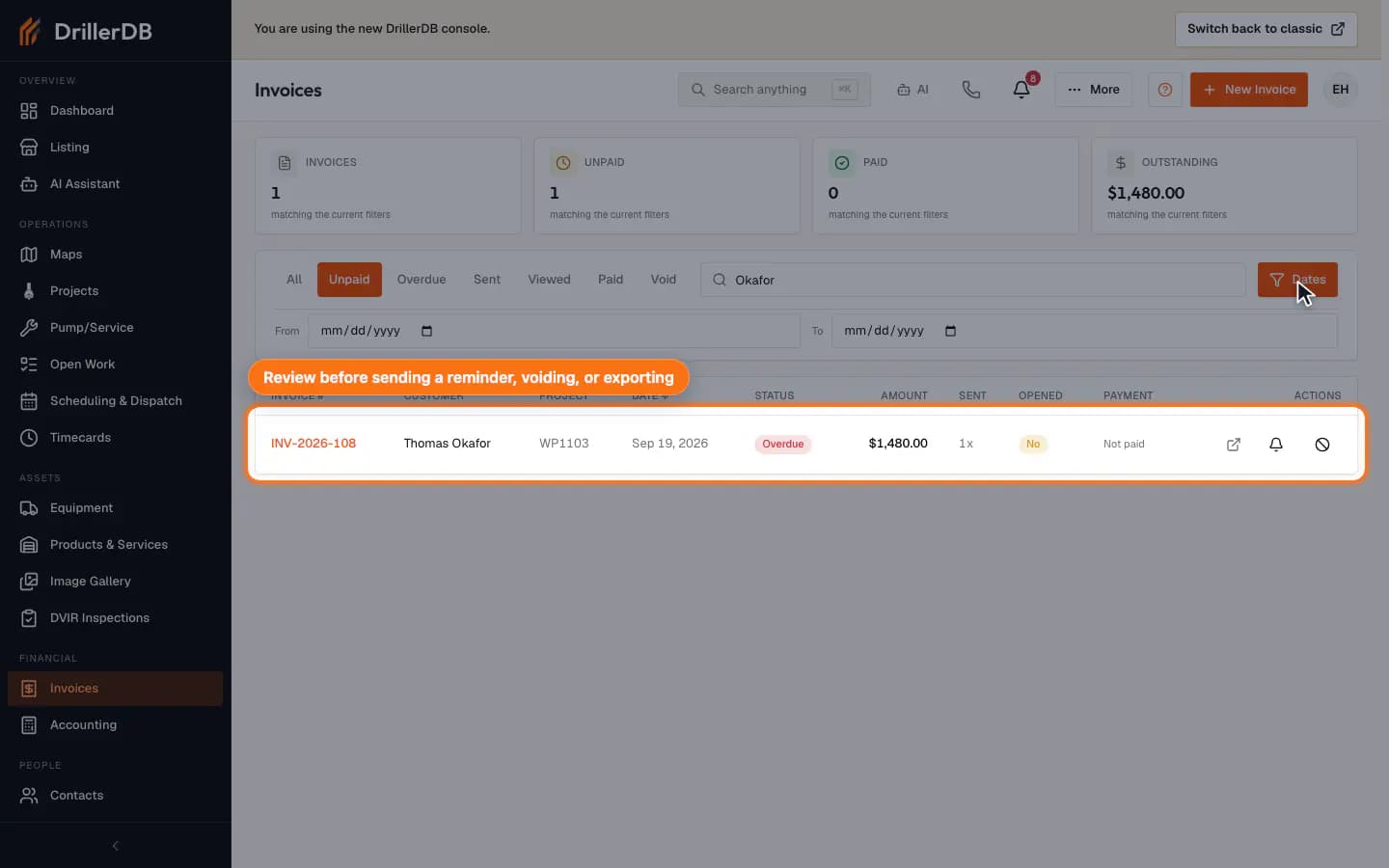
Use status tabs, search, and date filters to narrow the list before opening a customer invoice, sending a reminder, voiding, or exporting records.
Exports, reminders, voids, and customer invoice links are real billing actions. Review filters before touching those controls.
Open Create Invoice
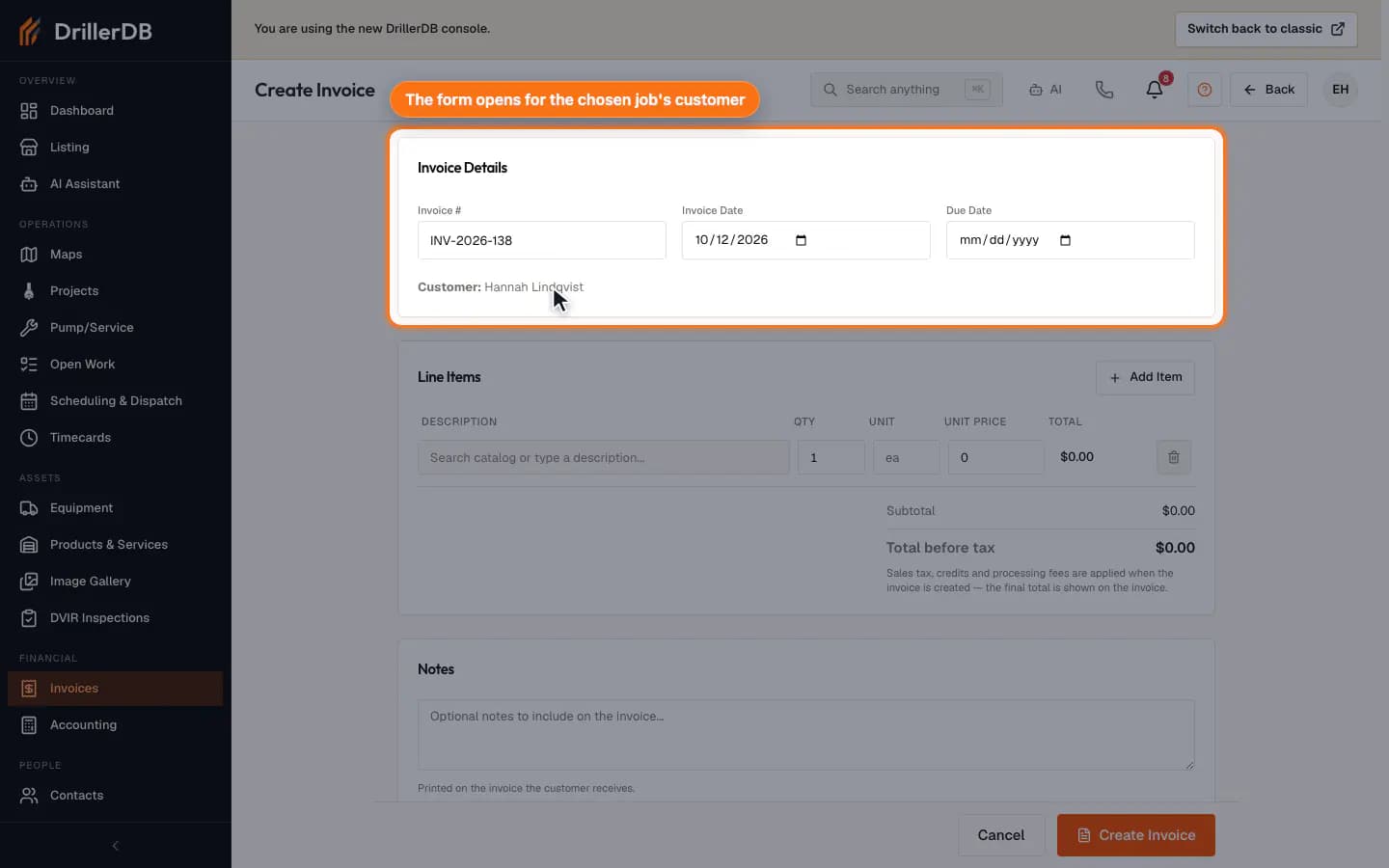
Click New Invoice. Every invoice starts from a project or a Pump/Service job: pick one under Choose what to invoice, or create a project. You can also bill from the job itself: the Invoice tab on a project or work order builds the invoice right there, and Create Invoice at the top of a work order opens this form with the job already chosen.
Fill invoice details and line items
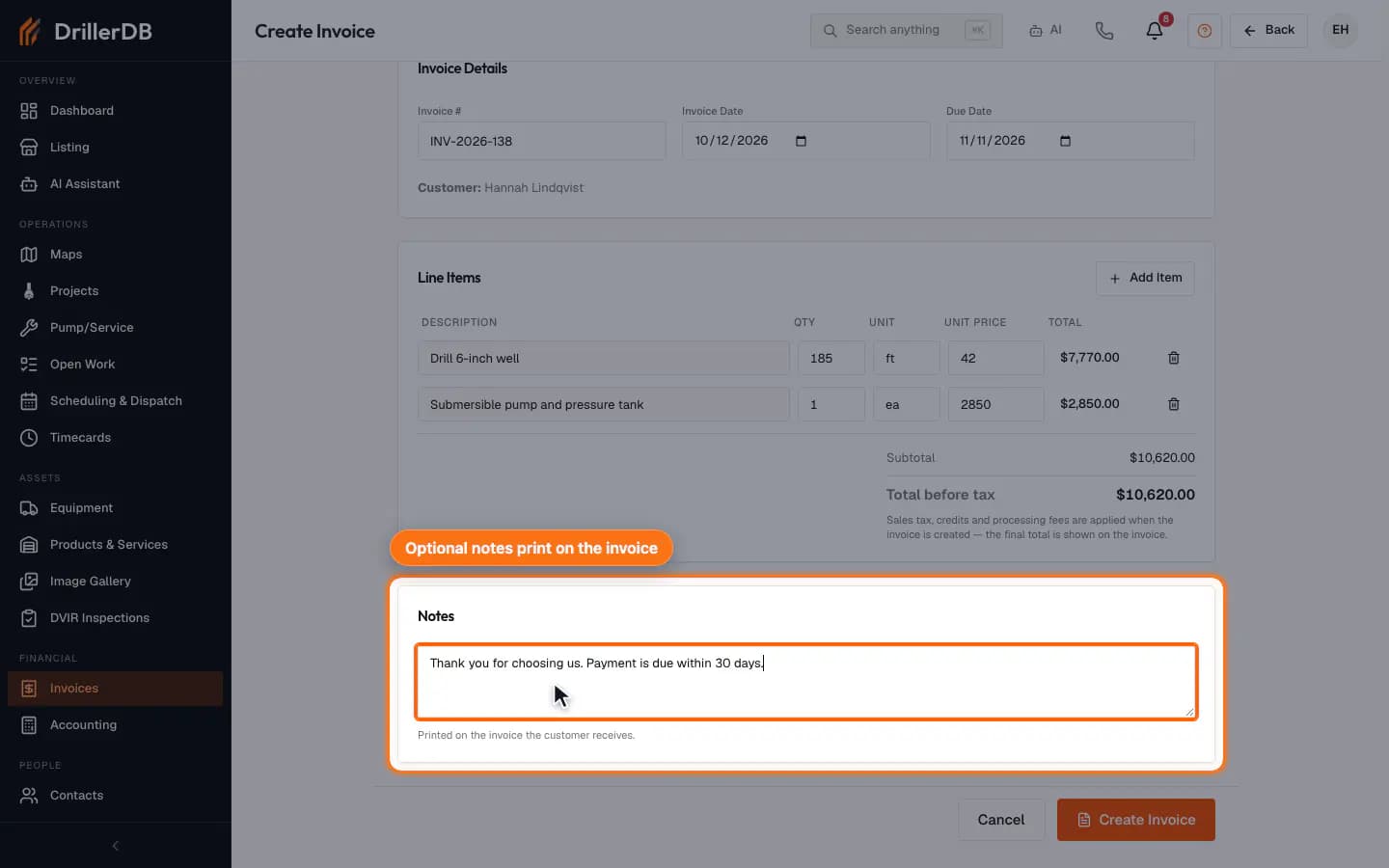
Check the suggested invoice number and the invoice date, and set a due date if your payment terms did not fill one. For each line, enter a description, quantity, unit, and unit price. Total before tax updates as you type; sales tax and fees are added when the invoice is created. Add optional notes that print on the invoice.
Project and Pump/Service invoices should be based on reviewed job data, not a rough estimate.
Create only after billing review
Check the customer, invoice number, dates, line items, total, and notes, then click Create Invoice. The invoice opens as Pending with its balance due. Sending it to the customer is a separate step.
Customer delivery is a later send step. Create the invoice only after the billing record itself is correct.
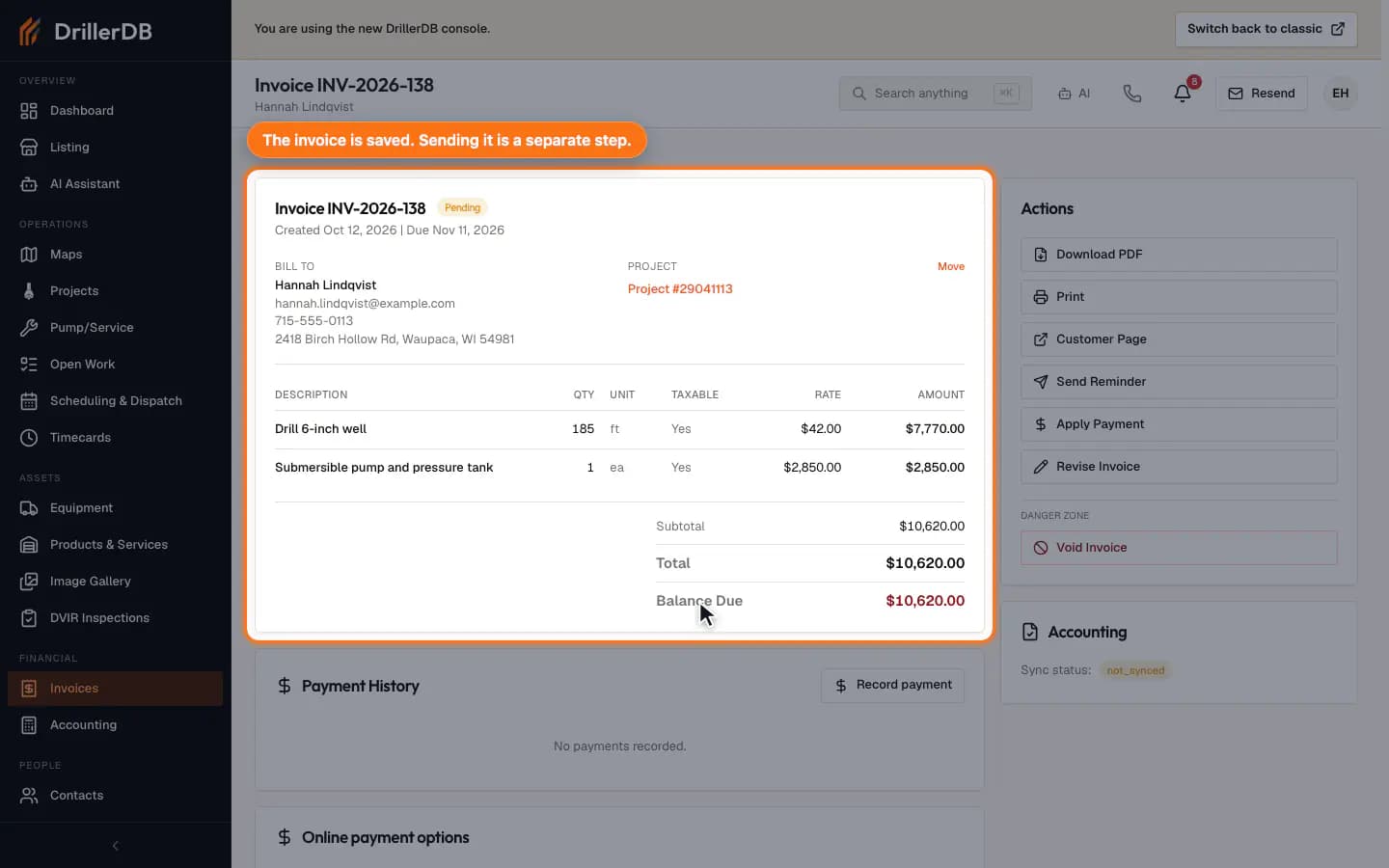
Billing-record boundary
This guide creates one invoice. It does not send a reminder, void a record, export billing data, or send customer communication.
Use Create Invoice only after the customer/source context, invoice number, dates, line items, total, and notes are correct. Customer delivery remains a separate send review.