
This guide is based on a browser-recorded walkthrough in the rebuilt DrillerDB console. When a step can send, submit, export, or change account access, the guide calls out the review boundary.
The Send Invoice dialog is the final customer-delivery checkpoint for billing. Use it to confirm the invoice number, date, payment terms, recipients, CCs, message, SMS option, PDF attachment, project files, and final Send Invoice button. This guide records the delivery review path and stops before the actual customer send because emailing or texting a customer is an approval-gated action.
Quick Start
- Open the project Invoice tab after line items have been saved.
- Click Create Invoice to open the Send Invoice dialog.
- Review invoice number, date, payment terms, recipients, CC, message, and SMS settings.
- Review Preview PDF, Attach invoice PDF, and project-file attachment controls.
- Click Send Invoice only after final review, or Create Without Sending when no customer delivery should happen yet.
Step-by-Step: Send an Invoice to a Customer
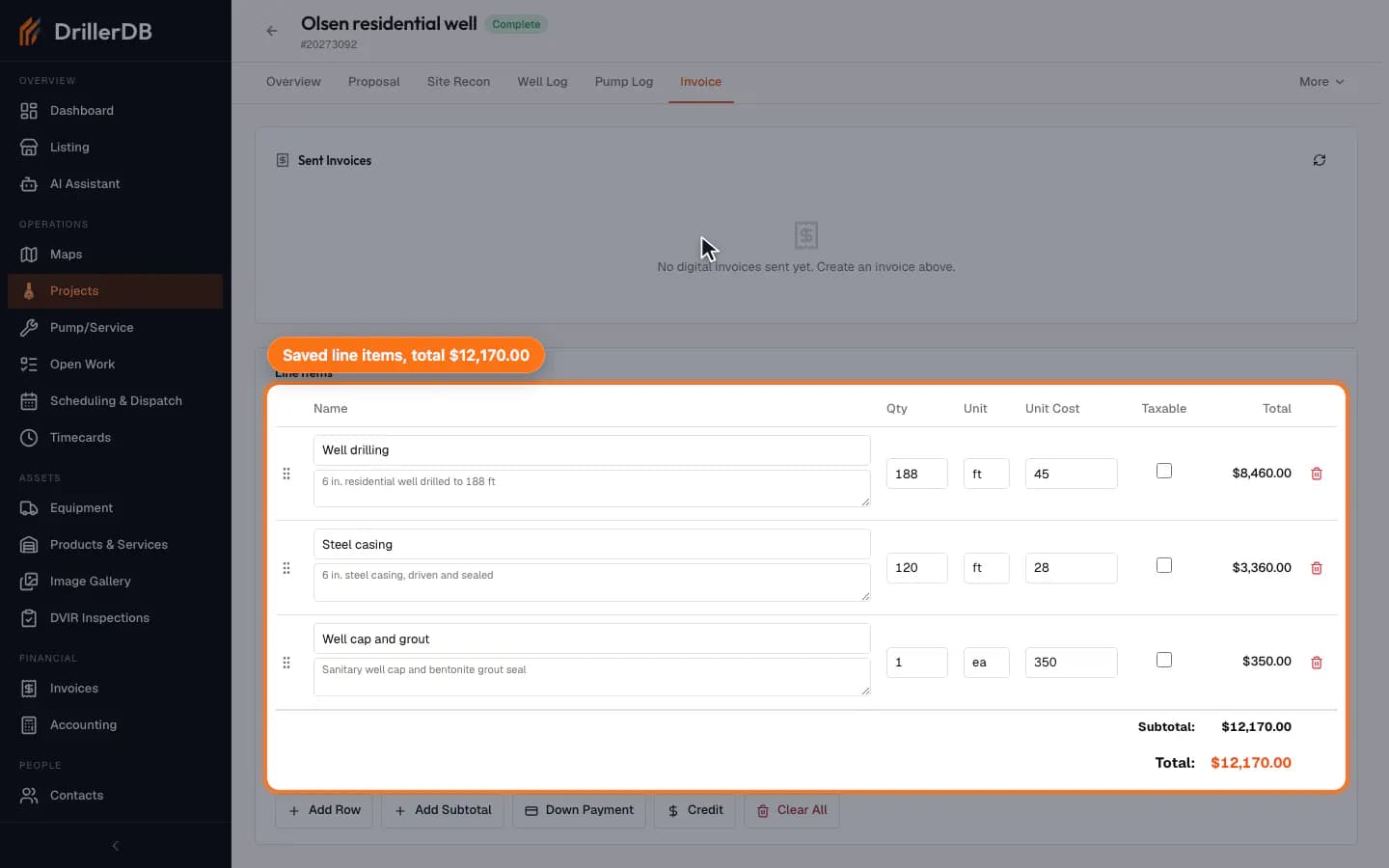
Open the Invoice tab with saved line items
Start from a project Invoice tab that already has reviewed line items. The invoice total and customer delivery controls are only meaningful once the billable work has been saved.
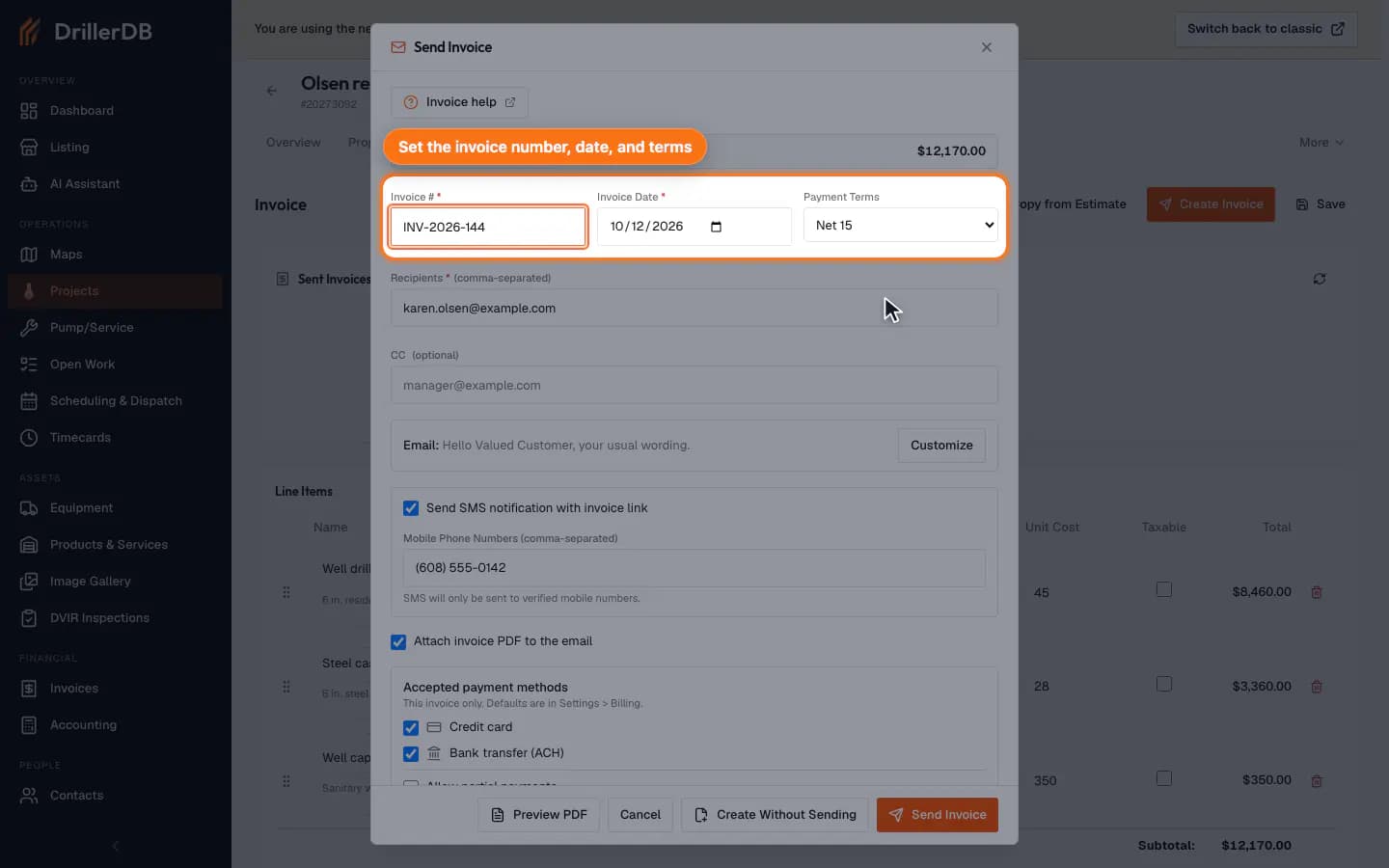
Open Send Invoice
Click Create Invoice to open the Send Invoice dialog. Review the invoice total, invoice number, invoice date, and payment terms before you touch the delivery options.
If the invoice number or payment terms are wrong, fix them here before sending. Those values become part of the customer-facing invoice.
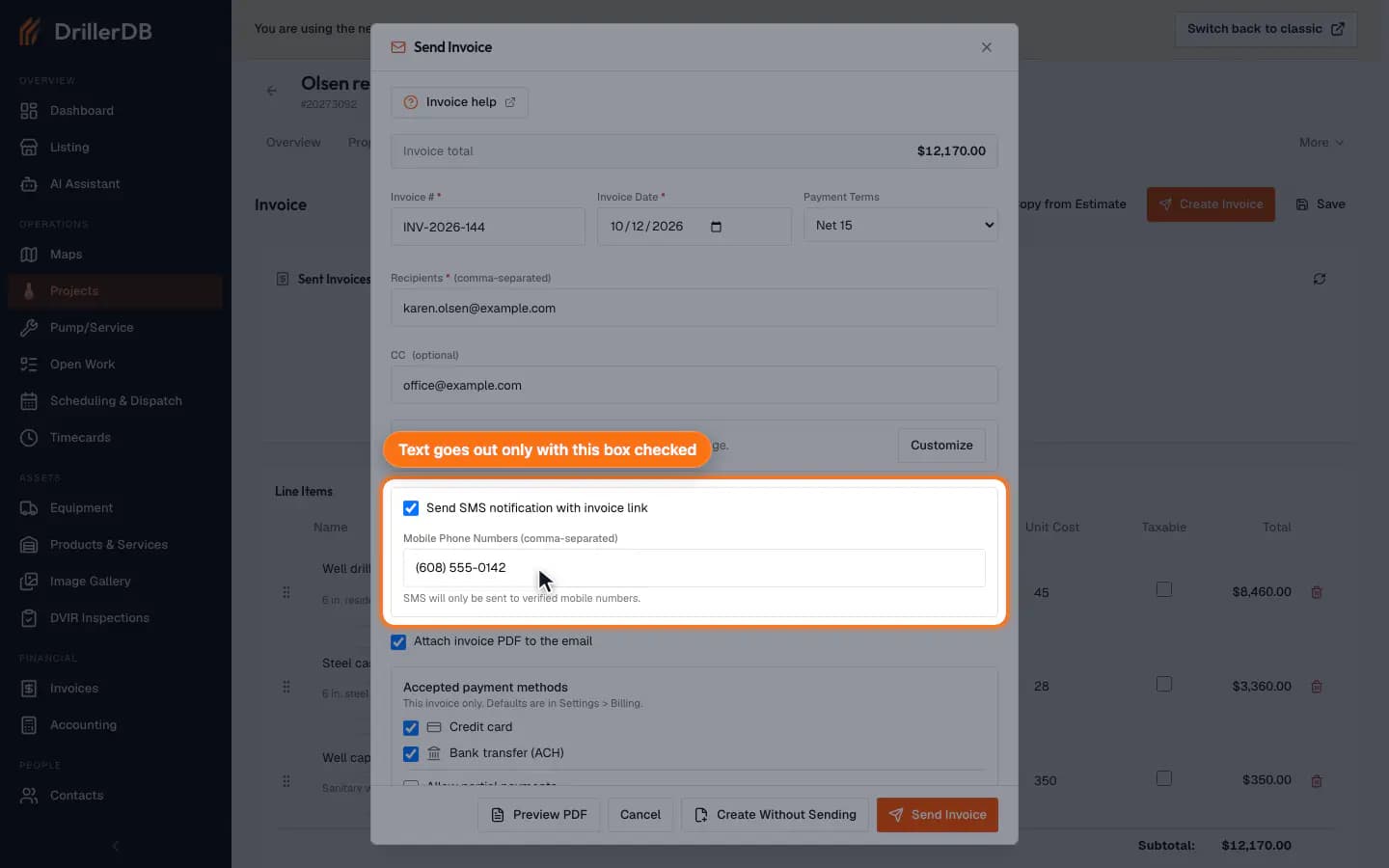
Review recipients, CC, message, and SMS
Confirm the recipient email and optional CC. The customer's mobile number is filled in from the contact, and the Send SMS notification with invoice link box is checked unless Text customers by default is off in Settings > Notifications. Clear the box if the customer should not get a text, or tick it to text them. To add a message for the customer, or to change the greeting or opening paragraph, click Customize on the Email row. The Email for this send pane opens: set Greeting name and type in Message to customer. Changes there apply to this send only; your usual wording is in Settings > Invoicing & Tax. The text message goes out only when you click Send Invoice with the checkbox enabled.
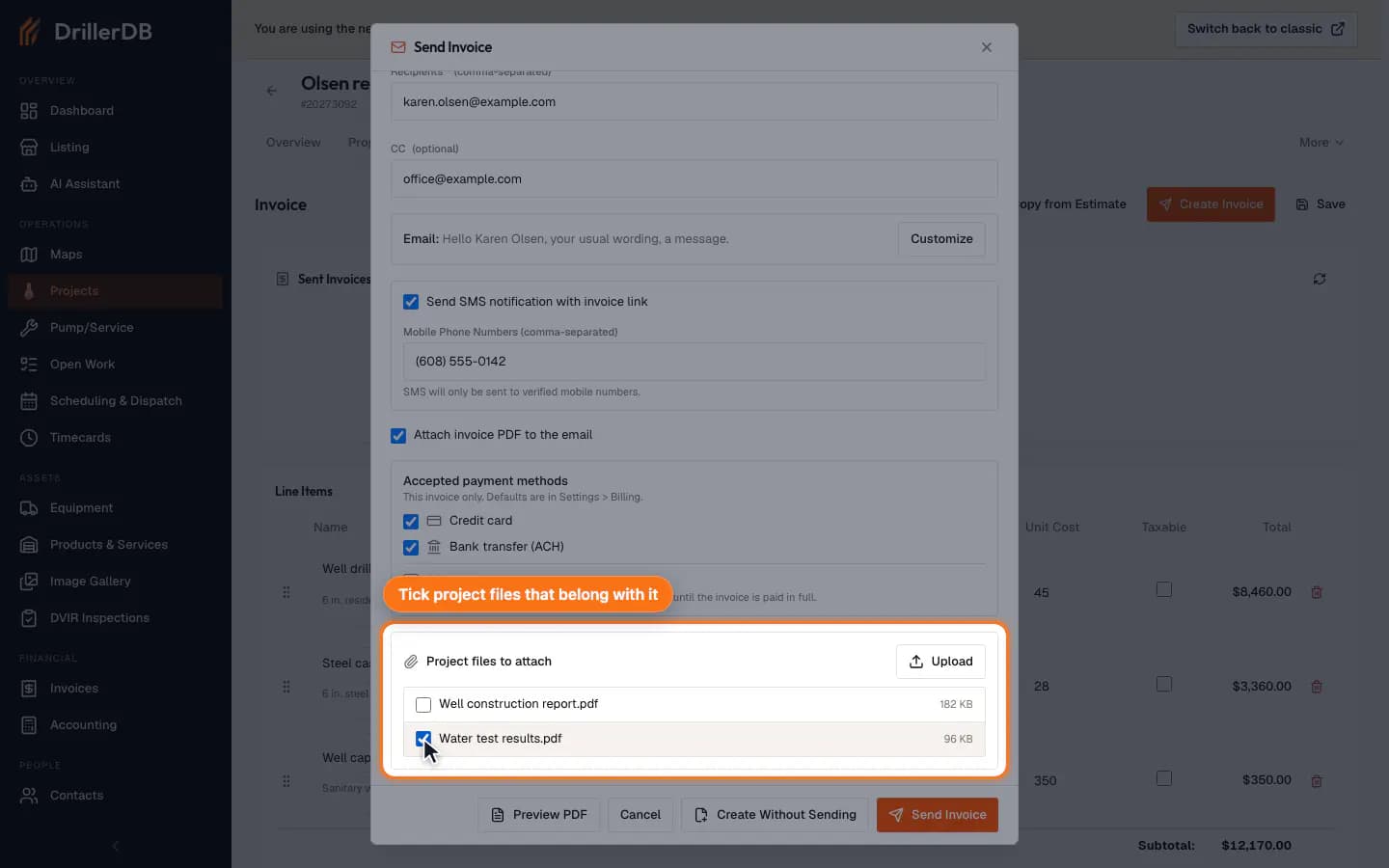
Review PDF and attachment controls
Click Preview PDF to see the invoice exactly as the customer will. Leave Attach invoice PDF to the email checked when the customer should receive a PDF copy, and tick uploaded project files under Project files to attach only when they belong with this invoice.
Upload adds a project file here if the one you need is not in the list yet.
Send only after final review
When everything is correct, Send Invoice creates the customer invoice and delivers it by the channels you selected. Use Create Without Sending instead when the office needs an invoice record and customer page but no email or text yet. The new invoice appears in Sent Invoices with status Pending.
Sending is visible to the customer. Confirm the recipient, message, PDF, SMS, and total first.
A new account cannot email its customers until the account check is done (see Creating Your Account). If you click Send Invoice before then, the invoice is created but the email is held. The invoice shows a Held, not sent yet badge on the invoices list, at the top of the invoice page, and on the project Invoice tab, with the reason under it. When emails unlock within 7 days, DrillerDB emails the invoice for you; you do not need to send it again. After 7 days, open the invoice and click Send.
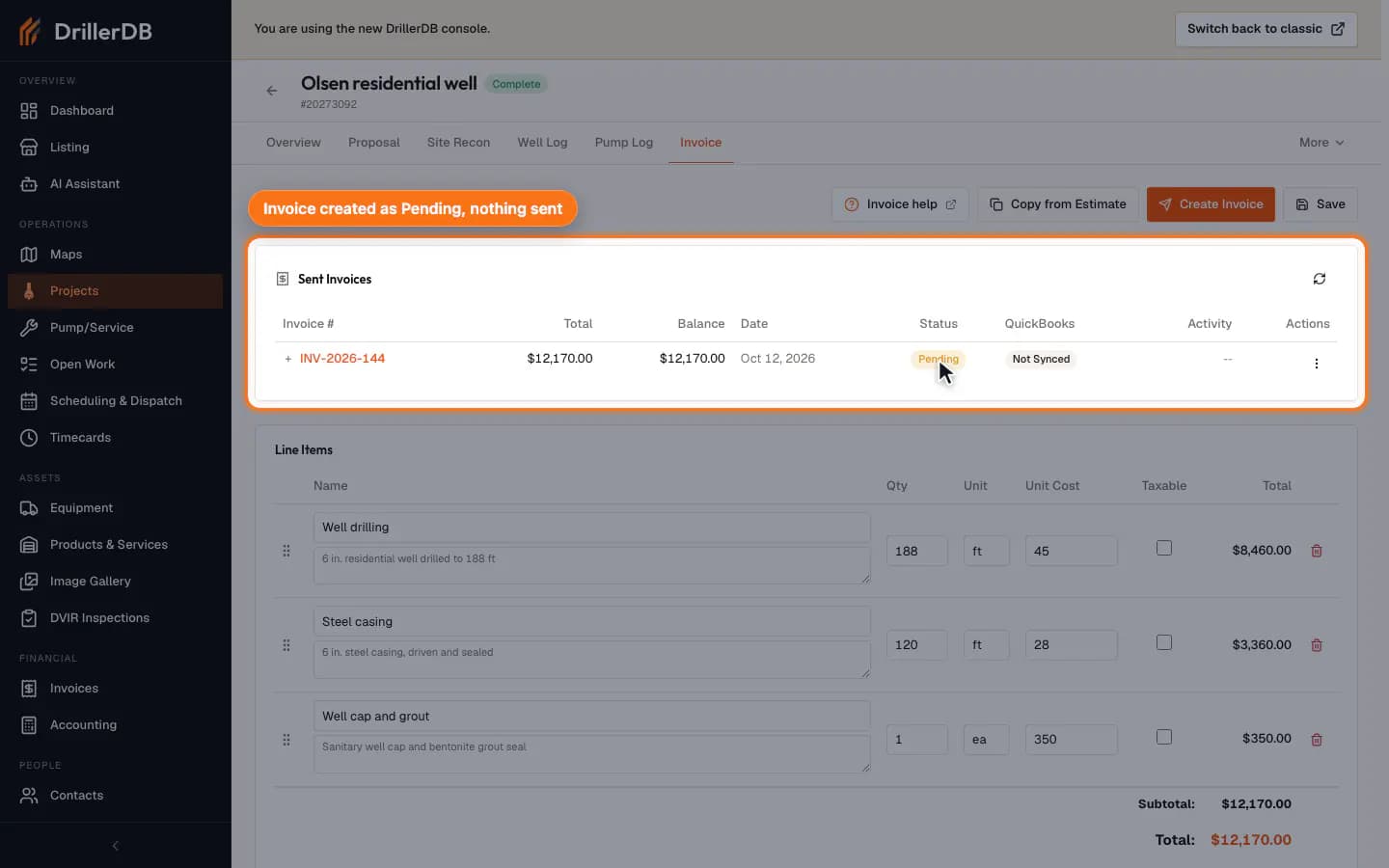
External-send boundary
Sending an invoice is externally visible. The console guide recording verifies the delivery controls, PDF/attachment options, and final Send Invoice review state, but it does not click Send Invoice because customer email and SMS delivery require explicit approval.
Use Create Without Sending when you need the invoice record and customer page without customer delivery. Use Send Invoice only after the recipient, SMS, message, PDF, attachments, terms, and total are correct.