
Accountant Access
Accountant Access gives your outside CPA a login of their own for the Accounting area. They get the Accounting area and the help pages. They do not get projects, invoices, contacts, the dashboard, or the classic app, and there is no way for them to reach those pages by typing a URL.
The Accounting area is more than the books. From it, your accountant can also email your customers and change what your customers owe. Read What your accountant can reach before you send the invitation.
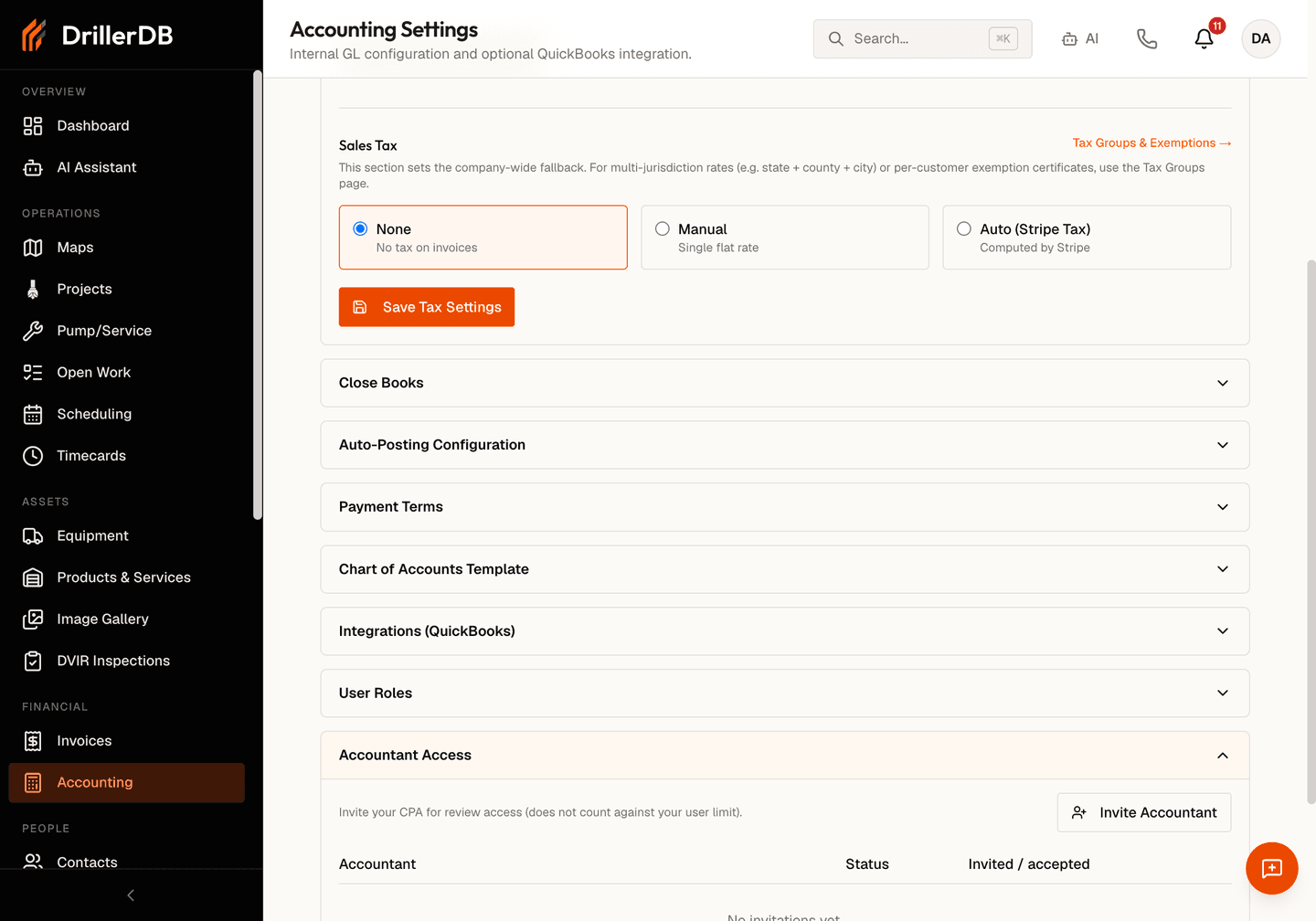
Open Accounting > Settings, then expand the Accountant Access section near the bottom of the page.
Quick Start
- Open Accounting > Settings and expand Accountant Access.
- Click Invite Accountant.
- Enter your CPA's email address and name, then click Send Invitation.
- Your CPA opens the emailed link, picks a password, and clicks Accept invitation.
- When the engagement ends, click Revoke on their row.
Step-by-Step: Give your CPA access
Send the invitation
- Click Invite Accountant.
- In Email, enter the address your CPA uses. Pick an address that does not already have a login on your account. An invitation to an address that already has one still goes out, but accepting it is refused, and the access that person already has does not change. The one exception is an accountant whose access you revoked. See Revoke access.
- In Name, enter your CPA's name.
- Use Message (optional) if you want a note to travel with the invitation.
- Click Send Invitation.
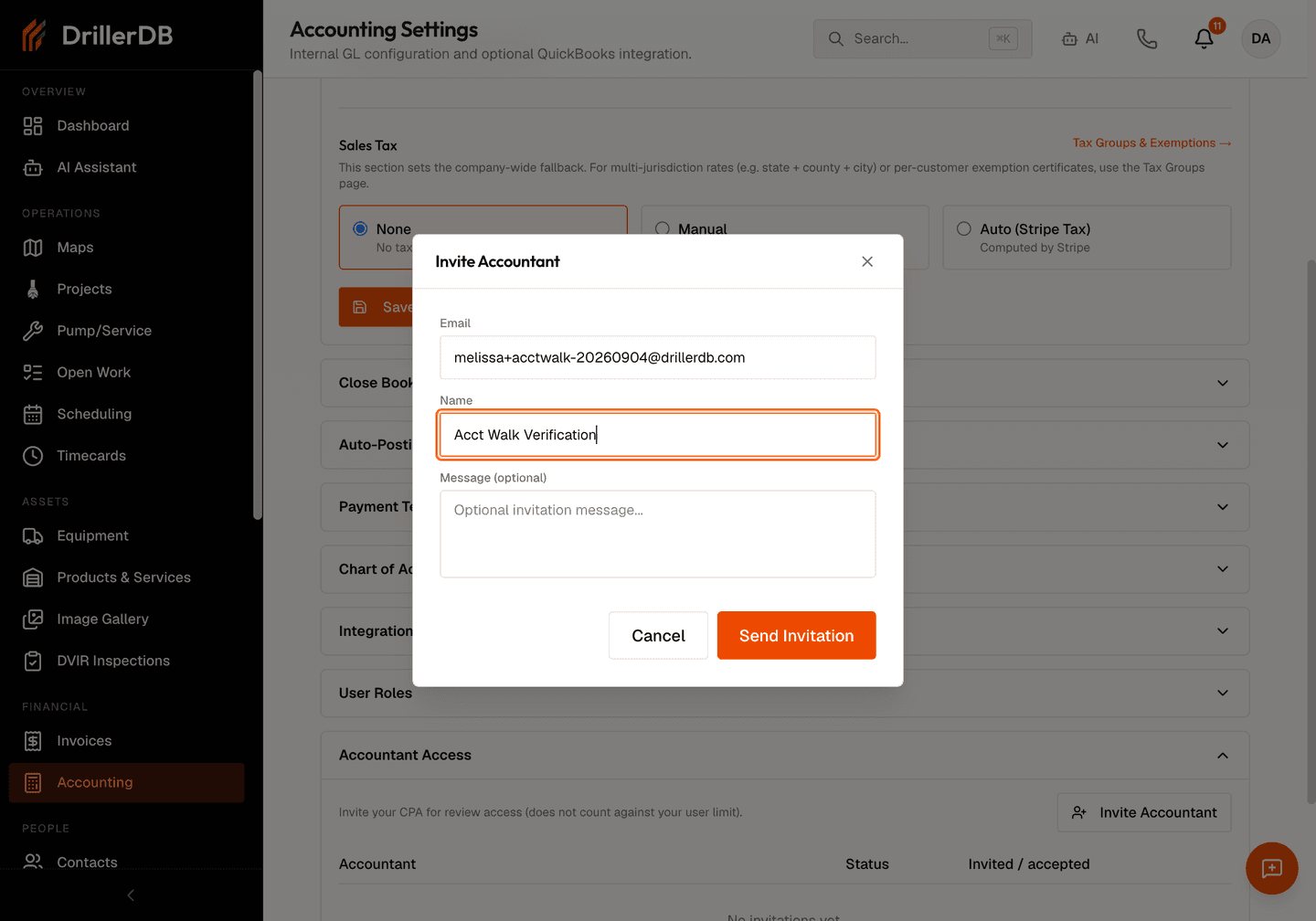
The invitation goes out under your company's name, so your CPA can see who is asking. The link works once and stops working after 14 days.
A new DrillerDB account cannot invite an accountant until we check the account, or until your paid plan starts at the end of the trial. Until then, Send Invitation shows "Accountant invites unlock after the account check. Contact support@drillerdb.com." To speed up the check, write to support@drillerdb.com. See Creating Your Account.
When DrillerDB cannot deliver the message, the Accountant Access section shows the invitation link on screen instead of claiming the mail was sent. Copy that link and send it to your CPA another way. It is the same single-use link.
What your CPA does next
The link opens a page headed Set up accountant access, which names your company and the address the invitation went to.
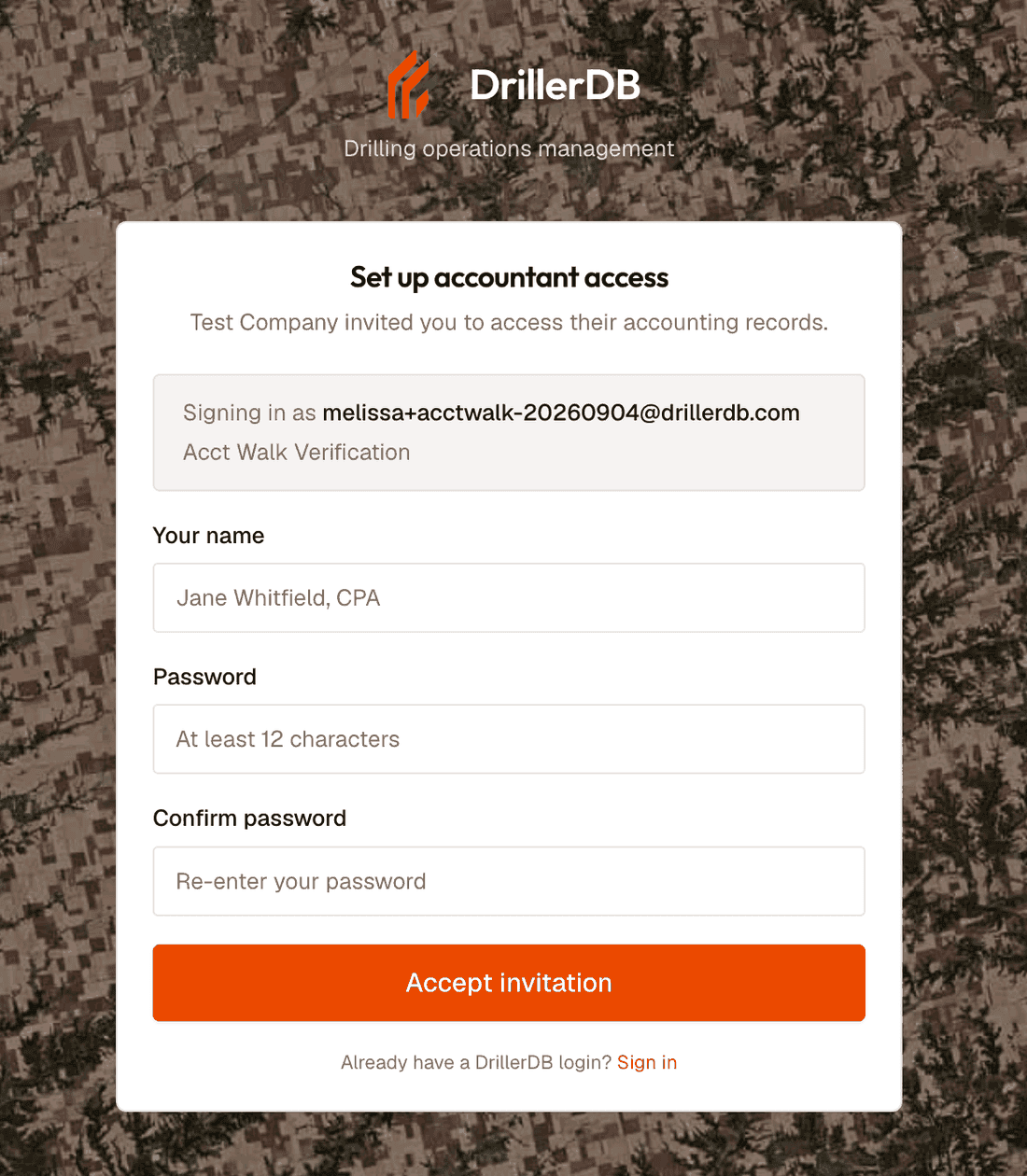
Your CPA fills in their name, chooses a password of at least 12 characters, confirms it, and clicks Accept invitation. That creates their login. You never handle their password, and neither does anyone at DrillerDB.
Read the invitation table
Each invitation is one row under Accountant Access.
| Status | What it means | What you can do |
|---|---|---|
| Pending | Sent, nobody has accepted yet. | Cancel withdraws it and kills the link at once. |
| Active | Accepted. Your CPA has a working login. | Revoke takes the access away. |
| Expired | Nobody accepted within 14 days, and the link was tried after that. An invitation whose link was never opened can still read Pending after 14 days. The link stops working either way. | Send a new invitation. |
| Cancelled | You withdrew the invitation before anyone used it. | Send a new invitation. |
| Revoked | Your CPA had a working login and you took it away. | Send a new invitation to the same email address. Accepting it restores their login. See Revoke access. |
What your accountant can reach
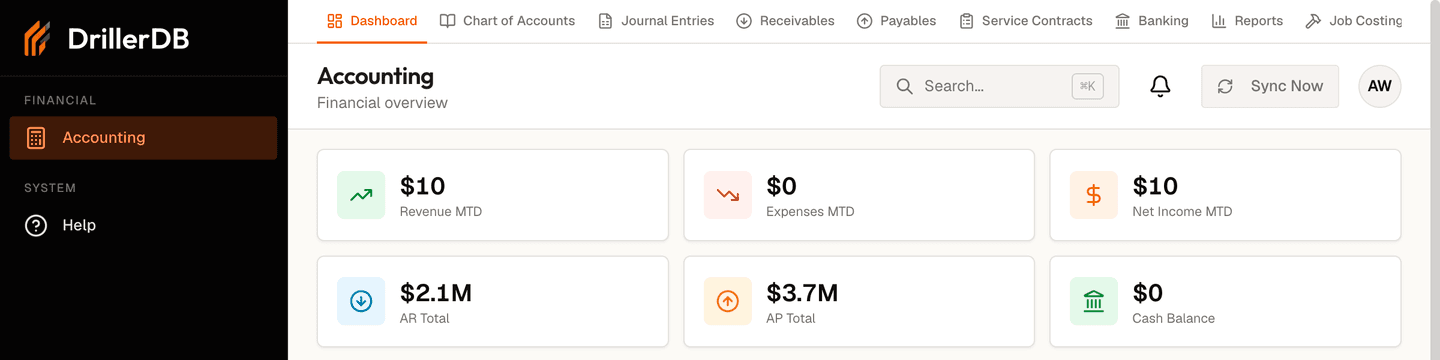
Their navigation holds two items: Accounting and Help. Inside Accounting they get the same tabs you do, so a CPA who has used the console before does not have to learn a second layout.
In your books
Inside your books, your accountant can:
- Read the ledger and the rest of your accounting records. The user-role list, this invitation list, and the posting queue stay with you.
- Run every financial report, export reports, and build the CPA package and the 1099-NEC forms.
- Create and edit draft journal entries.
- Reconcile a bank account, and add, import, categorize, match, and transfer bank transactions.
- Group received payments into bank deposits.
- Close a period.
- Record and release retainage on a project.
- Set up AIA contracts and schedules of values, and draft pay applications. Submitting a pay application stays with you.
- Compute WIP snapshots, and preview WIP adjustments and cost allocations.
- Start a 1099-NEC e-file batch. E-filing is not connected yet, so nothing is sent to the IRS.
What reaches your customers
The actions below go beyond the books. They send email to your customers or change what your customers owe. Read them before you invite a CPA.
Your accountant can also:
- Email account statements to your customers.
- Send collection reminder emails to your customers.
- Post finance charges on overdue invoices. The charge is added to the invoice balance and its journal entry is posted, although your accountant cannot post a manual journal entry.
- Create credit memos and apply them to invoices, which lowers what the customer owes.
- Create, change, pause, resume, and cancel recurring invoices. Running a schedule by hand stays with you.
What stays with you
Your accountant cannot:
- Post, void, or delete a manual journal entry. They prepare the adjusting entries and you post them.
- Change the chart of accounts.
- Create, edit, or send an invoice, or record a payment on one.
- Enter, approve, or pay a bill, write off an invoice, or add and edit vendors.
- Change accounting settings, including this section. The one exception is Close Books, which they use to close a period.
Every page outside Accounting is closed. A page such as the dashboard, the invoice list, or a project returns an access error rather than the page, and a console page added in a future release stays closed to your accountant until somebody opens it deliberately.
An invited accountant cannot sign in to the classic DrillerDB app. The sign-in page sends them to the console instead, so the accounting-only boundary holds no matter which address they try.
Step-by-Step: Revoke access
Do this when the engagement ends, when your CPA changes firms, or any time you want the login closed.
- Find the row whose status reads Active.
- Click Revoke.
- Read the confirmation, then click Revoke access.
The confirmation is headed Revoke accountant access?. It names your CPA's email address, tells you what revoking does, and says that a new invitation to the same address restores the login. Cancel closes it and leaves the login as it is.
Revoking suspends your accountant's login, so they cannot sign in again. Any accounting role you gave them under User Roles is cleared. The entries they already made stay in your books, so your ledger and your audit trail do not change.
Give a revoked accountant access again
To work with the same CPA again, send a new invitation to the same email address. When your CPA accepts it and chooses a password, the login you revoked is restored. It is the same login, so the entries they made before are still linked to it.
The restored login has the standard accountant access described on this page. If you had given them a different accounting role under User Roles, set it again.
Their old row stays in the invitation table as Revoked, and the new invitation gets a row of its own.
A re-invitation restores only a login that you closed with Revoke on this screen. If the address belongs to any other login, for example an owner, an employee, or an accountant who still has access, accepting the invitation is still refused.
Related Topics
- Accounting - the whole accounting module and its tab bar.
- Chart of Accounts - accounts and journal entries, including the post and void controls your accountant does not have.
- User Roles and Access - roles for the people who work for you.
- Job Costing - project profitability, which your accountant can read and report on.