
Accounting
The Accounting module is DrillerDB's built-in double-entry bookkeeping system. It turns the invoices, bills, payments, and field work already in your account into a real general ledger - so you can run a Profit & Loss, reconcile a bank account, track job profitability, and hand a clean package to your CPA without leaving the console.
Open Accounting from the console navigation (the calculator icon in the Work group). Inside, a tab bar across the top moves you between every accounting surface.
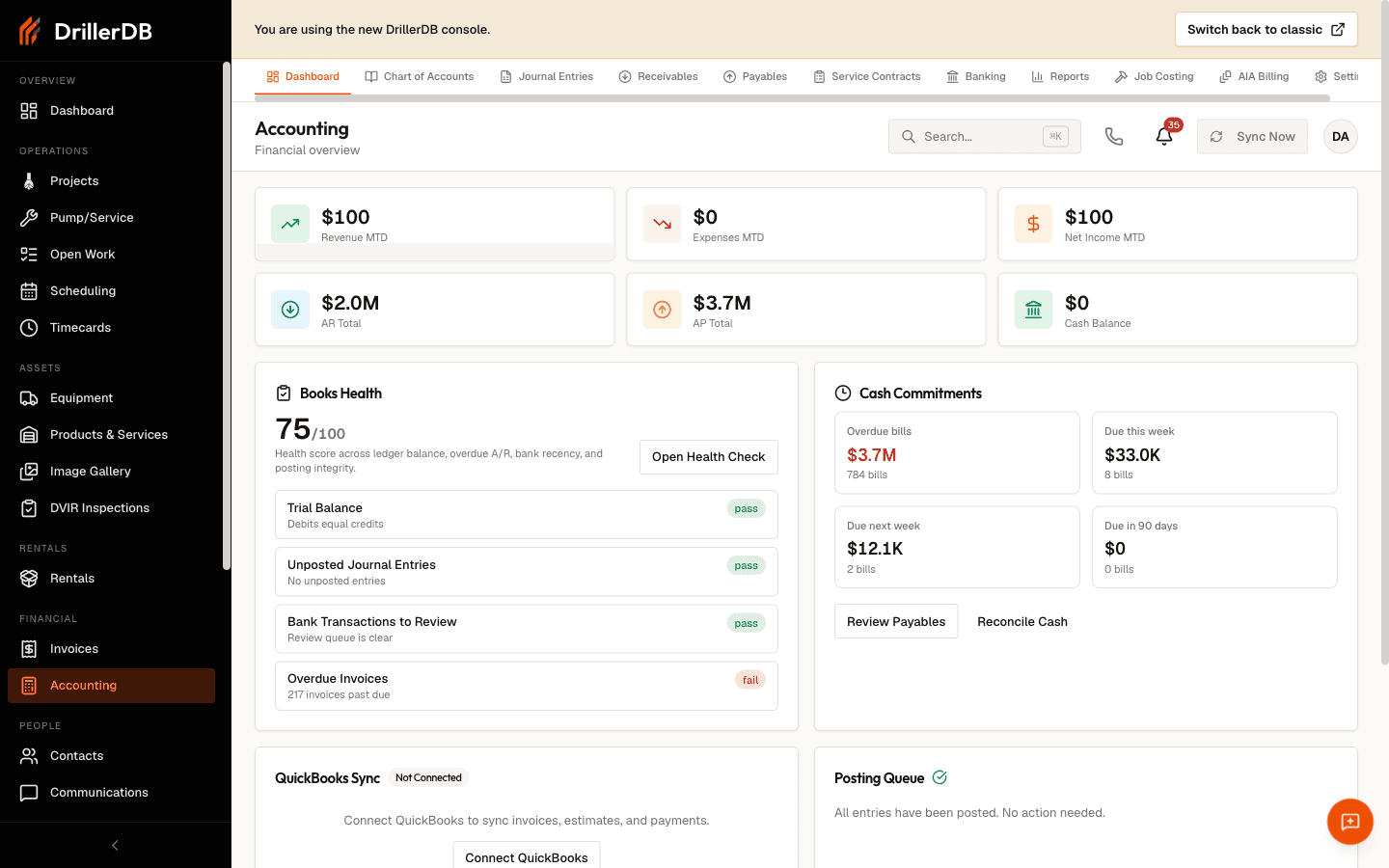
DrillerDB keeps its own set of books. You can run entirely inside the console, or connect QuickBooks (Online or Desktop) if you use it. QuickBooks is optional - nothing here requires it.
The tab bar
Every area below is a tab at the top of the Accounting page.
| Tab | What it does |
|---|---|
| Dashboard | Financial overview - month-to-date revenue, expenses, and net income, plus A/R and A/P totals, cash balance, a books-health score, cash commitments, and the QuickBooks sync state. |
| Chart of Accounts | Your list of general-ledger accounts (assets, liabilities, equity, revenue, expenses). See Chart of Accounts. |
| Journal Entries | Manual and system-generated double-entry transactions, with post/void/reverse controls. Covered on the Chart of Accounts page. |
| Receivables | Money customers owe you - A/R aging, statements, credit memos, collections, and finance charges. See Receivables. |
| Payables | Money you owe vendors - bills, vendors, payments, recurring bills, vendor credits, 1099 tracking, and A/P aging. See Payables. |
| Vendors | The vendor master - add a payee, see what you have paid it and what you still owe, chase missing W-9s and taxpayer IDs, and merge duplicates. See Vendors. |
| Service Contracts | A company-wide list of recurring service agreements across all customers (interval, cost, billing method, next-due date). |
| Banking | Bank and credit-card accounts, transaction register, bank feeds, reconciliation, rules, CSV import, and undeposited funds. See Banking. |
| Reports | Financial statements and controls - Profit & Loss, Balance Sheet, Trial Balance, Cash Flow, General Ledger, plus construction reports and tax filings (see below). |
| Job Costing | Budget vs. actual vs. billed for every project, WIP, retainage, and AIA workflows. See Job Costing. |
| AIA Billing | G702/G703 progress billing for construction contracts. See AIA Billing. |
| Settings | GL configuration, sales-tax settings, the QuickBooks integration, user roles, and the migration wizard (see below). |
Reports at a glance
The Reports tab groups every report into cards:
- Core Statements - Profit & Loss, Balance Sheet, Trial Balance, Cash Flow Statement, General Ledger, plus a Health Check. Each supports a date range and a cash-vs-accrual basis.
- Construction Controls - WIP Summary, Over/Under Billing, and Retainage Rollforward, plus a shortcut into the AIA Billing workspace.
- Tax and Compliance - Sales Tax Liability and 1099-NEC Reporting.
- Scheduled Reports and Export Jobs - queue a report to run on a weekly or monthly cadence, or export any statement to CSV, PDF, or XLSX.
- CPA Package - bundle a period's statements for your accountant.
Sales Tax Liability
A dedicated report showing tax collected by jurisdiction for a period, with columns for taxable sales, non-taxable sales, tax collected, and net due. It reconciles the subledger total against your GL Sales Tax Payable balance and flags whether the two are in balance. Export to CSV or print to PDF.
Form 1099-NEC
Year-end contractor reporting. The tool lists every vendor paid at least the IRS 1099-NEC threshold for the year on a 1099-tracked account, counted by payment date. The page shows the threshold: $600 for 2025 and earlier, $2,000 for 2026. It shows whether each has a TIN and W-9 on file, and generates a 1099-NEC PDF per vendor (only the last four digits of the TIN show on screen; the full number appears in the PDF). 1099 tracking is also surfaced on the Payables page.
Recurring invoices
The Recurring Invoices screen (reachable from Receivables and from the Accounting area) creates repeating invoice schedules. Pick a customer and a cadence - Weekly, Every 2 weeks, Monthly, Quarterly, or Yearly - set the start date and an optional end date or total number of runs, and choose whether to auto-send each generated invoice. Each schedule shows its next run date and can be paused, resumed, or cancelled.
Settings
The Settings tab holds every accounting configuration option in collapsible sections:
- General Settings - turn internal accounting on, and set your Sales Tax rate and label.
- Close Books - lock a period once it is finalized.
- Auto-Posting Configuration - control which documents post to the ledger automatically.
- Payment Terms - default terms (Net 15, Net 30, etc.).
- Chart of Accounts Template - seed a standard chart.
- Integrations (QuickBooks) - connect QuickBooks, manage the webhook, and enable tax by job-site location.
- User Roles and Accountant Access - control who can see and post accounting data. To give an outside CPA an accounting-only login, see Accountant Access.
- Migration Wizard - a guided cutover (Chart of Accounts, Opening Balances, Validation, Cutover) for moving your books into DrillerDB.
- Posting Queue - settings for how queued entries are processed.
If you use QuickBooks Desktop, the QuickBooks Desktop sync status screen shows the live Web Connector state - connection, queue depth (pending, in-flight, failed), recent sync jobs, and controls to force a sync or retry failed jobs.
Accounting is limited to admin, office, and accountant roles. Posting entries, voiding bills, and writing off invoices affect your financial statements - grant access accordingly under Settings.
QuickBooks Desktop: records the import brought in
A delete in DrillerDB does not reach QuickBooks. If you delete a customer or a project that the QuickBooks Desktop import brought in, the next sync sees it as new and brings it back. To retire a customer, make it inactive in QuickBooks instead.
DrillerDB refuses these deletes, in the console and in the classic app, and says why:
- A customer the import brought in: "Cannot delete: this customer was imported from QuickBooks. Deleting it here would not delete it in QuickBooks, and the next QuickBooks sync would bring it back. Make it inactive in QuickBooks instead; the next sync marks it inactive here."
- A project the import brought in, or a project that holds imported invoices or estimates: the message names them, for example "Cannot delete: this project has 2 invoices imported from QuickBooks. Deleting it here would not delete it in QuickBooks, and the next QuickBooks sync would bring it back."
How it connects to the rest of DrillerDB
- Customer invoices flow into Receivables as open A/R. See Payment Tracking and Creating Invoices.
- Vendor bills and expenses live in Payables.
- Approving an AIA draw creates a customer invoice and posts the ledger entry automatically.
- Project budgets, costs, and billing roll up into Job Costing.
Related topics
- Billing & Invoices - invoice creation, sending, and payment collection
- QuickBooks Integration - accounting sync controls