
Chart of Accounts
The chart of accounts is the backbone of your books - the list of general-ledger accounts every transaction posts to. Journal Entries, on the same set of tabs, is where those postings are made and adjusted.
Chart of Accounts
Open Accounting > Chart of Accounts. The header shows a running account count (for example, "12 accounts").
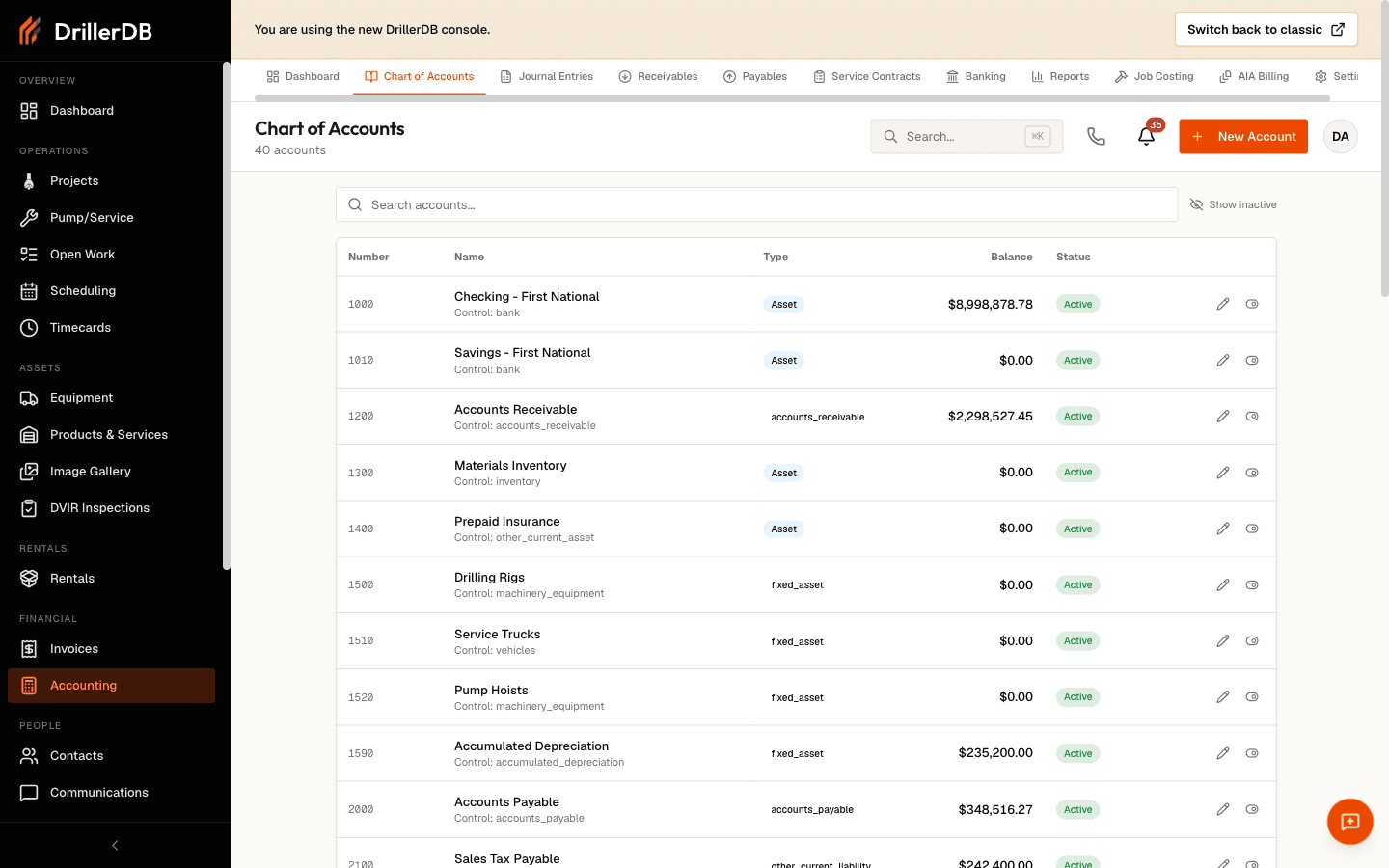
The table lists every account:
| Column | Shows |
|---|---|
| Number | The account number/code |
| Name | The account name (a "Control:" sub-line appears for control accounts) |
| Type | The account category, as a colored badge |
| Balance | Current balance |
| Status | Active or Inactive |
Search accounts with Search accounts..., and toggle Show inactive to include deactivated accounts.
Account types
Every account belongs to one of these types:
| Type | Use |
|---|---|
| Asset | Things you own (cash, A/R, equipment) |
| Liability | Things you owe (A/P, loans) |
| Equity | Owner's stake |
| Revenue | Income you earn |
| COGS | Cost of goods sold |
| Expense | Operating costs |
| Other Income | Non-operating income |
| Other Expense | Non-operating costs |
Add or edit an account
- Click New Account.
- Enter the Account Number (for example, 1000) and Name (for example, Cash on Hand).
- Choose an Account Type.
- Optionally set a Control Type (such as ar, ap, bank, or undeposited_funds) and a Description.
- Click Create Account. To change one later, use the pencil icon on its row.
Accounts are never deleted. Use the activate/deactivate toggle on a row to retire an account while keeping its history.
A common layout is 1000s for assets, 2000s for liabilities, 3000s for equity, 4000s for revenue, and 5000s and up for expenses. DrillerDB does not enforce ranges, so pick a scheme and stay consistent.
Journal Entries
Open Accounting > Journal Entries. The header reads "Journal Entries - Manual and system-generated transactions (double-entry)." Most entries here are created automatically by invoices, bills, and payments; you can also post manual entries and adjustments.
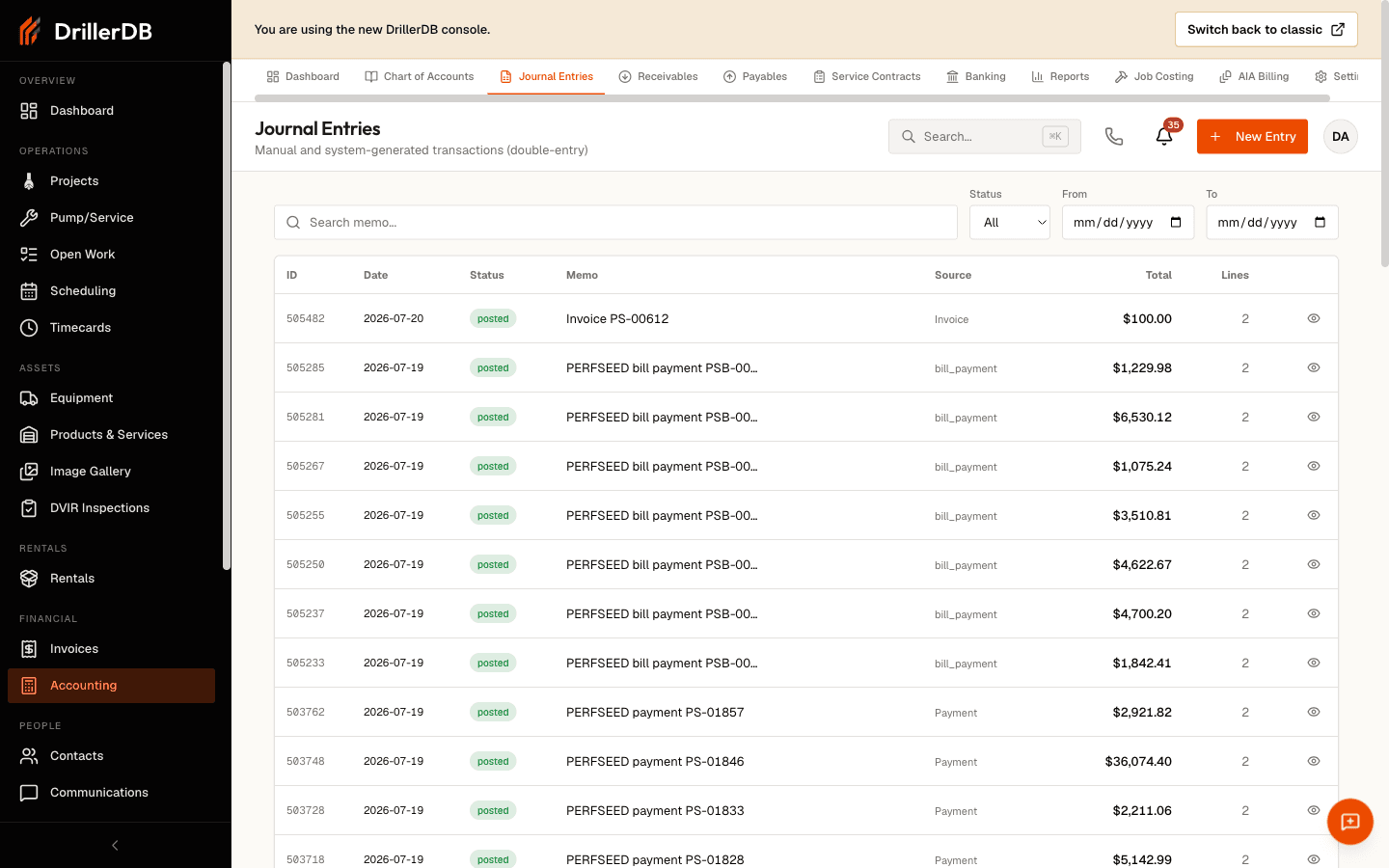
The list shows:
| Column | Shows |
|---|---|
| ID | Entry number |
| Date | Entry date |
| Status | Draft, Posted, or Voided |
| Memo | Description |
| Source | Manual, Invoice, Bill, Payment, Reconciliation, or System |
| Total | Entry amount |
| Lines | Number of lines |
Filter with the Search memo... box, the Status dropdown (All, Draft, Posted, Voided), and a From / To date range.
Post a manual journal entry
- Click New Entry.
- Set the Date (defaults to today) and enter a Memo (required).
- Optionally check Adjusting.
- For each line, pick an Account, add an optional Description and Project ID, and enter either a Debit or a Credit (never both on one line).
- Add lines with Add line (or press Tab from the last Credit field). At least two lines are required.
- Watch the Totals row until it reads Entry is balanced - debits must equal credits.
- Click Save Draft to keep it editable, or Post Entry to post it immediately.
DrillerDB will not let you post an unbalanced entry - the total debits must equal the total credits. Posted entries affect your financial reports and cannot be edited away; use Void or Reverse instead.
Void or reverse a posted entry
Open a posted entry's detail (the eye icon on its row):
- Void marks the entry voided and posts an offsetting void entry. You can record an optional reason.
- Reverse creates a new offsetting entry on a date you choose - useful for reversing an accrual in the next period.
Only manual entries can be edited, posted, voided, or reversed here. System-generated entries (from invoices, bills, and payments) are read-only - change the originating document instead.
Related topics
- Journal Entries in Banking - how bank transactions post to the ledger
- Receivables and Payables - the subledgers that feed the GL