
This guide is based on a browser-recorded walkthrough in the rebuilt DrillerDB console. When a step can send, submit, export, or change account access, the guide calls out the review boundary.
Security & Settings is the admin control room for company identity, account access, MFA posture, and external integrations. Review these pages before changing anything that affects users, customer-facing branding, API access, billing, or third-party connections.
Quick Start
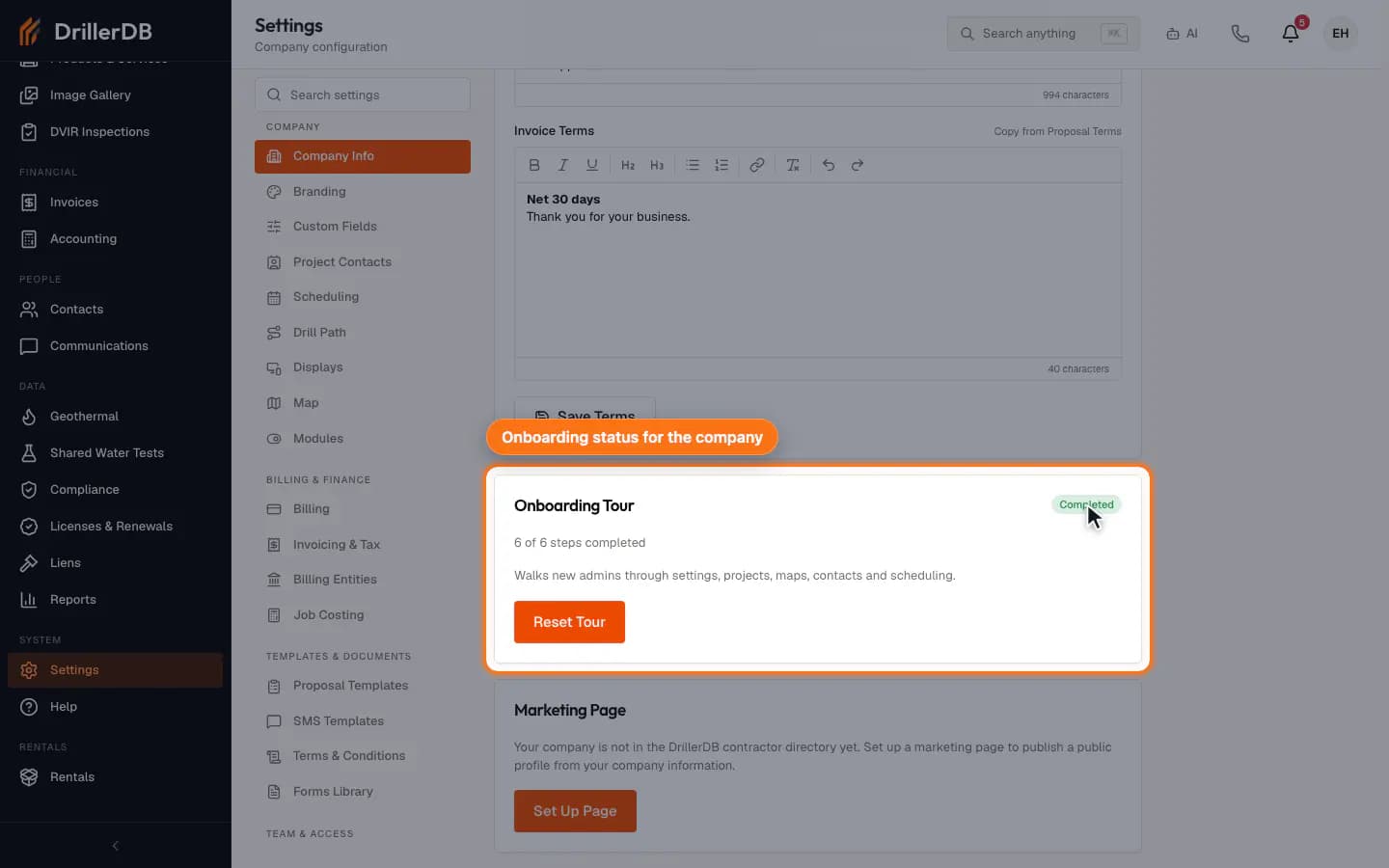
- Open Settings and review company identity, defaults, display, onboarding, and optional feature controls.
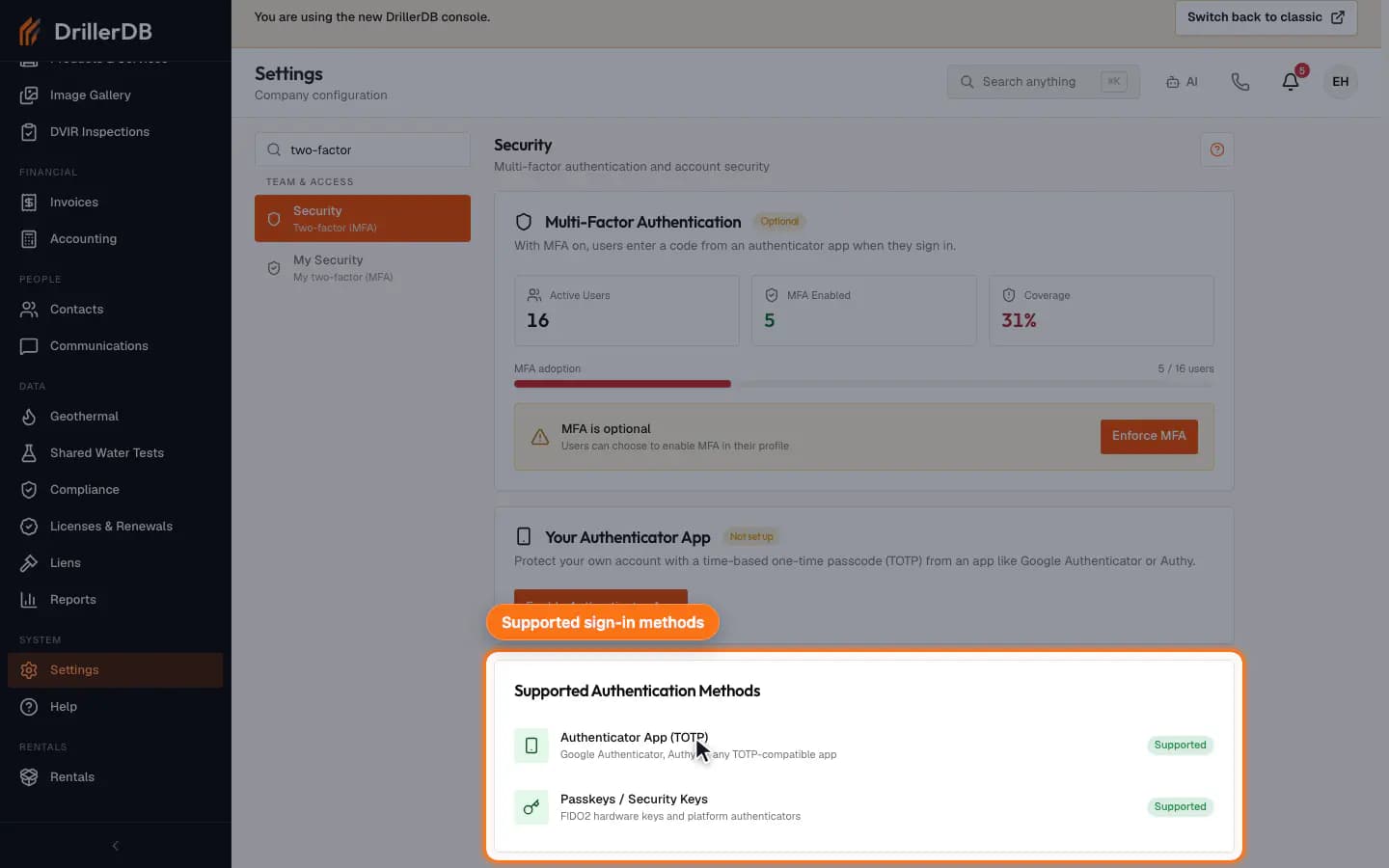
- Open Security to check MFA adoption, enforcement status, and supported authentication methods.
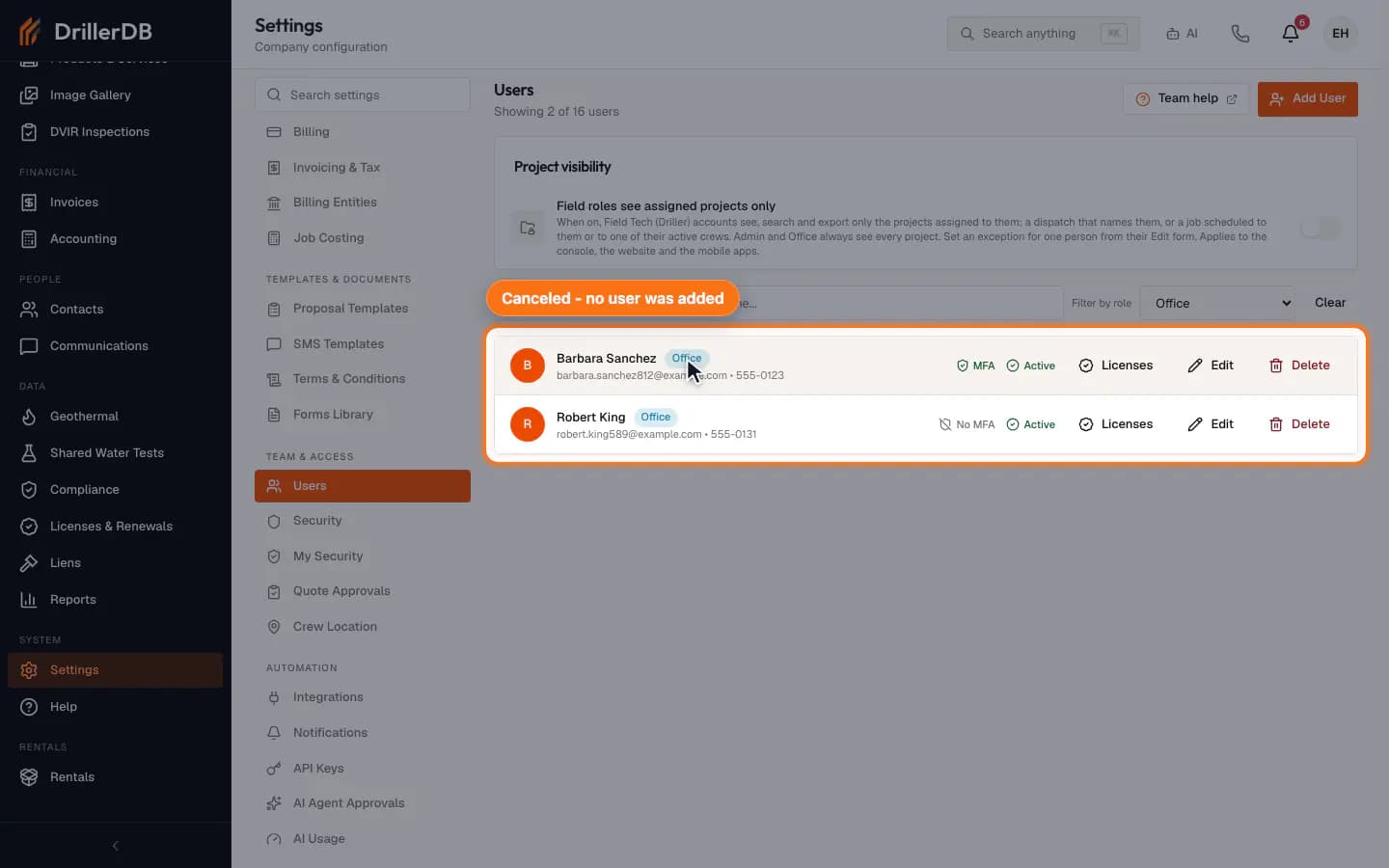
- Open Users to review active users, roles, MFA indicators, account status, and the Add User button.
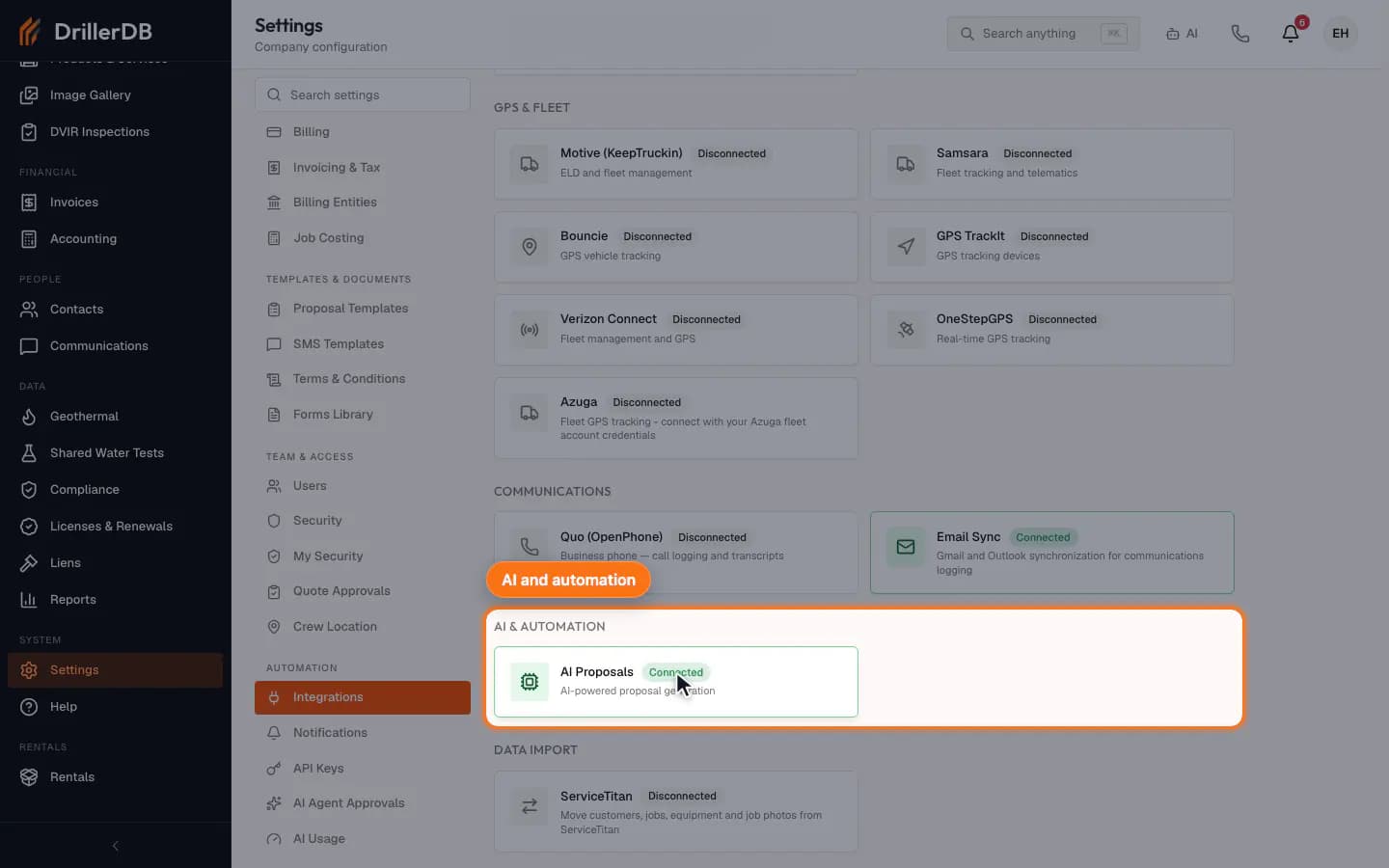
- Open Integrations to scan accounting, GPS/fleet, communications, and AI provider status.
- Open a provider detail page and stop before saving credentials, testing, connecting, disconnecting, or enabling automation.
Step-by-Step: Security & Settings
Start with company settings
Open Settings to review the Company Information card (name, contact email, address, default state, license, phone, country, currency, units, timezone, and logo), then the Display, Customer PDFs, and Features tabs, and Your Preferences and Onboarding Tour on the Preferences tab. Save Changes and the logo upload are admin actions.
Company settings feed proposals, invoices, customer portal pages, field paperwork, and default units, so review the downstream impact before saving.
Review MFA and security posture
Open Security (or type two-factor or MFA in Search settings) to check the active-user count, MFA-enabled count, adoption coverage, enforcement status (Optional or Enforced), and supported authentication methods.
Use Enforce MFA only after users are ready for the next-login setup requirement.
Confirm user access from the Users page
Open Users to review each user's role, MFA status, and Active status. Use Filter by role or the search box to narrow the list. Add User opens the new-user form; add someone only after the change is approved. The page also has a Project visibility card.
Scan integrations before connecting anything
Open Integrations to review accounting, GPS and fleet, communications, AI and automation, and data import (ServiceTitan) providers. Each card shows Connected or Disconnected. An Accounting Settings card links to the accounting settings page.
Open a provider detail and stop at the connection boundary
Open a provider to see its status and how it connects: a sign-in (OAuth) option, an API key field, or, once it is connected, Test Connection and Disconnect. No single provider shows all of these. Do not connect, test, save a key, or disconnect until the office has approved the change.
OAuth, API keys, webhook secrets, and accounting connections are live security boundaries. Store only approved credentials.
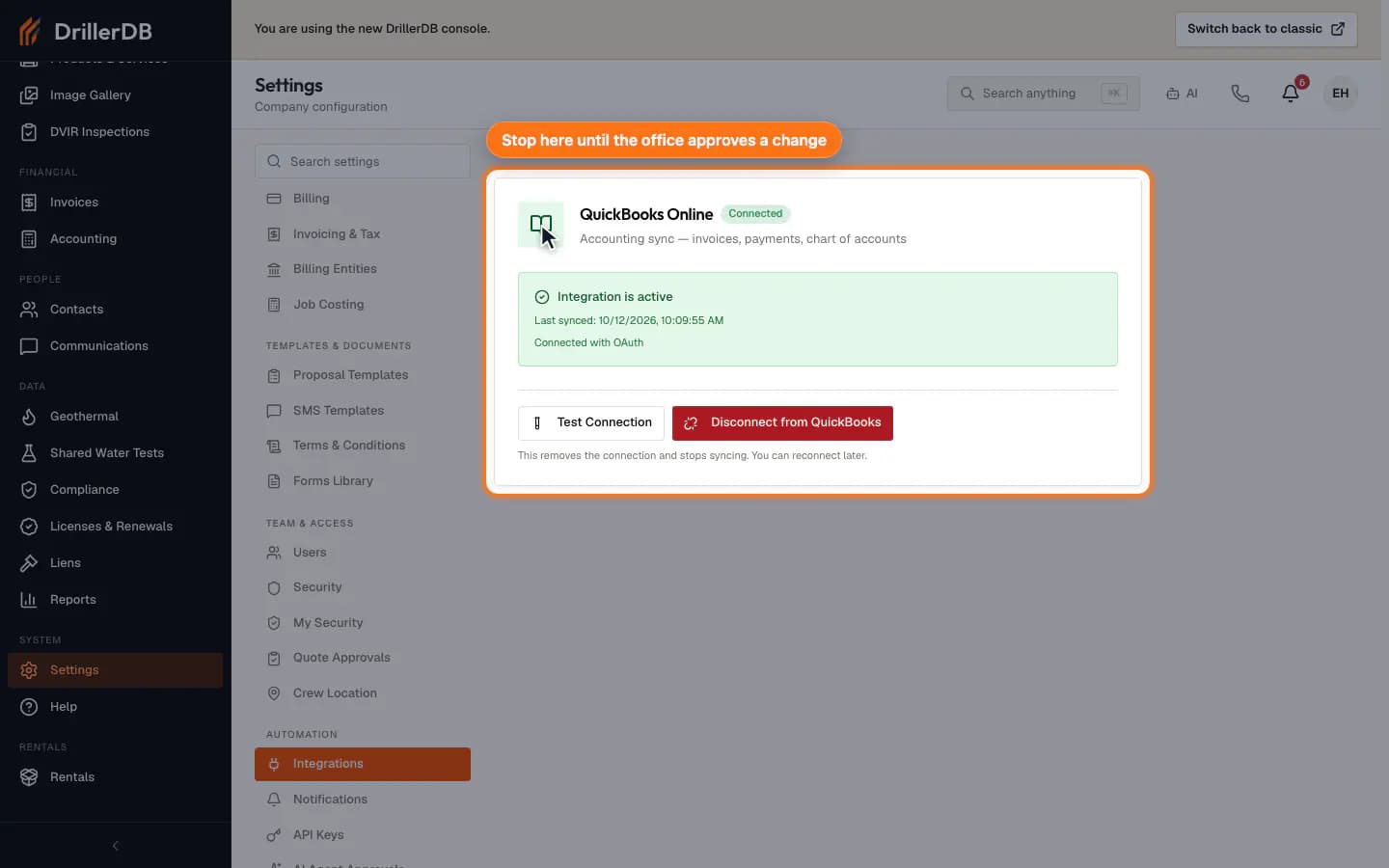
Admin and security boundary
This guide records read-only review of company settings, MFA posture, user access, and integration setup. It does not save company settings, invite or deactivate users, generate API keys, connect OAuth accounts, save secrets, test credentials, disconnect providers, or enable automation.
Use settings saves, user changes, API keys, MFA enforcement, billing changes, and integration connection controls only after the account owner or admin has approved the exact change.