Billing Settings
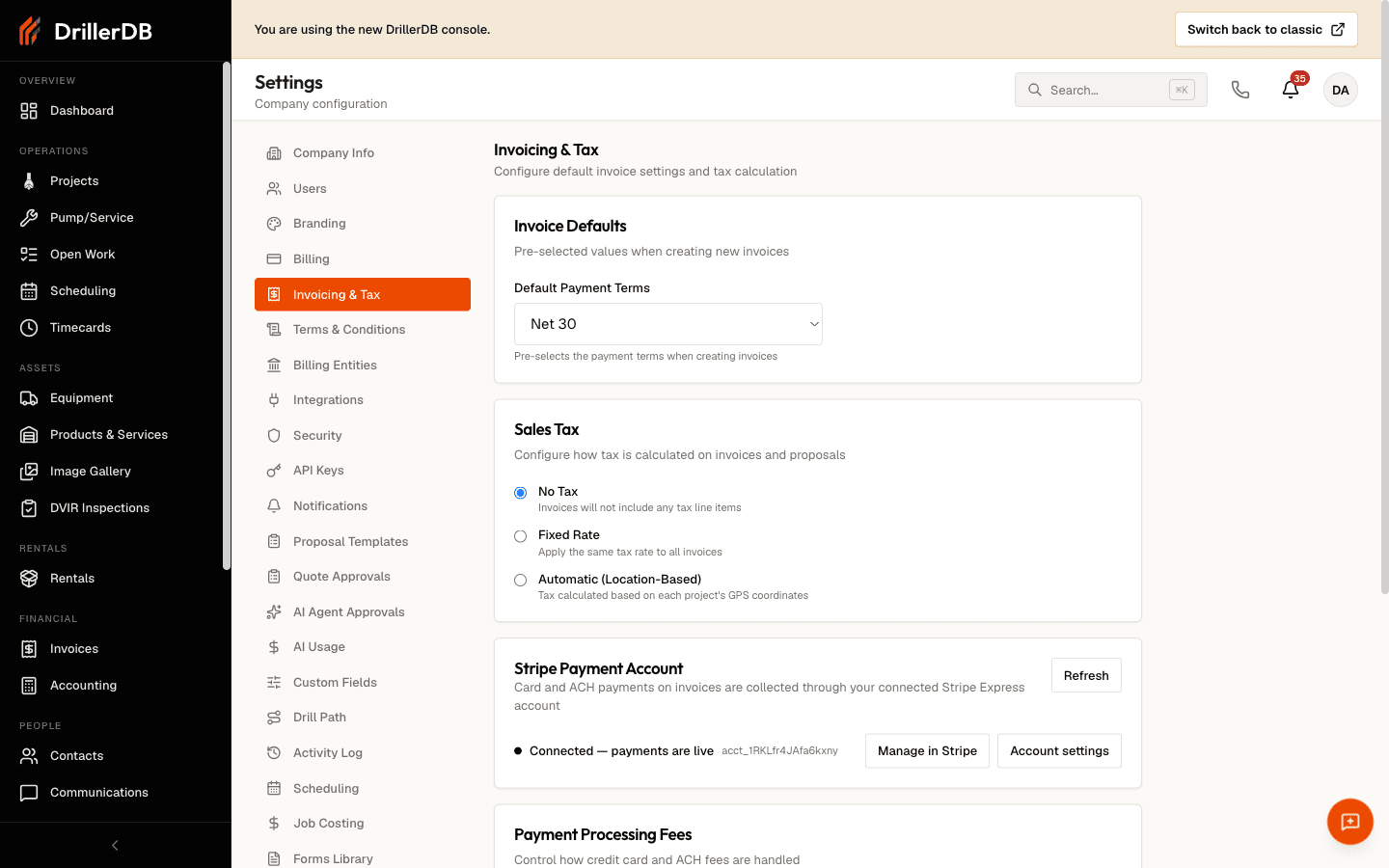
Billing Settings control how invoices are generated, numbered, and presented to customers. Configure these settings to match your accounting processes and customer expectations.
Quick Start: Configure Billing
- Go to Settings > Billing
- Set invoice numbering format and starting number
- Configure default payment terms (Net 30, etc.)
- Set up tax rates for your location
- Customize invoice appearance
- Click Save
Test new billing settings with a draft invoice before sending to customers. Changes only affect new invoices, not existing ones.
Step-by-Step Workflow
- Go to Settings > Billing
- Set invoice numbering format and starting number
- Configure default payment terms (Net 30, etc.)
- Set up tax rates for your location
- Customize invoice appearance
- Click Save
Invoice Configuration
Invoice Numbering
Set up your invoice numbering system:
Numbering Format
- Sequential numbering (1001, 1002, 1003...)
- Year-based format (2025-001, 2025-002...)
- Project-based format (PROJECT-INV-001)
- Custom prefix or suffix
Starting Number
- Set starting invoice number
- Helpful when migrating from another system
- Cannot be changed once invoices exist
- Must be unique and sequential
Automatic Assignment
- Invoices numbered automatically on creation
- No gaps in sequence
- Duplicate prevention
- Manual override option for special cases
Invoice Details
Configure default invoice information:
Header Information
- Company name and logo
- Business address and contact
- Tax ID or business license number
- Custom header text
Date Settings
- Invoice date (defaults to today)
- Due date calculation
- Grace period before overdue
- Date format preference
Footer Settings
- Payment instructions
- Bank account information
- Thank you message
- Terms and conditions reference
Payment Terms
Default Terms
Set standard payment terms for invoices:
- Net 30 - Payment due within 30 days
- Net 15 - Payment due within 15 days
- Due on Receipt - Payment due immediately
- Net 60 - Payment due within 60 days
- Custom Terms - Define your own payment period
Default terms apply to all new invoices unless overridden.
Customer-Specific Terms
Override defaults for specific customers:
- Go to customer record in Rolodex
- Set custom payment terms
- Terms apply to all invoices for that customer
- Helpful for contract customers or special arrangements
Early Payment Discounts
Encourage early payment:
- Define discount percentage (e.g., 2%)
- Set discount period (e.g., 10 days)
- Display on invoice as "2/10 Net 30"
- Automatically calculate discounted amount
Tax Configuration
Tax Rates
Set up sales tax rates:
Default Tax Rate
- Your standard tax rate percentage
- Applied to all taxable items
- Can be overridden per invoice
- Supports multiple decimal places
Multiple Tax Rates
- Add location-specific rates
- County or city tax rates
- Combined state and local rates
- Automatic rate selection by project location
Tax Exemptions
- Mark certain customers as tax-exempt
- Require tax exemption certificate
- Track exemption expiration dates
- Generate tax-exempt invoices automatically
Tax Display
Choose how tax appears on invoices:
- Line-by-line - Tax calculated per item
- Subtotal - Tax calculated on subtotal
- Separate line - Tax as separate invoice line
- Inclusive - Price includes tax (international)
Tax Reporting
Generate tax reports for filing:
- Tax collected by period
- Taxable vs. non-taxable sales
- Tax by rate or jurisdiction
- Export for accounting software
Down Payments
Down Payment Settings
Configure deposit requirements:
Default Percentage
- Standard deposit amount (e.g., 25%, 50%)
- Applies to all new projects
- Can be overridden per project
- Option to require before scheduling
Down Payment Invoices
- Automatically generate deposit invoice
- Separate from final invoice
- Track deposit application to balance
- Deposit invoice numbering
Payment Application
- Apply deposits to final invoice
- Show deposit credit on invoice
- Track unapplied deposits
- Refund unused deposits
Invoice Appearance
Template Selection
Choose invoice layout:
- Standard - Professional layout with logo
- Detailed - Itemized with descriptions
- Compact - Simplified single-page format
- Custom - Upload your own template
Branding
Customize invoice appearance:
Colors
- Primary brand color
- Accent colors
- Text colors
- Background colors
Fonts
- Header font style
- Body text font
- Size preferences
- Bold and italic usage
Logo Placement
- Top left, top right, or centered
- Logo size
- Optional background image
Line Item Display
Configure how services appear:
- Show/hide item codes
- Quantity and unit columns
- Rate per unit
- Extended amount
- Description detail level
- Subtotal grouping
Payment Methods
Accepted Methods
Indicate which payment methods you accept:
- Credit Cards - Via Stripe integration
- ACH/Bank Transfer - Electronic payment
- Check - Mailed or delivered
- Cash - In-person payment
- Wire Transfer - For large amounts
Display accepted methods on invoice footer.
Online Payment
Configure online payment options:
Stripe Integration
- Enable credit card payments
- ACH bank transfer option
- Payment button on invoice
- Customer portal payment
Processing Fees
- Pass fees to customers (optional)
- Calculate fee percentage
- Display fee breakdown
- Add fee to invoice total
Late Fees
Late Fee Policy
Set up automatic late fees:
Late Fee Type
- Percentage of balance (e.g., 1.5% per month)
- Flat fee (e.g., $25 per month)
- No late fees
Grace Period
- Days after due date before fee applies
- Typically 5-10 days
- One-time vs. recurring fees
Application
- Apply automatically or manually
- Send notification when applied
- Track late fee revenue separately
Interest Charges
For recurring late fees:
- Annual percentage rate (APR)
- Monthly accrual
- Compound or simple interest
- Maximum interest amount
Check local regulations for late fee and interest limits.
Invoice Delivery
Default Delivery Method
Choose how invoices are sent:
- Email - Sent automatically to customer email
- Customer Portal - Available for download
- Both - Email notification with portal link
- Print Only - Manual delivery
Email Settings
Configure invoice emails:
Subject Line
- Default subject format
- Include invoice number
- Custom subject per invoice
Email Body
- Greeting message
- Payment instructions
- Due date reminder
- Contact information
- Signature
Attachments
- PDF invoice attachment
- Supporting documents
- Terms and conditions
- Payment slip
Reminders
Set up automatic payment reminders:
- Send before due date (e.g., 3 days before)
- Send on due date
- Send after due date (e.g., 7, 14, 30 days overdue)
- Escalating reminder messages
- Stop reminders after certain period
Saving Settings
Changes to Billing Settings:
| Effect | Scope |
|---|---|
| Apply immediately | New invoices only |
| Existing invoices | Not affected |
| Individual override | Allowed per invoice |
| QuickBooks sync | Automatic if connected |
Test new settings with a draft invoice before sending to customers.
Invoice numbering cannot be changed once invoices exist. Set your starting number carefully before creating your first invoice.
Troubleshooting
Invoice numbering gaps?
- Check for deleted draft invoices
- Verify numbering format settings
- Contact support for sequence reset
Tax not calculating correctly?
- Verify tax rate percentage
- Check items are marked taxable
- Confirm customer not tax-exempt
Payments not syncing to QuickBooks?
- Verify QuickBooks connection active
- Check customer exists in QuickBooks
- Review sync error log
Related Topics
- Invoicing Overview - Creating and sending invoices
- Payment Processing - Accept payments
- QuickBooks Integration - Accounting sync
- Stripe Connect - Online payments