
This guide is based on a browser-recorded walkthrough in the rebuilt DrillerDB console. When a step can send, submit, export, or change account access, the guide calls out the review boundary.
Use the Invoices workspace to review invoice status, search customer billing records, and prepare new invoice records. Creating an invoice changes billing data, while reminders, exports, and sends can be customer- or accounting-visible. This guide records the review and prepared-create boundary without creating or delivering an invoice.
Quick Start
- Open Invoices.
- Review totals, status filters, search, date filters, and invoice rows.
- Use reminders, voids, exports, and customer links only after billing review.
- Open Create Invoice when the office needs to prepare a new invoice record.
- Fill invoice number, dates, line items, quantity, unit price, and notes.
- Click Create Invoice only after the billing record has been reviewed.
Step-by-Step: Create Invoices
Open Invoices
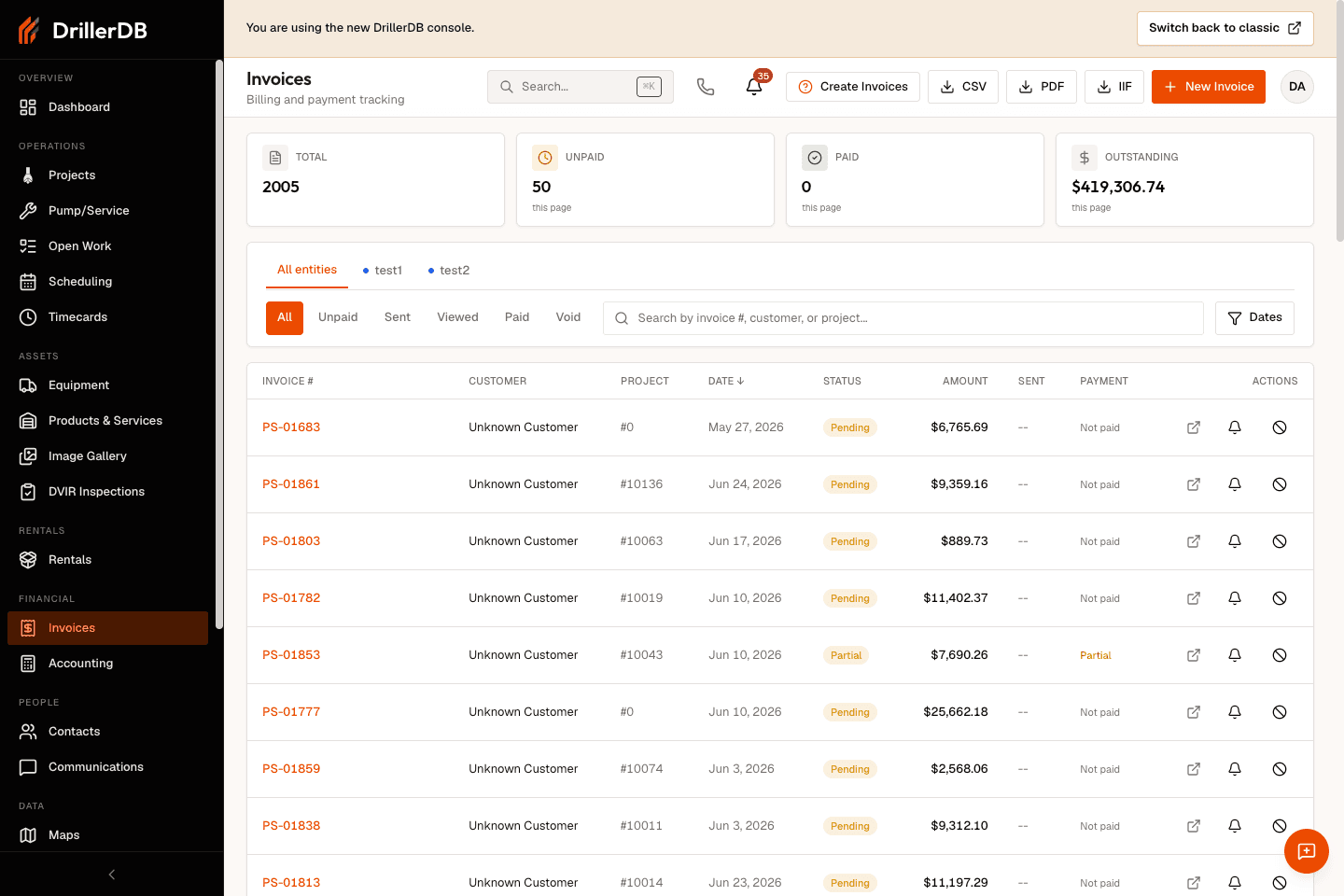
Open the Invoices workspace to review totals, unpaid invoices, paid invoices, outstanding balance, filters, and the invoice table.
Filter or search invoices
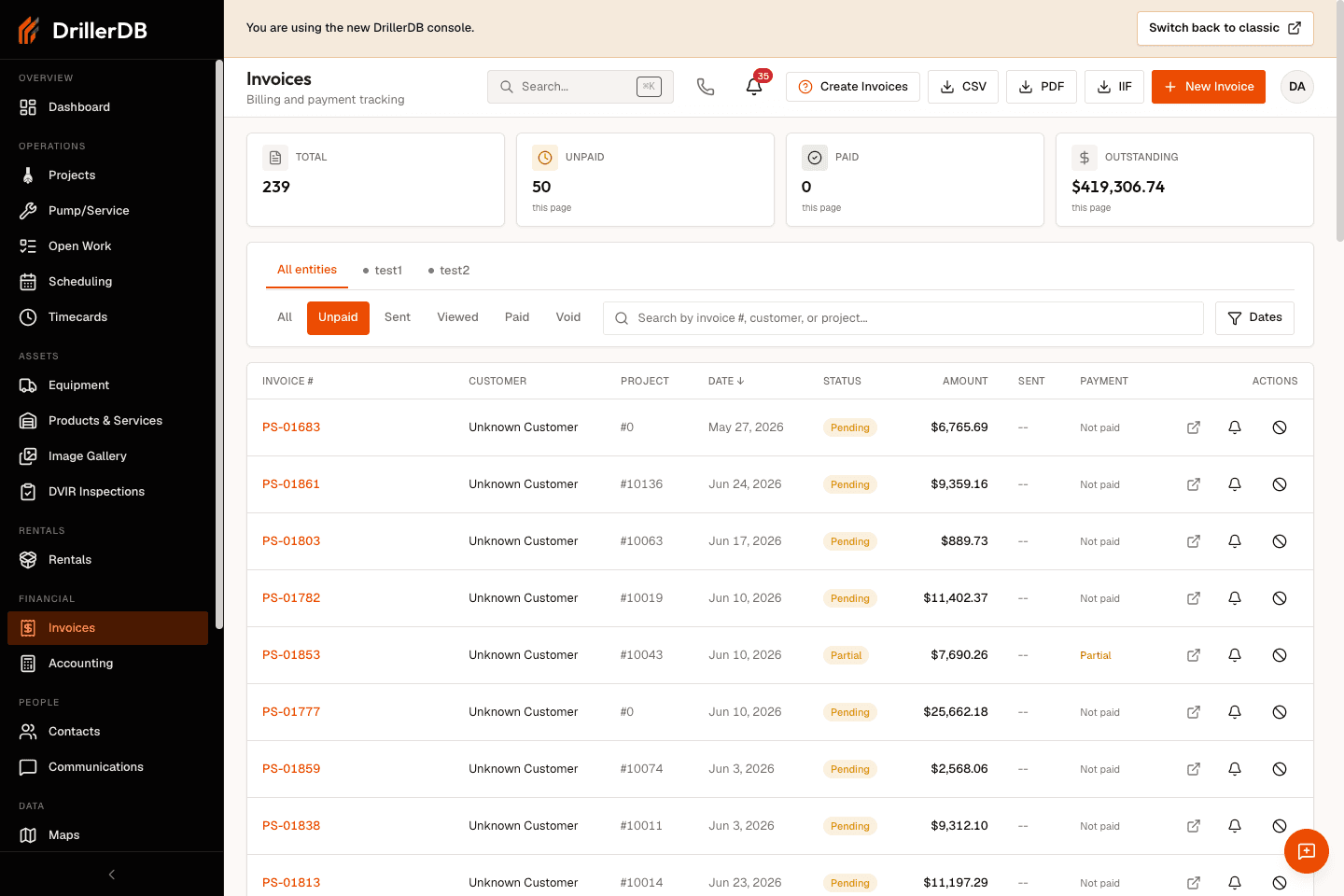
Use status tabs, search, and date filters to narrow the list before opening a customer invoice, sending a reminder, voiding, or exporting records.
Exports, reminders, voids, and customer invoice links are real billing actions. Review filters before touching those controls.
Open Create Invoice
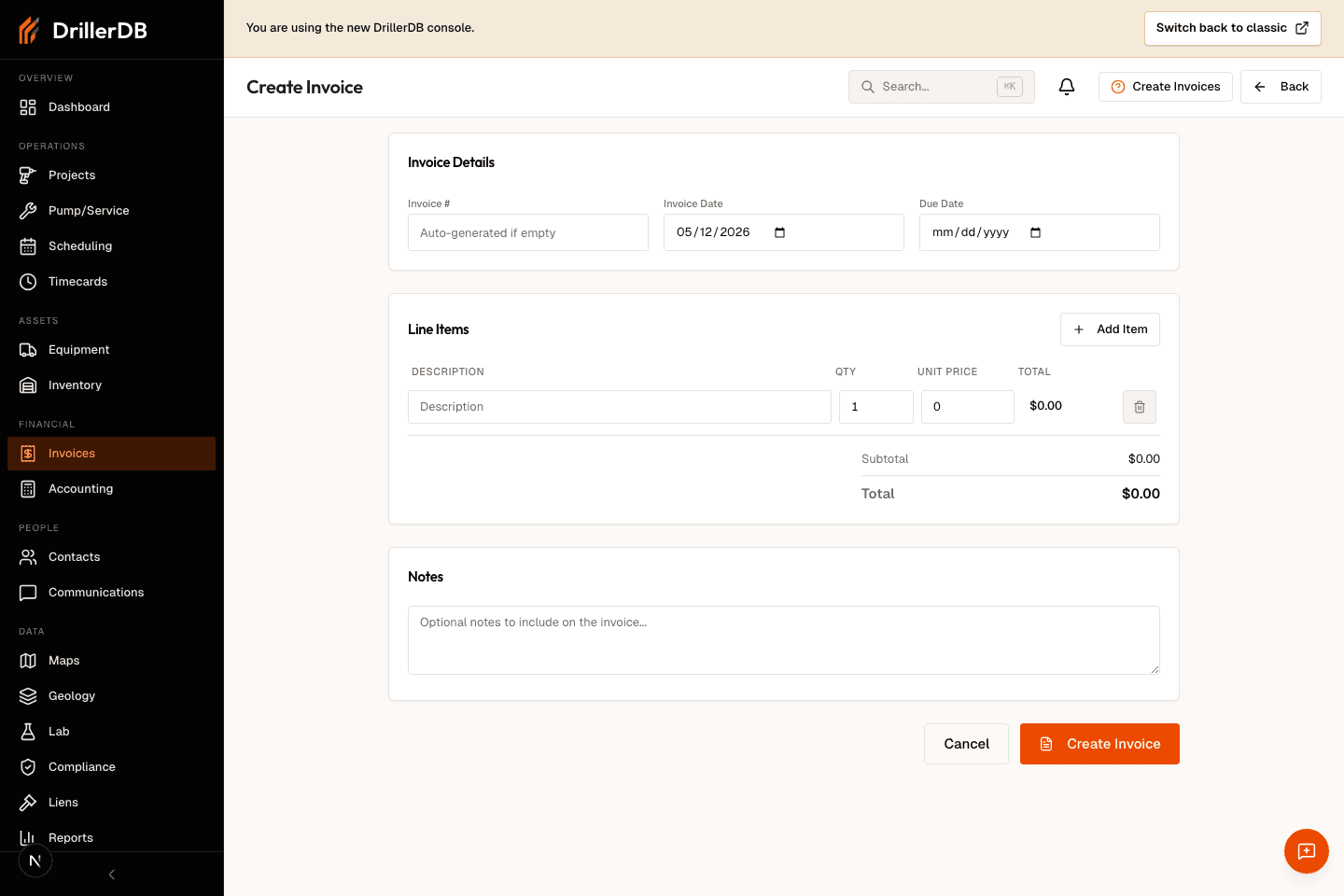
Open the Create Invoice workspace when the office needs to prepare a new invoice. Work orders and project invoice tabs can also open this page with source context prefilled.
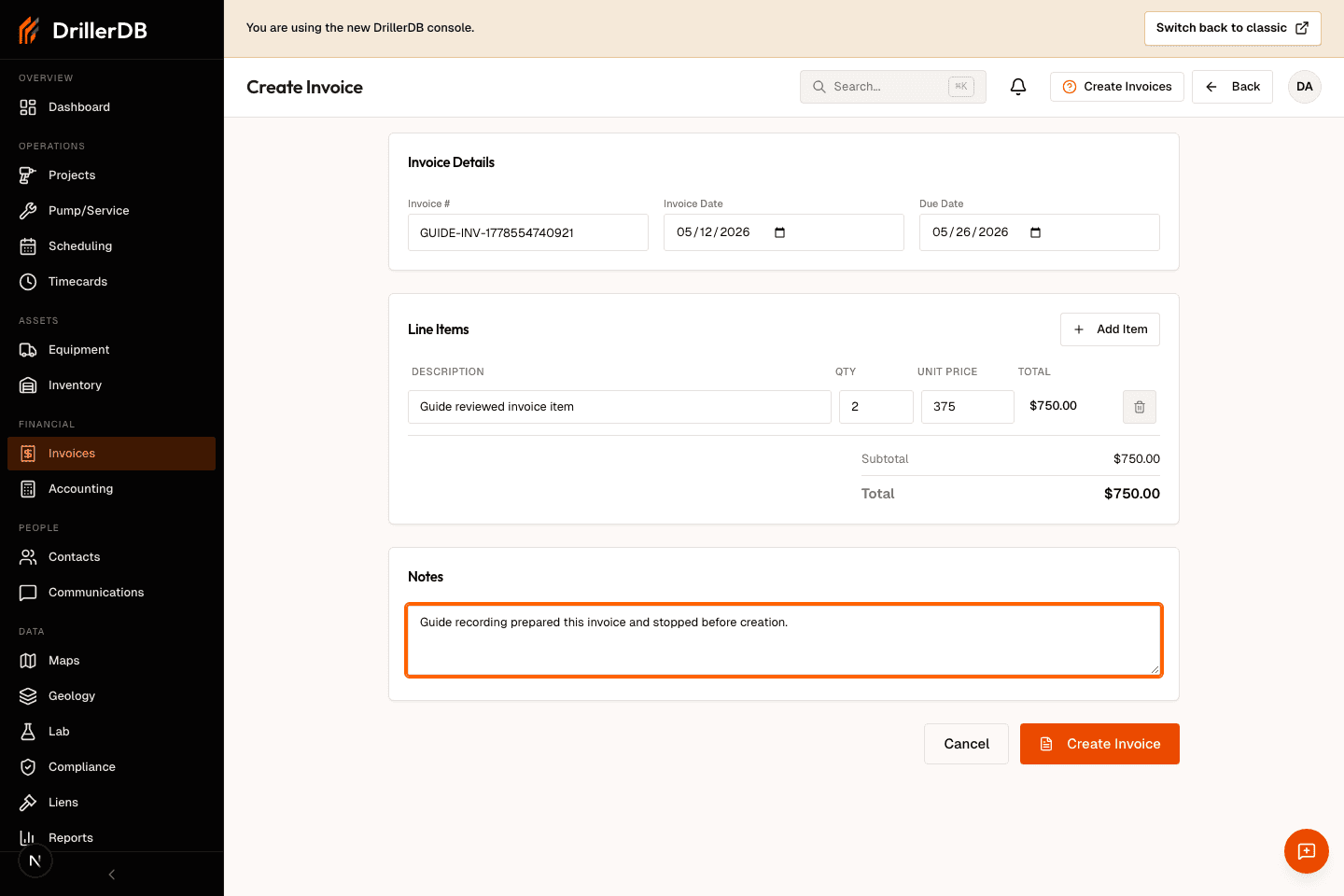
Fill invoice details and line items
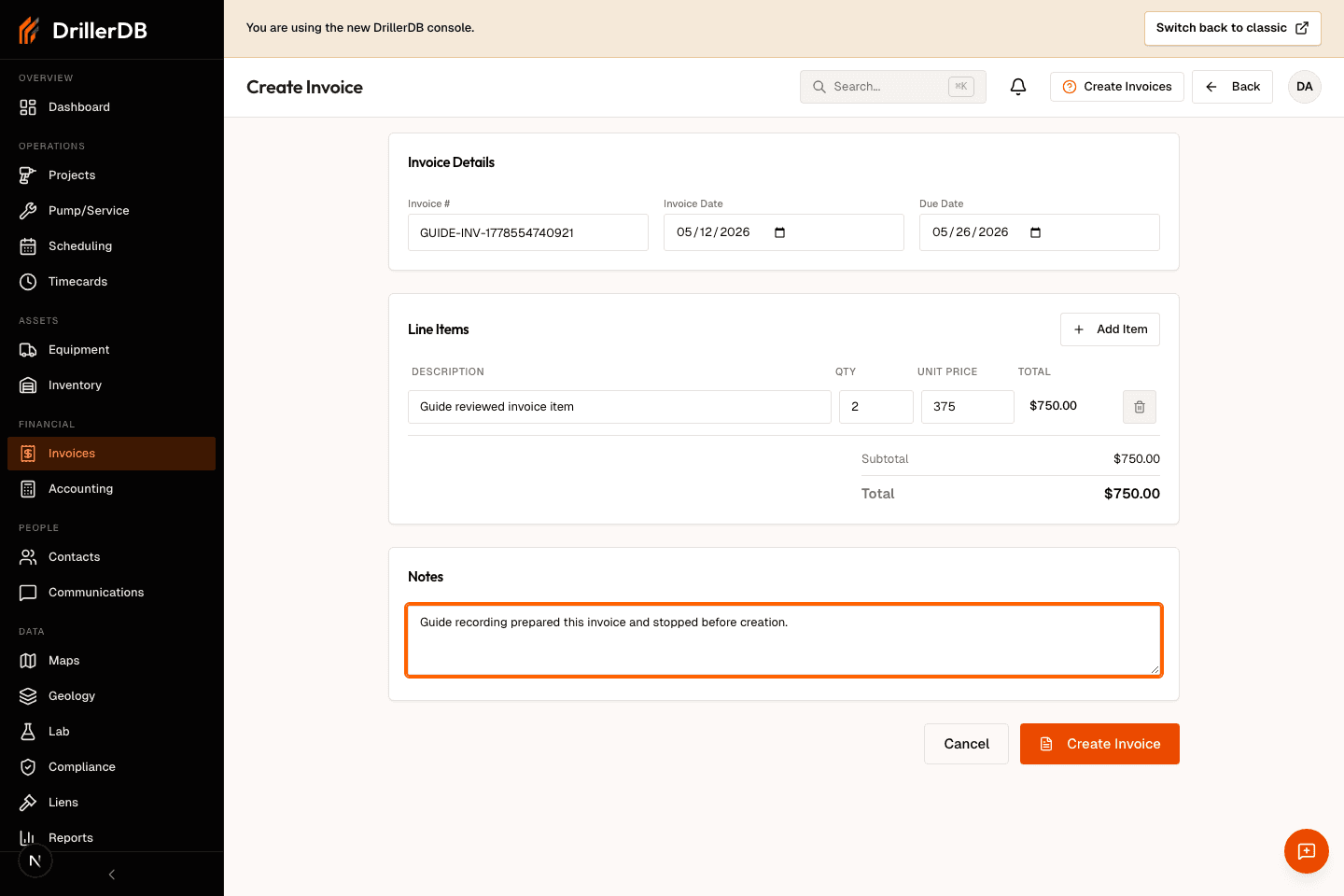
Enter the invoice number if needed, invoice date, due date, line-item description, quantity, unit price, and notes. The total updates from the line items.
Project and Pump/Service invoices should be based on reviewed job data, not a rough estimate.
Create only after billing review
Review the customer/source context, invoice number, dates, line items, total, and notes before clicking Create Invoice. The guide recording stops here and proves the example invoice was not created.
Customer delivery is a later send step. Create the invoice only after the billing record itself is correct.
Billing-record boundary
This guide records the invoice workspace review and prepared-create flow. It does not create an invoice, send a reminder, void a record, export billing data, open a customer invoice, or send customer communication.
Use Create Invoice only after the customer/source context, invoice number, dates, line items, total, and notes are correct. Customer delivery remains a separate send review.