
This guide is based on a browser-recorded walkthrough in the rebuilt DrillerDB console. When a step can send, submit, export, or change account access, the guide calls out the review boundary.
Reports & Analytics is the office review area for month-to-date KPIs, monthly summaries, daily logs, field reports, operational export cards, and analytics tabs for revenue, project pipeline, drillers, invoice aging, and month-over-month trends. This guide is read-only and stops before generating reports, downloading CSV/PDF files, sending monthly reports, or exporting operational data.
Quick Start
- Open Reports and review month-to-date KPI tiles, report sections, operational exports, and year-to-date metrics.
- Open Analytics to compare revenue, pipeline, drillers, invoice aging, and month-over-month tabs.
- Use date filters and refresh before exporting or sharing a report.
- Open Monthly Reports to review generated summaries and admin generator controls.
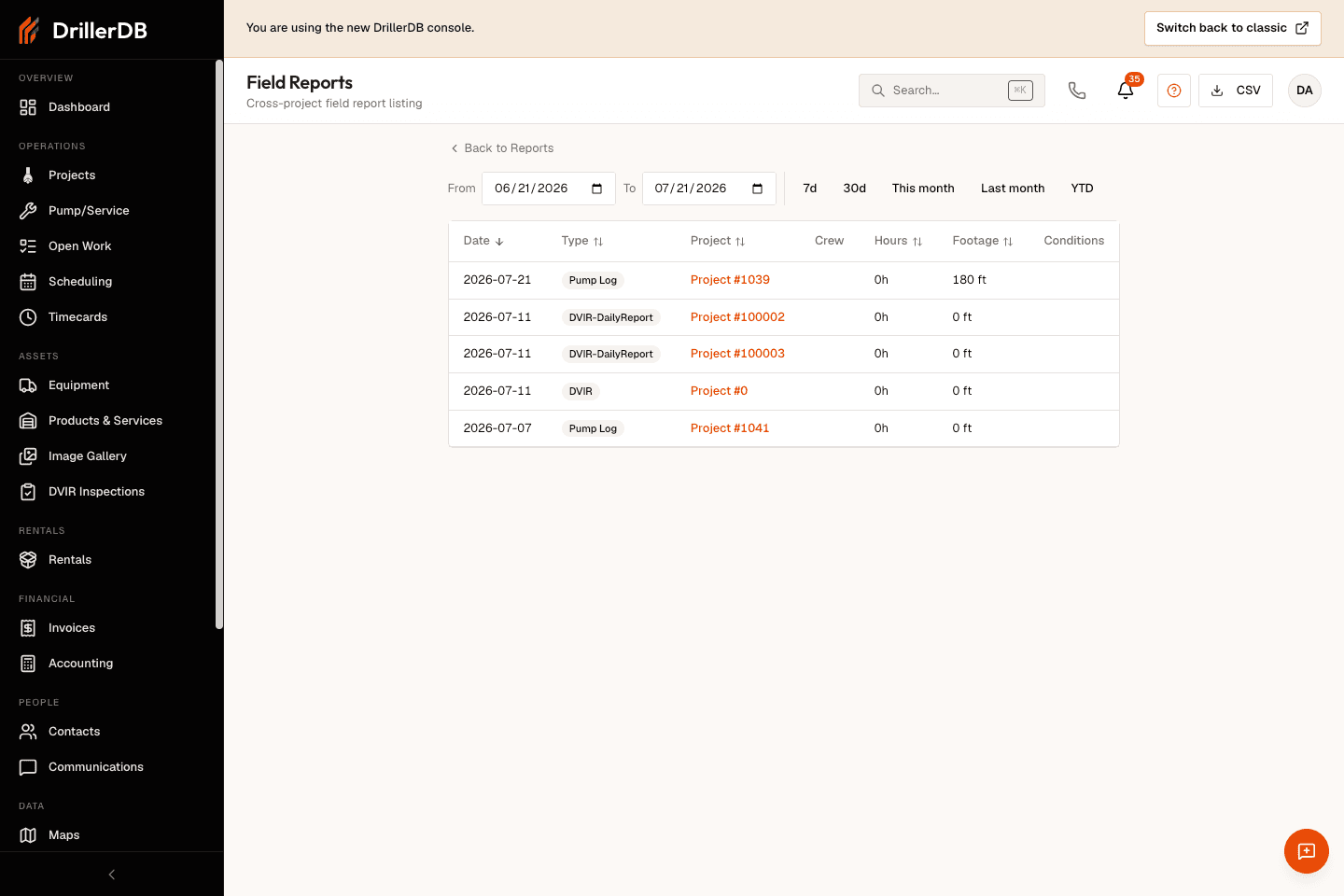
- Open Daily Logs or Field Reports for cross-project operating records, then stop before downloading CSV/PDF files unless the office has approved the export.
Step-by-Step: Reports & Analytics
Open the reports hub
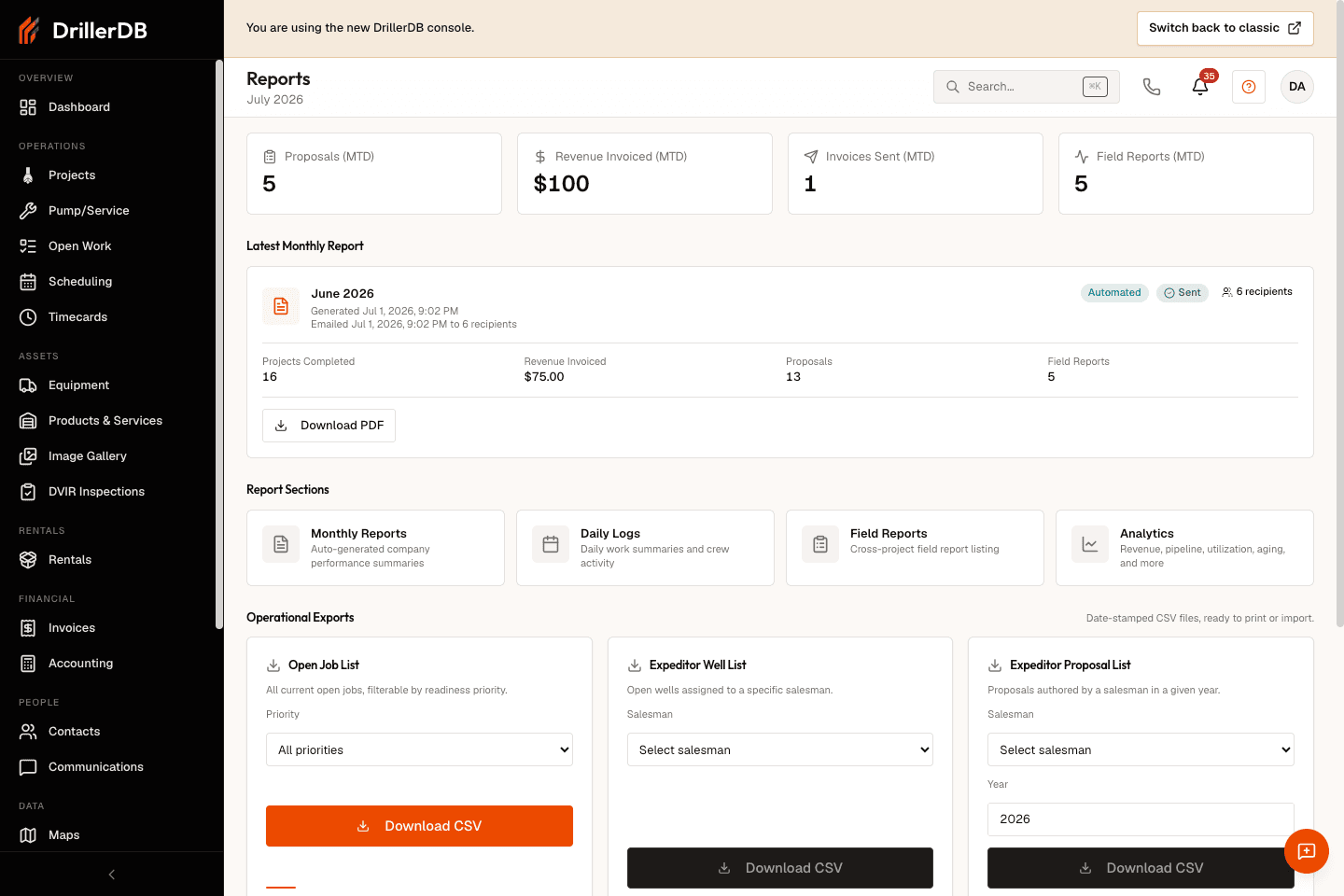
Open Reports to review month-to-date proposals, revenue invoiced, invoices sent, field reports, report-section cards, operational export cards, and year-to-date metrics.
Operational export cards create downloadable files. Review filters first and only download when the office is ready to handle the report file.
Review analytics tabs
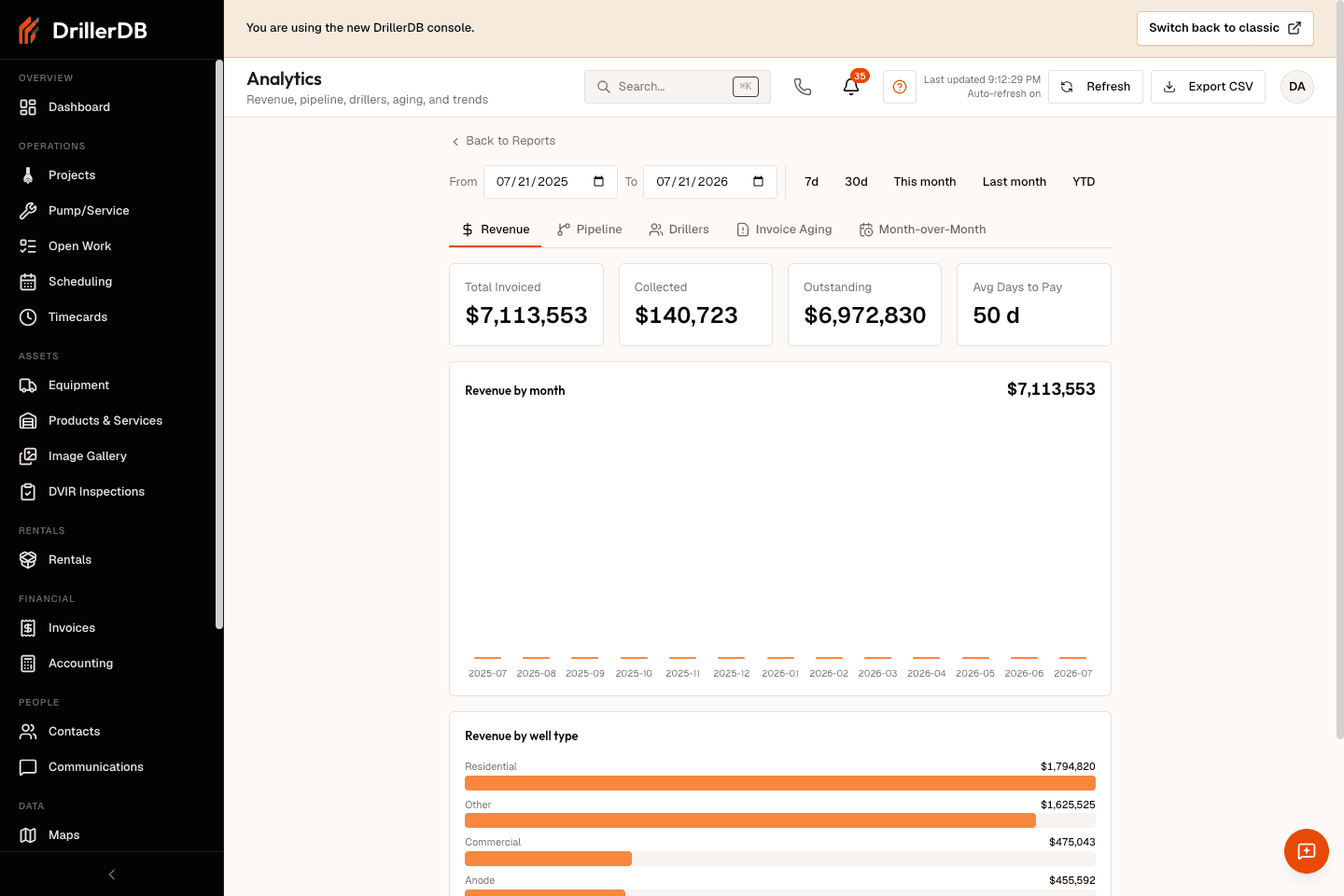
Open Analytics to review revenue, pipeline, drillers, invoice aging, and month-over-month tabs with the shared date-range filter and refresh status.
Inspect pipeline and aging views
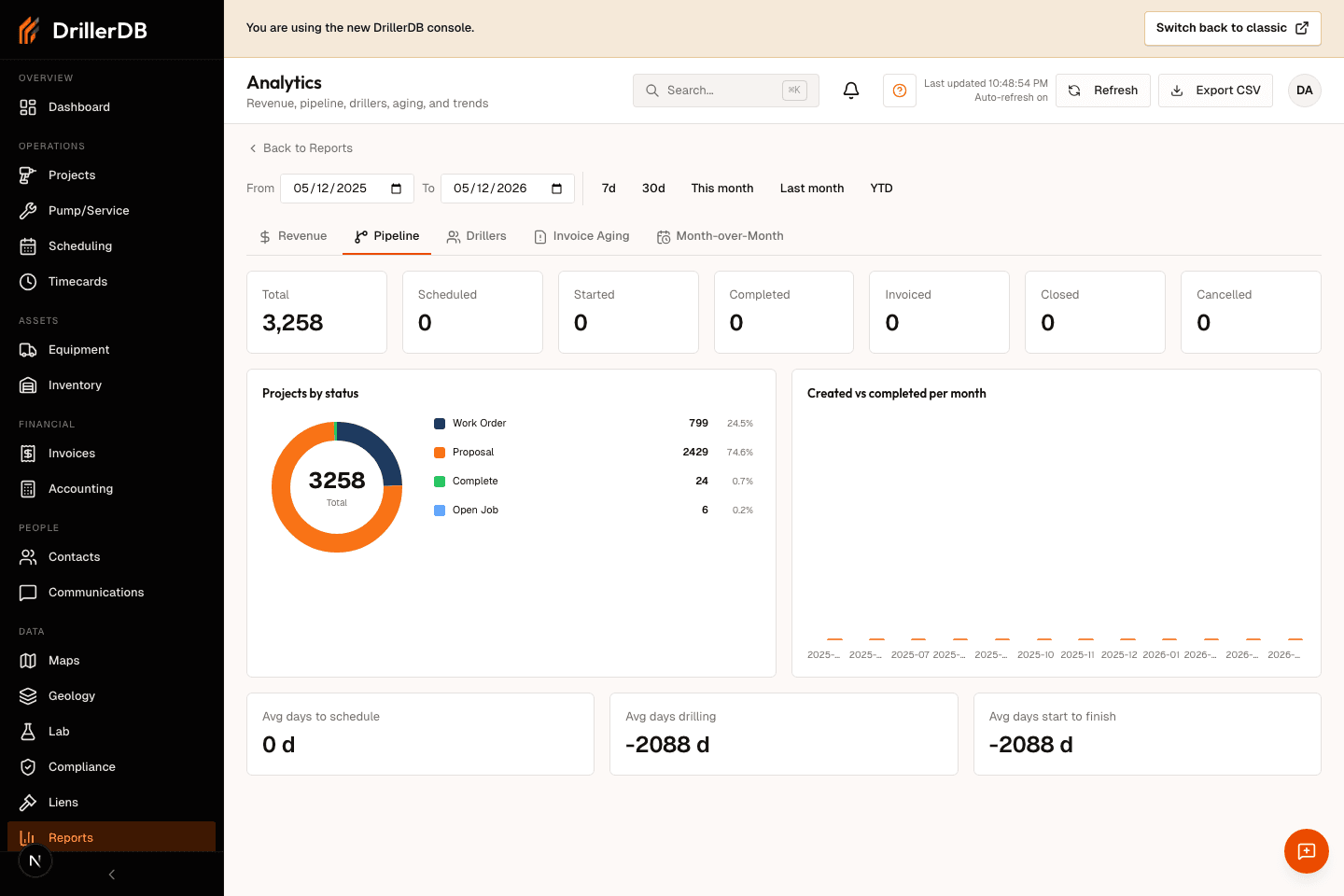
Switch analytics tabs when the office needs to compare project pipeline, driller performance, overdue invoices, or month-over-month trends before exporting anything.
Review monthly report history
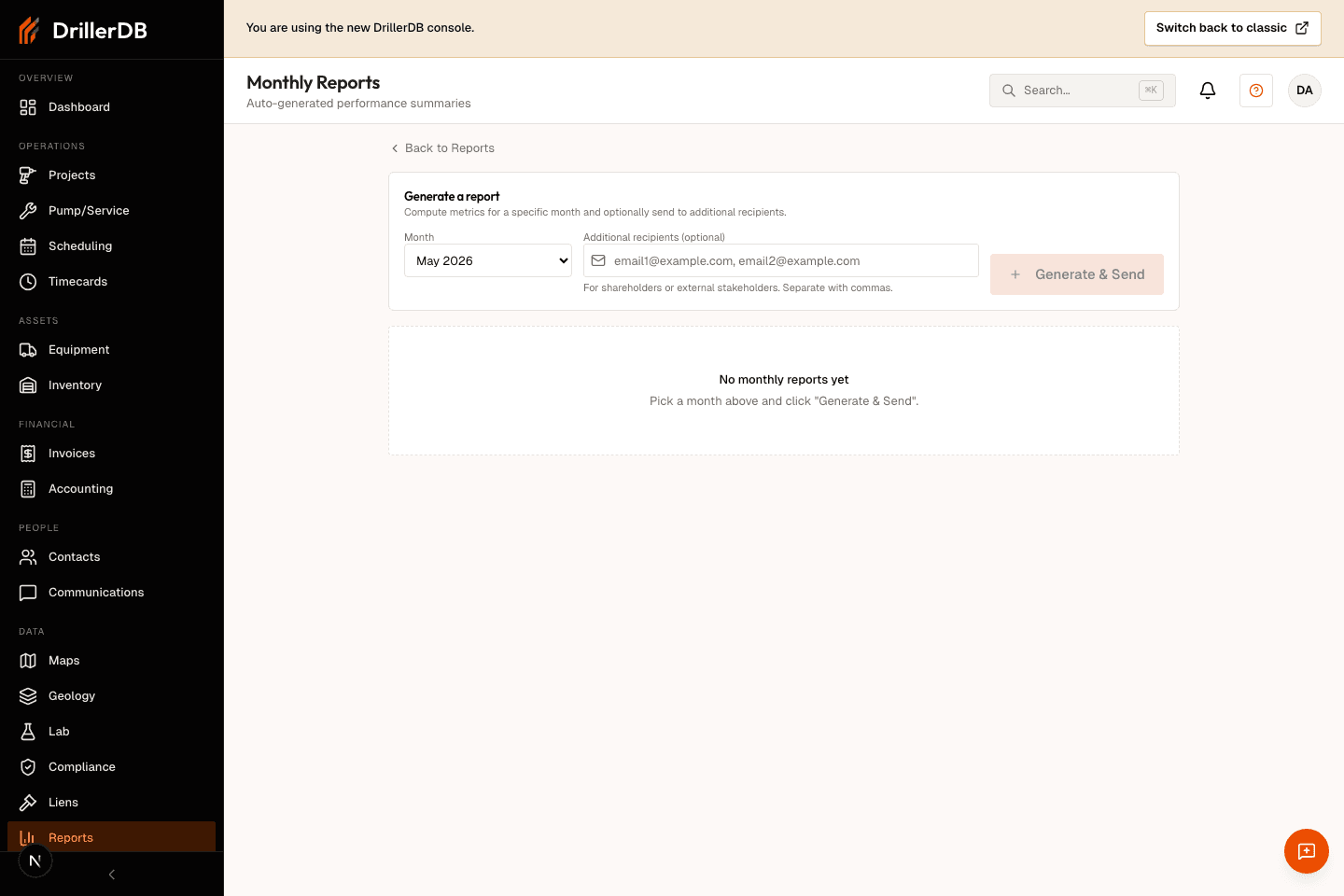
Open Monthly Reports to review generated summaries and the admin report generator. The generator can compute and send report emails, so the guide records the page without clicking Generate & Send.
Check field and daily report lists
Use Daily Logs and Field Reports to review cross-project operating records with date filters. CSV buttons are download actions, so only use them after the date range and recipient workflow are confirmed.
Export and send boundary
This guide records report review surfaces only. It does not download CSV/PDF files, generate monthly report rows, send monthly report email, refresh operational export files, or change source records.
Use Export CSV, report download buttons, and Generate & Send only after the date range, filters, recipients, and downstream use are approved by the office.