
Transactions
Every change to a material's stock creates a transaction. The Transactions tab in Products & Services is the running log of those changes: material usage from jobs, manual adjustments, and receipts. Together they form the audit trail behind every quantity on hand.
Quick Start: Record a Transaction
- Select Products & Services in the sidebar
- Open the item you want to change
- Click Adjust Stock
- Choose Add, Remove, or Set
- Enter the quantity and a reason note
- Save the adjustment
Usage transactions are created for you when crews record materials on projects and work orders, so most of the log fills in automatically.
Transaction Types
The Transactions tab labels each entry by how the stock changed.
| Type | When it is created |
|---|---|
| Added | Stock added by an adjustment or receipt |
| Removed | Stock removed by an adjustment |
| Adjusted | A manual correction |
| Project Usage | Materials consumed on a project or work order |
| Set | Quantity overwritten to an exact count |
Recording Material Usage
When materials are attached to a project or work order, saving the record creates Project Usage transactions and decrements material stock. Those entries link back to the project, so you can trace which jobs consumed which materials.
Step-by-Step: Log Usage from a Project
- Open the project or work order
- Add the materials and quantities used
- Save the record
- Usage transactions are created and stock decrements automatically
Stock Adjustments
Adjustments change a material's quantity directly, without a project reference.
| Situation | Adjustment |
|---|---|
| Received a shipment | Add |
| Damaged or wasted stock | Remove |
| Physical count differs | Set to the counted quantity |
| Opening balance | Add or Set |
Every adjustment requires a reason note. Clear notes such as "Received PO 1234" give the next person context when they review the history.
Reviewing the Transaction Log
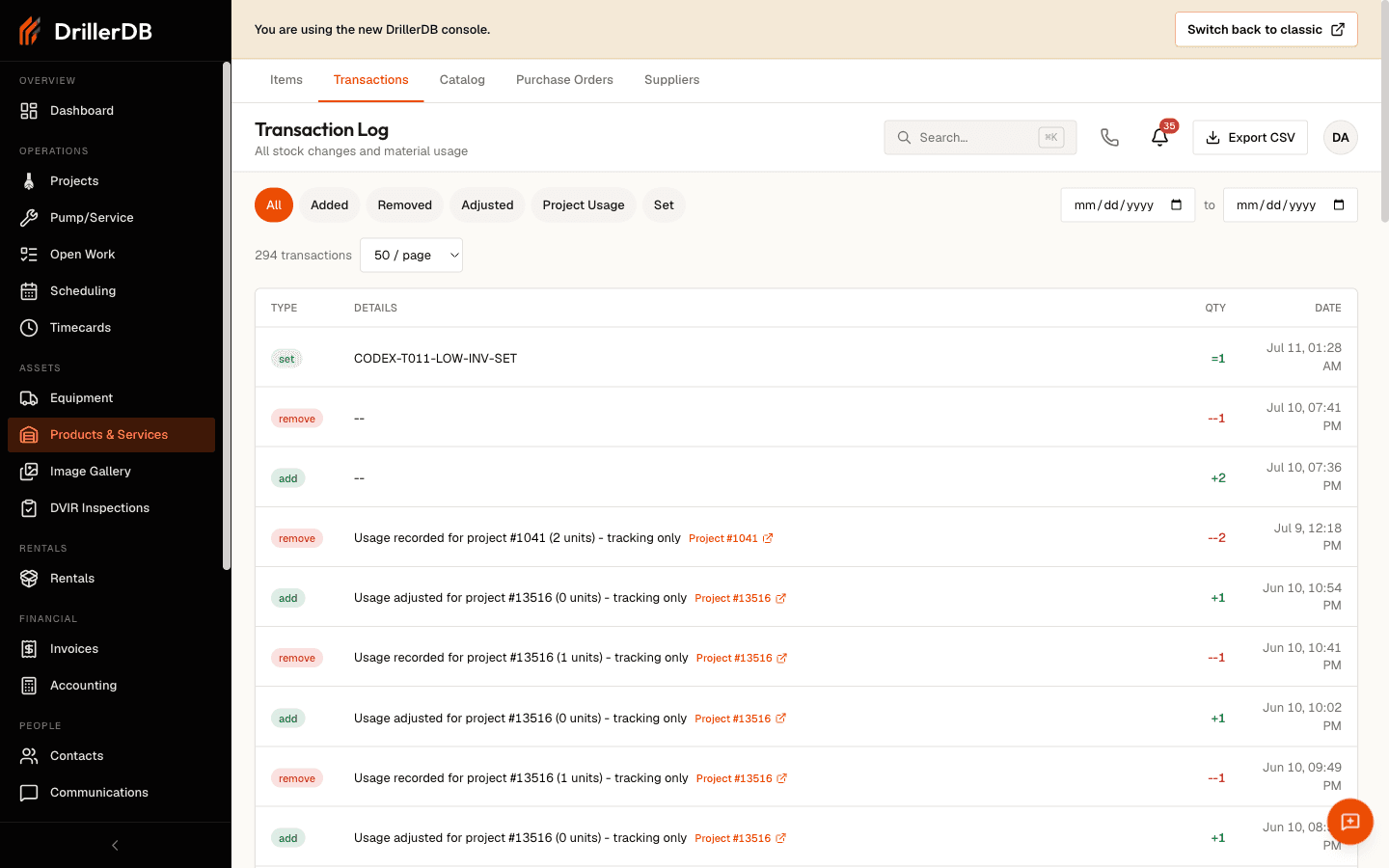
The Transactions tab lists entries newest first, with these columns.
| Column | Shows |
|---|---|
| Type | Added, Removed, Adjusted, Project Usage, or Set |
| Details | The reason note, plus a link to the project for usage |
| Qty | The amount added or removed |
| Date | When the change was recorded |
Filtering the Log
| Filter | Use for |
|---|---|
| Type chips | Show one kind of transaction |
| Date range | Narrow to a period for reconciliation |
| Per page | Show 25, 50, or 100 rows |
Use Export CSV to pull the filtered log into a spreadsheet for reconciliation or reporting.
Item-Level History
Each item's detail page has its own transaction history covering just that item, so you can trace a single material's movements without filtering the whole log.
To correct a mistake, record a new adjustment that offsets it rather than trying to delete the original. That keeps the audit trail intact.
Troubleshooting
A transaction isn't showing?
- Clear the type and date filters
- Confirm the adjustment saved
A quantity looks wrong?
- Record a correcting adjustment with an explanatory note
- Leave the original entry in place for the audit trail
Can't create an adjustment?
- Confirm the reason note is filled in
- Check that your user has access to Products & Services
Related Topics
- Managing Items - View and organize items
- Stock Level Tracking - Reorder points and status
- Reporting & Exports - Usage and cost analysis
- Purchase Orders - Track ordering and receiving