
Purchase Orders
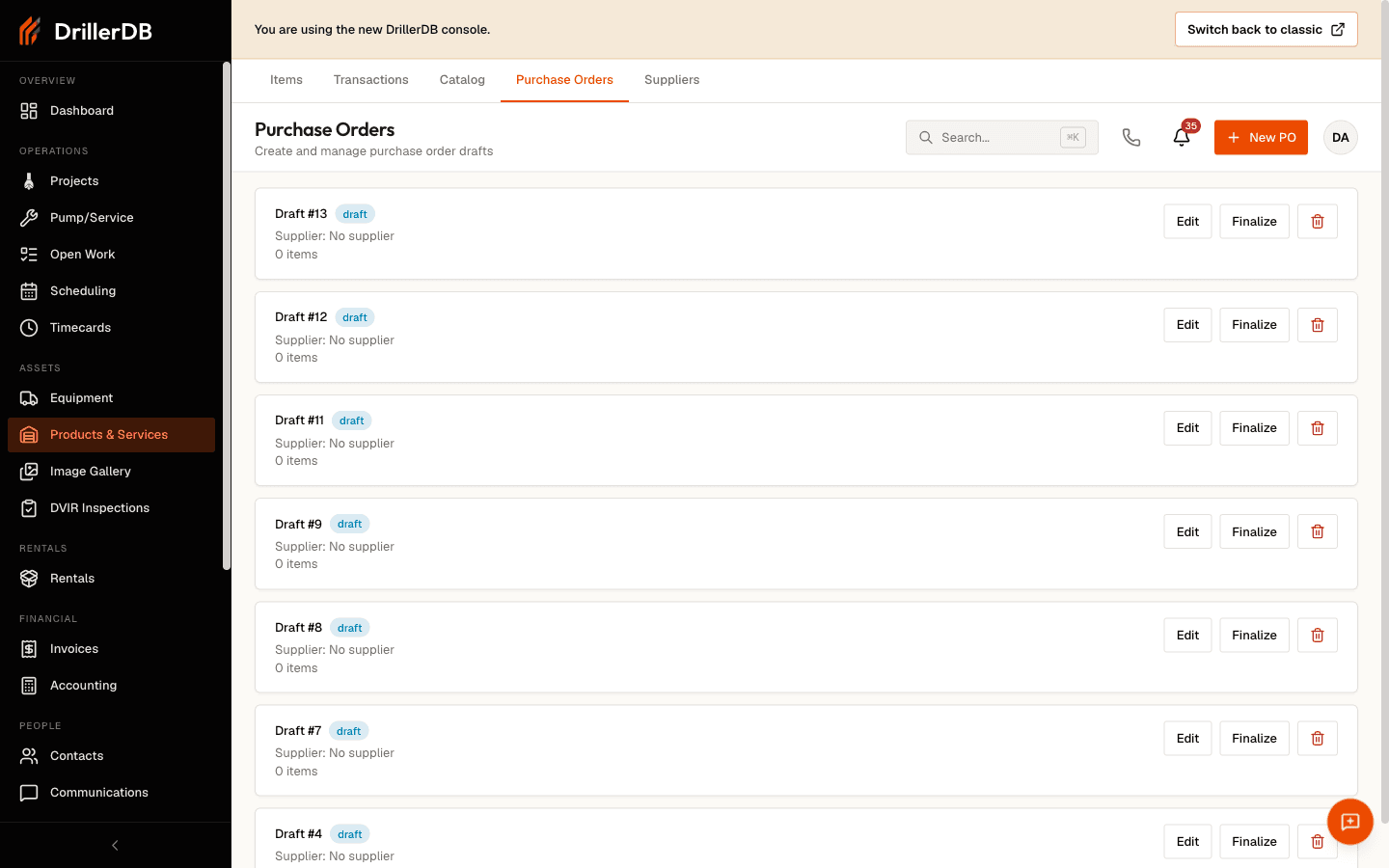
Purchase orders in Products & Services help you formalize what you are ordering from a supplier and keep a record of it. You build an order as a draft, refine its line items, then finalize it to assign a PO number.
Quick Start: Create a Purchase Order
- Open Products & Services, then the Purchase Orders tab
- Click New PO
- Select a supplier
- Add line items (from the catalog, recent usage, or by hand)
- Review the order and click Create Draft
- Finalize the draft when it is ready to send
Suppliers
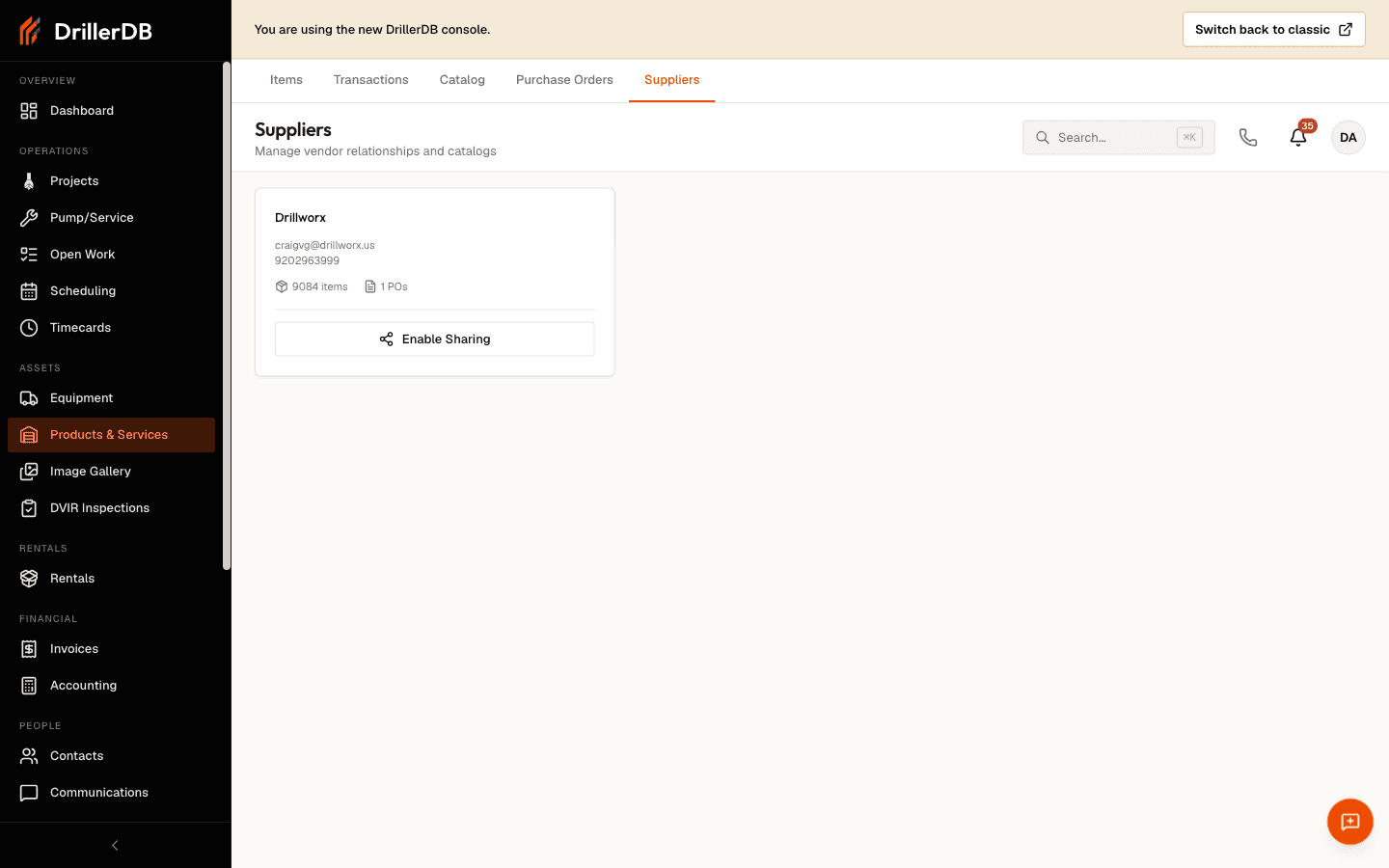
Purchase orders are built against your connected suppliers, managed on the Suppliers tab.
| Element | Purpose |
|---|---|
| Supplier card | Contact details and catalog/PO counts for each vendor |
| Data sharing | Toggle whether a supplier's catalog is shared with your account |
Enabling data sharing with a supplier lets you browse their catalog and pull products straight onto a purchase order. Suppliers appear here once they are connected to your account.
Supplier Catalog
The Catalog tab lets you browse the products of any supplier you have enabled.
- Open the Catalog tab and pick a supplier
- Search or filter their products by category
- Click the cart icon on a product to add it to a purchase order draft
Each product shows its wholesale price, MSRP, and minimum order quantity, so you can compare and order without leaving the page.
Building a Purchase Order
The New PO flow is a three-step wizard.
Step 1: Select a Supplier
Pick from your connected suppliers. If none are listed, connect one on the Suppliers tab first.
Step 2: Add Items
You have three ways to add line items, and you can mix them.
| Method | How it works |
|---|---|
| Catalog search | Start typing in a line and choose a matching item from your catalog; price and unit prefill |
| Add from usage | Pull your recent usage (last 14, 30, or 60 days) in as suggested lines |
| Manual entry | Type a description, quantity, and unit price for anything not in the catalog |
Step 3: Review and Create
Check the supplier, line items, and total, then click Create Draft. The draft opens in the Purchase Order Builder.
The Purchase Order Builder
Opening a draft gives you the full editor.
| Section | What you can do |
|---|---|
| Draft details | Set the requested delivery date, delivery address, supplier notes, and internal notes |
| Line items | Edit description, quantity, and unit price; add manual items; remove lines |
| Usage suggestions | Add recently used items for this supplier with one click |
Draft field changes auto-save after a few seconds, and Save Draft commits them immediately.
Finalizing an Order
When the draft is complete, click Finalize Purchase Order. Finalizing converts the draft into a supplier purchase order and assigns it a PO number. Drafts you have not finalized stay editable; a finalized order is locked as a record of what you committed to.
| Status | Meaning | Editable? |
|---|---|---|
| Draft | Still being built | Yes |
| Finalized | Converted to a numbered PO | No |
Receiving Materials
Receiving stock is a manual step: finalizing a purchase order records the order but does not change inventory quantities. When a shipment arrives, record what you received with stock adjustments.
Step-by-Step: Record Received Materials
- Open Products & Services
- For each item received, open it and click Adjust Stock
- Choose Add and enter the received quantity
- Note the PO number in the reason (for example, "Received PO 1234")
- Repeat for each item on the order
Referencing the PO number in each adjustment note ties the receipt back to the order, so the transaction history reads as a clean receiving record.
Handling Discrepancies
| Discrepancy | What to record |
|---|---|
| Short shipment | Add only what arrived; receive the rest later |
| Over shipment | Add the actual quantity and note the variance |
| Wrong items | Note the discrepancy and contact the supplier |
| Damaged goods | Add the undamaged quantity; note the damage |
When to Use Purchase Orders
Purchase orders are optional. Use them when you want an ordering record and a committed total; skip them for simple, direct buying and just record receipts as stock adjustments.
Troubleshooting
No suppliers to choose from?
- Connect a supplier and enable data sharing on the Suppliers tab
Can't finalize a draft?
- Add at least one line item; empty drafts cannot be finalized
Inventory didn't change after finalizing?
- That is expected. Record receipts with stock adjustments referencing the PO
Related Topics
- Managing Items - View the catalog
- Transactions - Record received stock
- Stock Level Tracking - Reorder points and status
- Reporting & Exports - Analyze spending and usage